





How to Create a Disbursement Activity
Disbursement activities in Liradocs allow you to track, record, and manage third-party costs incurred on behalf of a client. These activities are essential for accurate billing, compliance, and maintaining properly balanced trust accounts. Once created, disbursement activities can be linked to client invoices and will automatically be included when the invoice is generated.
Step 1: Navigate to Time & Activities
Go to Settings in Liradocs.
From the settings menu, select Time & Activities.
Step 2: Create a New Activity
Click the Create Activity button.
In the Activity Type dropdown, select Disbursement.
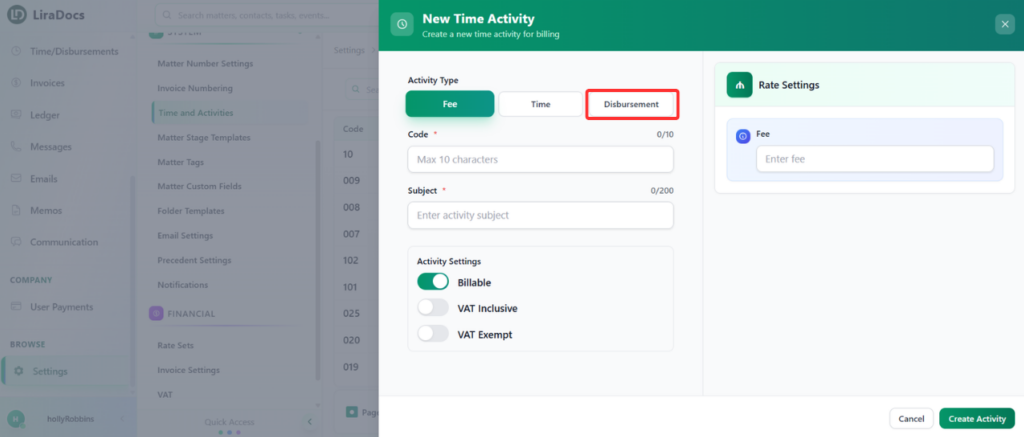
Step 3: Enter Activity Details
Activity Code: Enter a unique code to identify the disbursement activity.
Subject: Add a subject describing the disbursement.
Default Quantity: Set the default number or amount for this activity.
Step 4: Specify Cost Type
Disbursements can be categorized as either:
Hard Cost: Direct and tangible expenses essential to a matter, such as:
Court filing fees
Expert witness fees
Deposition transcript costs
Soft Cost: Indirect or internal expenses incurred on behalf of the client, such as:
In-house photocopying, printing, or scanning
Postage or telephone charges
Step 5: Billing and VAT Settings
Choose whether the disbursement is Billable or Non-Billable.
Select whether the amount is VAT Inclusive or VAT Exempt.
Step 6: Enter the Price
Input the price for the disbursement activity.
Step 7: Save the Activity
After completing all required fields, click Create Activity.
Your new disbursement activity is now successfully created in Liradocs.
This structured process ensures that all disbursement activities are properly recorded and automatically linked to client invoices, streamlining billing and financial management.
