





How To Create A Matter
Matters are the core of your workflow in Liradocs. They allow you to organize all case-related information, including contacts, stages, documents, and activities, in one place.
Follow the steps below to create a new matter in Liradocs.
Step 1: Open the Matters Section
First, navigate to the Matters tab from the main menu.
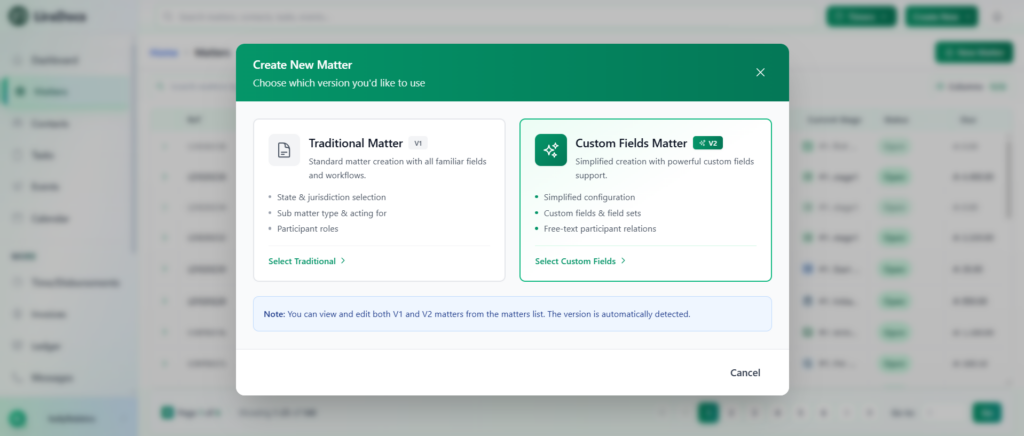
Click on the New Matter button to start creating a new matter.
You may see two versions available for creating a matter. For this guide, select Version 2 (V2).
Step 2: Select Matter Type
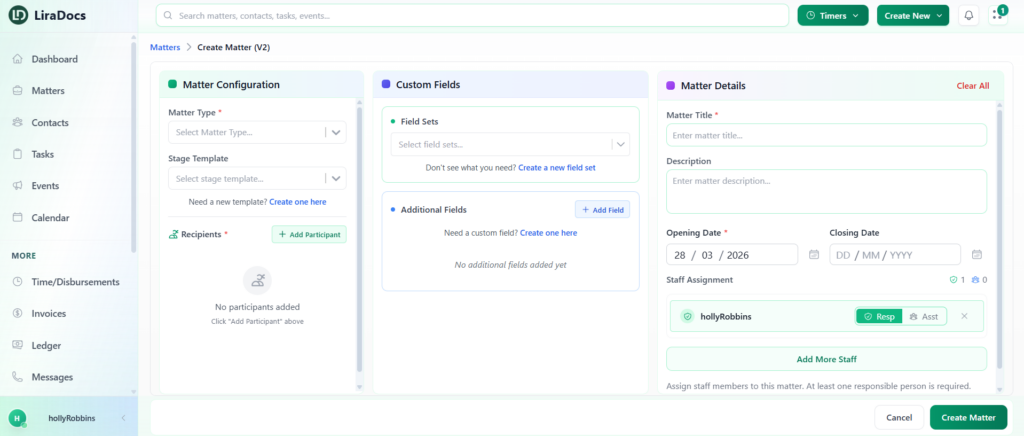
After opening the matter creation page, begin by selecting the Matter Type.
For example, you may choose Business or another category depending on the type of case you are creating.
Step 3: Select a Stage Template
Next, choose a Stage Template from the dropdown menu. Stage templates help define the workflow stages that the matter will go through.
If the template you need does not exist, you can create a new one.
Creating a New Stage Template
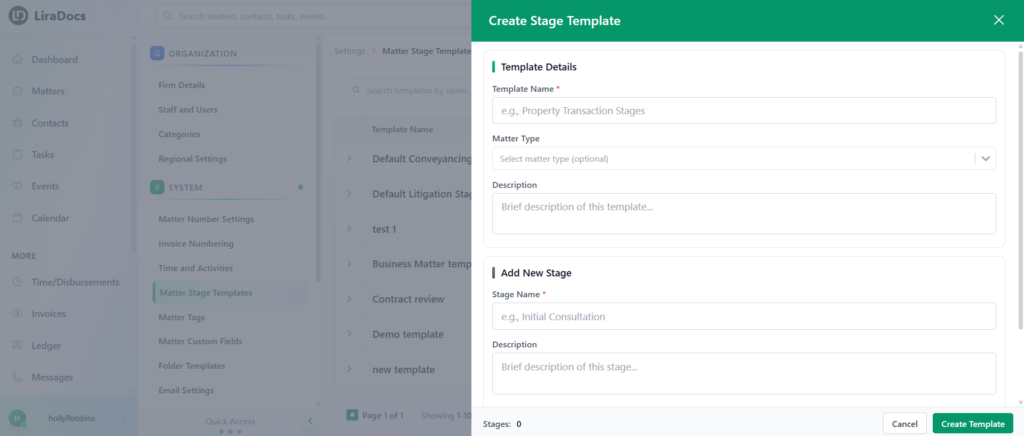
Click on the option to create a New Template.
Enter a Template Name.
Select the Matter Type associated with the template.
Optionally, add a description for the template.
Next, begin adding stages to the template:
Enter the Stage Name.
Optionally add a description for the stage.
Select a color for the stage.
Choose an icon.
Repeat the process to add as many stages as required.
Once all stages are added, click Create Template.
The newly created stage template will now be available for selection.
Step 4: Add Participants
Next, add participants to the matter.
You can select contacts from your contact list and assign their relationship to the matter, such as client, opposing party, or another role.
Step 5: Select a Custom Field Set
In the Custom Fields section, select a Field Set.
Field sets contain predefined fields that collect specific information related to certain matter types.
Creating a New Field Set
If the required field set does not exist:
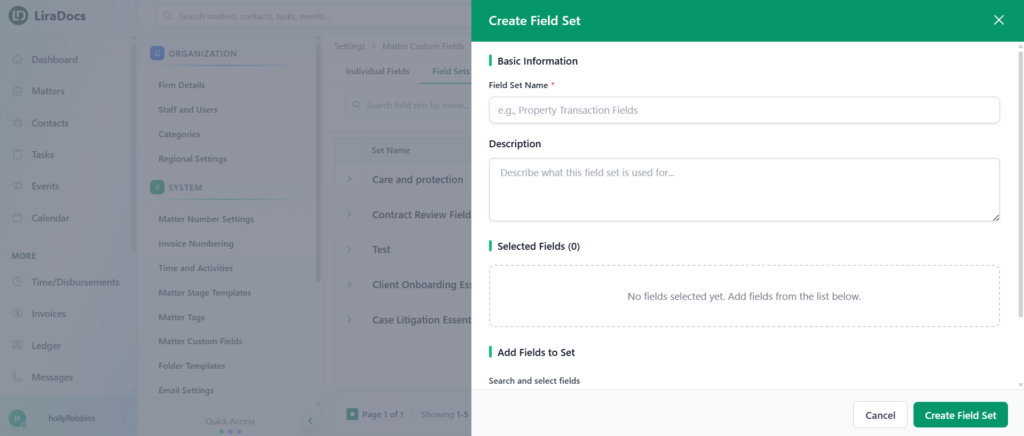
Click New Field Set.
Enter a Field Set Name.
Optionally add a description.
Select the fields you want to include in the field set.
Once the fields are selected, click Create Field Set.
Return to the matter creation page and select the newly created field set.
Step 6: Fill in Custom Fields
After selecting the field set, fill in the required information in the displayed fields.
If needed, you can also add extra fields.
Adding an Additional Field
Click Add Field.
Select the field you want to include (for example, Client Name).
Click Add.
The selected field will appear in the form and can be filled in.
Step 7: Enter Matter Details
Next, complete the Matter Details section.
Provide the following information:
Matter Title
Short Description
Opening Date
Closing Date
You can also assign staff members to the matter.
Select whether you are assigned as Responsible or Assistant, and add additional staff members if required.
Step 8: Create the Matter
Once all the required information has been entered, click the Create Matter button.
Your new matter will now be successfully created and added to the system.
Creating matters in Liradocs allows your firm to organize case information efficiently and manage workflows in a structured and flexible way.
