





How to Create a Rate Set
Rate sets allow you to define hourly billing rates for individual staff members. They help automate billing and ensure accurate invoicing across all matters.
Follow the steps below to create a new rate set in Liradocs.
Step 1: Navigate to Rate Sets
Go to Settings in Liradocs.
Scroll down and select Rate Sets.
Click the Create Rate Set button to start a new rate set.
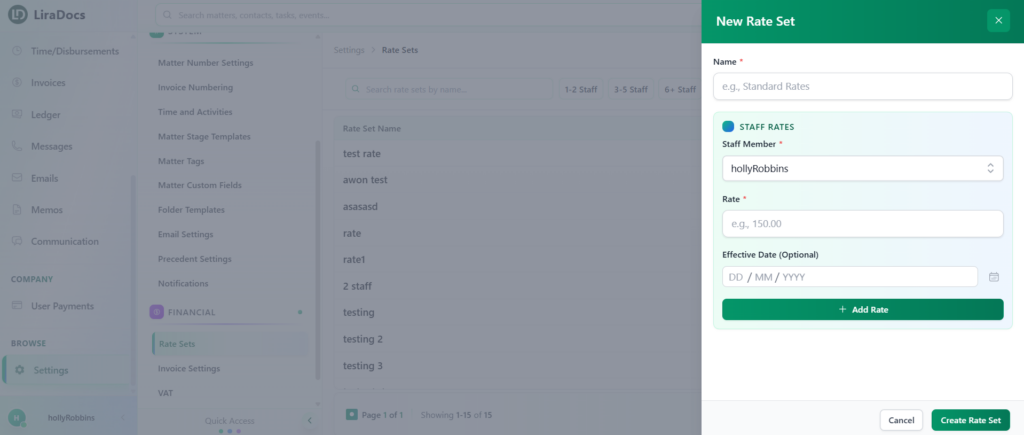
Step 2: Enter Rate Set Details
Enter a Name for your rate set to identify it.
Select the Staff Member for whom you want to assign an hourly rate.
Enter the Hourly Rate for the selected staff member.
Optionally, you can choose an Effective Date for the rate, though this step can be skipped.
Step 3: Add the Rate
Click the Add Rate button to assign the rate to the selected staff member.
Repeat the process for additional staff members if needed.
Step 4: Create the Rate Set
Once all staff rates are added and details are complete, click the Create Rate Set button.
Your new rate set has now been successfully created and is ready to use in Liradocs.
This ensures accurate billing and simplifies time-based invoicing for all staff members.
