





How to Create a Folder Template
Folder templates help you standardize and automate how folders are created for each matter. Instead of manually setting up folders every time, you can use a predefined structure to ensure consistency and save time.
Follow the steps below to create a folder template in Liradocs.
Step 1: Navigate to Folder Templates
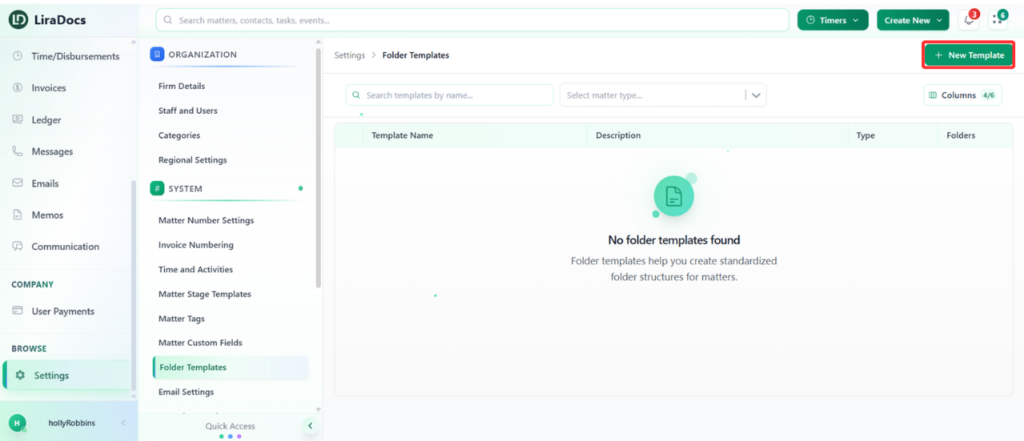
Go to Settings in Liradocs.
Select Folder Templates from the settings menu.
Step 2: Create a New Template
Click on the New Template button.
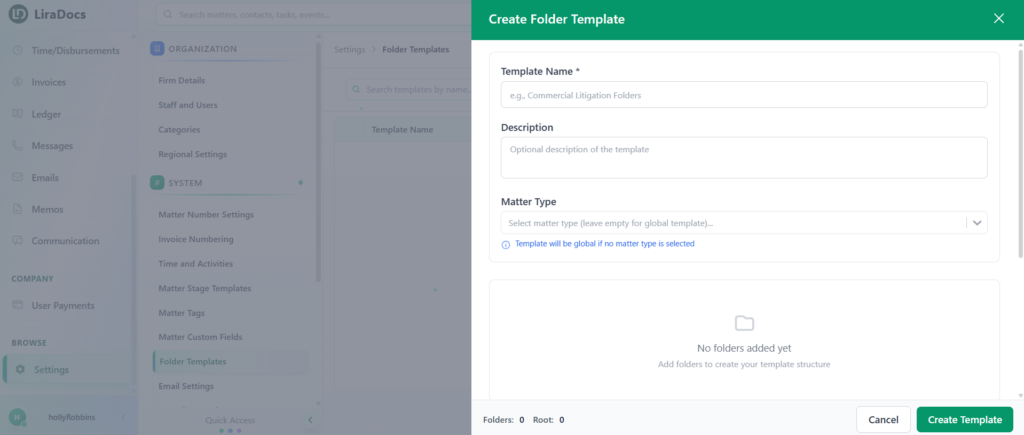
Enter a Template Name.
(Optional) Add a Description for the template.
Step 3: Select Matter Type (Optional)
You can choose a Matter Type if you want the template to apply only to specific types of matters.
Leave this blank if you want to create a global template that can be used for all matters.
Step 4: Create Parent Folder
Enter the name of your first folder (e.g., Clients and Administration).
Click Add Folder.
This will create a parent folder in your template.
Step 5: Add Subfolders
Under the parent folder, add subfolders by entering their names.
Click Add Folder after each entry.
For example:
Client Information
Agreements
These will be created as subfolders under the parent folder.
Step 6: Create the Template
Once all folders are added and organized, click Create Template.
Your folder template is now successfully created and ready to use.
Using folder templates ensures consistent document organization across all matters and helps streamline your workflow.
