





How to Create a Disbursement Activity
A Disbursement Activity in Liradocs is used to track, record, and manage third-party costs incurred on behalf of a client. These expenses are essential for accurate billing, compliance, and proper financial management.
Disbursement activities can be linked to client invoices and are automatically included when generating invoices, ensuring that all costs are properly accounted for.
Step 1: Navigate to Time & Activities
Go to Settings in Liradocs.
From the settings menu, select Time & Activities.
Step 2: Create a New Activity
Click on the Create Activity button.
Select Disbursement as the activity type.
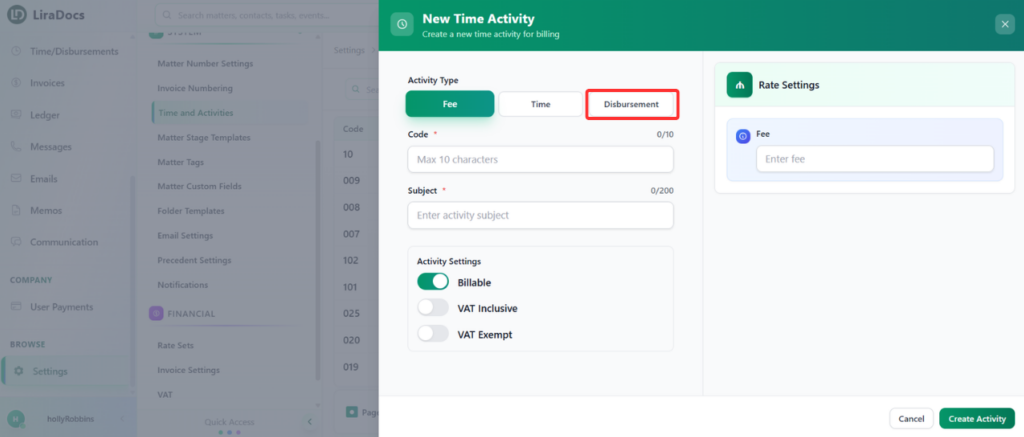
Step 3: Enter Basic Details
Fill in the required information for the disbursement activity:
Activity Code: Enter a unique code for the activity.
Subject: Add a name or description for the disbursement.
Default Quantity: Set a default quantity if applicable.
Step 4: Select Cost Type
Choose the type of disbursement:
Hard Cost: Direct, external expenses such as:
Court filing fees
Expert witness fees
Deposition transcript costs
Soft Cost: Internal expenses such as:
Photocopying
Printing or scanning
Postage or telephone charges
Step 5: Configure Billing Options
Select whether the activity is:
Billable or Non-billable
Choose the VAT option:
VAT Inclusive or VAT Exempt
Step 6: Enter Pricing
Enter the price for the disbursement activity.
Step 7: Create the Activity
Once all details are completed, click on the Create Activity button.
Your disbursement activity is now successfully created in Liradocs and ready to be used in invoices.
This setup ensures that all client-related expenses are properly tracked and billed efficiently.
