Matter stages help track the progress of a matter through different phases of work. Updating the stage allows your team to clearly see where a matter currently stands in the workflow.
Follow the steps below to change the stage level of a matter in Liradocs.
Step 1: Go to the Matters Tab
First, navigate to the Matters tab from the main menu.
Locate the matter whose stage you want to update and click to open it.
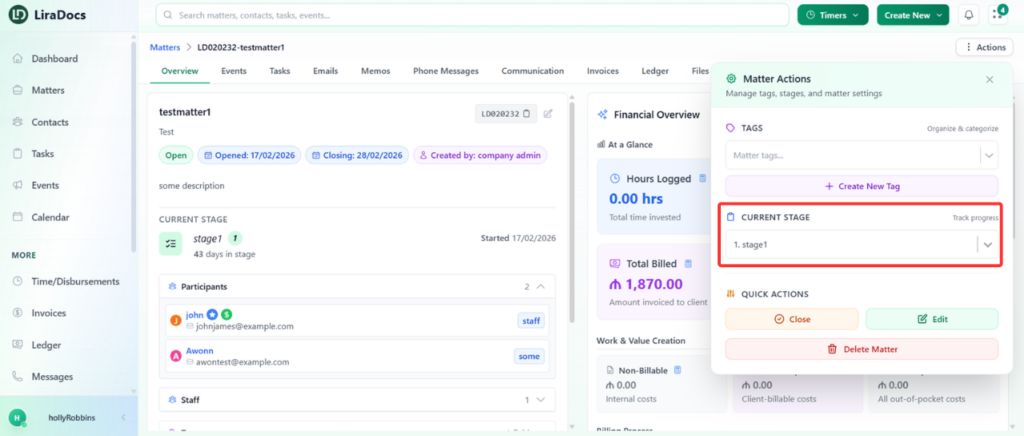
Step 2: Click on the Actions Button
Once the matter is open, click the Actions button.
In this section, you will see the current stage assigned to the matter.
Step 3: Select a New Stage
Click on the stage dropdown menu to view all available stages.
From the list, select the stage you want to move the matter to.
Step 4: Confirm the Stage Change
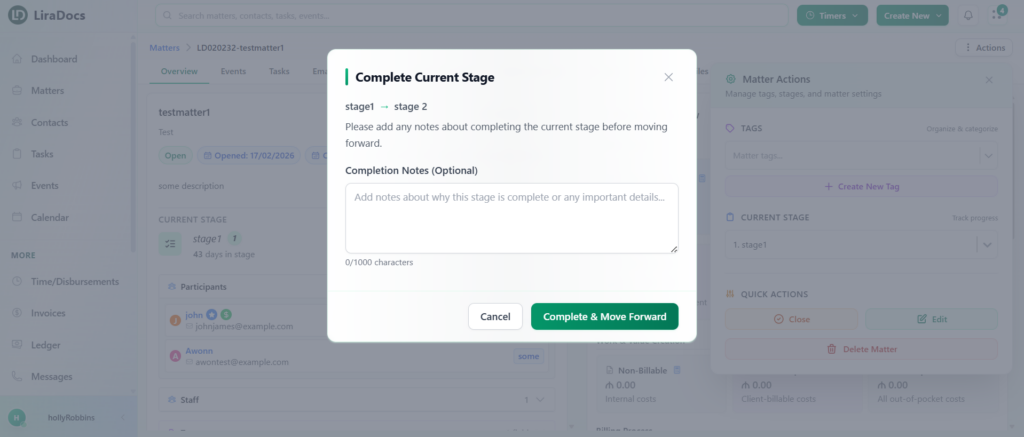
After selecting a new stage, a confirmation popup will appear.
Here you can:
Add a completion note if needed (optional)
Once everything is ready, click the Complete and Move Forward button.
Step 5: Stage Updated
The selected stage will now be applied to the matter, and the matter will move to the new stage in the workflow.
Updating matter stages helps your team track progress more effectively and ensures that everyone stays informed about the current status of each matter.