





How to Create an Organizational Contact
Organizational contacts in Liradocs allow you to store and manage information about companies, businesses, or institutions associated with your matters. You can record important details such as organization information, contact details, addresses, and linked contacts.
Follow the steps below to create a new organizational contact.
Step 1: Go to the Contacts Section
Open Liradocs.
Navigate to the Contacts tab from the main menu.
Step 2: Start Creating a New Contact
Click the New Contact button.
Select Organization as the contact type.
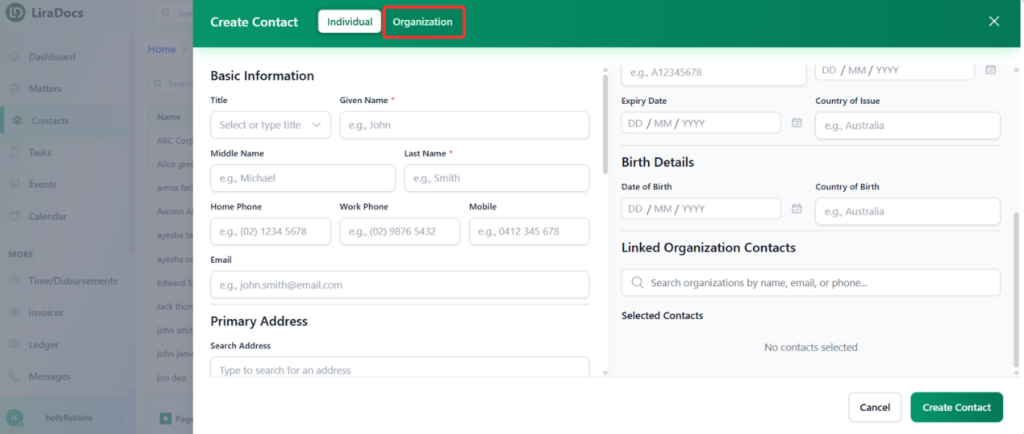
Step 3: Enter Basic Organization Information
In the Basic Information section, enter the required details:
Organization Type – Select the type of organization.
Organization Name – Enter the official name of the organization.
Business Name – Add the business or trading name if applicable.
These fields are required. Other fields in this section are optional and can be filled in if needed.
Step 4: Add Contact Information
Next, enter the organization’s contact details, such as phone numbers, email addresses, or other available communication information.
Step 5: Add Address Details
You can also record the organization’s addresses, including:
Street Address
P.O. Box Address
DX Address
These help maintain accurate records for communication and documentation.
Step 6: Enter Bank Details
If required, add the organization’s bank details for billing or payment purposes.
Step 7: Add VOI Details
Complete the VOI (Verification of Identity) Details section if identity verification information is required.
Step 8: Link an Existing Contact (Optional)
If needed, you can link an existing individual contact to the organization. This allows you to associate a specific person with the organization in your records.
Step 9: Create the Organization
Review the information you have entered.
Click Create Organization.
Your new organizational contact will now be successfully created and available in the Contacts list.
