





How to Edit a Memo
In Liradocs, memos can be edited whenever updates are needed. Each time a memo is edited and saved, the system automatically creates a new version of the memo while keeping the previous versions in the version history. This allows you to track changes and review earlier versions whenever necessary.
Follow the steps below to edit a memo and view its version history.
Step 1: Go to the Memos Section
Navigate to the Memos tab in Liradocs.
From the list of memos, locate the memo you want to edit.
Click on the memo to open it.
Step 2: Edit the Memo
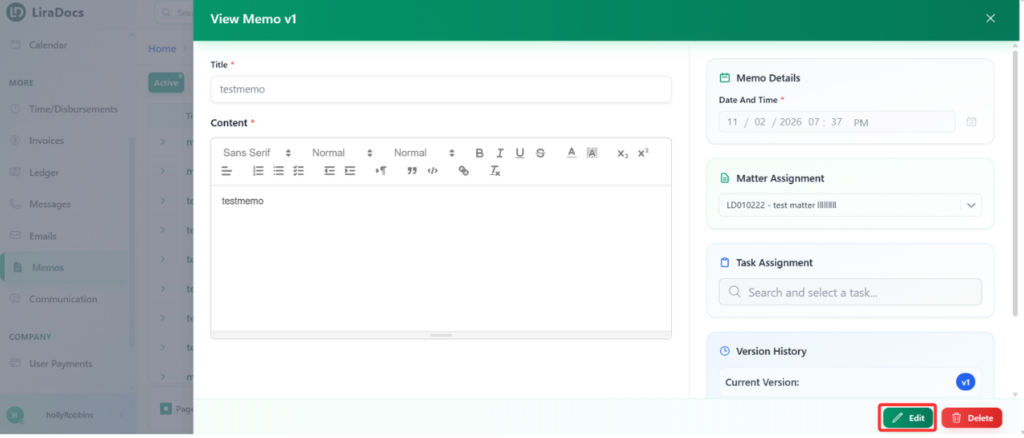
Click the Edit button.
Make the necessary changes to the memo content.
Once you have finished editing, click Save.
After saving, the memo will be updated and the changes will be stored as a new version of the memo.
Step 3: View the Memo Version History
Open the memo again.
Locate the Version History section.
Click View All Versions to see all saved versions of the memo.
Step 4: Switch Between Versions
Within the version history, you can:
Click on an older version to view the original content of the memo.
Click on the current version to view the most recently updated memo.
This version tracking system allows you to review previous edits and maintain a clear history of changes.
By using version history, you can easily edit memos while keeping a record of all previous versions in Liradocs.
