Memos in Liradocs allow you to record important notes and information related to a matter. These notes help your team keep track of key details and maintain clear internal records.
Follow the steps below to create a new memo.
Step 1: Open the Memos Section
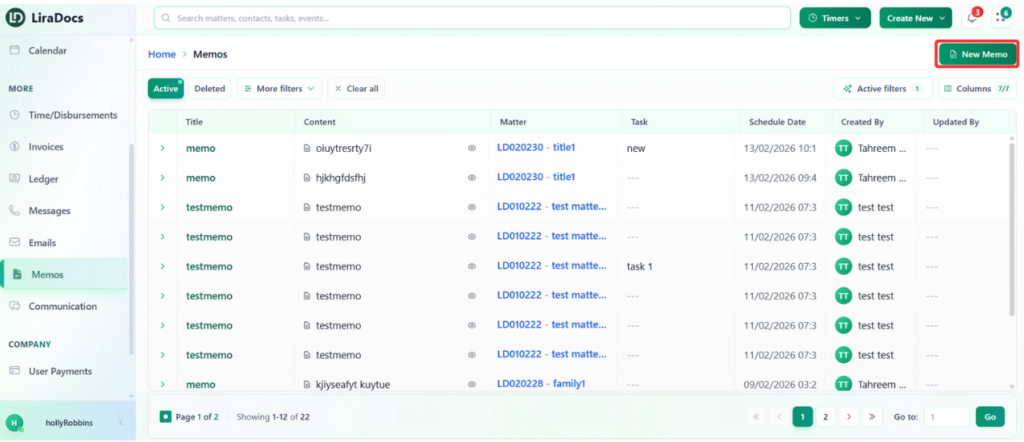
Go to the Memos tab in Liradocs.
Click the Create Memo button to start creating a new memo.
Step 2: Enter Memo Details
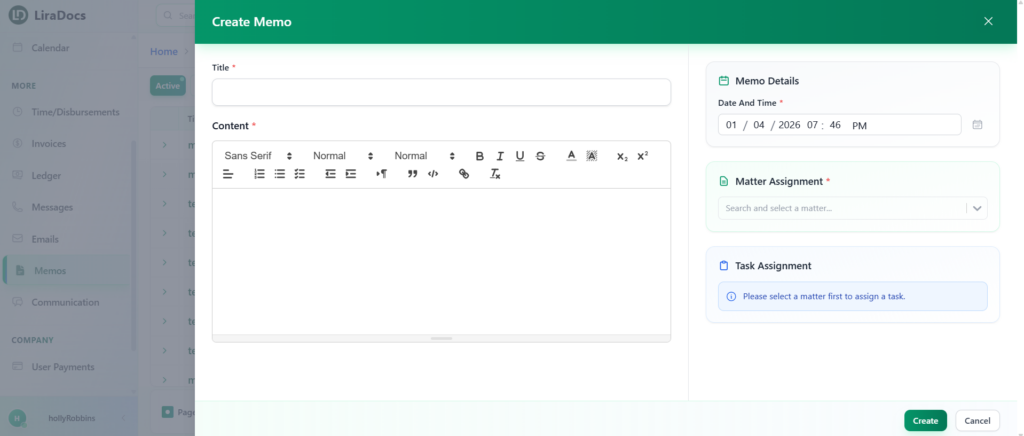
In the Title field, enter a title for the memo.
In the Content field, add the detailed information or notes you want to record.
Step 3: Set the Date and Time
Select the date and time for the memo to indicate when the note was created or recorded.
Step 4: Assign the Memo to a Matter
Search for the related matter.
Select the matter you want to associate with this memo.
Step 5: Select a Related Task (Optional)
If there are tasks linked to the selected matter, they will appear in the task section. You can select a task if the memo is related to it. If no tasks are available, you can skip this step.
Step 6: Create the Memo
After filling in all the required details, click Create.
Your memo will now be successfully created and saved in Liradocs.