





How to Create a New Phone Message
The Messages feature in Liradocs allows you to record and share phone messages with team members. Messages can be linked to a matter and a contact, ensuring that all communication is properly documented and easy to track.
Follow the steps below to create a new phone message.
Step 1: Go to the Messages Section
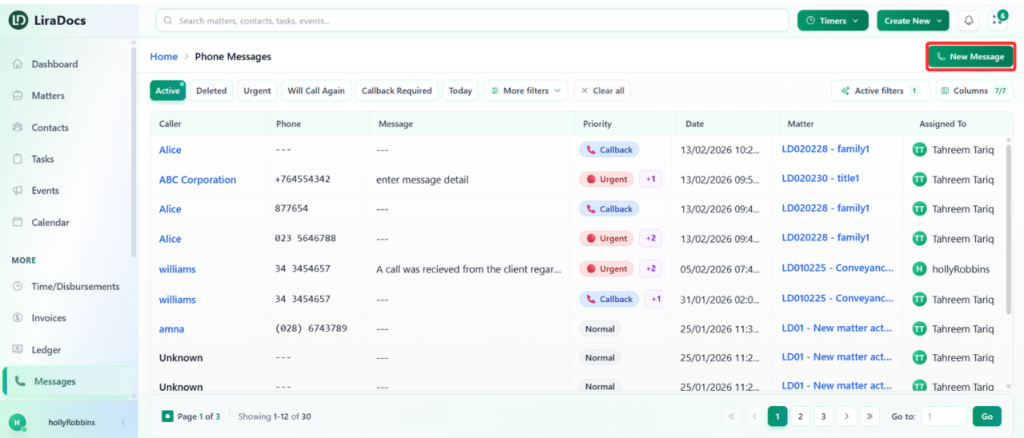
Navigate to the Messages tab in Liradocs.
Click the New Message button to start creating a message.
Step 2: Assign the Message
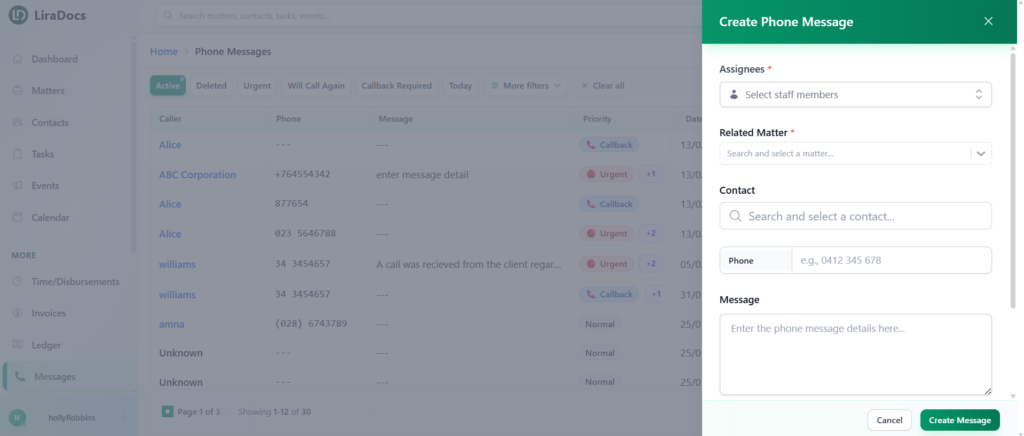
When creating a new message, you will automatically be selected as the assignee by default. This means the message will initially be assigned to you.
If needed, you can update the assignee according to your workflow.
Step 3: Select the Related Matter
Choose the related matter for the message.
Linking the message to a matter helps keep communication organized within the correct case or project.
Step 4: Select the Contact
Search for and select the relevant contact associated with the message.
This ensures the message is properly connected to the correct person or organization.
Step 5: Write the Message
In the message field, type the details of the phone message you want to record or share.
Step 6: Choose Additional Options (Optional)
You can enable additional options depending on the situation, such as:
Email Notification: Notify the recipient via email.
Call Back Required: Indicate that a call back is needed.
Will Call Again: Mark that you will call again later.
Urgent: Mark the message as urgent to highlight its priority.
Step 7: Create the Message
After completing all the required details:
Click Create Message.
Your new phone message will be successfully created and recorded in Liradocs.
