





How to Create an Invoice
Liradocs allows you to create invoices for clients based on time entries, fees, and disbursements recorded for a matter. You can create an invoice in two ways:
From the Invoices section (outside a matter)
From within a specific matter
The process for creating an invoice is the same in both methods.
Method 1: Creating an Invoice from the Invoices Section
Step 1: Go to the Invoices Section
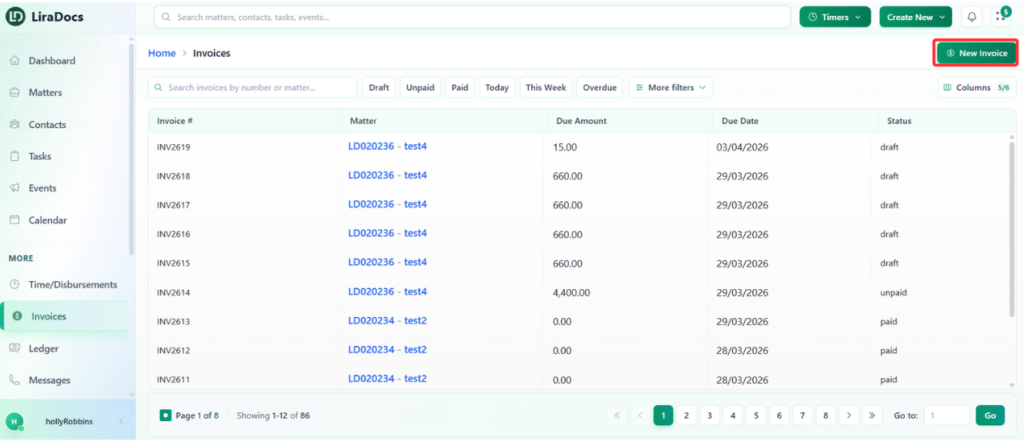
Navigate to the Invoices section in Liradocs.
Click the New Invoice button.
Step 2: Enter Basic Invoice Details
Fill in the required invoice information:
Issue Date: Select the date the invoice is issued.
Due Date: Select the payment due date.
Related Matter: Choose the matter associated with the invoice.
Debtors / Clients: Select the client or debtor for the invoice.
Step 3: Add a Time and Fee Entry
Next, add the time or fee entries that will be included in the invoice.
Confirm the Date, Matter, and Staff Member (these may already be selected based on the matter).
Optionally select an Activity.
Enter a Subject for the entry (this field is required).
Financial Details
Provide the financial details for the entry:
Duration Type: Select the preferred duration type.
Duration: Enter the amount of time spent.
Rate: Enter the billing rate.
GST Settings
Choose the appropriate GST option:
GST Inclusive
GST Exempt
After completing the required fields, click Create to record the time and fee entry.
Then checkmark the entry to include it in the invoice.
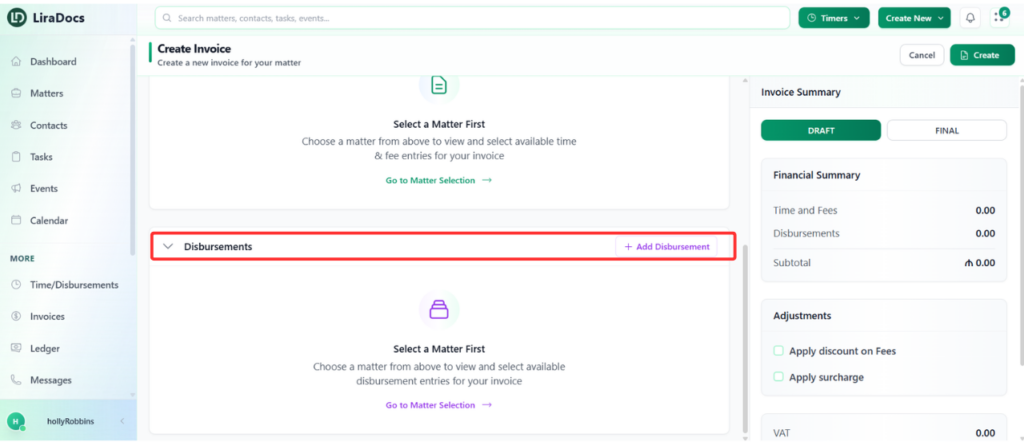
Step 4: Add Disbursements (Optional)
If you need to add disbursements:
Click Add Disbursements.
Enter the required information similar to the time and fee entry.
Click Create to record the disbursement.
Checkmark the disbursement to include it in the invoice.
Step 5: Review the Invoice Summary
Scroll down to the Invoice Summary section.
Here you can make adjustments such as:
Applying a discount
Adding a surcharge (if required)
Review the invoice details to ensure everything is correct.
Step 6: Generate the Invoice
Click Save and View Preview.
The invoice will be generated and displayed in preview mode.
From the preview screen, you can also download the invoice as a PDF.
Method 2: Creating an Invoice from Inside a Matter
You can also create an invoice directly from a specific matter.
Step 1: Open the Matter
Go to the Matters tab.
Select the matter for which you want to create an invoice.
Step 2: Create the Invoice
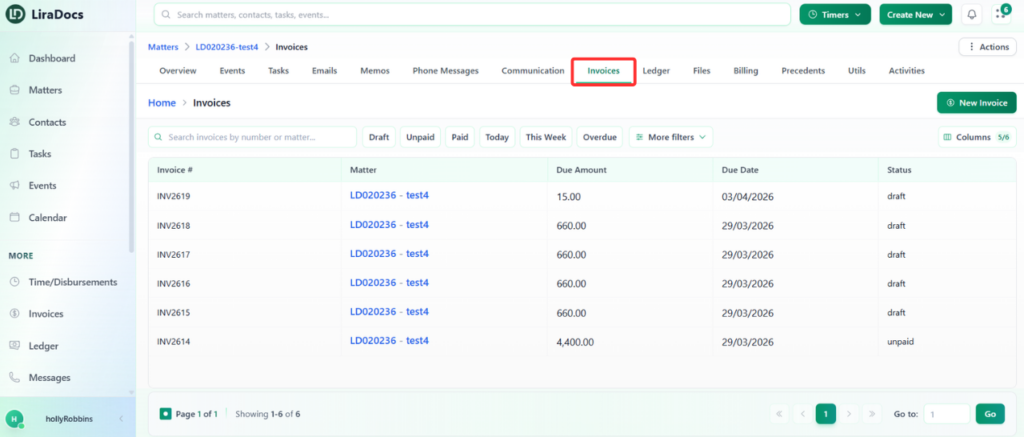
Open the Invoices tab within the matter.
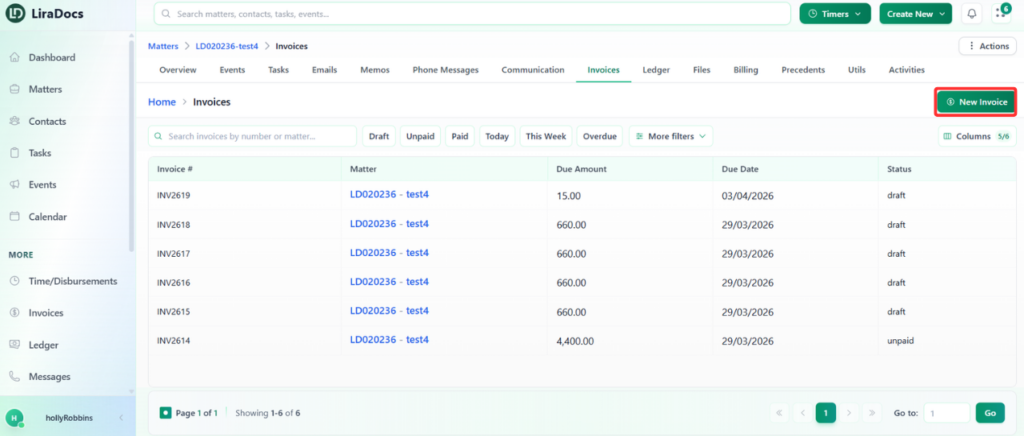
Click New Invoice.
Step 3: Follow the Same Invoice Creation Process
Complete the invoice by following the same steps described above:
Enter invoice details
Add time and fee entries
Add disbursements if required
Apply adjustments
Save and preview the invoice
You have now successfully created and managed an invoice in Liradocs.
