The Calendar in Liradocs helps you manage and track all your tasks, events, and memos in one central view. You can view your schedule by day, week, or month and stay on top of all important deadlines.
Step 1: Access the Calendar
Navigate to the Calendar tab in Liradocs.
You will see the full calendar view with all scheduled items.
Step 2: Switch Between Views
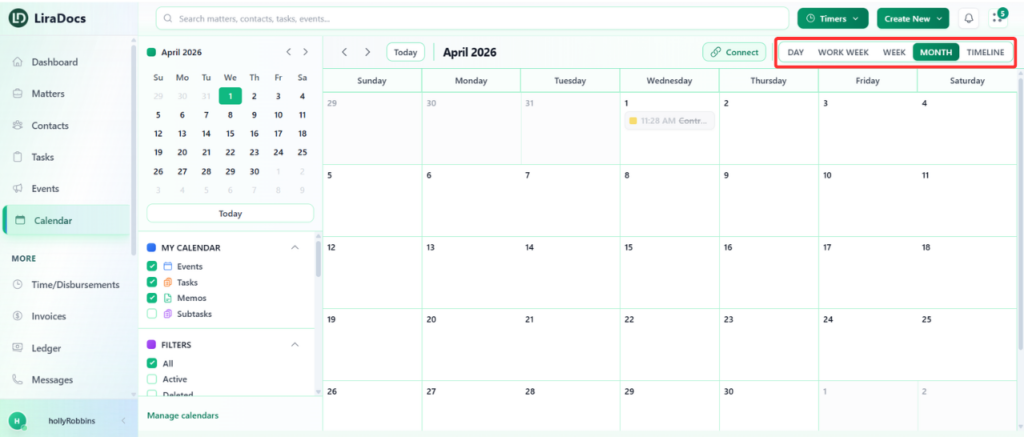
Choose the view that suits your workflow:
Day: Focus on a single day
Work Week: See the current workweek
Month: Get an overview of the entire month
Other available views depending on your preferences
For example, selecting the Month view gives a full overview of all scheduled items for that month.
Step 3: Select What to Track
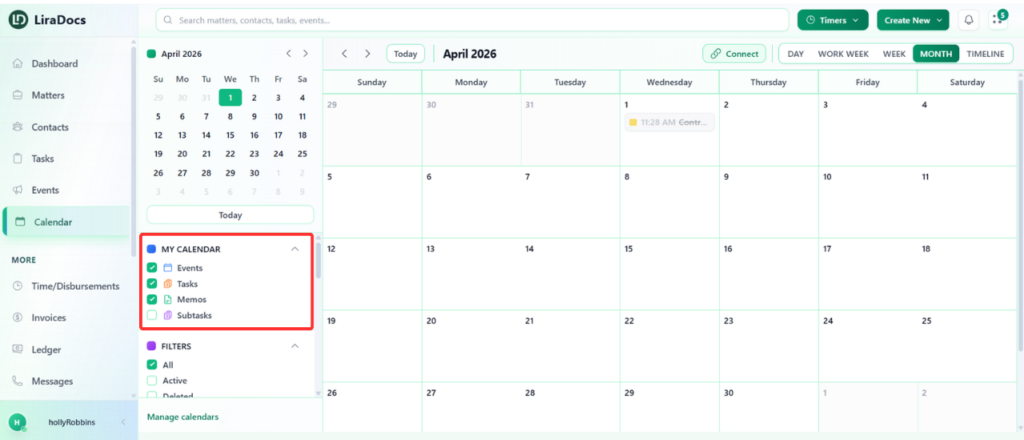
Use the filters to decide what appears on your calendar:
Events: Meetings, appointments, or deadlines
Tasks: Assigned work items
Memos: Notes or reminders
Step 4: View Details
Hover over any item on the calendar to see its basic details.
Example: Hovering over a task due on Tuesday will display its name and due date.
Similarly, hovering over an event scheduled on a specific date, such as November 24, will display the event details.
By using the Liradocs calendar, you can easily track and manage all your memos, tasks, and events, ensuring nothing gets missed.