





How To Apply Filters To View Specific Matters
Filters in Liradocs allow you to quickly refine your search and locate specific matters efficiently. By using search and filter options, you can easily find matters based on status, dates, assignees, and other criteria.
Follow the steps below to use filters in Liradocs.
Step 1: Navigate to the Matters Tab
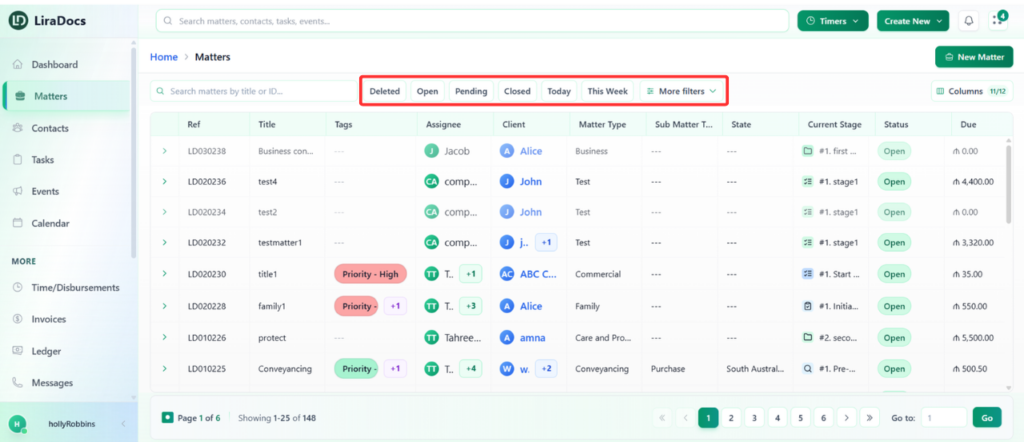
Go to the Matters tab in Liradocs. At the top of the page, you will see a search bar where you can type keywords to quickly locate matters related to your search term.
Step 2: Use Quick Filters
Liradocs provides quick filter options to help you view matters based on their status:
Deleted Matters: Click this to view all deleted matters.
Open Matters: Click to see all matters that are currently open.
Pending Matters: View matters that are awaiting action.
Closed Matters: View all matters that have been completed or closed.
Created Today/This Week: Filter matters based on when they were created.
Step 3: Apply Multiple Filters
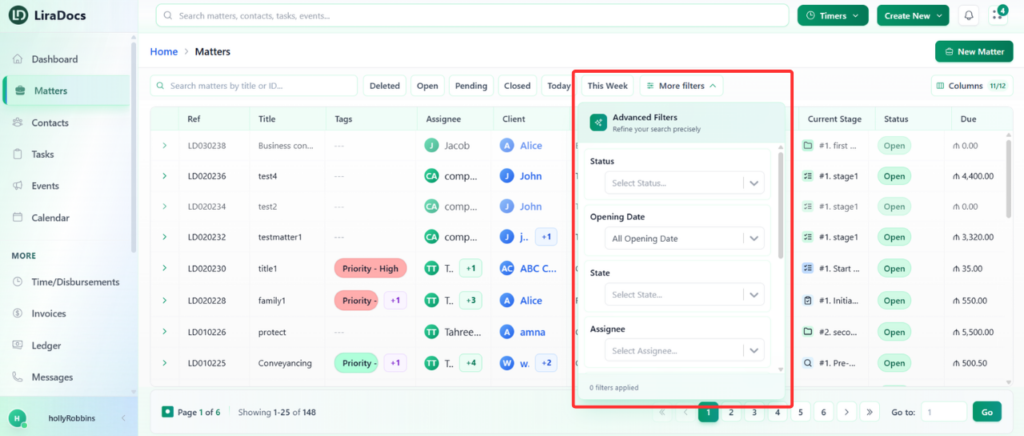
For more precise searches, you can apply multiple filters at the same time:
Status: Filter by matter status (Open, Pending, Closed).
Opening Date: Filter matters by their start date.
State/Location: Select matters from a specific region.
Assignee: View matters assigned to a particular staff member.
Tags: Filter by assigned tags for easier organization.
Date Ranges: Set specific opening and closing date ranges to narrow results.
Step 4: Customize Result Display
You can customize how your search results appear:
Sort and Order: Choose how matters are ordered in the results.
Active Filters: Review all filters currently applied to your search.
Step 5: Remove or Clear Filters
Remove Individual Filters: Click the “x” next to a specific filter to remove it.
Clear All Filters: Click Clear All to reset all filters and start a new search.
