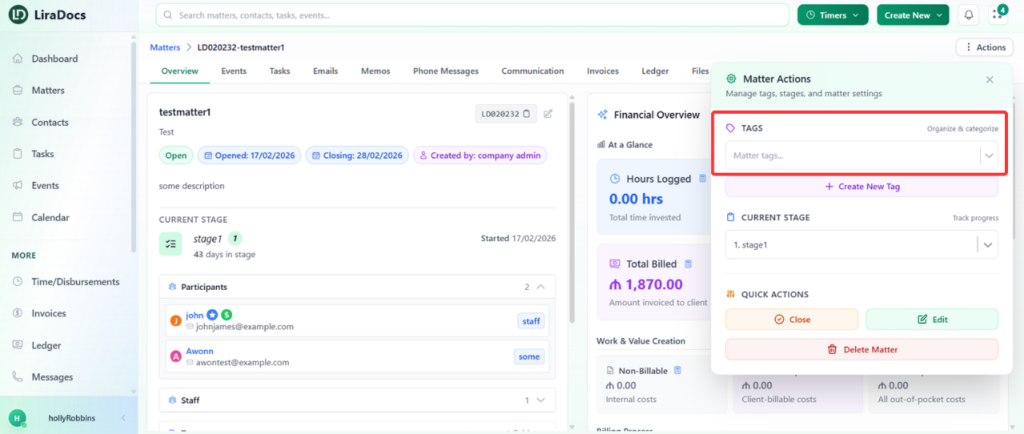
Tags in Liradocs help you categorize and prioritize matters, but sometimes you may need to remove a tag from a matter. Follow these steps to remove an assigned tag.
Step 1: Go to the Matters Tab
Navigate to the Matters tab in Liradocs. This will show a list of all your active matters.
Step 2: Open the Matter
Click on the matter from which you want to remove the tag. The matter details page will open.
You can see any existing tags assigned to this matter. For example, it may be tagged as Medium Priority.
Step 3: Access the Tag Options
Click the Actions button on the matter details page.
In the Tag section, open the drop-down menu to see all the assigned tags.
Step 4: Unselect the Assigned Tag
From the drop-down menu, unselect the tag you want to remove.
Step 5: Save Changes
After unselecting the tag:
Click Save.
Then click Apply Changes to confirm the removal.
The tag is now successfully removed from the matter.