





How To Create And Assign A Stage Template
Stage templates help organize the progress of a matter by defining different stages that a matter can go through. By using stage templates, firms can track the workflow of a matter more efficiently and maintain a consistent process across cases.
In Liradocs, stage templates can be created in two ways:
From the Settings section (outside a matter)
Directly from within a matter
Both methods follow the same template creation process.
Method 1: Create a Stage Template from Settings
Step 1: Open Settings
Scroll down the main menu and click on Settings.
Step 2: Go to Matter Stage Templates
Inside the settings page, navigate to Matter Stage Templates.
Here you will see a list of all existing stage templates.
Step 3: Create a New Template
Click the New Template button to begin creating a new stage template.
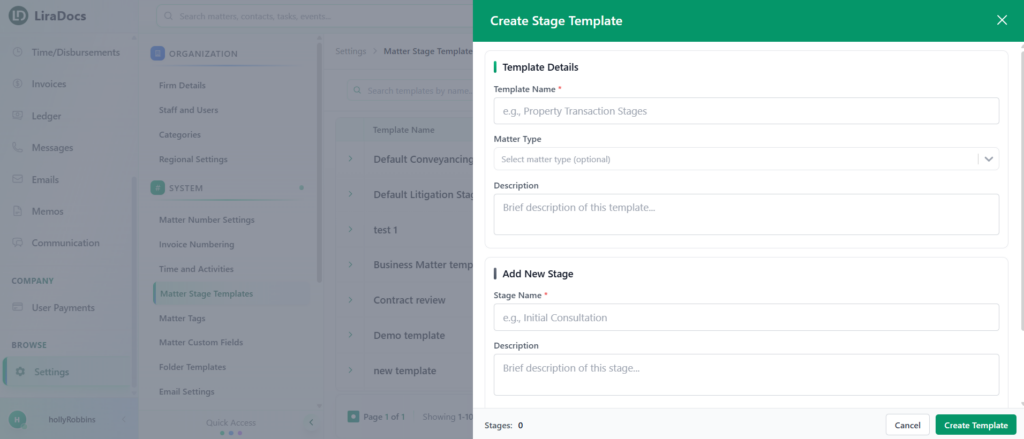
Step 4: Enter Template Details
First, enter the Template Name.
Next, select the Matter Type for which the template will be used.
You may also add a Description, although this field is optional.
Step 5: Add Stages to the Template
Now you can start adding stages to the template.
For each stage:
Enter the Stage Name
Add a Description (optional)
Choose a Color for the stage
Select an Icon
After entering these details, click Add Stage.
You can repeat this process to add as many stages as needed.
Step 6: Create the Template
Once all stages have been added, click the Create Template button.
Your new stage template will now appear in the list of available templates.
How to Assign a Stage Template to a Matter
Step 1: Open the Matter
Go to the Matters tab.
Open the matter where you want to apply the stage template.
Step 2: Edit the Matter
Click the Actions button and select Edit.
This will allow you to modify the matter’s details.
Step 3: Select the Stage Template
Locate the Stage Template dropdown.
From the list, select the template you created.
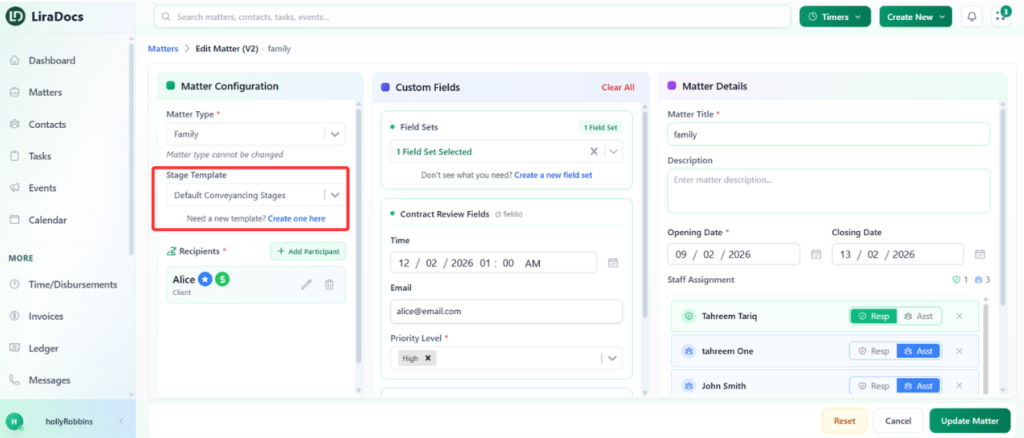
Step 4: Update the Matter
After selecting the template, click Update Matter.
The stage template will now be applied to the matter.
Method 2: Create a Stage Template from Inside a Matter
You can also create a stage template directly while editing a matter.
Inside the Stage Template section of the matter, click the option to create a new template. This will open the same stage template creation screen used in the settings area.
Follow the same steps described earlier to:
Enter the template name
Select the matter type
Add stages to the template
Create the template
Once the template is created, return to the matter, select the newly created template from the dropdown menu, and click Update Matter.
Your stage template is now successfully created and assigned to the matter.
