





Dashboard – Complete Guide
The Liradocs Dashboard is your central workspace, designed to give you a clear and organized overview of your firm’s daily operations. From matters and tasks to events and performance insights, everything you need is accessible in one place. This guide will walk you through how to create, customize, manage, and optimize your dashboard for maximum efficiency.
Creating a New Dashboard
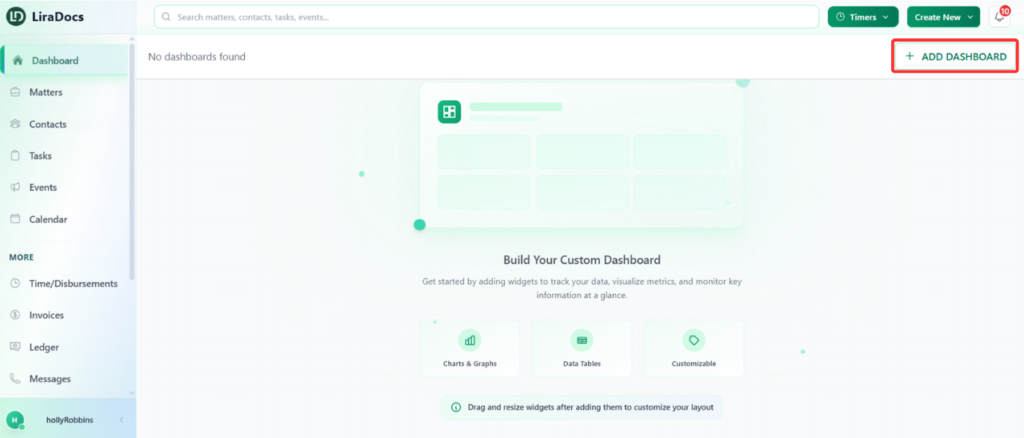
To create a dashboard, simply click the “Add Dashboard” button. The system instantly creates a new dashboard for you.
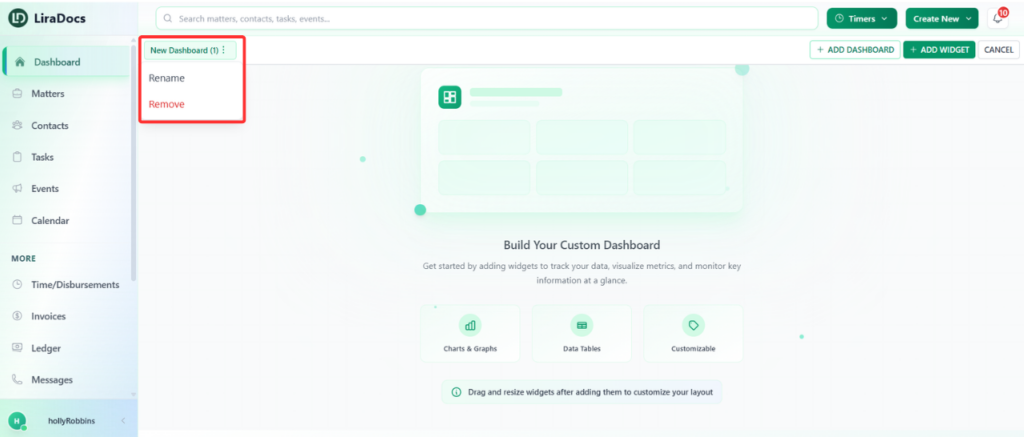
If you would like to rename it:
Click the three dots next to the dashboard name.
Select Rename.
Enter the new name.
Click Rename again to confirm.
Your dashboard will immediately update with the new name.
Adding and Customizing Widgets
Widgets allow you to display important information such as matter distribution, task status, or other key insights.
To add a widget:
Click “Add Widget.”
Choose a widget from the widget library.
Customize the widget before adding it:
Change the display name
Select which fields to show
Adjust the color to match your theme
Set the refresh interval (how often the data updates)
After customizing, click Add, and the widget will appear on your dashboard.
You can:
Drag and reposition widgets anywhere on the dashboard
Resize them according to your preference
Editing or Deleting a Widget
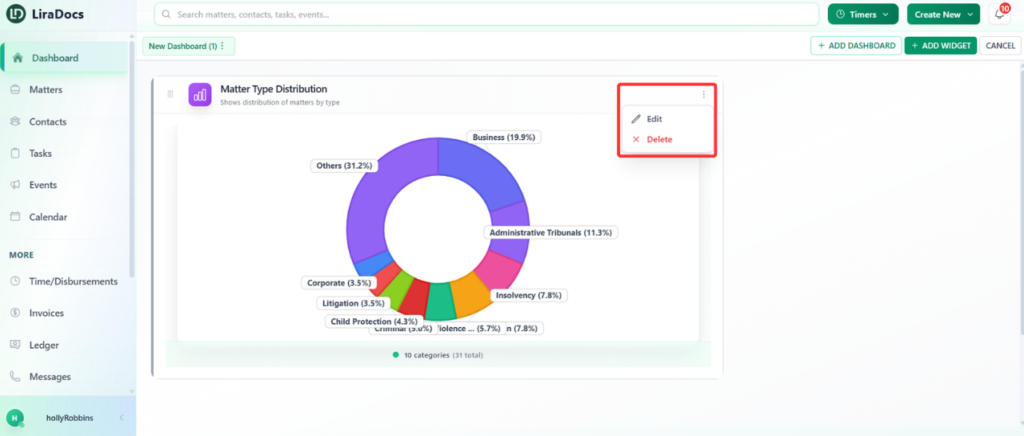
To edit a widget:
Click the three dots on the widget.
Select Edit.
Make your changes.
Click Save Changes.
To delete a widget:
Click the three dots.
Select Delete.
Type delete for confirmation.
Click Remove Widget.
The widget will be permanently removed.
Deleting a Dashboard
If you no longer need a dashboard:
Click the three dots next to the dashboard name.
Select Remove.
Type delete to confirm.
Click Delete Dashboard.
The dashboard will be permanently deleted.
Why the Dashboard Matters
The dashboard helps you stay organized, monitor progress, and manage workload efficiently. By customizing widgets and arranging them based on your priorities, you can create a personalized workspace that supports better decision-making and improved productivity.
