How to Create a Memo

Memos in Liradocs allow you to record important notes and information related to a matter. These notes help your team keep track of key details and maintain clear internal records.

Follow the steps below to create a new memo.

Step 1: Open the Memos Section

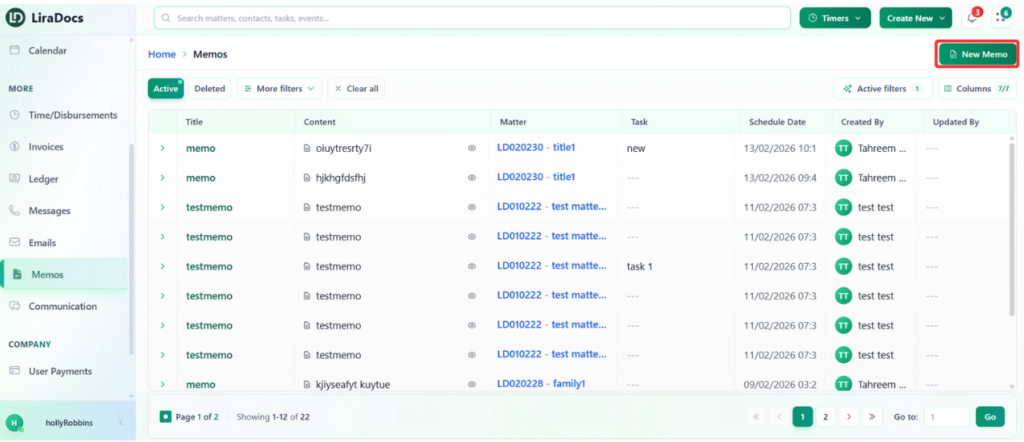
  1. Go to the Memos tab in Liradocs.

  2. Click the Create Memo button to start creating a new memo.

Step 2: Enter Memo Details

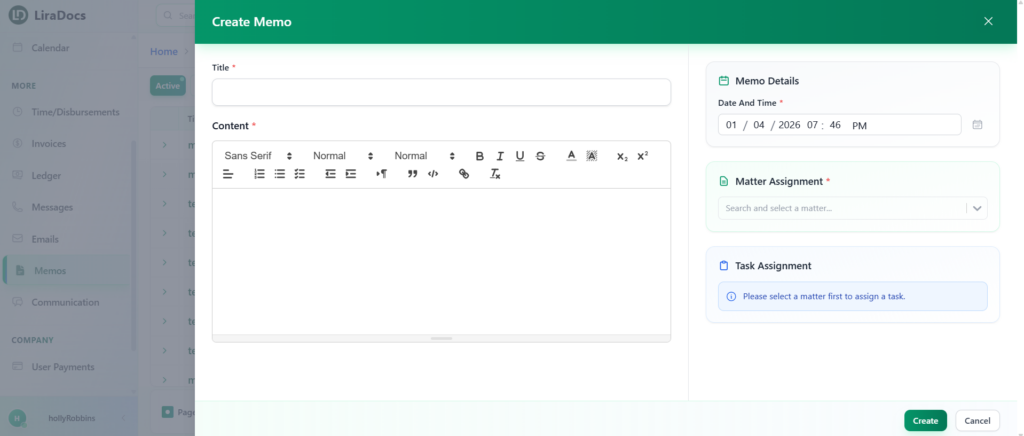
  1. In the Title field, enter a title for the memo.

  2. In the Content field, add the detailed information or notes you want to record.

Step 3: Set the Date and Time

Select the date and time for the memo to indicate when the note was created or recorded.

Step 4: Assign the Memo to a Matter

  1. Search for the related matter.

  2. Select the matter you want to associate with this memo.

Step 5: Select a Related Task (Optional)

If there are tasks linked to the selected matter, they will appear in the task section. You can select a task if the memo is related to it. If no tasks are available, you can skip this step.

Step 6: Create the Memo

After filling in all the required details, click Create.

Your memo will now be successfully created and saved in Liradocs.

How to Create a New User

Adding new users allows you to give team members access to Liradocs based on their roles and responsibilities. Follow the steps below to create a new user.

Step 1: Navigate to Staff & Users

  1. Go to Settings in Liradocs.

  2. Click on Staff & Users.

Step 2: Click on “Add User”

On the Staff & Users page, click the Add User button to start creating a new user.

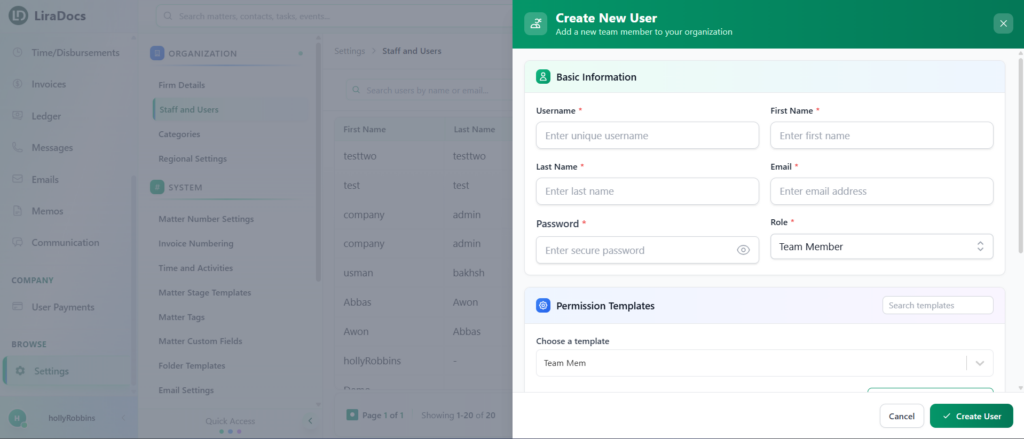
Step 3: Enter User Details

Fill in the required information for the new user:

  • Username: Enter a unique username

  • First Name: Enter the user’s first name

  • Last Name: Enter the user’s last name

  • Email Address: Provide a valid email address

  • Password: Set a password for the user

Step 4: Assign a Role

Select the appropriate role for the user:

  • Admin: Full access to system features and settings

  • Team Member: Limited access based on assigned permissions

Step 5: Select and Configure Permission Template

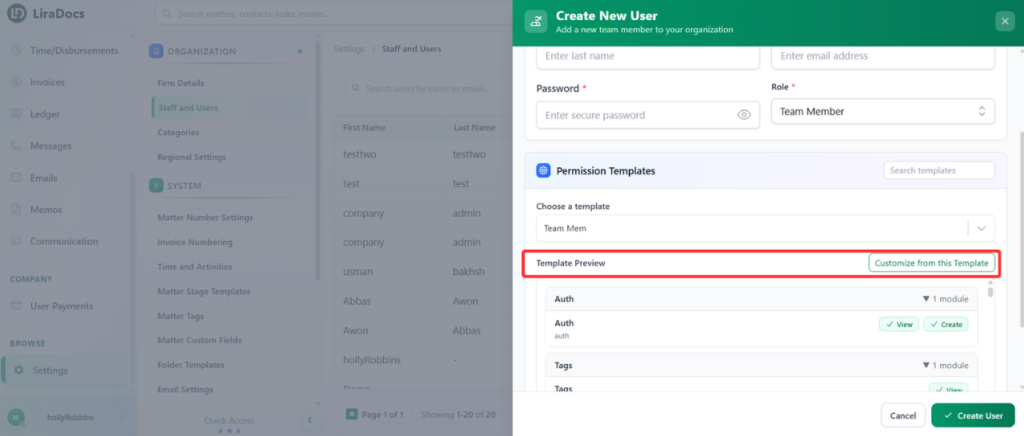
Permission templates define what actions a user can perform in Liradocs.

  1. Select a Permission Template from the list.

  2. To customize it, click on the template to edit permissions.

You can enable or disable permissions for different features. For example:

  • In the Memos section, you can allow permissions such as:

    • View memo

    • Create memo

    • Edit memo

    • Delete memo

Select the permissions based on the user’s responsibilities.

Step 6: Create the User

  1. Once all details and permissions are set, scroll down.

  2. Click on the Create User button.

The new user is now successfully created and can log in to Liradocs using their credentials.

How to Create a Matter Category

Matter categories help you organize and group your matters based on their type and location. This makes it easier to manage, filter, and differentiate matters within your firm.

For example, you can create a category like Business and assign it to matters related to business cases in a specific state.

Follow the steps below to create a new matter category in Liradocs.

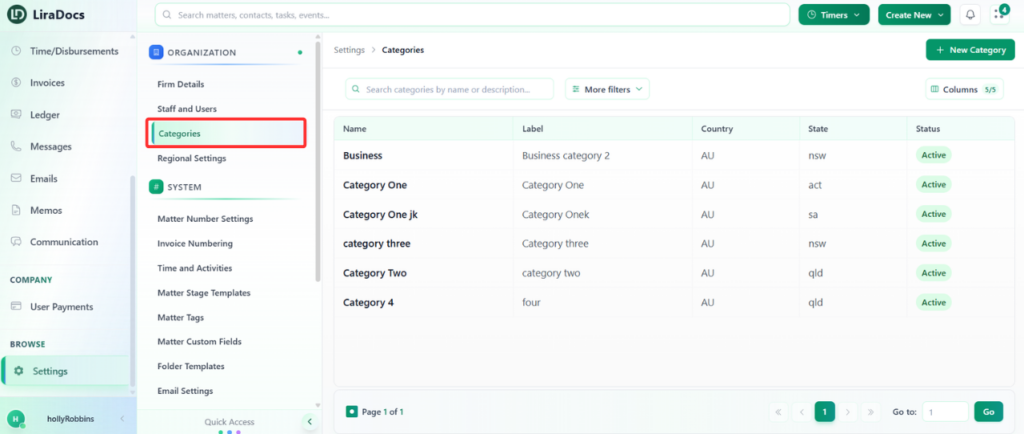
Step 1: Navigate to Categories

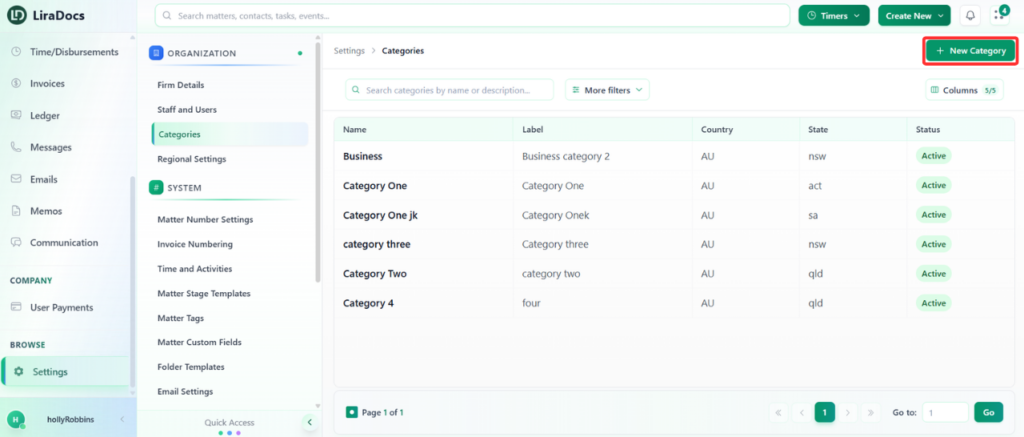
  1. Go to Settings in Liradocs.

  2. From the settings menu, select Categories.

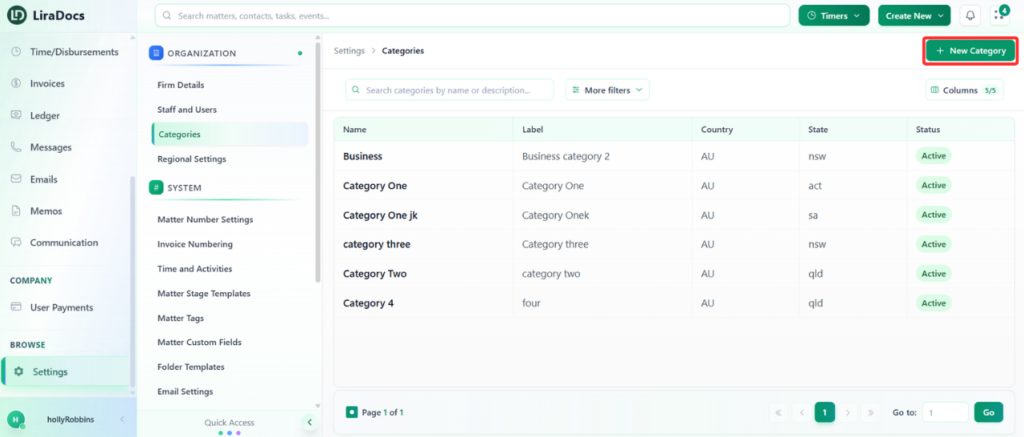
Step 2: Click on “New Category”

On the categories page, click the New Category button to start creating a new category.

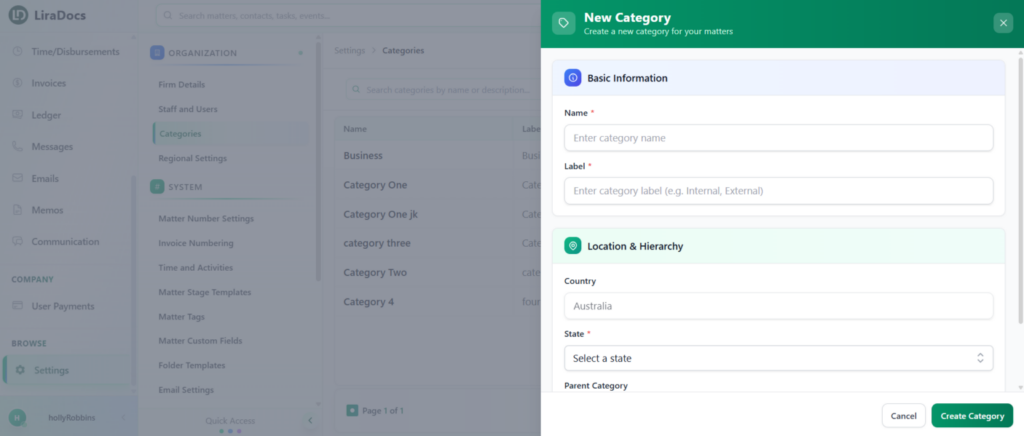
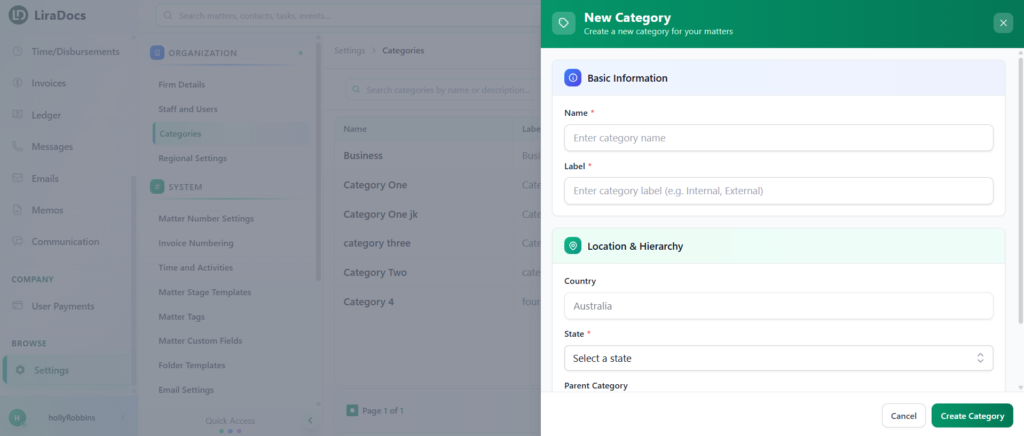
Step 3: Enter Category Details

Fill in the required information for the category:

  • Category Name / Label: Enter the name of the category.

  • Country: This is set by default (e.g., Australia).

  • State: Select the relevant state for the category.

  • Parent Category (Optional): Choose a parent category if you want to create a subcategory. Otherwise, leave it as None.

Step 4: Create the Category

Once all details are entered, click the Create Category button.

Your new matter category is now successfully created in Liradocs.

You can now assign this category to matters to keep your workspace organized and easy to manage.

Matters

In Liradocs, Matters help you manage all your cases, projects, or client-related work in one place. Using the mobile app, you can create new matters, view existing ones, and reinstate deleted matters whenever needed.

Please note that in the mobile app, you can:

  • Create a Matter: Add new cases or projects quickly.
  • View Matters: See the details of all your existing matters.
  • Reinstate Deleted Matters: Restore matters that were accidentally deleted.

For other actions, such as editing or deleting matters, please use the Liradocs web application.

On this page, you can explore detailed guides for each feature:

  • How to Create a Matter
  • How to View a Matter
  • How to Reinstate a Deleted Matter

How to Create a Matter in Liradocs Mobile App

Creating a matter in the Liradocs mobile app is simple and helps you organize your cases, projects, or client-related work efficiently. Follow the steps below to create a new matter.

Steps to Create a Matter

  1. Open the Menu
    Tap on the menu icon in the app to access different features.
  2. Go to Matters
    From the menu, select “Matters” to view your existing matters.
  3. Create a New Matter
    Tap on the plus (+) icon to start creating a new matter.
  4. Select Matter Type
    Choose the type of matter from the list. For example, select “Business.”
  5. Select a Stage Template (Optional)
    If you have created stage templates for this type of matter, select the appropriate template.
  6. Add Recipients
    Select one or more contacts as recipients. Adding at least one recipient is mandatory.
  7. Define Relation
    Specify the relationship of the recipient to the matter. For example, enter “Client.”
  8. Add Custom Field Sets (Optional)
    If you have custom field sets for this type of matter, you can select them here.
  9. Enter Matter Details
    • Title: Give your matter a descriptive title.
    • Description: Add details or notes about the matter.
    • Opening Date: Select the start date of the matter.
    • Closing Date (Optional): You may leave this blank if unknown.
  10. Assign Staff
    Select staff members to assign to the matter and mark at least one contact as Responsible.
  11. Create the Matter
    Once all required and optional details are filled, tap on “Create Matter.”

Your new matter is now successfully created and will appear in the Matters list.

How to Reinstate a Deleted Matter in Liradocs Mobile App

If you accidentally deleted a matter or need to restore a previously removed matter, the Liradocs mobile app makes it easy to reinstate it. Follow these steps to restore a deleted matter.

Steps to Reinstate a Deleted Matter

  1. Open the Menu
    Tap on the menu icon in the app to access different features.
  2. Go to Matters
    From the menu, select “Matters” to view your list of matters.
  3. Identify Deleted Matters
    In the matters list, look for the rounded arrow icon next to the names of deleted matters.
  4. Reinstate the Matter
    Tap on the rounded arrow icon for the matter you want to restore.
  5. Confirm Restoration
    A confirmation pop-up will appear. Tap on “Reinstate” to restore the matter.

Once completed, the matter will reappear in your active matters list, and all associated information will be restored.

How to Create a Matter in Liradocs Mobile App

Creating a matter in the Liradocs mobile app is simple and helps you organize your cases, projects, or client-related work efficiently. Follow the steps below to create a new matter.

Steps to Create a Matter

  1. Open the Menu
    Tap on the menu icon in the app to access different features.
  2. Go to Matters
    From the menu, select “Matters” to view your existing matters.
  3. Create a New Matter
    Tap on the plus (+) icon to start creating a new matter.
  4. Select Matter Type
    Choose the type of matter from the list. For example, select “Business.”
  5. Select a Stage Template (Optional)
    If you have created stage templates for this type of matter, select the appropriate template.
  6. Add Recipients
    Select one or more contacts as recipients. Adding at least one recipient is mandatory.
  7. Define Relation
    Specify the relationship of the recipient to the matter. For example, enter “Client.”
  8. Add Custom Field Sets (Optional)
    If you have custom field sets for this type of matter, you can select them here.
  9. Enter Matter Details
    • Title: Give your matter a descriptive title.
    • Description: Add details or notes about the matter.
    • Opening Date: Select the start date of the matter.
    • Closing Date (Optional): You may leave this blank if unknown.
  10. Assign Staff
    Select staff members to assign to the matter and mark at least one contact as Responsible.
  11. Create the Matter
    Once all required and optional details are filled, tap on “Create Matter.”

Your new matter is now successfully created and will appear in the Matters list.

How to Create a Time Fee Activity

Time activities in Liradocs are used to record both billable and non-billable work, ensuring accurate time tracking and client invoicing. These activities can later be linked directly to invoices and will automatically appear when an invoice is generated.

In this guide, you will learn how to create a Time Fee Activity.

Understanding Time Activities

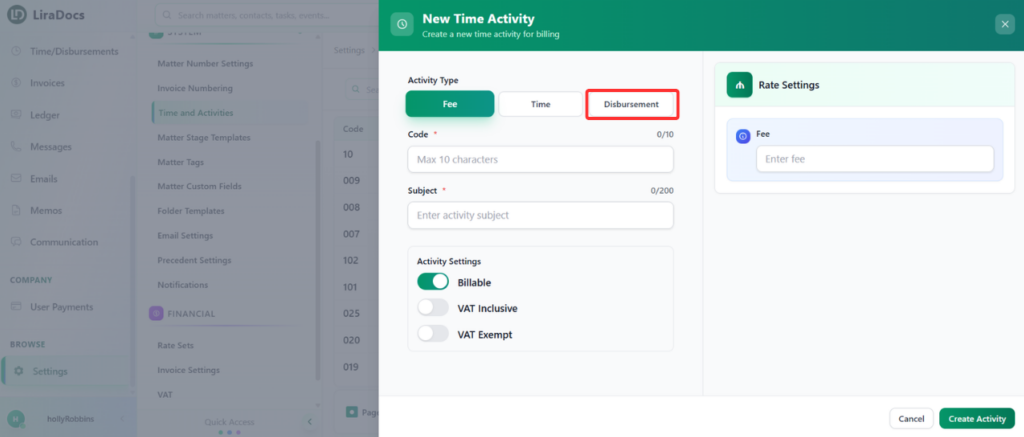
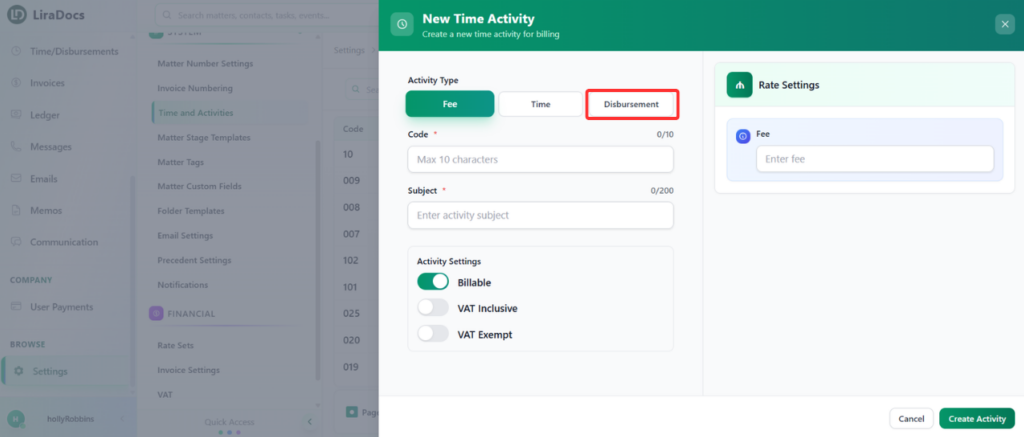
A Time Activity allows you to track work performed by your team. Activities can be recorded as:

  • Fee

  • Time

  • Disbursement

In this tutorial, we will focus on creating a Fee Activity.

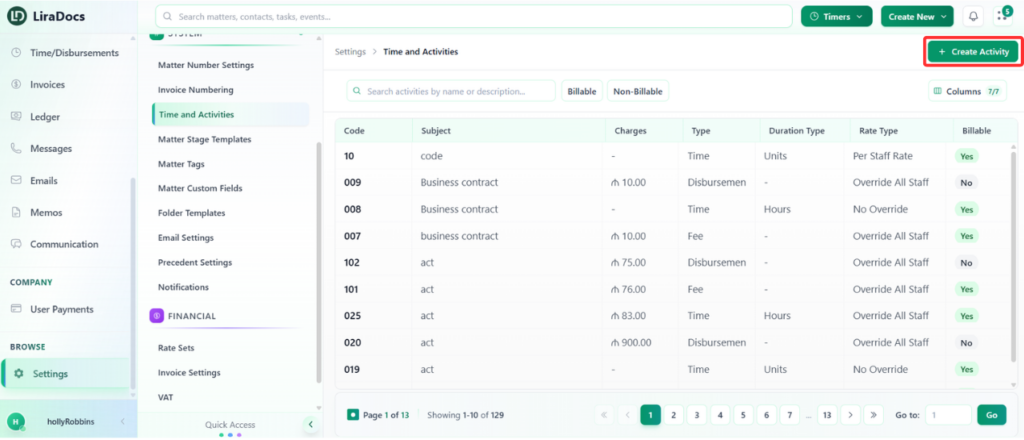
Step 1: Navigate to Time & Activities

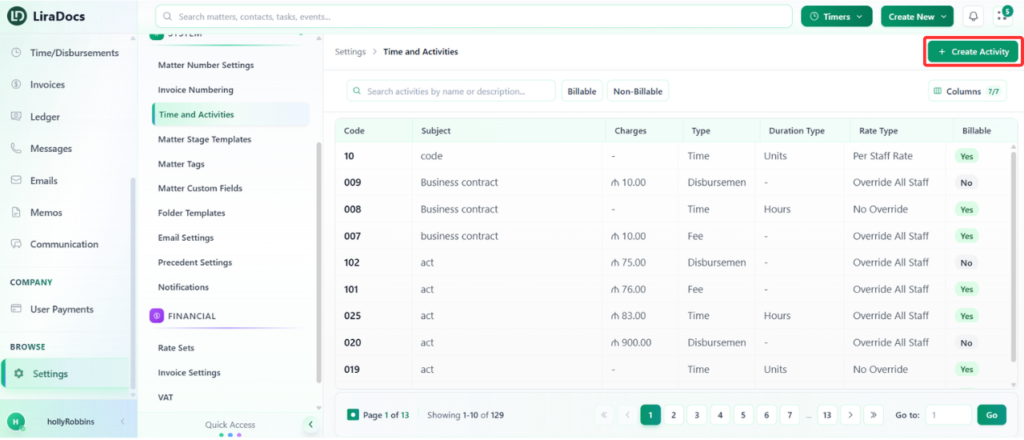
  1. Go to Settings in Liradocs.

  2. From the settings menu, select Time & Activities.

Step 2: Click on “Create Activity”

  1. Click the Create Activity button.

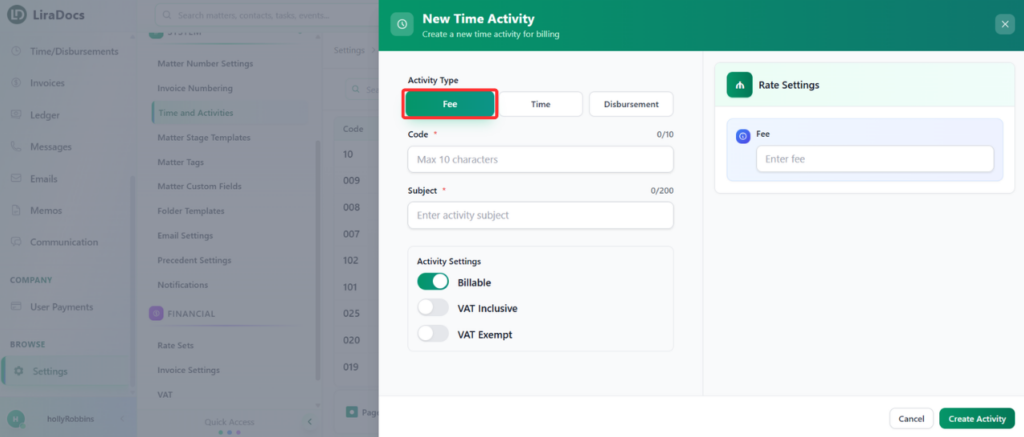
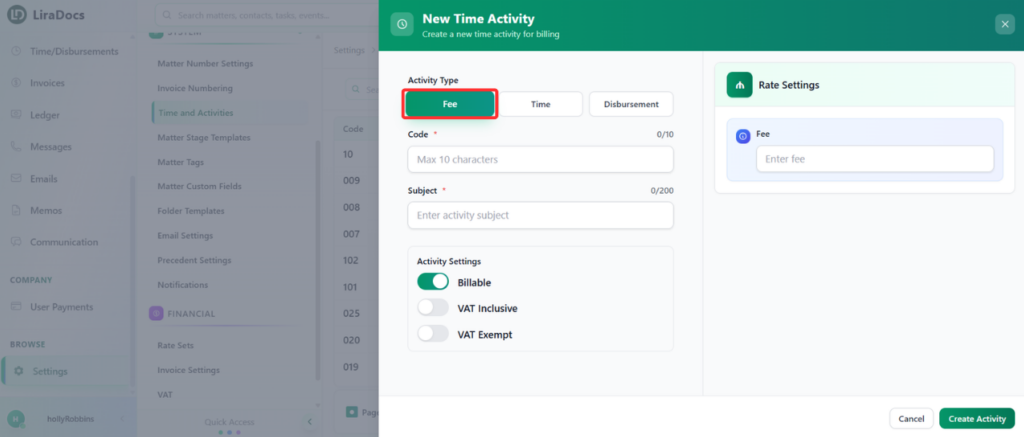
  2. By default, the activity type will be set to Fee.

Step 3: Enter Activity Details

Fill in the required information for the activity:

  • Activity Code: Enter a unique code for the activity.

  • Subject: Add a title or description for the activity.

  • Billing Type: Choose whether the activity is Billable or Non-billable.

  • VAT Option: Select whether the fee is VAT Inclusive or VAT Exempt.

  • Fee Amount: Enter the fee amount for the activity.

Step 4: Create the Activity

  1. Once all details are entered, click the Create Activity button.

  2. Your new time fee activity will be successfully created.

The activity is now ready to be used and can be linked to invoices for accurate billing and record-keeping.

How To Create A Matter

Matters are the core of your workflow in Liradocs. They allow you to organize all case-related information, including contacts, stages, documents, and activities, in one place.

Follow the steps below to create a new matter in Liradocs.

Step 1: Open the Matters Section

First, navigate to the Matters tab from the main menu.

Click on the New Matter button to start creating a new matter.

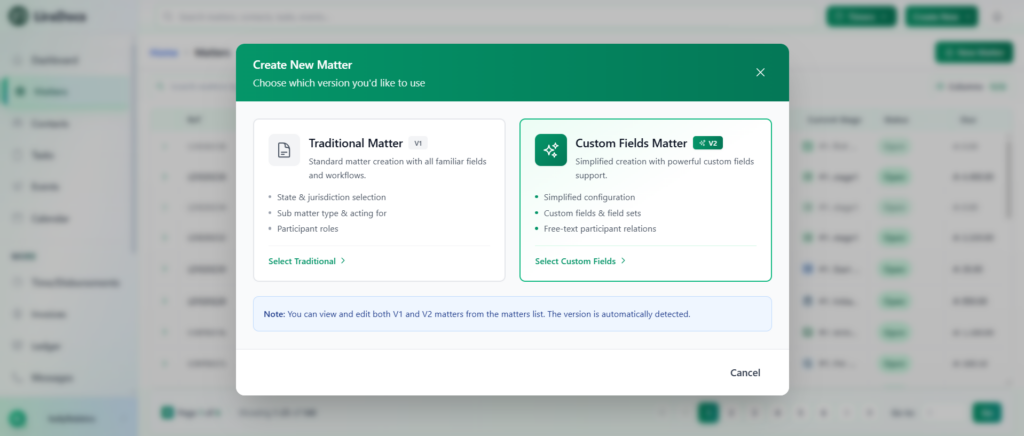
You may see two versions available for creating a matter. For this guide, select Version 2 (V2).

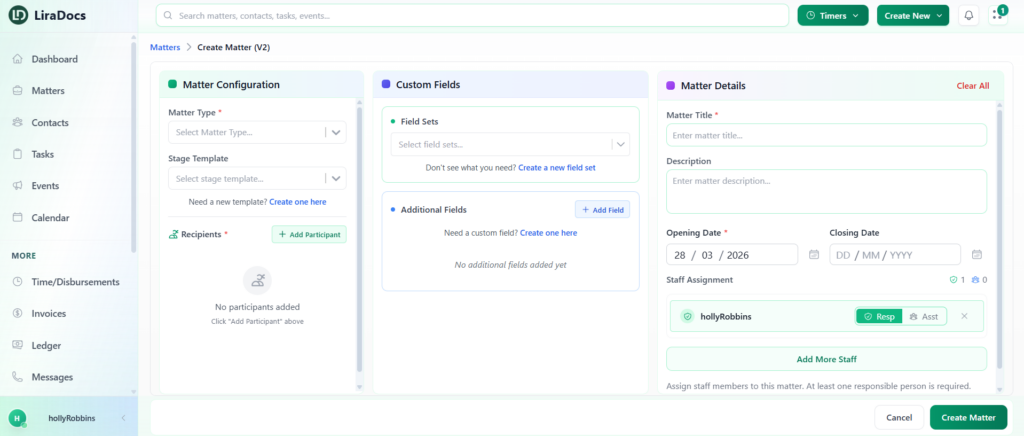
Step 2: Select Matter Type

After opening the matter creation page, begin by selecting the Matter Type.

For example, you may choose Business or another category depending on the type of case you are creating.

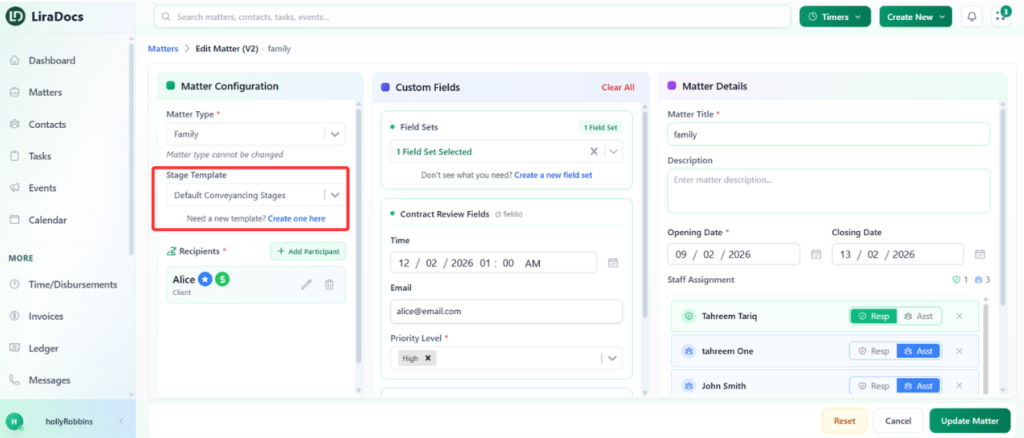
Step 3: Select a Stage Template

Next, choose a Stage Template from the dropdown menu. Stage templates help define the workflow stages that the matter will go through.

If the template you need does not exist, you can create a new one.

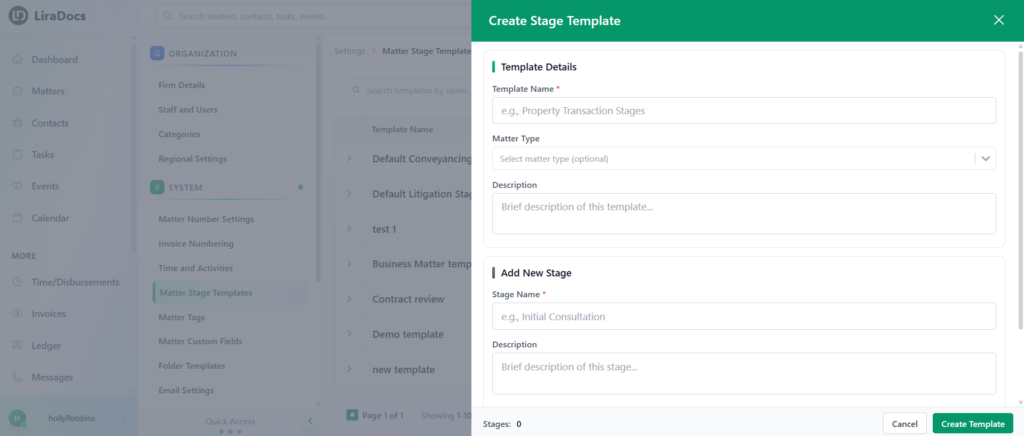
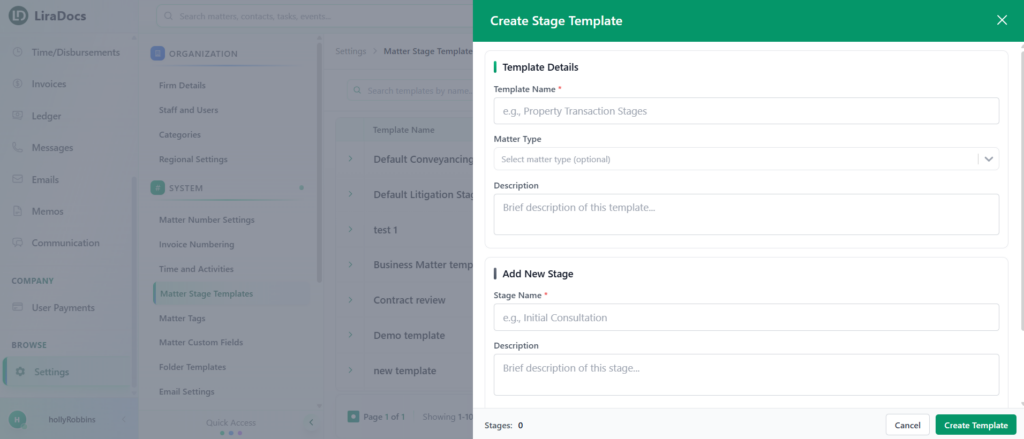
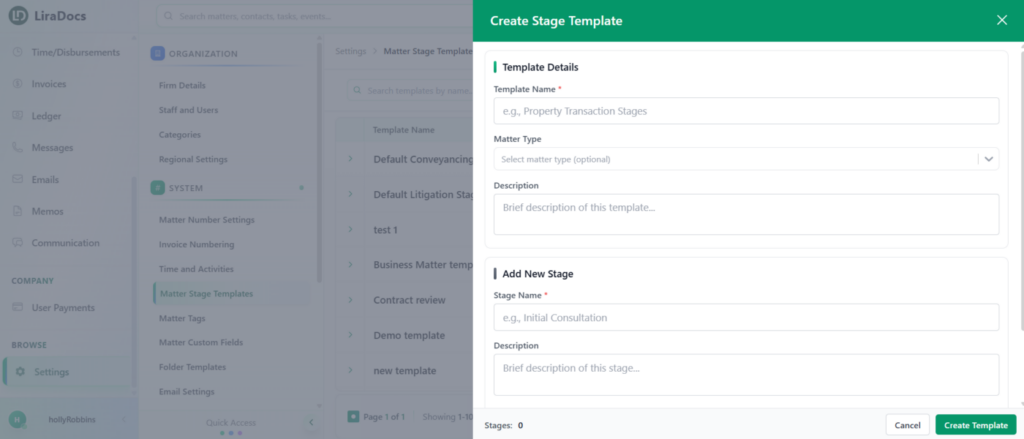
Creating a New Stage Template

  1. Click on the option to create a New Template.

  2. Enter a Template Name.

  3. Select the Matter Type associated with the template.

  4. Optionally, add a description for the template.

Next, begin adding stages to the template:

  • Enter the Stage Name.

  • Optionally add a description for the stage.

  • Select a color for the stage.

  • Choose an icon.

Repeat the process to add as many stages as required.
Once all stages are added, click Create Template.

The newly created stage template will now be available for selection.

Step 4: Add Participants

Next, add participants to the matter.

You can select contacts from your contact list and assign their relationship to the matter, such as client, opposing party, or another role.

Step 5: Select a Custom Field Set

In the Custom Fields section, select a Field Set.

Field sets contain predefined fields that collect specific information related to certain matter types.

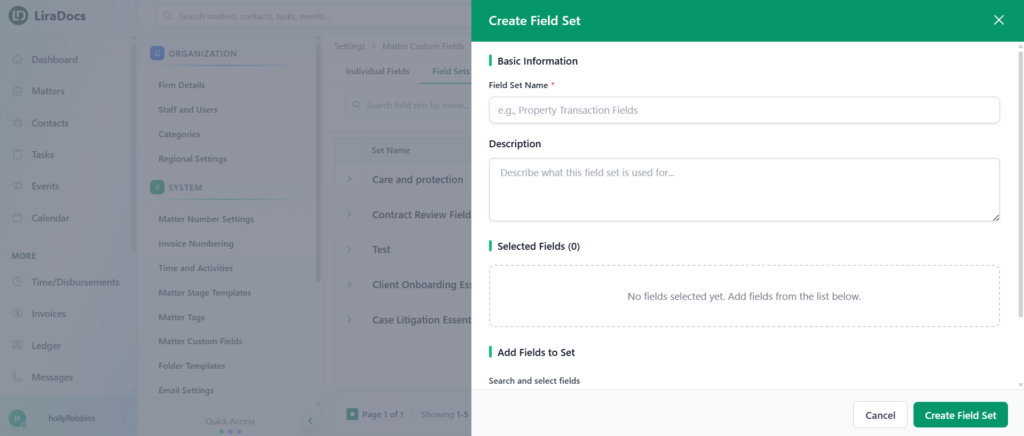
Creating a New Field Set

If the required field set does not exist:

  1. Click New Field Set.

  2. Enter a Field Set Name.

  3. Optionally add a description.

  4. Select the fields you want to include in the field set.

Once the fields are selected, click Create Field Set.

Return to the matter creation page and select the newly created field set.

Step 6: Fill in Custom Fields

After selecting the field set, fill in the required information in the displayed fields.

If needed, you can also add extra fields.

Adding an Additional Field

  1. Click Add Field.

  2. Select the field you want to include (for example, Client Name).

  3. Click Add.

The selected field will appear in the form and can be filled in.

Step 7: Enter Matter Details

Next, complete the Matter Details section.

Provide the following information:

  • Matter Title

  • Short Description

  • Opening Date

  • Closing Date

You can also assign staff members to the matter.

Select whether you are assigned as Responsible or Assistant, and add additional staff members if required.

Step 8: Create the Matter

Once all the required information has been entered, click the Create Matter button.

Your new matter will now be successfully created and added to the system.

Creating matters in Liradocs allows your firm to organize case information efficiently and manage workflows in a structured and flexible way.

How to Create an Individual Contact in Liradocs Mobile App

Adding individual contacts in Liradocs helps you keep track of all your personal connections and client details. Follow these steps to create a new individual contact using the mobile app.

Steps to Create an Individual Contact

  1. Open the Menu
    Tap on the menu icon in the app to access different features.
  2. Go to Contacts
    From the menu, select “Contacts” to view your contact list.
  3. Create a New Contact
    Tap on the plus (+) icon to start creating a new contact.
  4. Select Individual Contact
    Choose “Individual Contact” to create a personal contact.
  5. Enter Required Details
    • Name: Enter the full name of the contact.
      Note: Name is mandatory.
  6. Add Optional Details
    You can also add additional information such as:
    • Phone number
    • Email address
    • Physical address
    • Other relevant details
  7. Save the Contact
    Once all details are filled in, tap on the “Create Contact” button.

Your new individual contact is now successfully created and will appear in your contact list.

How to Create an Event in Liradocs Mobile App

Creating events in Liradocs helps you schedule tasks, meetings, or reminders and manage your workflow efficiently. Follow these steps to create a new event using the mobile app.

Steps to Create an Event

  1. Open the Menu
    Tap on the menu icon in the app to access different features.
  2. Go to Events
    From the menu, select “Events” to view your events list.
  3. Create a New Event
    Tap on the plus (+) icon to start creating a new event.
  4. Enter Event Details
    • Subject: Add the main title or topic of the event.
    • Location (Optional): Add the event location if needed.
    • Date and Time: Set the event start and end time.
  5. Assign Staff Members
    Select staff members who will be responsible or involved in the event.
  6. Show Additional Fields (Optional)
    Tap “Show All Fields” to access more options:
    • Full-day event
    • Billable event
    • Private event
    • Set reminders for the event
  7. Save the Event
    Once all details are filled, tap on the “Create Event” button.

Your new event is now successfully created and will appear in your events list.

How to Create a Task in Liradocs Mobile App

Creating tasks in Liradocs helps you organize your work, set deadlines, and assign responsibilities efficiently. Follow these steps to create a new task using the mobile app.

Steps to Create a Task

  1. Open the Menu
    Tap on the menu icon in the app to access different features.
  2. Go to Tasks
    From the menu, select “Tasks” to view your tasks list.
  3. Create a New Task
    Tap on the plus (+) icon to start creating a new task.
  4. Enter Task Details
    • Task Name: Add a descriptive name for your task.
    • Task Details/Description: Add relevant information or instructions for the task.
    • Other Optional Details: Add any additional information as needed.
  5. Set Due Date
    Select the due date for the task to track deadlines.
  6. Save the Task
    Once all details are filled, tap on the “Create Task” button.

Your new task is now successfully created and will appear in your tasks list.

How to Create an Individual Contact

In Liradocs, contacts allow you to store and manage information about individuals and organizations associated with your matters. Creating individual contacts helps your firm keep client and stakeholder information organized and easily accessible.

Follow the steps below to create a new individual contact.

Step 1: Navigate to Contacts

  1. Open Liradocs.

  2. Go to the Contacts section.

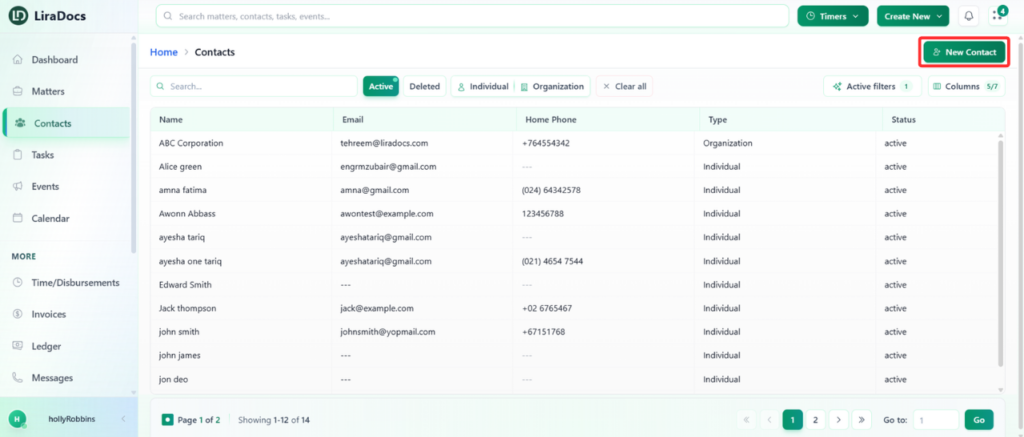
  3. Click the New Contact button to start creating a new contact.

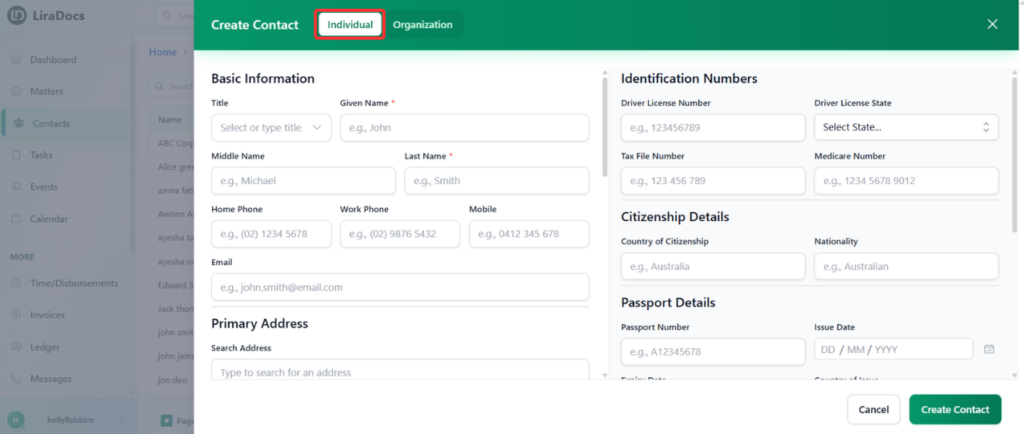
Step 2: Select Contact Type

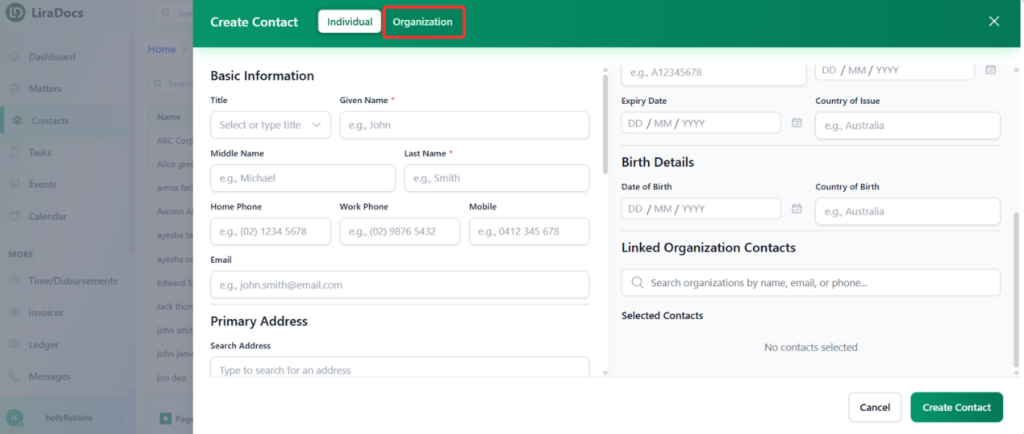
  1. Ensure that Individual is selected as the contact type.

  2. This option is used for adding personal contacts such as clients, witnesses, or other individuals.

Step 3: Add Basic Information

  1. Enter the First Name and Last Name of the individual.

    • These fields are mandatory.

  2. Other fields such as additional details can be filled in if required.

  3. Add the individual’s phone number(s) and email address.

Step 4: Add Address Details

  1. Enter the Primary Address of the individual.

  2. Include relevant address information to ensure accurate contact records.

Step 5: Enter Bank Details (Optional)

  1. If required, add the bank details of the contact.

  2. This information can be useful for financial or payment-related records.

Step 6: Complete VOI Details

  1. Go to the VOI (Verification of Identity) section.

  2. Indicate whether the VOI has been completed.

Step 7: Add Execution Party Details

  1. Enter the Execution Party details.

  2. If applicable, specify whether Power of Attorney applies to this individual.

Step 8: Add Identification Information

  1. Enter the individual’s Identification Number.

  2. Fill in additional information such as:

    • Citizenship details

    • Passport details

    • Birth details

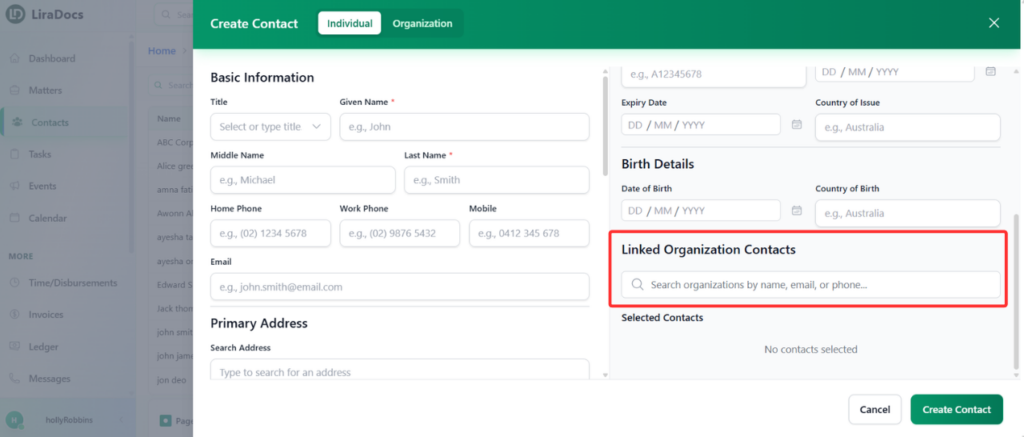
Step 9: Link to an Organization (Optional)

  1. If the individual is associated with an organization, select the relevant organization from the available list.

  2. This helps connect the contact with the appropriate organization in the system.

Step 10: Create the Contact

  1. After completing the required information, click the Create Contact button.

  2. The new individual contact will now be successfully created and saved in Liradocs.

Once created, the contact can be used across matters, communications, and other records within the system.

How to Create a New Phone Message in Liradocs Mobile App

Creating phone messages in Liradocs allows you to track all calls and communications efficiently, link them to matters or contacts, and set notifications if needed. Follow these steps to create a new phone message:

Steps to Create a Phone Message

  1. Open the Menu
    Go to the menu in the Liradocs mobile app.
  2. Select Phone Messages
    Click on “Phone Messages” to open the messages page.
  3. Start a New Message
    Click on the plus (+) icon to create a new phone message.
  4. Fill in the Details
    • Assignee: Select the staff member responsible for the message.
    • Related Matter: Choose the matter this message is associated with.
    • Contact: Select the contact you are communicating with.
    • Phone Number: Enter the phone number of the contact.
    • Message: Write the content of the message.
  5. Set Notifications (Optional)
    You can choose options such as:

    • Notify via Email
    • Callback Required
    • Will Call Again
    • Urgent

    For example, you can select Notify via Email to alert the recipient.

  6. Create the Message
    Once all details are filled in, click the “Create Message” button.

Your new phone message is now successfully created and visible in the Messages page.

How to Create a Task

Tasks in Liradocs help you organize work, assign responsibilities, and track progress within your firm. Follow the steps below to create a new task.

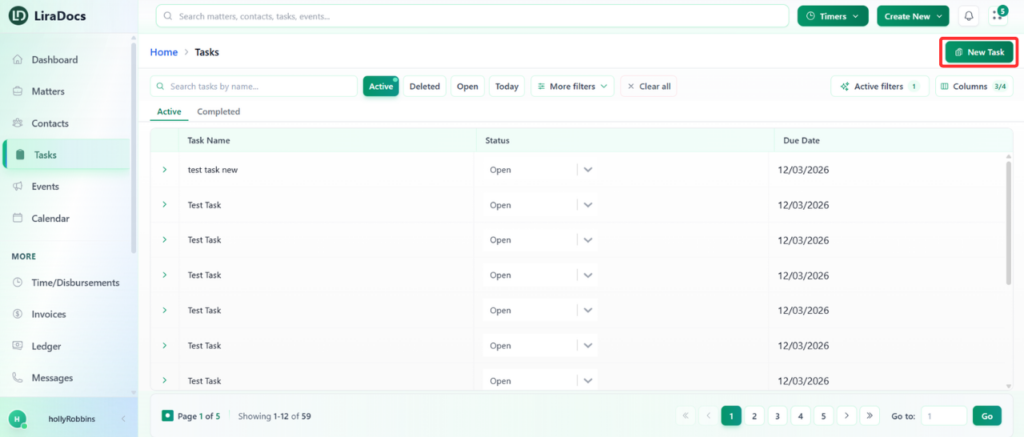
Step 1: Navigate to the Tasks Section

  1. Open the Tasks tab in Liradocs.

  2. Click the New Task button to begin creating a task.

Step 2: Enter Basic Task Details

  1. Task Name: Enter a clear name for the task.

  2. Assignees: Select the team member(s) responsible for completing the task.

  3. Category (Optional): Choose a task category if you want to classify the task.

Step 3: Configure Task Properties

In the Task Properties section, configure the following options:

  • Due Date: Set the deadline for completing the task.

  • Status: Select the current status (for example, In Progress).

  • Priority: Choose the priority level for the task.

  • Private Task: Enable this option if you want the task to remain private.

  • Duration: Set the expected duration for completing the task.

Step 4: Set a Reminder

  1. Choose a Reminder time.

  2. For example, selecting 1 hour will notify you one hour before the task deadline.

Step 5: Link the Task to a Matter (Optional)

If the task is related to a specific matter:

  1. Use the Matter option to attach the task to the relevant matter.

  2. This helps keep all activities related to that matter organized.

Step 6: Add Additional Information

  • Details: Add any additional information related to the task.

  • Notes: Include internal notes if needed.

Step 7: Create Subtasks (Optional)

  1. Click Add Subtask to create a subtask under the main task.

  2. Enter the subtask details just like you would for the main task.

  3. Repeat this process if multiple subtasks are required.

Step 8: Create the Task

  1. After filling in all the necessary information, click Create Task.

Your task will now be successfully created and visible in the Tasks section.

Using tasks in Liradocs makes it easy to assign work, track deadlines, and manage responsibilities efficiently within your firm.

Dashboard

What is the Dashboard in Liradocs?

The Dashboard in Liradocs is your central control panel. It provides a real-time overview of your activities, tasks, matters, and performance, all in one place.

As soon as you log in, the Dashboard gives you a clear snapshot of what requires your attention, helping you stay organized and efficient.

Why the Dashboard Matters

The Dashboard is designed to help you:

  • Monitor ongoing matters and recent activity

  • Track tasks and deadlines

  • View key performance insights

  • Access frequently used features quickly

  • Stay updated with important notifications

Instead of navigating through multiple sections, you can manage your daily workflow directly from the Dashboard.

What You’ll Find on the Dashboard

Depending on your permissions and setup, your Dashboard may include:

📊 Activity Overview

📅 Upcoming Tasks & Deadlines

📁 Recent Matters

👥 Recent Contacts

📈 Performance Widgets

🔔 Notifications & Alerts

Each section is displayed in the form of widgets, which can be customized based on your preferences.

Customizing Your Dashboard

Liradocs allows you to personalize your Dashboard layout. You can:

  • Add or remove widgets

  • Rearrange sections

  • Adjust visibility based on your workflow

  • Focus on the data that matters most to you

Customization helps ensure that your Dashboard reflects your daily priorities.

Dashboard – Complete Guide

The Liradocs Dashboard is your central workspace, designed to give you a clear and organized overview of your firm’s daily operations. From matters and tasks to events and performance insights, everything you need is accessible in one place. This guide will walk you through how to create, customize, manage, and optimize your dashboard for maximum efficiency.

Creating a New Dashboard

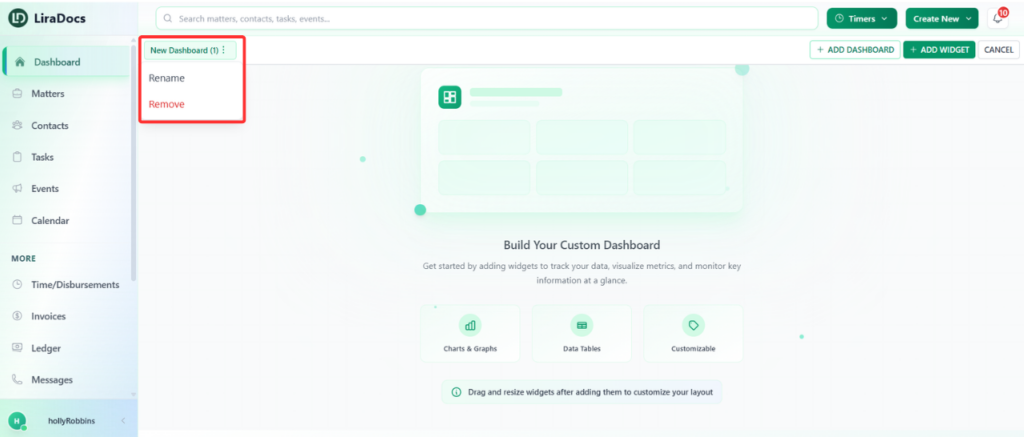
To create a dashboard, simply click the “Add Dashboard” button. The system instantly creates a new dashboard for you.

If you would like to rename it:

  1. Click the three dots next to the dashboard name.

  2. Select Rename.

  3. Enter the new name.

  4. Click Rename again to confirm.

Your dashboard will immediately update with the new name.

Adding and Customizing Widgets

Widgets allow you to display important information such as matter distribution, task status, or other key insights.

To add a widget:

  1. Click “Add Widget.”

  2. Choose a widget from the widget library.

  3. Customize the widget before adding it:

    • Change the display name

    • Select which fields to show

    • Adjust the color to match your theme

    • Set the refresh interval (how often the data updates)

After customizing, click Add, and the widget will appear on your dashboard.

You can:

  • Drag and reposition widgets anywhere on the dashboard

  • Resize them according to your preference

Editing or Deleting a Widget

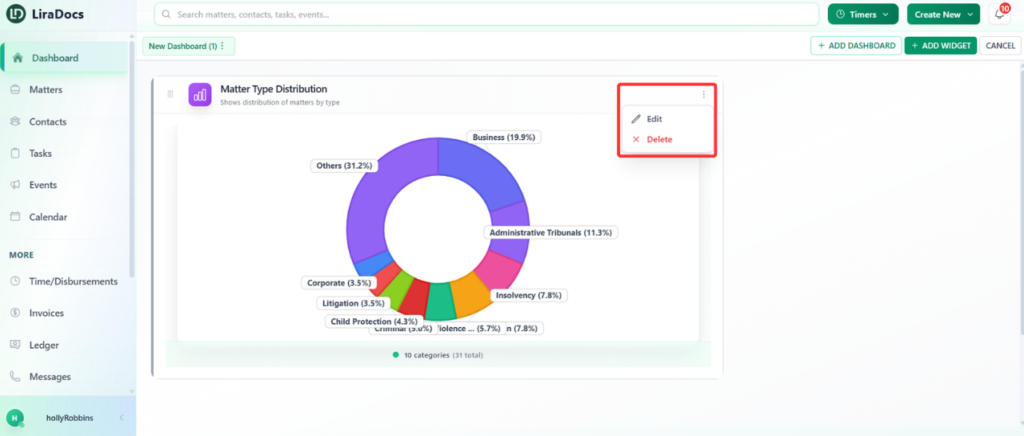
To edit a widget:

  1. Click the three dots on the widget.

  2. Select Edit.

  3. Make your changes.

  4. Click Save Changes.

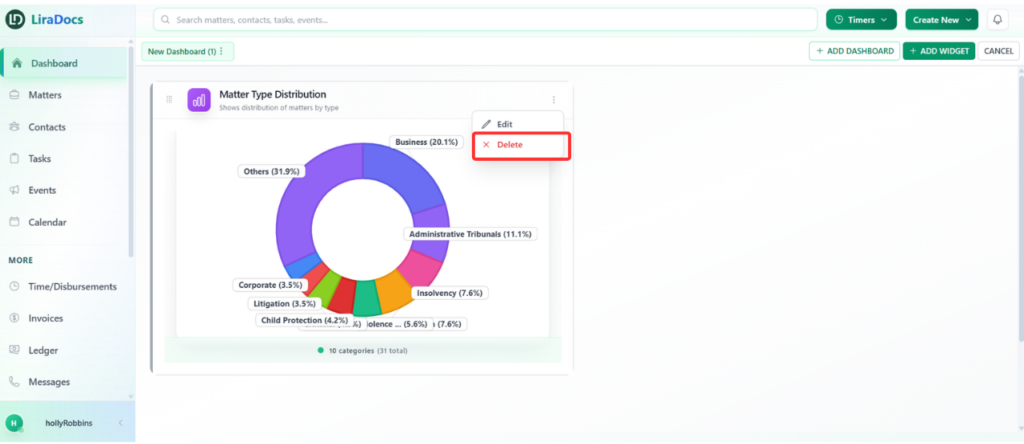
To delete a widget:

  1. Click the three dots.

  2. Select Delete.

  3. Type delete for confirmation.

  4. Click Remove Widget.

The widget will be permanently removed.

Deleting a Dashboard

If you no longer need a dashboard:

  1. Click the three dots next to the dashboard name.

  2. Select Remove.

  3. Type delete to confirm.

  4. Click Delete Dashboard.

The dashboard will be permanently deleted.

Why the Dashboard Matters

The dashboard helps you stay organized, monitor progress, and manage workload efficiently. By customizing widgets and arranging them based on your priorities, you can create a personalized workspace that supports better decision-making and improved productivity.

How to Add a New Widget to the Dashboard

Widgets allow you to customize your dashboard and quickly view important information such as matter distribution, tasks, and other key data. Follow the steps below to add a new widget to your dashboard.

Step 1: Open the Dashboard

Navigate to the Dashboard section in Liradocs where you want to add a new widget.

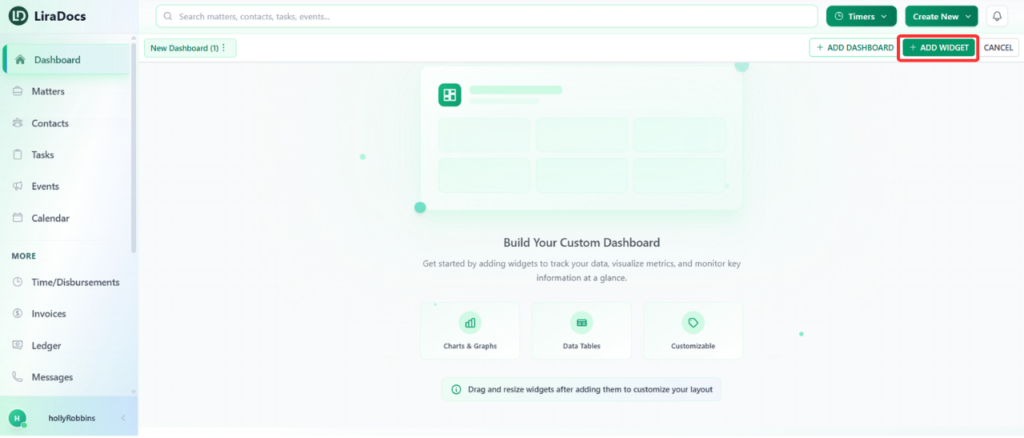
Step 2: Click on “Add Widget”

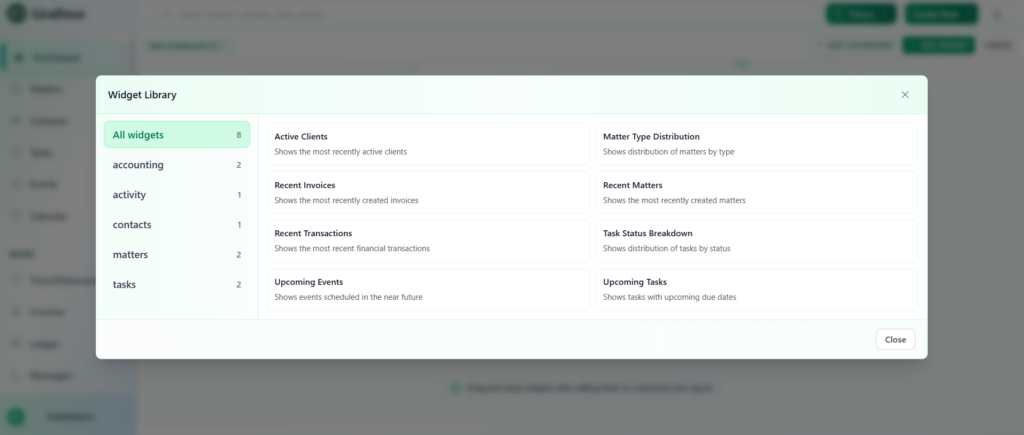
Click on the Add Widget button. This will open the Widget Library, where you can browse and select widgets based on your needs.

Step 3: Select a Widget

From the widget library, choose the widget you want to add to your dashboard.

For example, you can select Matter Type Distribution to display a visual breakdown of matters by type.

Step 4: Customize the Widget

Before adding the widget, you can customize several settings:

  • Display Name: Change the name of the widget as it will appear on the dashboard.

  • Fields to Display: Select the data fields you want the widget to show.

  • Color: Choose a color that matches your dashboard theme.

  • Refresh Interval: Set how often the widget automatically updates its data.

Step 5: Add the Widget

Once you have configured the widget settings, scroll to the top of the page and click the Add button.

The widget will now appear on your dashboard.

Step 6: Reposition or Resize the Widget

After adding the widget, you can adjust its placement and size:

  • Move the widget by clicking and dragging it to your preferred location on the dashboard.

  • Resize the widget by dragging its corner to make it larger or smaller.

This allows you to organize your dashboard in a way that best suits your workflow.

How to Edit a Dashboard Widget

Dashboard widgets in Liradocs can be easily updated if you need to change how information is displayed. You can modify widget settings such as the display name, fields shown, colors, or refresh interval.

Follow the steps below to edit a dashboard widget.

Step 1: Locate the Widget

First, go to your Dashboard and find the widget that you want to edit.

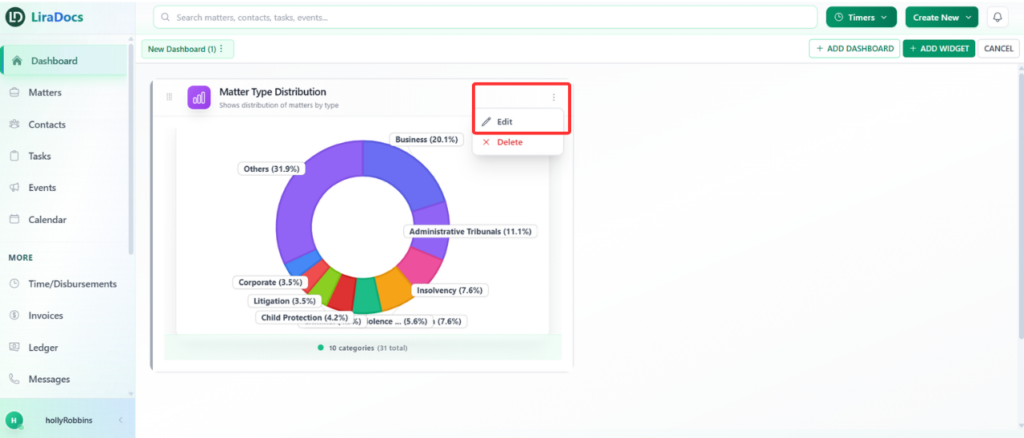
Step 2: Open the Widget Options

On the widget, click the three dots (options menu) located on the widget.

From the dropdown menu, select Edit.

Step 3: Make the Required Changes

You can now modify the widget settings according to your needs. For example, you may update the widget’s display name, adjust the fields being displayed, or change other available options.

Step 4: Save Your Changes

Once you have finished making the changes, click the Save Changes button.

Your widget will now be updated and the new settings will be applied to the dashboard.

How to Delete a Dashboard Widget

If a widget is no longer needed on your dashboard, you can easily remove it. Deleting a widget helps keep your dashboard organized and focused on the information that matters most.

Follow the steps below to delete a dashboard widget in Liradocs.

Step 1: Locate the Widget

First, go to your Dashboard and find the widget that you want to remove.

Step 2: Open the Widget Options

On the widget, click the three dots (⋯) menu located in the corner of the widget.

This will open a list of available options.

Step 3: Select Delete

From the options menu, click Delete.

Step 4: Confirm Deletion

A confirmation prompt will appear.

Type delete in the confirmation field, then click Remove Widget.

The widget will now be permanently deleted from your dashboard.

Dashboard – Complete Guide

The Liradocs Dashboard is your central workspace, designed to give you a clear and organized overview of your firm’s daily operations. From matters and tasks to events and performance insights, everything you need is accessible in one place. This guide will walk you through how to create, customize, manage, and optimize your dashboard for maximum efficiency.

Creating a New Dashboard

To create a dashboard, simply click the “Add Dashboard” button. The system instantly creates a new dashboard for you.

If you would like to rename it:

  1. Click the three dots next to the dashboard name.

  2. Select Rename.

  3. Enter the new name.

  4. Click Rename again to confirm.

Your dashboard will immediately update with the new name.

Adding and Customizing Widgets

Widgets allow you to display important information such as matter distribution, task status, or other key insights.

To add a widget:

  1. Click “Add Widget.”

  2. Choose a widget from the widget library.

  3. Customize the widget before adding it:

    • Change the display name

    • Select which fields to show

    • Adjust the color to match your theme

    • Set the refresh interval (how often the data updates)

After customizing, click Add, and the widget will appear on your dashboard.

You can:

  • Drag and reposition widgets anywhere on the dashboard

  • Resize them according to your preference

Editing or Deleting a Widget

To edit a widget:

  1. Click the three dots on the widget.

  2. Select Edit.

  3. Make your changes.

  4. Click Save Changes.

To delete a widget:

  1. Click the three dots.

  2. Select Delete.

  3. Type delete for confirmation.

  4. Click Remove Widget.

The widget will be permanently removed.

Deleting a Dashboard

If you no longer need a dashboard:

  1. Click the three dots next to the dashboard name.

  2. Select Remove.

  3. Type delete to confirm.

  4. Click Delete Dashboard.

The dashboard will be permanently deleted.

Why the Dashboard Matters

The dashboard helps you stay organized, monitor progress, and manage workload efficiently. By customizing widgets and arranging them based on your priorities, you can create a personalized workspace that supports better decision-making and improved productivity.

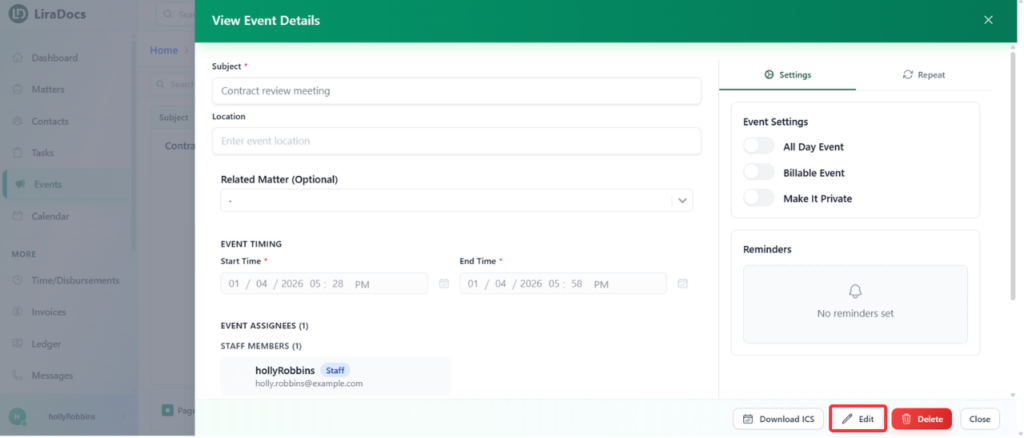
How to Create an Event

Events in Liradocs help you schedule and track meetings, appointments, or deadlines related to matters. You can assign events to staff, link them to matters, and set reminders to stay organized.

Follow these steps to create a new event in Liradocs:

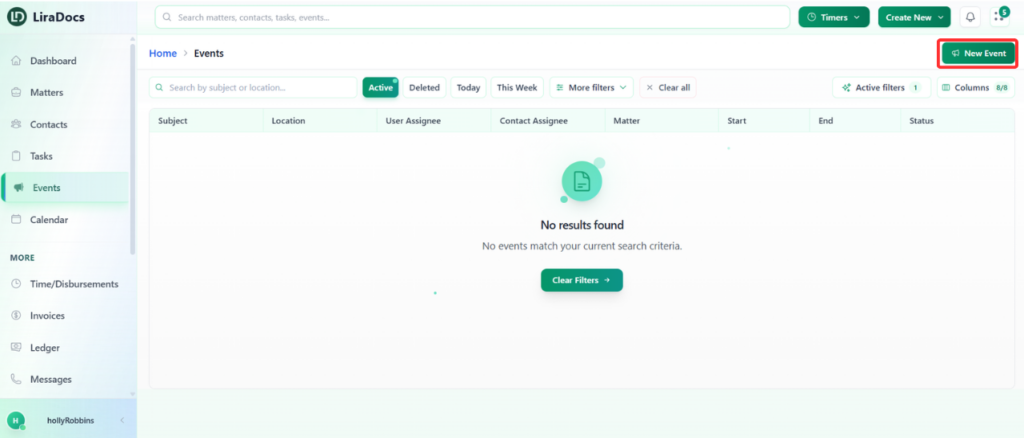
Step 1: Navigate to the Events Tab

  1. Go to the Events tab from the main menu.

  2. Click on the New Event button to start creating a new event.

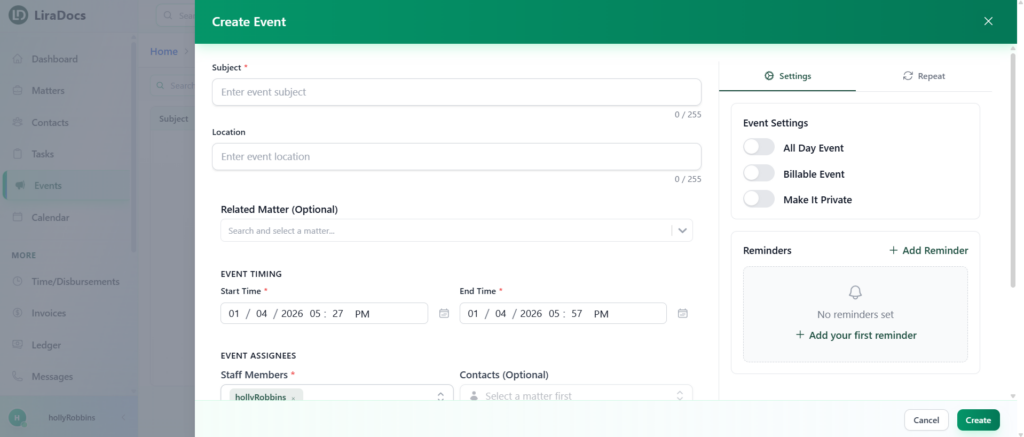
Step 2: Enter Event Details

  1. Subject: Enter the title or subject of the event.

  2. Location (Optional): Add the location if applicable.

  3. Related Matter: Select the matter that this event is associated with.

Step 3: Set Date and Time

  1. Start Time: Choose the start time for the event.

  2. End Time: Set the end time.

Step 4: Assign Staff Members

  1. Select the staff members who should be assigned to the event.

Step 5: Add Notes (Optional)

  1. Enter any additional notes or details about the event in the notes section.

Step 6: Adjust Event Settings

You can customize additional settings for your event:

  • All-Day Event: Mark the event as lasting the entire day.

  • Billable Event: Indicate if the event is billable.

  • Private Event: Make the event private so only assigned staff can view it.

  • Reminder: Set a reminder to notify staff before the event starts.

Step 7: Set Repeat Options (Optional)

If your event occurs regularly, you can configure repeat options:

  • Repeat Daily, Weekly, Monthly, or Yearly

  • Customize the days and occurrences as required

For one-time events, leave the repeat option disabled.

Step 8: Create the Event

  1. Once all details are entered, click the Create button.

  2. Your new event will now appear in the Events tab.

Creating events in Liradocs is quick and flexible, allowing you to efficiently manage meetings, deadlines, and staff schedules while keeping them linked to relevant matters.

How to Create a Time/Fee Entry in Liradocs Mobile App

Creating a time or fee entry in Liradocs helps you track work accurately, manage billing, and associate activities with specific matters. Follow these steps to create a new time/fee entry:

Steps to Create a Time/Fee Entry

  1. Open the Menu
    Go to the menu in the Liradocs mobile app.
  2. Select Time
    Click on “Time” to open the time/fee entries page.
  3. Start a New Entry
    Click on the plus (+) icon to create a new entry.
  4. Select Entry Type
    Choose whether you want to create a Time Entry or a Fee Entry.
  5. Fill in the Details
    • Matter: Select the related matter.
    • Staff: Choose the staff member.
    • Activity Code: Select the appropriate activity.
    • Subject: Enter a subject or description.
  6. Set Billing Options
    Select whether the entry is VAT exempt, VAT inclusive, and whether it is billable.
  7. Create the Entry
    Once all the details are filled in, click on the “Create Time Entry” button.

Your time/fee entry is now successfully created and recorded in the system.

How to Use the Calendar

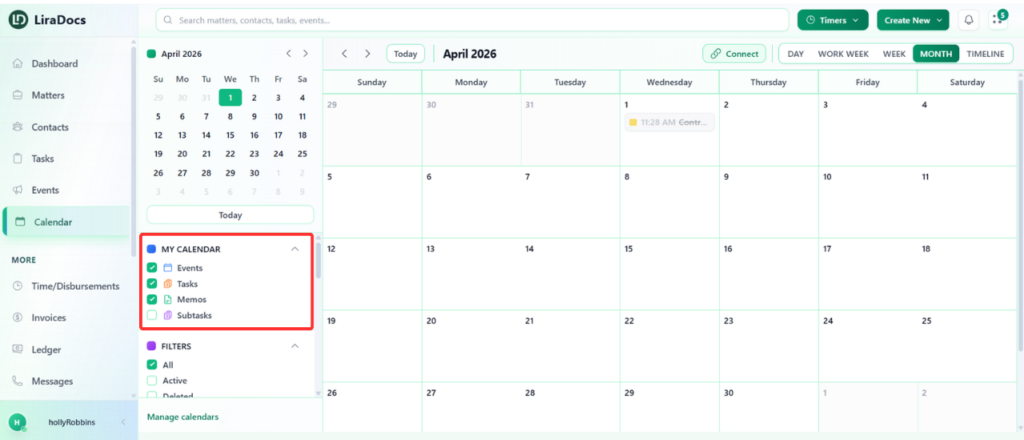
The Calendar in Liradocs helps you manage and track all your tasks, events, and memos in one central view. You can view your schedule by day, week, or month and stay on top of all important deadlines.

Step 1: Access the Calendar

  1. Navigate to the Calendar tab in Liradocs.

  2. You will see the full calendar view with all scheduled items.

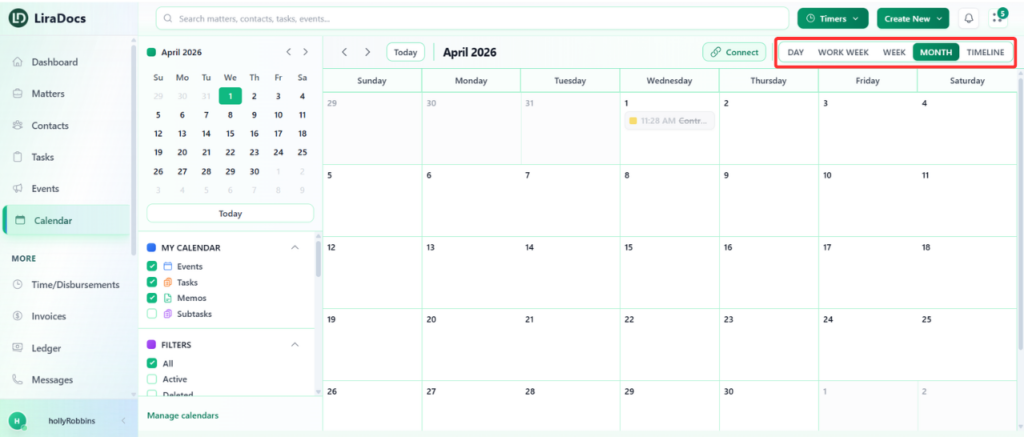
Step 2: Switch Between Views

  1. Choose the view that suits your workflow:

    • Day: Focus on a single day

    • Work Week: See the current workweek

    • Month: Get an overview of the entire month

    • Other available views depending on your preferences

  2. For example, selecting the Month view gives a full overview of all scheduled items for that month.

Step 3: Select What to Track

  1. Use the filters to decide what appears on your calendar:

    • Events: Meetings, appointments, or deadlines

    • Tasks: Assigned work items

    • Memos: Notes or reminders

Step 4: View Details

  1. Hover over any item on the calendar to see its basic details.

    • Example: Hovering over a task due on Tuesday will display its name and due date.

  2. Similarly, hovering over an event scheduled on a specific date, such as November 24, will display the event details.

By using the Liradocs calendar, you can easily track and manage all your memos, tasks, and events, ensuring nothing gets missed.

How to Create a Disbursement Entry in Liradocs Mobile App

Creating a disbursement entry in Liradocs allows you to accurately record expenses related to a matter or client. Follow these steps to create a new disbursement entry:

Steps to Create a Disbursement Entry

  1. Open the Menu
    Go to the menu in the Liradocs mobile app.
  2. Select Disbursements
    Click on “Disbursements” to open the disbursements page.
  3. Start a New Entry
    Click on the plus (+) icon to create a new disbursement entry.
  4. Fill in the Details
    • Matter: Select the related matter.
    • Staff: Choose the staff member responsible for the entry.
    • Expense Type / Category: Select the appropriate type of disbursement.
    • Amount: Enter the expense amount.
    • Notes / Description: Add any additional details if necessary.
  5. Create the Entry
    Once all details are filled in, click on the “Create Disbursement” button.

Your new disbursement entry is now successfully created and recorded in the app.

How to Create a Time Fee Activity

Time activities in Liradocs are used to track both billable and non-billable hours. These activities ensure accurate time recording and client invoicing.

Time activities can be categorized as fee, time, or disbursement. Once created, they can be linked directly to a client invoice and will automatically appear when the invoice is generated.

This guide focuses specifically on creating a time fee activity.

Step 1: Navigate to Time & Activities

  1. Go to Settings in Liradocs.

  2. From the settings menu, select Time & Activities.

Step 2: Create a New Activity

  1. Click on the Create Activity button.

  2. The activity type will automatically be set to Fee.

Step 3: Fill in Activity Details

Complete the following fields:

  • Activity Code: Enter a unique code for the activity.

  • Subject: Add a descriptive name for the activity.

  • Billable Status: Select whether the activity is billable or non-billable.

  • VAT Option: Choose if the fee is VAT inclusive or VAT exempt.

  • Fee Amount: Enter the amount for this activity.

Step 4: Save the Activity

Once all details are entered, click the Create Activity button.

Your new time fee activity is now successfully created and ready to be linked to invoices.

This process ensures all billable and non-billable work is accurately recorded and accounted for in client invoicing.

How to Create a Memo in Liradocs Mobile App

Creating a memo in Liradocs allows you to record important notes, reminders, or updates related to matters, tasks, or clients. Follow these steps to create a new memo:

Steps to Create a Memo

  1. Open the Menu
    Go to the menu in the Liradocs mobile app.
  2. Select Memos
    Click on “Memos” to open the memos page.
  3. Start a New Memo
    Click on the plus (+) icon to create a new memo.
  4. Fill in Memo Details
    • Title: Enter the memo title.
    • Date and Time: Select the date and time for the memo.
    • Matter: Choose the related matter.
    • Task (Optional): You can link a task if needed.
    • Content: Enter the details or notes for the memo.
  5. Create the Memo
    Once all details are filled in, click on the “Create” button.

Your new memo is now successfully created and recorded in the Liradocs mobile app.

How to Create an Invoice

Liradocs allows you to create invoices for clients based on time entries, fees, and disbursements recorded for a matter. You can create an invoice in two ways:

  • From the Invoices section (outside a matter)

  • From within a specific matter

The process for creating an invoice is the same in both methods.

Method 1: Creating an Invoice from the Invoices Section

Step 1: Go to the Invoices Section

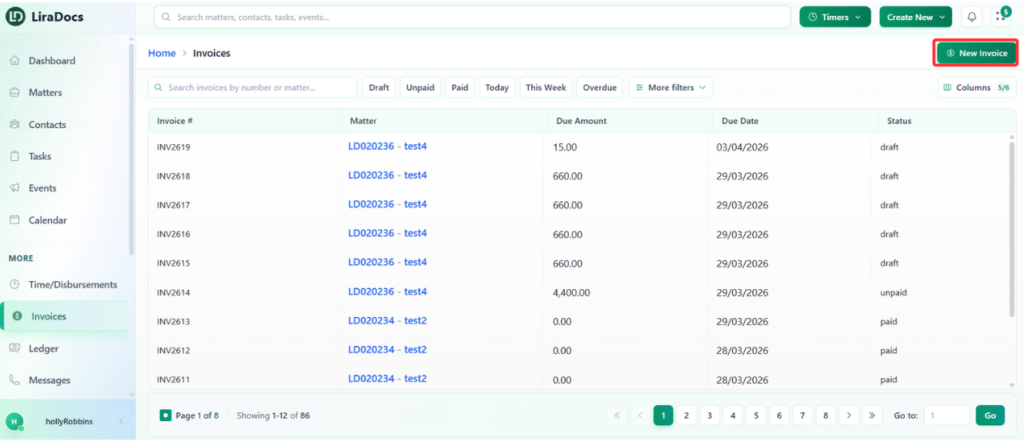
  1. Navigate to the Invoices section in Liradocs.

  2. Click the New Invoice button.

Step 2: Enter Basic Invoice Details

Fill in the required invoice information:

  • Issue Date: Select the date the invoice is issued.

  • Due Date: Select the payment due date.

  • Related Matter: Choose the matter associated with the invoice.

  • Debtors / Clients: Select the client or debtor for the invoice.

Step 3: Add a Time and Fee Entry

Next, add the time or fee entries that will be included in the invoice.

  1. Confirm the Date, Matter, and Staff Member (these may already be selected based on the matter).

  2. Optionally select an Activity.

  3. Enter a Subject for the entry (this field is required).

Financial Details

Provide the financial details for the entry:

  • Duration Type: Select the preferred duration type.

  • Duration: Enter the amount of time spent.

  • Rate: Enter the billing rate.

GST Settings

Choose the appropriate GST option:

  • GST Inclusive

  • GST Exempt

After completing the required fields, click Create to record the time and fee entry.

Then checkmark the entry to include it in the invoice.

Step 4: Add Disbursements (Optional)

If you need to add disbursements:

  1. Click Add Disbursements.

  2. Enter the required information similar to the time and fee entry.

  3. Click Create to record the disbursement.

  4. Checkmark the disbursement to include it in the invoice.

Step 5: Review the Invoice Summary

Scroll down to the Invoice Summary section.

Here you can make adjustments such as:

  • Applying a discount

  • Adding a surcharge (if required)

Review the invoice details to ensure everything is correct.

Step 6: Generate the Invoice

  1. Click Save and View Preview.

  2. The invoice will be generated and displayed in preview mode.

From the preview screen, you can also download the invoice as a PDF.

Method 2: Creating an Invoice from Inside a Matter

You can also create an invoice directly from a specific matter.

Step 1: Open the Matter

  1. Go to the Matters tab.

  2. Select the matter for which you want to create an invoice.

Step 2: Create the Invoice

  1. Open the Invoices tab within the matter.

  2. Click New Invoice.

Step 3: Follow the Same Invoice Creation Process

Complete the invoice by following the same steps described above:

  • Enter invoice details

  • Add time and fee entries

  • Add disbursements if required

  • Apply adjustments

  • Save and preview the invoice

You have now successfully created and managed an invoice in Liradocs.

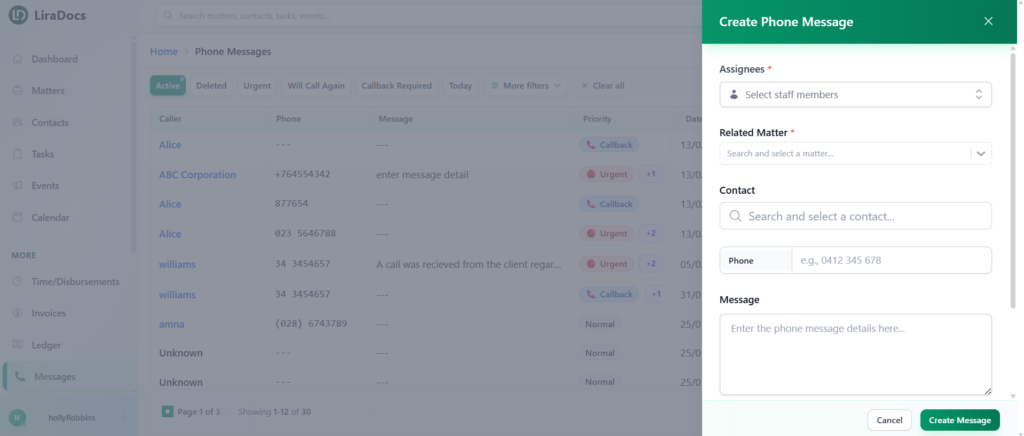
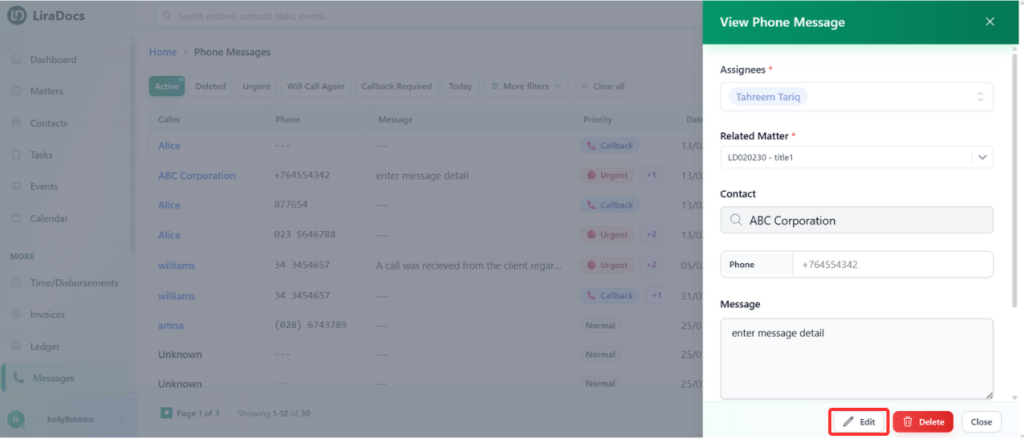
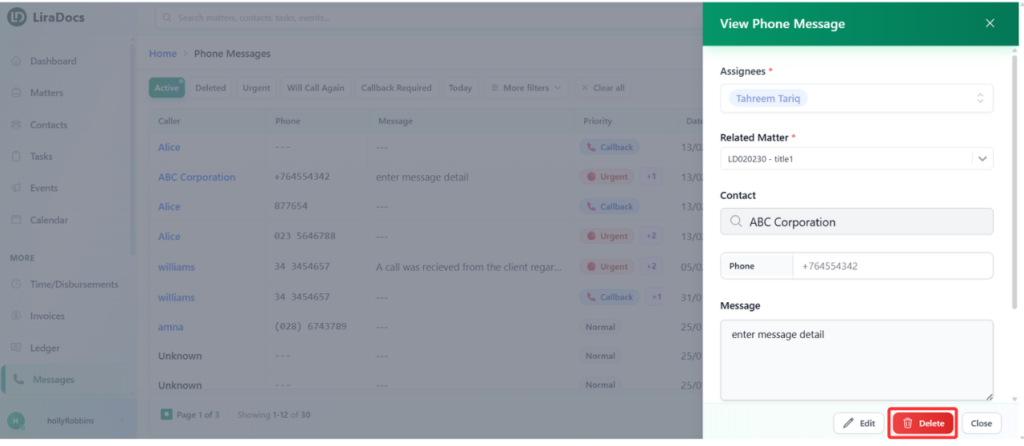
How to Create a New Phone Message

The Messages feature in Liradocs allows you to record and share phone messages with team members. Messages can be linked to a matter and a contact, ensuring that all communication is properly documented and easy to track.

Follow the steps below to create a new phone message.

Step 1: Go to the Messages Section

  1. Navigate to the Messages tab in Liradocs.

  2. Click the New Message button to start creating a message.

Step 2: Assign the Message

When creating a new message, you will automatically be selected as the assignee by default. This means the message will initially be assigned to you.

If needed, you can update the assignee according to your workflow.

Step 3: Select the Related Matter

  1. Choose the related matter for the message.

  2. Linking the message to a matter helps keep communication organized within the correct case or project.

Step 4: Select the Contact

  1. Search for and select the relevant contact associated with the message.

  2. This ensures the message is properly connected to the correct person or organization.

Step 5: Write the Message

In the message field, type the details of the phone message you want to record or share.

Step 6: Choose Additional Options (Optional)

You can enable additional options depending on the situation, such as:

  • Email Notification: Notify the recipient via email.

  • Call Back Required: Indicate that a call back is needed.

  • Will Call Again: Mark that you will call again later.

  • Urgent: Mark the message as urgent to highlight its priority.

Step 7: Create the Message

After completing all the required details:

  1. Click Create Message.

Your new phone message will be successfully created and recorded in Liradocs.

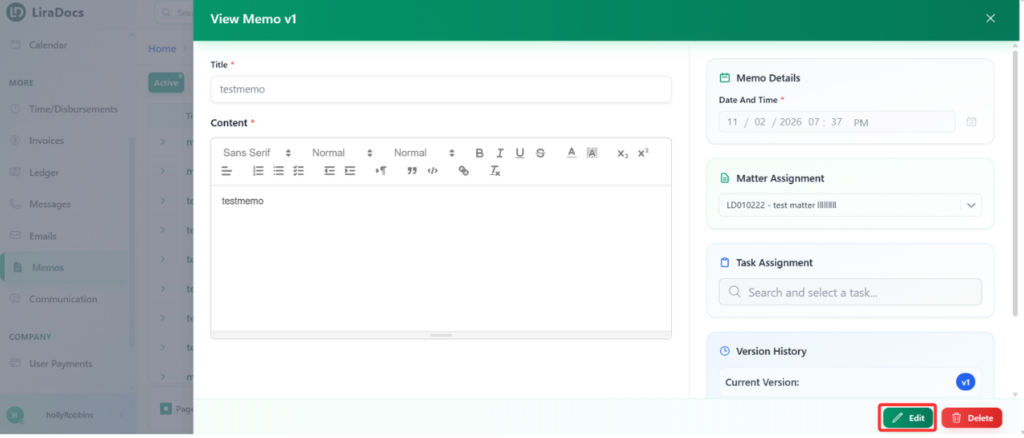
How to Edit a Memo

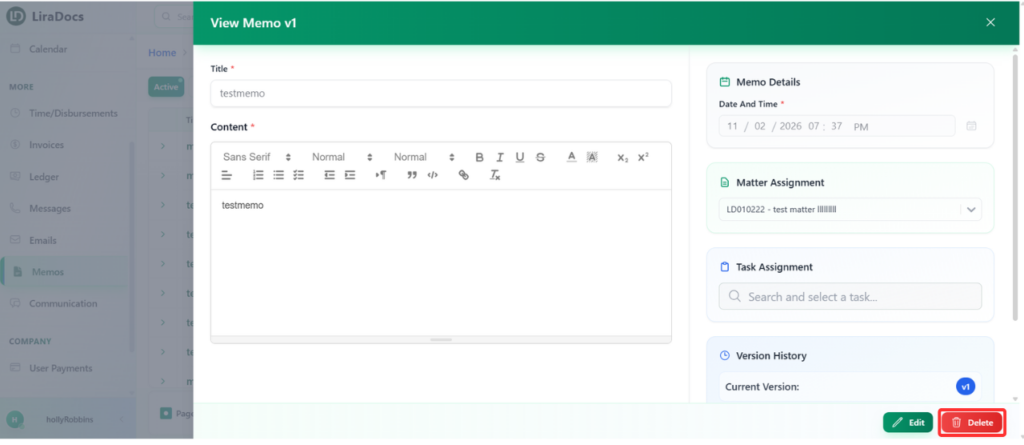
In Liradocs, memos can be edited whenever updates are needed. Each time a memo is edited and saved, the system automatically creates a new version of the memo while keeping the previous versions in the version history. This allows you to track changes and review earlier versions whenever necessary.

Follow the steps below to edit a memo and view its version history.

Step 1: Go to the Memos Section

  1. Navigate to the Memos tab in Liradocs.

  2. From the list of memos, locate the memo you want to edit.

  3. Click on the memo to open it.

Step 2: Edit the Memo

  1. Click the Edit button.

  2. Make the necessary changes to the memo content.

  3. Once you have finished editing, click Save.

After saving, the memo will be updated and the changes will be stored as a new version of the memo.

Step 3: View the Memo Version History

  1. Open the memo again.

  2. Locate the Version History section.

  3. Click View All Versions to see all saved versions of the memo.

Step 4: Switch Between Versions

Within the version history, you can:

  • Click on an older version to view the original content of the memo.

  • Click on the current version to view the most recently updated memo.

This version tracking system allows you to review previous edits and maintain a clear history of changes.

By using version history, you can easily edit memos while keeping a record of all previous versions in Liradocs.

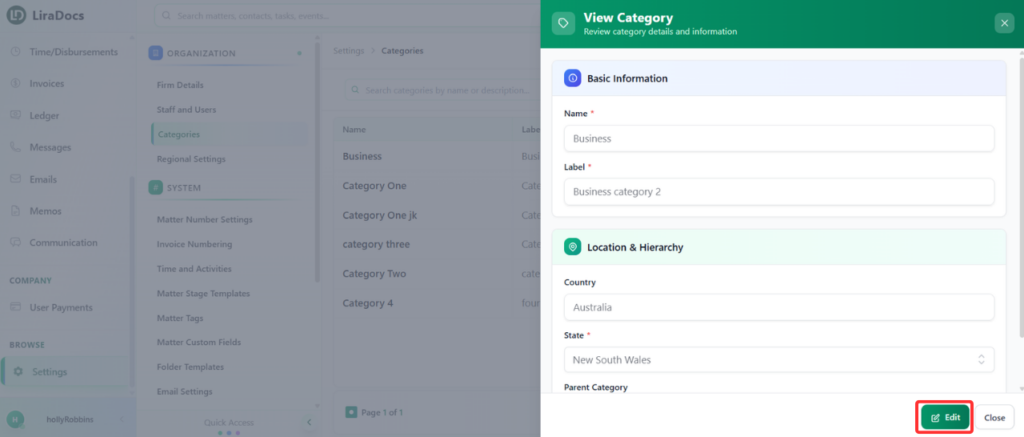
How to Edit a Matter Category

You can easily update an existing matter category in Liradocs to keep your matter organization accurate and up to date.

Follow the steps below to edit a matter category.

Step 1: Go to Categories

  1. Navigate to Settings in Liradocs.

  2. From the settings menu, select Categories.

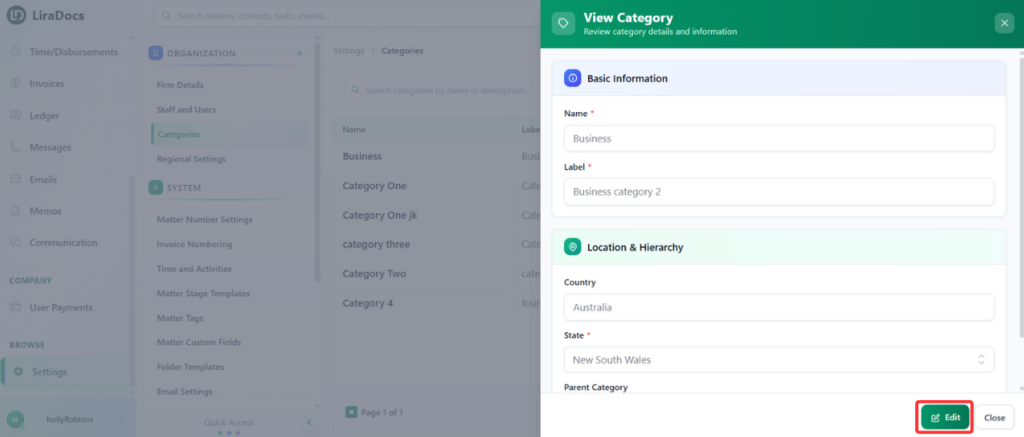
Step 2: Open the Category

  1. From the list of categories, locate the category you want to edit.

  2. Click on the category to open it.

Step 3: Make Changes

  1. Click the Edit button.

  2. Update the required details, such as:

    • Label: Modify the name of the category

    • State: Change the associated state if needed

Step 4: Update the Category

  1. After making the necessary changes, click the Update button.

Your matter category is now successfully updated in Liradocs.

How to Reinstate a Deleted Matter in Liradocs Mobile App

If you accidentally deleted a matter or need to restore a previously removed matter, the Liradocs mobile app makes it easy to reinstate it. Follow these steps to restore a deleted matter.

Steps to Reinstate a Deleted Matter

  1. Open the Menu
    Tap on the menu icon in the app to access different features.
  2. Go to Matters
    From the menu, select “Matters” to view your list of matters.
  3. Identify Deleted Matters
    In the matters list, look for the rounded arrow icon next to the names of deleted matters.
  4. Reinstate the Matter
    Tap on the rounded arrow icon for the matter you want to restore.
  5. Confirm Restoration
    A confirmation pop-up will appear. Tap on “Reinstate” to restore the matter.

Once completed, the matter will reappear in your active matters list, and all associated information will be restored.

Matters

Understanding Matters in Liradocs

In Liradocs, a Matter represents a case, project, or legal work that your firm is handling for a client. It acts as the central place where all information related to that specific work is organized and managed.

Instead of storing information across multiple locations, Liradocs allows you to keep everything related to a case within a single matter. This helps teams stay organized, collaborate efficiently, and quickly access important details whenever needed.

What Can Be Managed Inside a Matter?

Each matter acts as a workspace where you can manage and track different activities related to a client or case. Within a matter, you can typically organize:

  • Contacts associated with the matter

  • Tasks and activities

  • Calendar events and deadlines

  • Phone messages and communications

  • Time entries and billing activities

  • Documents and file folders

Keeping all of this information in one place makes it easier to monitor progress and maintain clear records for every case.

Why Matters Are Important

Matters help structure your firm’s workflow by separating work into clearly defined cases or projects. This makes it easier to manage multiple clients and ensure that information does not get mixed between different cases.

Using matters in Liradocs helps your team:

  • Stay organized across multiple cases

  • Track activities and deadlines efficiently

  • Manage communication with clients

  • Record time and billing information accurately

  • Access all related information from a single location.

Learn How to Use Matters

This section of the documentation will guide you through everything you need to know about managing matters in Liradocs.

In the guides below, you will learn how to:

  • Create a new matter

  • Edit matter details

  • Manage matter categories

  • Track activities within a matter

  • Organize documents and information

Select a guide from the list to learn more about each feature.

How To Create A Matter

Matters are the core of your workflow in Liradocs. They allow you to organize all case-related information, including contacts, stages, documents, and activities, in one place.

Follow the steps below to create a new matter in Liradocs.

Step 1: Open the Matters Section

First, navigate to the Matters tab from the main menu.

Click on the New Matter button to start creating a new matter.

You may see two versions available for creating a matter. For this guide, select Version 2 (V2).

Step 2: Select Matter Type

After opening the matter creation page, begin by selecting the Matter Type.

For example, you may choose Business or another category depending on the type of case you are creating.

Step 3: Select a Stage Template

Next, choose a Stage Template from the dropdown menu. Stage templates help define the workflow stages that the matter will go through.

If the template you need does not exist, you can create a new one.

Creating a New Stage Template

  1. Click on the option to create a New Template.

  2. Enter a Template Name.

  3. Select the Matter Type associated with the template.

  4. Optionally, add a description for the template.

Next, begin adding stages to the template:

  • Enter the Stage Name.

  • Optionally add a description for the stage.

  • Select a color for the stage.

  • Choose an icon.

Repeat the process to add as many stages as required.
Once all stages are added, click Create Template.

The newly created stage template will now be available for selection.

Step 4: Add Participants

Next, add participants to the matter.

You can select contacts from your contact list and assign their relationship to the matter, such as client, opposing party, or another role.

Step 5: Select a Custom Field Set

In the Custom Fields section, select a Field Set.

Field sets contain predefined fields that collect specific information related to certain matter types.

Creating a New Field Set

If the required field set does not exist:

  1. Click New Field Set.

  2. Enter a Field Set Name.

  3. Optionally add a description.

  4. Select the fields you want to include in the field set.

Once the fields are selected, click Create Field Set.

Return to the matter creation page and select the newly created field set.

Step 6: Fill in Custom Fields

After selecting the field set, fill in the required information in the displayed fields.

If needed, you can also add extra fields.

Adding an Additional Field

  1. Click Add Field.

  2. Select the field you want to include (for example, Client Name).

  3. Click Add.

The selected field will appear in the form and can be filled in.

Step 7: Enter Matter Details

Next, complete the Matter Details section.

Provide the following information:

  • Matter Title

  • Short Description

  • Opening Date

  • Closing Date

You can also assign staff members to the matter.

Select whether you are assigned as Responsible or Assistant, and add additional staff members if required.

Step 8: Create the Matter

Once all the required information has been entered, click the Create Matter button.

Your new matter will now be successfully created and added to the system.

Creating matters in Liradocs allows your firm to organize case information efficiently and manage workflows in a structured and flexible way.

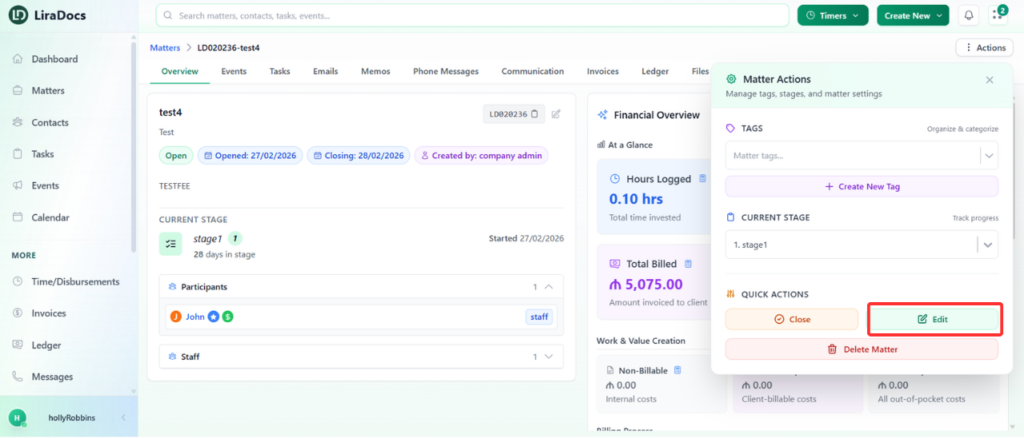
How To Edit A Matter

Editing a matter in Liradocs allows you to update important information such as the matter description, closing date, or assigned staff members. This ensures that all details related to the matter remain accurate and up to date.

Follow the steps below to edit an existing matter in Liradocs.

Step 1: Go to the Matters Tab

First, navigate to the Matters tab from the main menu.
This section displays the list of all matters in your system.

Step 2: Open the Matter You Want to Edit

From the list of matters, click on the matter you want to update.
This will open the matter details page.

Step 3: Click on the Actions Button

Once the matter is open, click on the Actions button and select Edit from the available options.
This will open the matter editing form.

Step 4: Make the Required Changes

You can now update any information related to the matter.

For example, you may:

  • Update the matter description

  • Change or extend the closing date

  • Add or update assigned staff members

  • Modify other matter details as needed

In this example, the matter description is updated, the closing date is extended, and an additional staff member is added as an assistant.

Step 5: Update the Matter

After making all the necessary changes, click the Update Matter button.

Your changes will be saved, and the matter will be updated successfully.

How To Create And Assign A Stage Template

Stage templates help organize the progress of a matter by defining different stages that a matter can go through. By using stage templates, firms can track the workflow of a matter more efficiently and maintain a consistent process across cases.

In Liradocs, stage templates can be created in two ways:

  1. From the Settings section (outside a matter)

  2. Directly from within a matter

Both methods follow the same template creation process.

Method 1: Create a Stage Template from Settings

Step 1: Open Settings

Scroll down the main menu and click on Settings.

Step 2: Go to Matter Stage Templates

Inside the settings page, navigate to Matter Stage Templates.

Here you will see a list of all existing stage templates.

Step 3: Create a New Template

Click the New Template button to begin creating a new stage template.

Step 4: Enter Template Details

First, enter the Template Name.

Next, select the Matter Type for which the template will be used.

You may also add a Description, although this field is optional.

Step 5: Add Stages to the Template

Now you can start adding stages to the template.

For each stage:

  1. Enter the Stage Name

  2. Add a Description (optional)

  3. Choose a Color for the stage

  4. Select an Icon

After entering these details, click Add Stage.

You can repeat this process to add as many stages as needed.

Step 6: Create the Template

Once all stages have been added, click the Create Template button.

Your new stage template will now appear in the list of available templates.

How to Assign a Stage Template to a Matter

Step 1: Open the Matter

Go to the Matters tab.

Open the matter where you want to apply the stage template.

Step 2: Edit the Matter

Click the Actions button and select Edit.

This will allow you to modify the matter’s details.

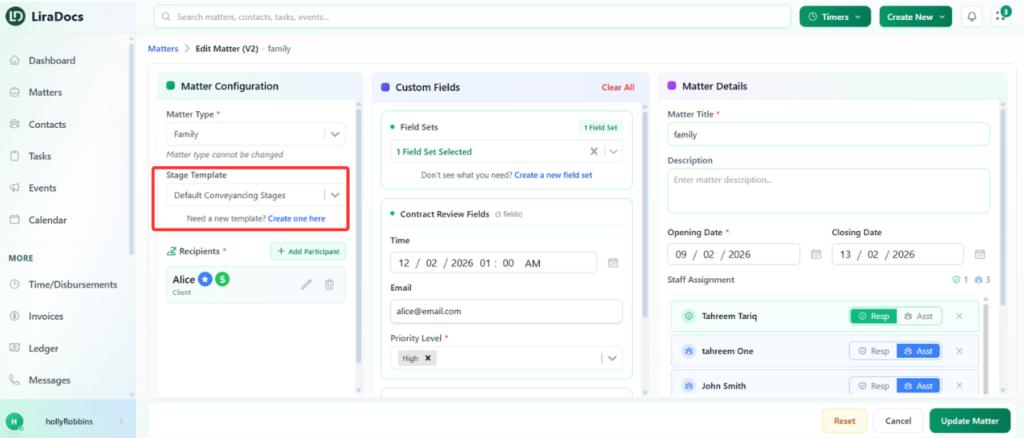
Step 3: Select the Stage Template

Locate the Stage Template dropdown.

From the list, select the template you created.

Step 4: Update the Matter

After selecting the template, click Update Matter.

The stage template will now be applied to the matter.

Method 2: Create a Stage Template from Inside a Matter

You can also create a stage template directly while editing a matter.

Inside the Stage Template section of the matter, click the option to create a new template. This will open the same stage template creation screen used in the settings area.

Follow the same steps described earlier to:

  • Enter the template name

  • Select the matter type

  • Add stages to the template

  • Create the template

Once the template is created, return to the matter, select the newly created template from the dropdown menu, and click Update Matter.

Your stage template is now successfully created and assigned to the matter.

How To Change The Stage Level Of A Matter

Matter stages help track the progress of a matter through different phases of work. Updating the stage allows your team to clearly see where a matter currently stands in the workflow.

Follow the steps below to change the stage level of a matter in Liradocs.

Step 1: Go to the Matters Tab

First, navigate to the Matters tab from the main menu.

Locate the matter whose stage you want to update and click to open it.

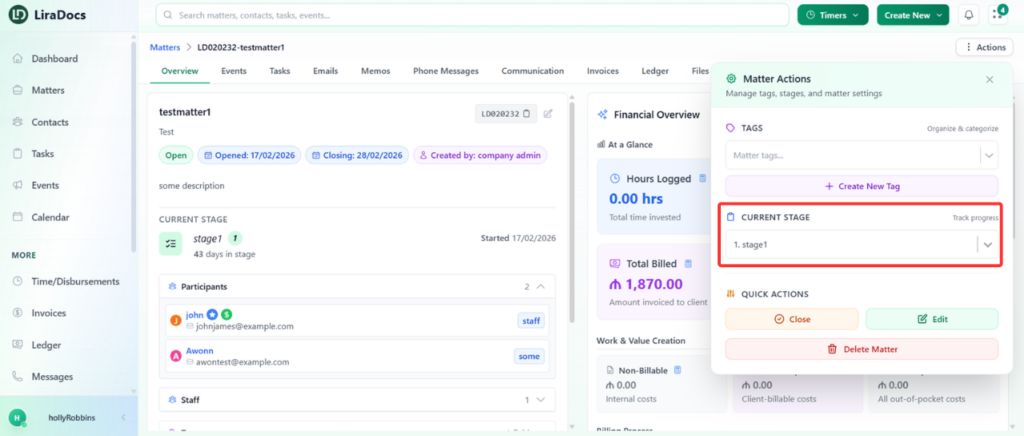
Step 2: Click on the Actions Button

Once the matter is open, click the Actions button.

In this section, you will see the current stage assigned to the matter.

Step 3: Select a New Stage

Click on the stage dropdown menu to view all available stages.

From the list, select the stage you want to move the matter to.

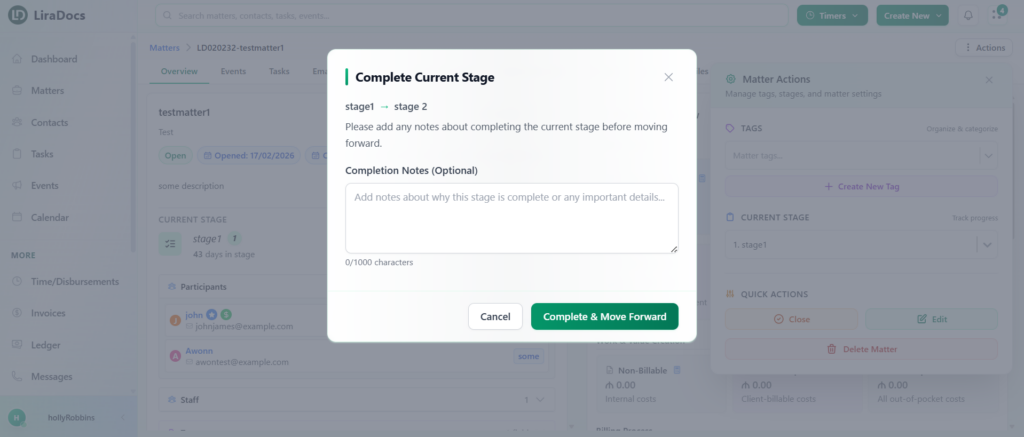
Step 4: Confirm the Stage Change

After selecting a new stage, a confirmation popup will appear.

Here you can:

  • Add a completion note if needed (optional)

Once everything is ready, click the Complete and Move Forward button.

Step 5: Stage Updated

The selected stage will now be applied to the matter, and the matter will move to the new stage in the workflow.

Updating matter stages helps your team track progress more effectively and ensures that everyone stays informed about the current status of each matter.

How To Assign A Tag To A Matter

Tags help you organize and categorize matters more effectively. By assigning tags, you can quickly identify matters, group similar cases, and improve overall organization within your workspace.

Follow the steps below to assign a tag to a matter in Liradocs.

Step 1: Go to the Matters Section

First, navigate to the Matters tab from the main menu.

This will display the list of all matters in your system.

Step 2: Open the Matter

From the matters list, select and open the matter to which you want to assign a tag.

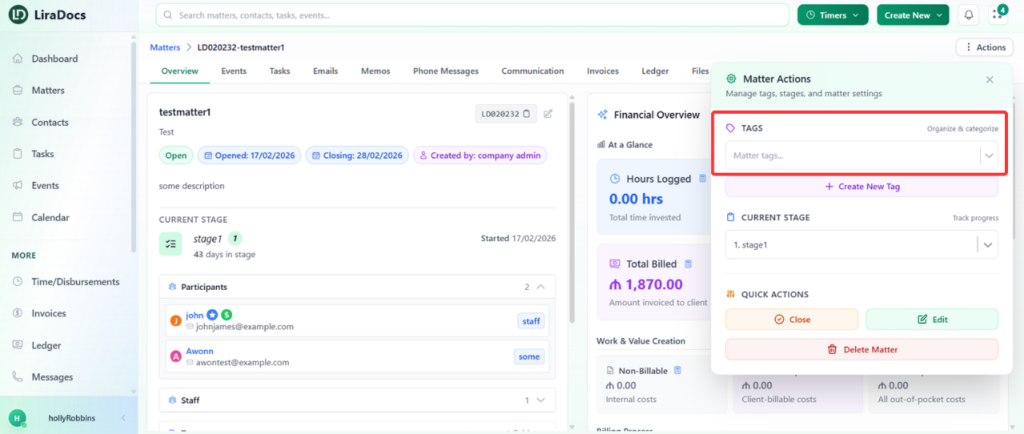
Step 3: Access the Tag Options

Once the matter is open:

  1. Click the Actions button.

  2. Navigate to the Tags section.

You will see a dropdown menu containing all the existing tags available in the system.

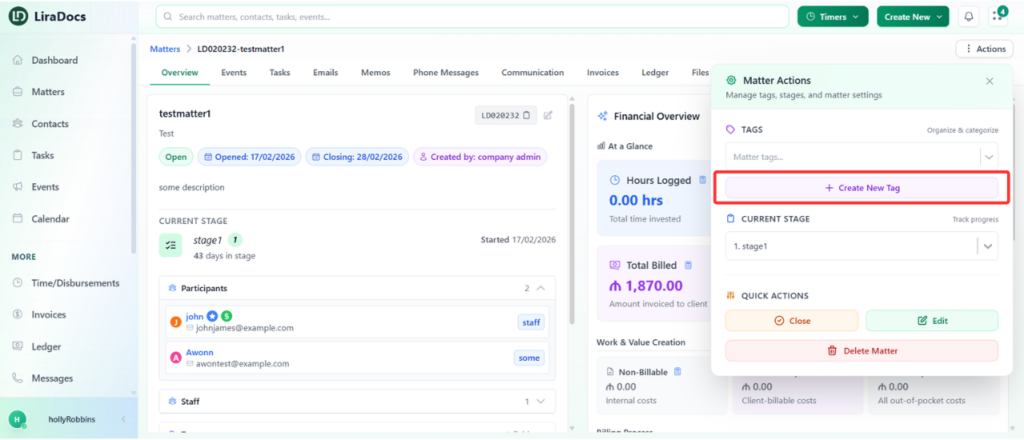
Step 4: Create a New Tag (Optional)

If the tag you want to use does not already exist, you can create a new one.

  1. Click the Create New Tag button.

  2. Enter a name for the tag.

  3. Select a color for the tag.

  4. The Matter Type field is optional and can be left unchanged if not needed.

  5. Add a description for the tag.

After filling in the required information, click the Create Tag button.

The new tag will now be added to the list of available tags.

Step 5: Assign the Tag to the Matter

To assign the tag:

  1. Open the tag dropdown menu again.

  2. Select the tag you want to apply.

  3. Click Save.

  4. Then click Apply Changes.

The selected tag will now be successfully assigned to the matter.

How To Remove An Assigned Tag From A Matter

Tags in Liradocs help you categorize and prioritize matters, but sometimes you may need to remove a tag from a matter. Follow these steps to remove an assigned tag.

Step 1: Go to the Matters Tab

Navigate to the Matters tab in Liradocs. This will show a list of all your active matters.

Step 2: Open the Matter

Click on the matter from which you want to remove the tag. The matter details page will open.

You can see any existing tags assigned to this matter. For example, it may be tagged as Medium Priority.

Step 3: Access the Tag Options

Click the Actions button on the matter details page.

In the Tag section, open the drop-down menu to see all the assigned tags.

Step 4: Unselect the Assigned Tag

From the drop-down menu, unselect the tag you want to remove.

Step 5: Save Changes

After unselecting the tag:

  1. Click Save.

  2. Then click Apply Changes to confirm the removal.

The tag is now successfully removed from the matter.

How To Apply Filters To View Specific Matters

Filters in Liradocs allow you to quickly refine your search and locate specific matters efficiently. By using search and filter options, you can easily find matters based on status, dates, assignees, and other criteria.

Follow the steps below to use filters in Liradocs.

Step 1: Navigate to the Matters Tab

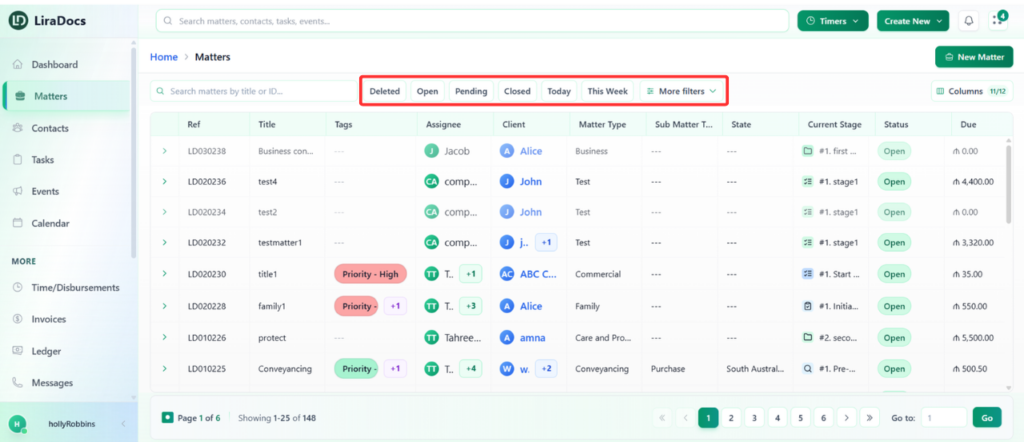
Go to the Matters tab in Liradocs. At the top of the page, you will see a search bar where you can type keywords to quickly locate matters related to your search term.

Step 2: Use Quick Filters

Liradocs provides quick filter options to help you view matters based on their status:

  • Deleted Matters: Click this to view all deleted matters.

  • Open Matters: Click to see all matters that are currently open.

  • Pending Matters: View matters that are awaiting action.

  • Closed Matters: View all matters that have been completed or closed.

  • Created Today/This Week: Filter matters based on when they were created.

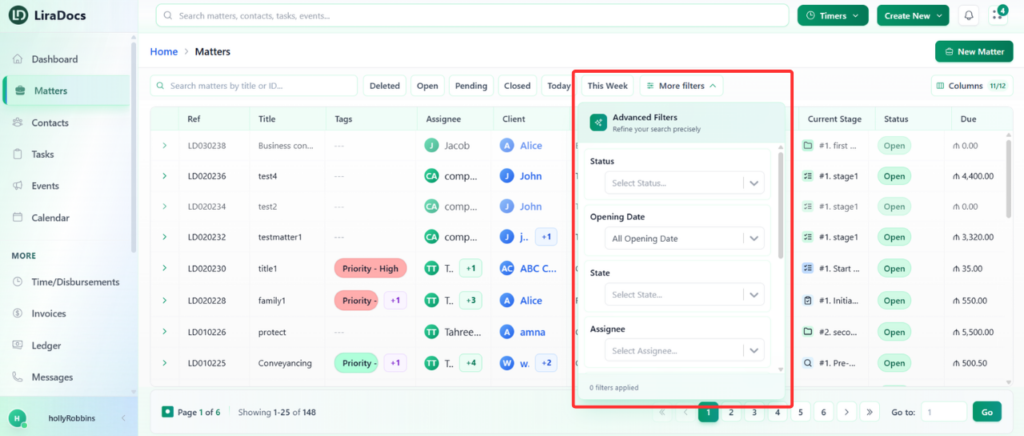
Step 3: Apply Multiple Filters

For more precise searches, you can apply multiple filters at the same time:

  • Status: Filter by matter status (Open, Pending, Closed).

  • Opening Date: Filter matters by their start date.

  • State/Location: Select matters from a specific region.

  • Assignee: View matters assigned to a particular staff member.

  • Tags: Filter by assigned tags for easier organization.

  • Date Ranges: Set specific opening and closing date ranges to narrow results.

Step 4: Customize Result Display

You can customize how your search results appear:

  • Sort and Order: Choose how matters are ordered in the results.

  • Active Filters: Review all filters currently applied to your search.

Step 5: Remove or Clear Filters

  • Remove Individual Filters: Click the “x” next to a specific filter to remove it.

  • Clear All Filters: Click Clear All to reset all filters and start a new search.

How to Create Matter Categories

Matter Categories help you organize and group matters based on their type and location. By using categories, you can easily filter, differentiate, and manage your matters more efficiently.

Step 1: Understand Matter Categories

Before creating a category, it’s important to know why they are useful:

  • Categories allow you to group matters by type or location.

  • For example, a category named Business assigned to a specific state in Australia can be applied to all business-related matters in that region.

  • This organization makes it easier to locate, filter, and manage matters later.

Step 2: Navigate to Categories

  1. Go to Settings in Liradocs.

  2. From the settings menu, click on Categories.

Step 3: Create a New Category

  1. Click on the New Category button.

  2. Fill in the basic details:

    • Category Name: Enter the name of the category.

    • Label: Enter a label for the category.

    • Country: This is automatically set to Australia.

    • State: Select the state for this category.

    • Parent Category: (Optional) Select a parent category if you want this category to be a subcategory. Leave as None if not applicable.

Step 4: Save the Category

Once all the details are filled in, click Create Category.

Your new matter category has now been successfully created in Liradocs.

How to Edit a Matter Category

Matter categories help you organize and classify your matters. If you need to update the information of an existing category, follow these steps.

Step 1: Navigate to Categories

  1. Go to Settings in Liradocs.

  2. From the settings menu, select Categories.

Step 2: Select the Category to Edit

  1. From the list of categories, find the category you want to edit.

  2. Click on the category to open its details.

Step 3: Edit the Category

  1. Click the Edit button to make changes.

  2. Update the information as needed, such as:

    • Category Label – Change the name or label of the category.

    • State – Update the state associated with the category.

Step 4: Save Changes

  1. Once all changes are made, click Update.

  2. Your matter category is now successfully updated in Liradocs.

This process ensures that your categories remain accurate and organized for better matter management.

Matter Number Settings

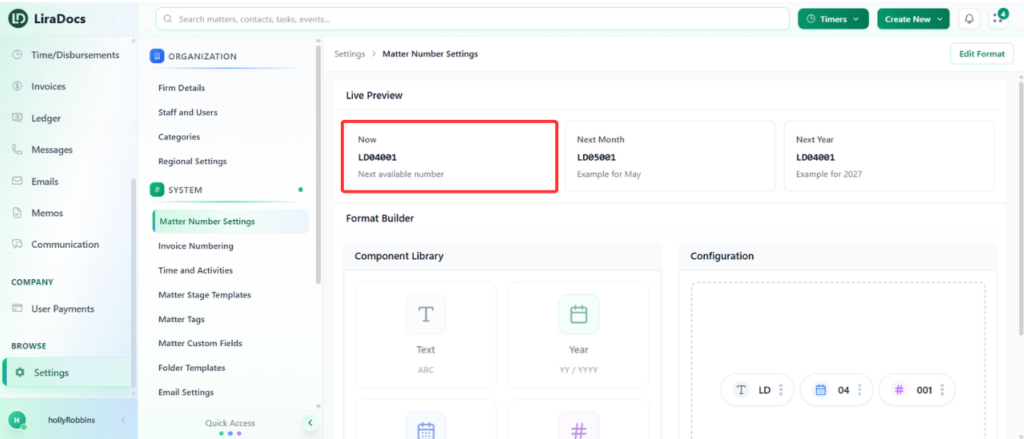
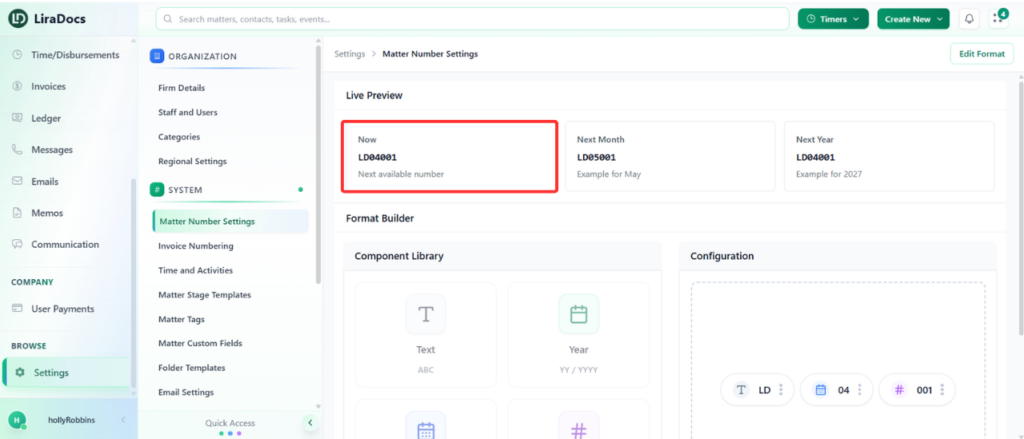
Matter numbers in Liradocs are unique identifiers automatically assigned to every matter when it is created. These numbers help your firm easily track, organize, and reference matters within the system.

Each matter number follows a structured format made up of several components. This structure allows you to quickly understand when a matter was created and its sequence within a specific period.

Matter Number Components

A matter number is typically composed of the following elements:

  1. Text Component
    This is a customizable prefix that usually represents your firm or organization.

    • Example: LD (representing Liradocs)

    • You can modify this text to match your firm’s name or preferred abbreviation.

  2. Month Component
    The next part of the matter number represents the month when the matter was created.

  3. Auto Number Component
    The final part of the matter number is an automatically generated sequential number.
    This number increases with each new matter created within that month.

Example Matter Number Structure

Example format:

LD-01-001

Where:

  • LD → Text component (firm identifier)

  • 01 → Month of creation

  • 001 → Automatically generated sequential number

How Matter Numbers Help

This structured numbering system makes it easier to:

  • Identify when a matter was created

  • Track the order of matters created within a specific month

  • Maintain organized records across your firm

For example:

  • A matter number ending in 001 indicates the first matter created during that month.

  • A matter number created in the next month will reflect the new month while continuing its sequence.

Using structured matter numbers ensures that all matters in Liradocs remain organized, searchable, and easy to reference across your firm’s workflow.

How To Delete A Matter
You can delete a matter in Liradocs when it is no longer required or was created by mistake. Deleted matters are not permanently removed immediately, they are moved to the Deleted section, where they can still be viewed using filters.

Follow the steps below to delete a matter.

Step 1: Go to the Matters Section

  1. Open Liradocs.

  2. Click on the Matters tab from the main navigation menu.

Step 2: Open the Matter

  1. From the list of matters, locate the matter you want to delete.

  2. Click on the matter to open its details.

Step 3: Select Delete Matter

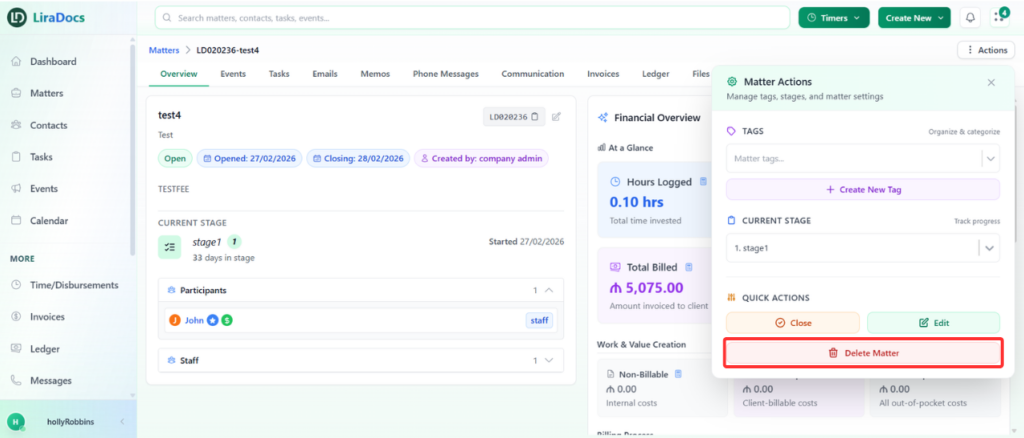
  1. Click the Actions button inside the matter page.

  2. From the dropdown menu, select Delete Matter.

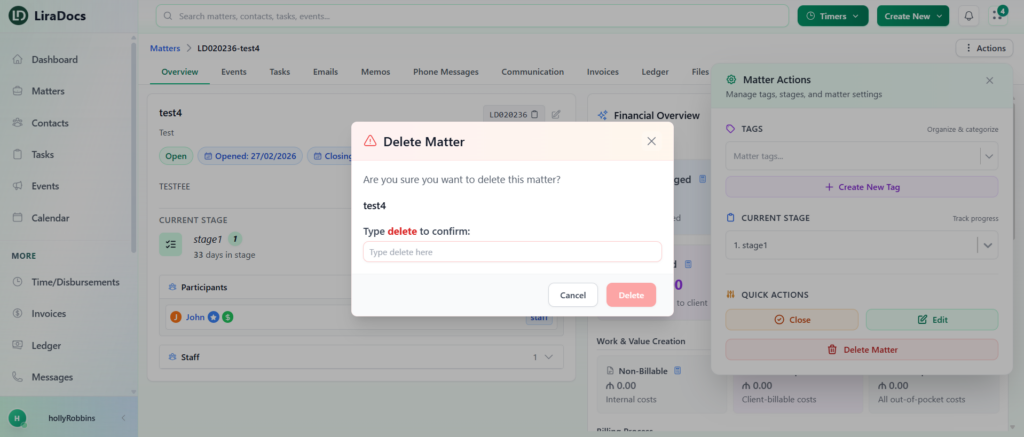
Step 4: Confirm the Deletion

  1. A confirmation prompt will appear.

  2. Type delete in the confirmation field.

  3. Click the Delete button to complete the action.

Step 5: View Deleted Matters

  1. Go back to the Matters list.

  2. Apply the Deleted filter.

  3. The deleted matter will now appear in the Deleted section.

Deleting matters helps keep your workspace organized while still allowing you to track removed records through the deleted filter.

Contacts

In Liradocs, Contacts help you manage all your individual and organizational connections in one place. Using the mobile app, you can create, view, delete, and restore contacts efficiently.

Please note that in the mobile app, you can:

  • Create Contacts – Add new individual or organizational contacts.
  • View Contacts – Access and check details of all your existing contacts.
  • Delete Contacts – Remove contacts that are no longer needed.
  • Restore Deleted Contacts – Recover contacts that were accidentally deleted.

For other advanced contact management features, please use the Liradocs web application.

On this page, you can explore detailed guides for each feature:

  • How to Create an Individual Contact
  • How to Create an Organizational Contact
  • How to Edit a Contact
  • How to Delete a Contact
  • How to Restore a Deleted Contact

How to Create an Individual Contact in Liradocs Mobile App

Adding individual contacts in Liradocs helps you keep track of all your personal connections and client details. Follow these steps to create a new individual contact using the mobile app.

Steps to Create an Individual Contact

  1. Open the Menu
    Tap on the menu icon in the app to access different features.
  2. Go to Contacts
    From the menu, select “Contacts” to view your contact list.
  3. Create a New Contact
    Tap on the plus (+) icon to start creating a new contact.
  4. Select Individual Contact
    Choose “Individual Contact” to create a personal contact.
  5. Enter Required Details
    • Name: Enter the full name of the contact.
      Note: Name is mandatory.
  6. Add Optional Details
    You can also add additional information such as:
    • Phone number
    • Email address
    • Physical address
    • Other relevant details
  7. Save the Contact
    Once all details are filled in, tap on the “Create Contact” button.

Your new individual contact is now successfully created and will appear in your contact list.

How to Create an Organizational Contact in Liradocs Mobile App

Creating organizational contacts in Liradocs allows you to manage companies, firms, or other organizations efficiently. Follow these steps to add a new organizational contact using the mobile app.

Steps to Create an Organizational Contact

  1. Open the Menu
    Tap on the menu icon in the app to access different features.
  2. Go to Contacts
    From the menu, select “Contacts” to view your contact list.
  3. Create a New Contact
    Tap on the plus (+) icon to start creating a new contact.
  4. Select Organizational Contact
    Choose “Organizational Contact” to add a company or organization.
  5. Enter Organization Details
    • Organization Type: Select the type, for example, “Company.”
    • Organization Name: Enter the official name of the organization.
    • Business Name: Add the business or trading name, if applicable.
  6. Add Optional Contact Information
    You can also provide additional details such as:
    • Phone number
    • Email address
    • Physical address
  7. Save the Organizational Contact
    Once all details are filled in, tap on the “Create Organization” button.

Your new organizational contact is now successfully created and will appear in your contact list.

How to Edit a Contact in Liradocs Mobile App

Editing a contact in Liradocs allows you to keep all contact information accurate and up-to-date. Follow these steps to update an existing contact using the mobile app.

Steps to Edit a Contact

  1. Open the Menu
    Tap on the menu icon in the app to access different features.
  2. Go to Contacts
    From the menu, select “Contacts” to view your contact list.
  3. Select the Contact
    Tap on the contact you want to edit.
  4. Open the Options Menu
    Tap on the three-dot menu to open additional options.
  5. Edit Contact
    Select “Edit” from the menu. Now you can update any details of the contact, including:
    • Name
    • Phone number
    • Email address
    • Organization or relationship details
    • Any other optional fields
  6. Save Changes
    Once all updates are made, tap on the “Update Contact” button.

The contact has now been successfully updated and will reflect the latest changes in your contact list.

How to Delete a Contact in Liradocs Mobile App

Deleting a contact in Liradocs allows you to remove individuals or organizations that are no longer needed in your contact list. Follow these steps to delete a contact using the mobile app.

Steps to Delete a Contact

  1. Open the Menu
    Tap on the menu icon in the app to access different features.
  2. Go to Contacts
    From the menu, select “Contacts” to view your contact list.
  3. Select the Contact
    Tap on the contact you want to delete.
  4. Open the Options Menu
    Tap on the three-dot menu to open additional options.
  5. Delete Contact
    Select “Delete” from the menu.

Once completed, the selected contact will be removed from your contact list.

Tip: Deleted contacts can be restored if needed using the Restore Contact feature.

How to Restore a Deleted Contact in Liradocs Mobile App

If you accidentally deleted a contact or need to recover a previously removed contact, Liradocs allows you to reinstate it quickly using the mobile app. Follow these steps to restore a deleted contact.

Steps to Restore a Deleted Contact

  1. Open the Menu
    Tap on the menu icon in the app to access different features.
  2. Go to Contacts
    From the menu, select “Contacts” to view your contact list.
  3. Open Filters
    Tap on the three-line icon in the corner of the search bar to open filter options.
  4. Select Deleted Contacts
    Apply the “Deleted” filter to see contacts that have been removed.
  5. Select the Contact
    Find the contact you want to restore and tap on the three-dot menu next to the contact name.
  6. Restore Contact
    Tap on “Restore” to reinstate the deleted contact.

The contact is now successfully restored and will reappear in your active contact list.

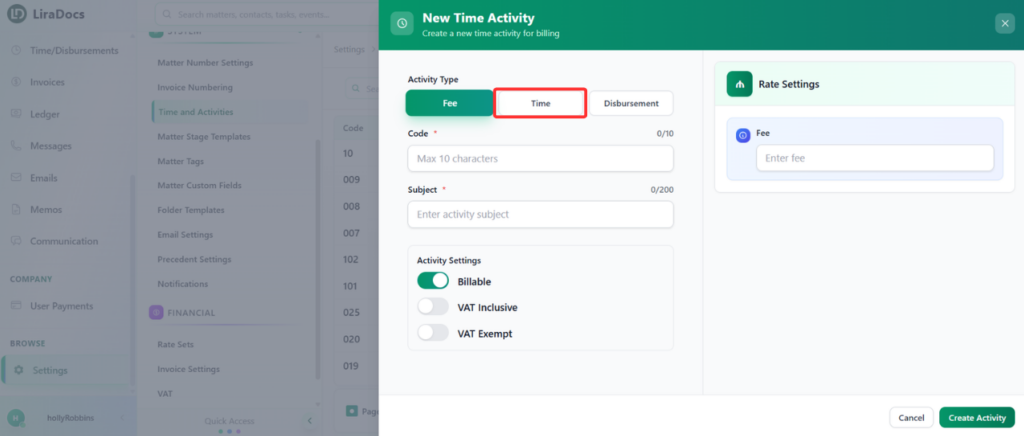
How to Create a Time Activity

Time activities in Liradocs are used to record the time spent on work, whether billable or non-billable. These records help ensure accurate time tracking and are automatically included in client invoices when linked.

Follow the steps below to create a new time activity.

Understanding Time Activities

A time activity allows you to:

  • Record billable and non-billable hours

  • Track work performed on matters

  • Link activities directly to invoices

  • Ensure accurate client billing

Time activities can be created as Fee, Time, or Disbursement. In this guide, we will focus on creating a Time activity.

Step 1: Navigate to Time & Activities

  1. Go to Settings in Liradocs.

  2. From the settings menu, select Time & Activities.

Step 2: Create a New Activity

  1. Click on the Create Activity button.

  2. In the activity type, select Time.

Step 3: Enter Activity Details

Fill in the required information:

  • Activity Code: Enter a unique code for the activity.

  • Subject: Add a short description of the activity.

  • Duration: Specify the time spent (e.g., 2 hours).

Step 4: Set Billing Options

  1. Choose whether the activity is:

    • Billable, or

    • Non-billable

  2. Select the VAT option:

    • VAT Inclusive, or

    • VAT Exempt

Step 5: Configure Rate Settings

In the rate settings section, choose how the rate should be applied:

  • Do Not Override Rate: Use the default rate

  • Override Rate for All Staff

  • Override Default Rate Per Staff Member

Select the option that best fits your requirement. For example, you can choose Do Not Override Rate to keep the default settings.

Step 6: Create the Activity

Once all details are filled in:

  1. Click on the Create Activity button.

Your time activity will now be successfully created in Liradocs.

This allows you to efficiently track work time and ensure accurate billing for your clients.

How to Create an Organizational Contact in Liradocs Mobile App

Creating organizational contacts in Liradocs allows you to manage companies, firms, or other organizations efficiently. Follow these steps to add a new organizational contact using the mobile app.

Steps to Create an Organizational Contact

  1. Open the Menu
    Tap on the menu icon in the app to access different features.
  2. Go to Contacts
    From the menu, select “Contacts” to view your contact list.
  3. Create a New Contact
    Tap on the plus (+) icon to start creating a new contact.
  4. Select Organizational Contact
    Choose “Organizational Contact” to add a company or organization.
  5. Enter Organization Details
    • Organization Type: Select the type, for example, “Company.”
    • Organization Name: Enter the official name of the organization.
    • Business Name: Add the business or trading name, if applicable.
  6. Add Optional Contact Information
    You can also provide additional details such as:
    • Phone number
    • Email address
    • Physical address
  7. Save the Organizational Contact
    Once all details are filled in, tap on the “Create Organization” button.

Your new organizational contact is now successfully created and will appear in your contact list.

How To Edit A Matter

Editing a matter in Liradocs allows you to update important information such as the matter description, closing date, or assigned staff members. This ensures that all details related to the matter remain accurate and up to date.

Follow the steps below to edit an existing matter in Liradocs.

Step 1: Go to the Matters Tab

First, navigate to the Matters tab from the main menu.
This section displays the list of all matters in your system.

Step 2: Open the Matter You Want to Edit

From the list of matters, click on the matter you want to update.
This will open the matter details page.

Step 3: Click on the Actions Button

Once the matter is open, click on the Actions button and select Edit from the available options.
This will open the matter editing form.

Step 4: Make the Required Changes

You can now update any information related to the matter.

For example, you may:

  • Update the matter description

  • Change or extend the closing date

  • Add or update assigned staff members

  • Modify other matter details as needed

In this example, the matter description is updated, the closing date is extended, and an additional staff member is added as an assistant.

Step 5: Update the Matter

After making all the necessary changes, click the Update Matter button.

Your changes will be saved, and the matter will be updated successfully.

Matter Categories

Understanding Matter Categories in Liradocs

Matter Categories in Liradocs help organize and classify different types of matters within your firm. By assigning categories to matters, you can group similar cases together and manage them more efficiently.

Matter categories make it easier to structure your matters based on practice areas, case types, or internal classifications used by your firm.

Why Matter Categories Are Useful

As your firm handles multiple matters, organizing them properly becomes essential. Matter categories allow you to quickly identify and filter matters based on their type or area of work.

Using matter categories in Liradocs helps your firm:

  • Organize matters by type or practice area

  • Maintain a clear structure for case management

  • Filter and locate matters more easily

  • Improve reporting and tracking of different matter types

  • Keep your workspace organized as your matter list grows

Better Organization for Your Matters

With properly defined categories, your team can quickly understand the type of matter they are working on and access related cases more efficiently. This helps improve workflow and ensures that matters are structured in a logical and organized way.

Matter categories are especially helpful for firms that manage a large number of cases across different legal areas.

Learn How to Manage Matter Categories

In the guides within this section, you will learn how to manage matter categories in Liradocs, including:

  • Creating new matter categories

  • Editing existing categories

  • Deleting categories when they are no longer needed

  • Using categories to better organize your matters

Select a guide below to learn more about each feature.

How to Create a Matter Category

Matter categories help you organize and group your matters based on their type and location. This makes it easier to manage, filter, and differentiate matters within your firm.

For example, you can create a category like Business and assign it to matters related to business cases in a specific state.

Follow the steps below to create a new matter category in Liradocs.

Step 1: Navigate to Categories

  1. Go to Settings in Liradocs.

  2. From the settings menu, select Categories.

Step 2: Click on “New Category”

On the categories page, click the New Category button to start creating a new category.

Step 3: Enter Category Details

Fill in the required information for the category:

  • Category Name / Label: Enter the name of the category.

  • Country: This is set by default (e.g., Australia).

  • State: Select the relevant state for the category.

  • Parent Category (Optional): Choose a parent category if you want to create a subcategory. Otherwise, leave it as None.

Step 4: Create the Category

Once all details are entered, click the Create Category button.

Your new matter category is now successfully created in Liradocs.

You can now assign this category to matters to keep your workspace organized and easy to manage.

How to Edit a Matter Category

You can easily update an existing matter category in Liradocs to keep your matter organization accurate and up to date.

Follow the steps below to edit a matter category.

Step 1: Go to Categories

  1. Navigate to Settings in Liradocs.

  2. From the settings menu, select Categories.

Step 2: Open the Category

  1. From the list of categories, locate the category you want to edit.

  2. Click on the category to open it.

Step 3: Make Changes

  1. Click the Edit button.

  2. Update the required details, such as:

    • Label: Modify the name of the category

    • State: Change the associated state if needed

Step 4: Update the Category

  1. After making the necessary changes, click the Update button.

Your matter category is now successfully updated in Liradocs.

How to Create a Folder Template

Folder templates help you standardize and automate how folders are created for each matter. Instead of manually setting up folders every time, you can use a predefined structure to ensure consistency and save time.

Follow the steps below to create a folder template in Liradocs.

Step 1: Navigate to Folder Templates

  1. Go to Settings in Liradocs.

  2. Select Folder Templates from the settings menu.

Step 2: Create a New Template

  1. Click on the New Template button.

  2. Enter a Template Name.

  3. (Optional) Add a Description for the template.

Step 3: Select Matter Type (Optional)

You can choose a Matter Type if you want the template to apply only to specific types of matters.

  • Leave this blank if you want to create a global template that can be used for all matters.

Step 4: Create Parent Folder

  1. Enter the name of your first folder (e.g., Clients and Administration).

  2. Click Add Folder.

This will create a parent folder in your template.

Step 5: Add Subfolders

  1. Under the parent folder, add subfolders by entering their names.

  2. Click Add Folder after each entry.

For example:

  • Client Information

  • Agreements

These will be created as subfolders under the parent folder.

Step 6: Create the Template

  1. Once all folders are added and organized, click Create Template.

Your folder template is now successfully created and ready to use.

Using folder templates ensures consistent document organization across all matters and helps streamline your workflow.

How to Edit an Event in Liradocs Mobile App

Editing an event in Liradocs allows you to update details, change schedules, or adjust participants to keep your calendar accurate. Follow these steps to edit an existing event using the mobile app.

Steps to Edit an Event

  1. Open the Menu
    Tap on the menu icon in the app to access different features.
  2. Go to Events
    From the menu, select “Events” to view your events list.
  3. Select the Event
    Tap on the event you want to edit.
  4. Open the Options Menu
    Tap on the three-dot menu to open additional options.
  5. Edit Event
    Select “Edit” from the menu. Now you can update any details of the event, including:
    • Subject
    • Location
    • Date and time
    • Assigned staff
    • Additional options such as full-day, billable, private, or reminders
  6. Save Changes
    Once all updates are made, tap on the “Update” button.

The event has now been successfully updated and will reflect the latest changes in your events list.

How to Create a Rate Set

Rate sets allow you to define hourly billing rates for individual staff members. They help automate billing and ensure accurate invoicing across all matters.

Follow the steps below to create a new rate set in Liradocs.

Step 1: Navigate to Rate Sets

  1. Go to Settings in Liradocs.

  2. Scroll down and select Rate Sets.

  3. Click the Create Rate Set button to start a new rate set.

Step 2: Enter Rate Set Details

  1. Enter a Name for your rate set to identify it.

  2. Select the Staff Member for whom you want to assign an hourly rate.

  3. Enter the Hourly Rate for the selected staff member.

  4. Optionally, you can choose an Effective Date for the rate, though this step can be skipped.

Step 3: Add the Rate

  1. Click the Add Rate button to assign the rate to the selected staff member.

  2. Repeat the process for additional staff members if needed.

Step 4: Create the Rate Set

  1. Once all staff rates are added and details are complete, click the Create Rate Set button.

  2. Your new rate set has now been successfully created and is ready to use in Liradocs.

This ensures accurate billing and simplifies time-based invoicing for all staff members.

How to Edit a Task in Liradocs Mobile App

Editing a task in Liradocs allows you to update details, adjust deadlines, or change responsibilities to keep your workflow accurate. Follow these steps to edit an existing task using the mobile app.

Steps to Edit a Task

  1. Open the Menu
    Tap on the menu icon in the app to access different features.
  2. Go to Tasks
    From the menu, select “Tasks” to view your tasks list.
  3. Select the Task
    Tap on the task you want to edit.
  4. Open the Options Menu
    Tap on the three-dot menu to open additional options.
  5. Edit Task
    Select “Edit” from the menu. Now you can update any details of the task, including:
    • Task name
    • Description
    • Due date
    • Assigned staff or other optional details
  6. Save Changes
    Once all updates are made, tap on the “Update Task” button.

The task has now been successfully updated and will reflect the latest changes in your tasks list.

How to Create an Organizational Contact

Organizational contacts in Liradocs allow you to store and manage information about companies, businesses, or institutions associated with your matters. You can record important details such as organization information, contact details, addresses, and linked contacts.

Follow the steps below to create a new organizational contact.

Step 1: Go to the Contacts Section

  1. Open Liradocs.

  2. Navigate to the Contacts tab from the main menu.

Step 2: Start Creating a New Contact

  1. Click the New Contact button.

  2. Select Organization as the contact type.

Step 3: Enter Basic Organization Information

In the Basic Information section, enter the required details:

  • Organization Type – Select the type of organization.

  • Organization Name – Enter the official name of the organization.

  • Business Name – Add the business or trading name if applicable.

These fields are required. Other fields in this section are optional and can be filled in if needed.

Step 4: Add Contact Information

Next, enter the organization’s contact details, such as phone numbers, email addresses, or other available communication information.

Step 5: Add Address Details

You can also record the organization’s addresses, including:

  • Street Address

  • P.O. Box Address

  • DX Address

These help maintain accurate records for communication and documentation.

Step 6: Enter Bank Details

If required, add the organization’s bank details for billing or payment purposes.

Step 7: Add VOI Details

Complete the VOI (Verification of Identity) Details section if identity verification information is required.

Step 8: Link an Existing Contact (Optional)

If needed, you can link an existing individual contact to the organization. This allows you to associate a specific person with the organization in your records.

Step 9: Create the Organization

  1. Review the information you have entered.

  2. Click Create Organization.

Your new organizational contact will now be successfully created and available in the Contacts list.

How to Edit a Phone Message in Liradocs Mobile App

Editing phone messages in Liradocs allows you to update details, correct information, or change notifications for better tracking. Follow these steps to edit a phone message:

Steps to Edit a Phone Message

  1. Open the Menu
    Go to the menu in the Liradocs mobile app.
  2. Select Phone Messages
    Click on “Phone Messages” to open the messages page.
  3. Choose the Message to Edit
    Select the phone message that you want to edit from the list.
  4. Open the Edit Menu
    Click on the three-dot menu next to the message.
  5. Edit the Message
    Select “Edit”. Now you can update any details, such as assignee, related matter, contact, phone number, or message content.
  6. Update the Message
    Once all changes are made, click on the “Update” button.

Your phone message is now successfully updated and saved in the app.

How to Edit a Task

You can easily update a task in Liradocs if you need to change its details, such as the duration, description, or other task information. Follow the steps below to edit an existing task.

Step 1: Open the Tasks Section

  1. Navigate to the Tasks tab from the main menu.

  2. Locate the task you want to update from the task list.

Step 2: Open the Task

  1. Click on the task you want to edit.

  2. This will open the task details page where you can view all the information related to that task.

Step 3: Edit the Task

  1. Click the Edit button.

  2. You can now update any of the task details as needed, such as:

    • Task Duration

    • Task Description

    • Any other editable fields available in the task.

Step 4: Save Your Changes

  1. After making the necessary updates, click Save Changes.

  2. The task will be updated and the new information will be saved.

Editing tasks helps ensure your workflow remains accurate and up to date as responsibilities, timelines, or task details change.

How to Add a New Widget to the Dashboard

Widgets allow you to customize your dashboard and quickly view important information such as matter distribution, tasks, and other key data. Follow the steps below to add a new widget to your dashboard.

Step 1: Open the Dashboard

Navigate to the Dashboard section in Liradocs where you want to add a new widget.

Step 2: Click on “Add Widget”

Click on the Add Widget button. This will open the Widget Library, where you can browse and select widgets based on your needs.

Step 3: Select a Widget

From the widget library, choose the widget you want to add to your dashboard.

For example, you can select Matter Type Distribution to display a visual breakdown of matters by type.

Step 4: Customize the Widget

Before adding the widget, you can customize several settings:

  • Display Name: Change the name of the widget as it will appear on the dashboard.

  • Fields to Display: Select the data fields you want the widget to show.

  • Color: Choose a color that matches your dashboard theme.

  • Refresh Interval: Set how often the widget automatically updates its data.

Step 5: Add the Widget

Once you have configured the widget settings, scroll to the top of the page and click the Add button.

The widget will now appear on your dashboard.

Step 6: Reposition or Resize the Widget

After adding the widget, you can adjust its placement and size:

  • Move the widget by clicking and dragging it to your preferred location on the dashboard.

  • Resize the widget by dragging its corner to make it larger or smaller.

This allows you to organize your dashboard in a way that best suits your workflow.

How to Edit an Event

Events in Liradocs allow you to track important dates, appointments, and deadlines. If you need to update an existing event, follow these steps.

Step 1: Go to the Events Tab

  1. Navigate to the Events tab in Liradocs.

  2. This tab displays a list of all your events, including upcoming, past, and recurring events.

Step 2: Select the Event to Edit

  1. From the list, find the event you want to edit.

  2. Click on the event to open its details.

Step 3: Edit the Event

  1. Click the Edit button to make changes to the event.

  2. Update the details as needed, for example:

    • Remove or update additional notes

    • Adjust the start or end time of the event

    • Change other event-related details such as location or reminders

Step 4: Save Changes

  1. Once you have made all required updates, click the Save button.

  2. Your event is now successfully updated in Liradocs.

Editing events ensures that your schedule remains accurate and up-to-date, helping you stay organized and on track with all your important tasks and appointments.

How to Edit a Time/Fee Entry in Liradocs Mobile App

Editing a time or fee entry in Liradocs allows you to update details such as the matter, staff, activity, or billing information. This helps ensure that your records remain accurate and up to date. Follow these steps to edit a time/fee entry:

Steps to Edit a Time/Fee Entry

  1. Open the Menu
    Go to the menu in the Liradocs mobile app.
  2. Select Time
    Click on “Time” to open the list of time and fee entries.
  3. Choose the Entry to Edit
    Select the time or fee entry that you want to edit.
  4. Open the Options Menu
    Once the entry is opened, click on the three-dot menu.
  5. Edit the Entry
    Select “Edit.” You can now update any details such as entry type, matter, staff, activity code, subject, or billing information.
  6. Update the Entry
    After making the necessary changes, click on the “Update” button.

The selected time/fee entry is now successfully updated.

How to Edit a Disbursement Entry in Liradocs Mobile App

Editing a disbursement entry in Liradocs allows you to update expense details, correct errors, or change related information for accurate record-keeping. Follow these steps to edit a disbursement entry:

Steps to Edit a Disbursement Entry

  1. Open the Menu
    Go to the menu in the Liradocs mobile app.
  2. Select Disbursements
    Click on “Disbursements” to open the disbursements page.
  3. Choose the Entry to Edit
    Select the disbursement entry that you want to edit from the list.
  4. Open the Edit Menu
    Click on the three-dot menu on the entry.
  5. Edit the Entry
    Select “Edit.” Now you can update details such as matter, staff, expense type, amount, or notes.
  6. Update the Entry
    Once all changes are made, click on the “Update” button.

Your disbursement entry is now successfully updated in the app.

How to Create a Time Activity

Time activities in Liradocs are used to record billable and non-billable hours for matters. Properly tracking time ensures accurate client invoicing and helps maintain organized records of work performed.

Time activities can be recorded as Fee, Time, or Disbursement, and once linked to an invoice, they automatically appear when generating client bills.

This guide focuses on creating a Time activity.

Step 1: Navigate to Time & Activities

  1. Go to Settings in Liradocs.

  2. Select Time & Activities from the menu.

Step 2: Create a New Activity

  1. Click the Create Activity button.

  2. In the Activity Type field, select Time.

Step 3: Enter Activity Details

  1. Activity Code: Enter a unique code to identify the activity.

  2. Subject: Provide a brief description or title for the activity.

  3. Duration: Set the duration of the activity (e.g., 2 hours).

  4. Billable Status: Select whether the activity is Billable or Non-Billable.

  5. VAT Status: Choose whether the rate is VAT Inclusive or VAT Exempt.

Step 4: Configure Rate Settings

You can configure how the rate applies for this activity:

  • Do Not Override Rate: Use the default rate for the staff member.

  • Override Rate for All Staff: Apply a custom rate for all staff members.

  • Override Default Rate per Staff: Set different rates for individual staff members.

For this example, select Do Not Override Rate.

Step 5: Save the Activity

Once all details are filled, click Create Activity.

Your new Time Activity is now successfully created and ready to be linked to client invoices in Liradocs.

This structured process ensures all time worked is accurately tracked and easily invoiced, maintaining consistency across your firm’s workflow.

How to Edit a Memo in Liradocs Mobile App

Editing a memo in Liradocs allows you to update the content, change the related matter or task, or correct any details in your existing memo. Follow these steps to edit a memo:

Steps to Edit a Memo

  1. Open the Menu
    Go to the menu in the Liradocs mobile app.
  2. Select Memos
    Click on “Memos” to open the memos page.
  3. Choose the Memo to Edit
    Select the memo that you want to edit from the list.
  4. Open the Edit Menu
    Click on the three-dot menu on the memo.
  5. Edit the Memo
    Select “Edit.” Update any details such as title, date, time, matter, task, or content.
  6. Update the Memo
    Once all changes are made, click on the “Update” button.

Your memo is now successfully updated in the Liradocs mobile app.

How to Edit an Existing Phone Message

If you need to update the details of a phone message, Liradocs allows you to easily edit existing messages. This helps ensure that message information remains accurate and up to date.

Follow the steps below to edit a phone message.

Step 1: Go to the Messages Section

  1. Navigate to the Messages tab in Liradocs.

  2. Locate the message you want to edit.

Step 2: Open the Message

  1. Click on the message to open its details.

Step 3: Edit the Message

  1. Click the Edit button.

  2. Make the required changes to the message. For example, you can:

    • Update the message content.

    • Enable the Call Back Required option if a response is needed.

    • Modify any other relevant details.

Step 4: Save the Changes

  1. After making the necessary updates, click the Update Message button.

  2. The message will be saved with the updated information.

The phone message has now been successfully updated in Liradocs.

How to Delete a Phone Message

If a phone message is no longer needed, you can remove it from the system by deleting it. Follow the steps below to delete a phone message in Liradocs.

Step 1: Go to the Messages Tab

  1. Navigate to the Messages section in Liradocs.

  2. This section displays the list of all messages.

Step 2: Open the Message

  1. Locate the phone message you want to delete.

  2. Click on the message to open its details.

Step 3: Delete the Message

  1. Click the Delete button.

  2. A confirmation prompt will appear.

Step 4: Confirm Deletion

  1. Click Delete again to confirm the action.

  2. The phone message will be removed from the system.

The selected phone message has now been successfully deleted in Liradocs.

How to Delete a Memo

How to Delete a Memo in Liradocs

Memos in Liradocs allow users to store important notes and internal information. If a memo is no longer needed, it can be easily deleted from the system.

Follow the steps below to delete a memo.

Step 1: Go to the Memos Section

  1. Navigate to the Memos tab in Liradocs.

  2. You will see a list of all available memos.

Step 2: Open the Memo

  1. Locate the memo you want to delete.

  2. Click on the memo to open it.

Step 3: Delete the Memo

  1. Click the Delete button.

  2. The memo will be removed from the system.

The memo has now been successfully deleted from Liradocs.

How to Delete a Task in Liradocs Mobile App

Deleting a task in the Liradocs mobile app is quick and straightforward. Follow the steps below to remove any task you no longer need.

Steps to Delete a Task

  1. Open the Menu in the app.
  2. Tap on Tasks to view your task list.
  3. Select the task you want to delete.
  4. Once the task opens, tap on the three dots (options menu).
  5. Tap on Delete.
  6. If a confirmation message appears, confirm the deletion.

Result

Your selected task will be successfully deleted from the list.

Liradocs Mobile App

The Liradocs Mobile App allows you to manage your work efficiently from anywhere, giving you full access to your matters, contacts, tasks, events, messages, and more—all in one place. Designed for ease of use and productivity, the app helps you stay organized, track important activities, and manage communication seamlessly.

From this section, you can explore step-by-step guides on how to use each feature of the app. Whether you want to create and manage matters, organize contacts, schedule events, track tasks, or handle messages, you will find detailed instructions to help you get started quickly and confidently.

Each guide is structured to walk you through the process in a simple and clear way, making it easy for both new and existing users to navigate and use the Liradocs mobile app effectively.

Matters

In Liradocs, Matters help you manage all your cases, projects, or client-related work in one place. Using the mobile app, you can create new matters, view existing ones, and reinstate deleted matters whenever needed.

Please note that in the mobile app, you can:

  • Create a Matter: Add new cases or projects quickly.
  • View Matters: See the details of all your existing matters.
  • Reinstate Deleted Matters: Restore matters that were accidentally deleted.

For other actions, such as editing or deleting matters, please use the Liradocs web application.

On this page, you can explore detailed guides for each feature:

  • How to Create a Matter
  • How to View a Matter
  • How to Reinstate a Deleted Matter

How to Create a Matter in Liradocs Mobile App

Creating a matter in the Liradocs mobile app is simple and helps you organize your cases, projects, or client-related work efficiently. Follow the steps below to create a new matter.

Steps to Create a Matter

  1. Open the Menu
    Tap on the menu icon in the app to access different features.
  2. Go to Matters
    From the menu, select “Matters” to view your existing matters.
  3. Create a New Matter
    Tap on the plus (+) icon to start creating a new matter.
  4. Select Matter Type
    Choose the type of matter from the list. For example, select “Business.”
  5. Select a Stage Template (Optional)
    If you have created stage templates for this type of matter, select the appropriate template.
  6. Add Recipients
    Select one or more contacts as recipients. Adding at least one recipient is mandatory.
  7. Define Relation
    Specify the relationship of the recipient to the matter. For example, enter “Client.”
  8. Add Custom Field Sets (Optional)
    If you have custom field sets for this type of matter, you can select them here.
  9. Enter Matter Details
    • Title: Give your matter a descriptive title.
    • Description: Add details or notes about the matter.
    • Opening Date: Select the start date of the matter.
    • Closing Date (Optional): You may leave this blank if unknown.
  10. Assign Staff
    Select staff members to assign to the matter and mark at least one contact as Responsible.
  11. Create the Matter
    Once all required and optional details are filled, tap on “Create Matter.”

Your new matter is now successfully created and will appear in the Matters list.

How to Reinstate a Deleted Matter in Liradocs Mobile App

If you accidentally deleted a matter or need to restore a previously removed matter, the Liradocs mobile app makes it easy to reinstate it. Follow these steps to restore a deleted matter.

Steps to Reinstate a Deleted Matter

  1. Open the Menu
    Tap on the menu icon in the app to access different features.
  2. Go to Matters
    From the menu, select “Matters” to view your list of matters.
  3. Identify Deleted Matters
    In the matters list, look for the rounded arrow icon next to the names of deleted matters.
  4. Reinstate the Matter
    Tap on the rounded arrow icon for the matter you want to restore.
  5. Confirm Restoration
    A confirmation pop-up will appear. Tap on “Reinstate” to restore the matter.

Once completed, the matter will reappear in your active matters list, and all associated information will be restored.

Contacts

In Liradocs, Contacts help you manage all your individual and organizational connections in one place. Using the mobile app, you can create, view, delete, and restore contacts efficiently.

Please note that in the mobile app, you can:

  • Create Contacts – Add new individual or organizational contacts.
  • View Contacts – Access and check details of all your existing contacts.
  • Delete Contacts – Remove contacts that are no longer needed.
  • Restore Deleted Contacts – Recover contacts that were accidentally deleted.

For other advanced contact management features, please use the Liradocs web application.

On this page, you can explore detailed guides for each feature:

  • How to Create an Individual Contact
  • How to Create an Organizational Contact
  • How to Edit a Contact
  • How to Delete a Contact
  • How to Restore a Deleted Contact

How to Create an Individual Contact in Liradocs Mobile App

Adding individual contacts in Liradocs helps you keep track of all your personal connections and client details. Follow these steps to create a new individual contact using the mobile app.

Steps to Create an Individual Contact

  1. Open the Menu
    Tap on the menu icon in the app to access different features.
  2. Go to Contacts
    From the menu, select “Contacts” to view your contact list.
  3. Create a New Contact
    Tap on the plus (+) icon to start creating a new contact.
  4. Select Individual Contact
    Choose “Individual Contact” to create a personal contact.
  5. Enter Required Details
    • Name: Enter the full name of the contact.
      Note: Name is mandatory.
  6. Add Optional Details
    You can also add additional information such as:
    • Phone number
    • Email address
    • Physical address
    • Other relevant details
  7. Save the Contact
    Once all details are filled in, tap on the “Create Contact” button.

Your new individual contact is now successfully created and will appear in your contact list.

How to Create an Organizational Contact in Liradocs Mobile App

Creating organizational contacts in Liradocs allows you to manage companies, firms, or other organizations efficiently. Follow these steps to add a new organizational contact using the mobile app.

Steps to Create an Organizational Contact

  1. Open the Menu
    Tap on the menu icon in the app to access different features.
  2. Go to Contacts
    From the menu, select “Contacts” to view your contact list.
  3. Create a New Contact
    Tap on the plus (+) icon to start creating a new contact.
  4. Select Organizational Contact
    Choose “Organizational Contact” to add a company or organization.
  5. Enter Organization Details
    • Organization Type: Select the type, for example, “Company.”
    • Organization Name: Enter the official name of the organization.
    • Business Name: Add the business or trading name, if applicable.
  6. Add Optional Contact Information
    You can also provide additional details such as:
    • Phone number
    • Email address
    • Physical address
  7. Save the Organizational Contact
    Once all details are filled in, tap on the “Create Organization” button.

Your new organizational contact is now successfully created and will appear in your contact list.

How to Edit a Contact in Liradocs Mobile App

Editing a contact in Liradocs allows you to keep all contact information accurate and up-to-date. Follow these steps to update an existing contact using the mobile app.

Steps to Edit a Contact

  1. Open the Menu
    Tap on the menu icon in the app to access different features.
  2. Go to Contacts
    From the menu, select “Contacts” to view your contact list.
  3. Select the Contact
    Tap on the contact you want to edit.
  4. Open the Options Menu
    Tap on the three-dot menu to open additional options.
  5. Edit Contact
    Select “Edit” from the menu. Now you can update any details of the contact, including:
    • Name
    • Phone number
    • Email address
    • Organization or relationship details
    • Any other optional fields
  6. Save Changes
    Once all updates are made, tap on the “Update Contact” button.

The contact has now been successfully updated and will reflect the latest changes in your contact list.

How to Delete a Contact in Liradocs Mobile App

Deleting a contact in Liradocs allows you to remove individuals or organizations that are no longer needed in your contact list. Follow these steps to delete a contact using the mobile app.

Steps to Delete a Contact

  1. Open the Menu
    Tap on the menu icon in the app to access different features.
  2. Go to Contacts
    From the menu, select “Contacts” to view your contact list.
  3. Select the Contact
    Tap on the contact you want to delete.
  4. Open the Options Menu
    Tap on the three-dot menu to open additional options.
  5. Delete Contact
    Select “Delete” from the menu.

Once completed, the selected contact will be removed from your contact list.

Tip: Deleted contacts can be restored if needed using the Restore Contact feature.

How to Restore a Deleted Contact in Liradocs Mobile App

If you accidentally deleted a contact or need to recover a previously removed contact, Liradocs allows you to reinstate it quickly using the mobile app. Follow these steps to restore a deleted contact.

Steps to Restore a Deleted Contact

  1. Open the Menu
    Tap on the menu icon in the app to access different features.
  2. Go to Contacts
    From the menu, select “Contacts” to view your contact list.
  3. Open Filters
    Tap on the three-line icon in the corner of the search bar to open filter options.
  4. Select Deleted Contacts
    Apply the “Deleted” filter to see contacts that have been removed.
  5. Select the Contact
    Find the contact you want to restore and tap on the three-dot menu next to the contact name.
  6. Restore Contact
    Tap on “Restore” to reinstate the deleted contact.

The contact is now successfully restored and will reappear in your active contact list.

Events

In Liradocs, Events help you manage your schedule, meetings, and important activities efficiently. Using the mobile app, you can create, view, edit, delete, and restore events to stay organized and keep track of all your tasks.

Please note that in the mobile app, you can:

  • Create Events – Add new events with details such as subject, location, dates, and assigned staff.
  • View Events – Check and review all your scheduled events.
  • Edit Events – Update event details as needed.
  • Delete Events – Remove events that are no longer needed.
  • Restore Deleted Events – Recover events that were accidentally deleted.

On this page, you can explore detailed guides for each feature:

  • How to Create an Event
  • How to Edit an Event
  • How to Delete an Event
  • How to Restore a Deleted Event

How to Create an Event in Liradocs Mobile App

Creating events in Liradocs helps you schedule tasks, meetings, or reminders and manage your workflow efficiently. Follow these steps to create a new event using the mobile app.

Steps to Create an Event

  1. Open the Menu
    Tap on the menu icon in the app to access different features.
  2. Go to Events
    From the menu, select “Events” to view your events list.
  3. Create a New Event
    Tap on the plus (+) icon to start creating a new event.
  4. Enter Event Details
    • Subject: Add the main title or topic of the event.
    • Location (Optional): Add the event location if needed.
    • Date and Time: Set the event start and end time.
  5. Assign Staff Members
    Select staff members who will be responsible or involved in the event.
  6. Show Additional Fields (Optional)
    Tap “Show All Fields” to access more options:
    • Full-day event
    • Billable event
    • Private event
    • Set reminders for the event
  7. Save the Event
    Once all details are filled, tap on the “Create Event” button.

Your new event is now successfully created and will appear in your events list.

How to Edit an Event in Liradocs Mobile App

Editing an event in Liradocs allows you to update details, change schedules, or adjust participants to keep your calendar accurate. Follow these steps to edit an existing event using the mobile app.

Steps to Edit an Event

  1. Open the Menu
    Tap on the menu icon in the app to access different features.
  2. Go to Events
    From the menu, select “Events” to view your events list.
  3. Select the Event
    Tap on the event you want to edit.
  4. Open the Options Menu
    Tap on the three-dot menu to open additional options.
  5. Edit Event
    Select “Edit” from the menu. Now you can update any details of the event, including:
    • Subject
    • Location
    • Date and time
    • Assigned staff
    • Additional options such as full-day, billable, private, or reminders
  6. Save Changes
    Once all updates are made, tap on the “Update” button.

The event has now been successfully updated and will reflect the latest changes in your events list.

How to Delete an Event in Liradocs Mobile App

Deleting an event in Liradocs allows you to remove events that are no longer needed or relevant. Follow these steps to delete an event using the mobile app.

Steps to Delete an Event

  1. Open the Menu
    Tap on the menu icon in the app to access different features.
  2. Go to Events
    From the menu, select “Events” to view your events list.
  3. Select the Event
    Tap on the event you want to delete.
  4. Open the Options Menu
    Tap on the three-dot menu to open additional options.
  5. Delete Event
    Select “Delete” from the menu.

Once completed, the selected event will be removed from your events list.

Tip: Deleted events can be restored if needed using the Restore Event feature.

How to Restore a Deleted Event in Liradocs Mobile App

If you accidentally deleted an event or need to recover a previously removed event, Liradocs allows you to reinstate it quickly using the mobile app. Follow these steps to restore a deleted event.

Steps to Restore a Deleted Event

  1. Open the Menu
    Tap on the menu icon in the app to access different features.
  2. Go to Events
    From the menu, select “Events” to view your events list.
  3. Open Filters
    Tap on the three-line icon in the corner of the search bar to access filter options.
  4. Select Deleted Events
    Apply the “Deleted” filter to see events that have been removed.
  5. Select the Event
    Find the event you want to restore and tap on the three-dot menu next to the event name.
  6. Restore Event
    Tap on “Restore” to reinstate the deleted event.

The event is now successfully restored and will reappear in your active events list.


How to Use Calendar in Liradocs Mobile App

The Calendar in Liradocs helps you keep track of events, tasks, and memos all in one place. Using the mobile app, you can easily view what’s scheduled and check for any pending items.

Steps to Use Calendar

  1. Open the Menu
    Tap on the menu icon in the app to access different features.
  2. Go to Calendar
    From the menu, select “Calendar” to open your calendar view.
  3. Use Filters
    At the top of the calendar, you can choose filters to display:

    • Events
    • Tasks
    • Memos

    In the calendar, these items appear as dots on the corresponding dates.

  4. View Items on a Specific Date
    Tap on a specific date, for example, 12th, to see all tasks, events, or memos scheduled for that day.

Tip:

The calendar is a quick way to check if any task or event is pending so you can plan your day efficiently.

Tasks

In Liradocs, Tasks help you manage your daily activities, assignments, and deadlines efficiently. Using the mobile app, you can create, view, edit, delete, and restore tasks to stay organized and ensure nothing is missed.

Please note that in the mobile app, you can:

  • Create Tasks – Add new tasks with details such as name, description, due date, and assigned staff.
  • View Tasks – Check and review all your tasks in one place.
  • Edit Tasks – Update task details as needed.
  • Delete Tasks – Remove tasks that are no longer needed.
  • Restore Deleted Tasks – Recover tasks that were accidentally deleted.

On this page, you can explore detailed guides for each feature:

  • How to Create a Task
  • How to Edit a Task
  • How to Delete a Task
  • How to Restore a Deleted Task

How to Create a Task in Liradocs Mobile App

Creating tasks in Liradocs helps you organize your work, set deadlines, and assign responsibilities efficiently. Follow these steps to create a new task using the mobile app.

Steps to Create a Task

  1. Open the Menu
    Tap on the menu icon in the app to access different features.
  2. Go to Tasks
    From the menu, select “Tasks” to view your tasks list.
  3. Create a New Task
    Tap on the plus (+) icon to start creating a new task.
  4. Enter Task Details
    • Task Name: Add a descriptive name for your task.
    • Task Details/Description: Add relevant information or instructions for the task.
    • Other Optional Details: Add any additional information as needed.
  5. Set Due Date
    Select the due date for the task to track deadlines.
  6. Save the Task
    Once all details are filled, tap on the “Create Task” button.

Your new task is now successfully created and will appear in your tasks list.

How to Edit a Task in Liradocs Mobile App

Editing a task in Liradocs allows you to update details, adjust deadlines, or change responsibilities to keep your workflow accurate. Follow these steps to edit an existing task using the mobile app.

Steps to Edit a Task

  1. Open the Menu
    Tap on the menu icon in the app to access different features.
  2. Go to Tasks
    From the menu, select “Tasks” to view your tasks list.
  3. Select the Task
    Tap on the task you want to edit.
  4. Open the Options Menu
    Tap on the three-dot menu to open additional options.
  5. Edit Task
    Select “Edit” from the menu. Now you can update any details of the task, including:
    • Task name
    • Description
    • Due date
    • Assigned staff or other optional details
  6. Save Changes
    Once all updates are made, tap on the “Update Task” button.

The task has now been successfully updated and will reflect the latest changes in your tasks list.

How to Delete a Task in Liradocs Mobile App

Deleting a task in the Liradocs mobile app is quick and straightforward. Follow the steps below to remove any task you no longer need.

Steps to Delete a Task

  1. Open the Menu in the app.
  2. Tap on Tasks to view your task list.
  3. Select the task you want to delete.
  4. Once the task opens, tap on the three dots (options menu).
  5. Tap on Delete.
  6. If a confirmation message appears, confirm the deletion.

Result

Your selected task will be successfully deleted from the list.

How to Restore a Deleted Task in Liradocs Mobile App

If you accidentally deleted a task or need to recover a previously removed task, Liradocs allows you to reinstate it quickly using the mobile app. Follow these steps to restore a deleted task.

Steps to Restore a Deleted Task

  1. Open the Menu
    Tap on the menu icon in the app to access different features.
  2. Go to Tasks
    From the menu, select “Tasks” to view your tasks list.
  3. Open Filters
    Tap on the three-line icon in the corner of the search bar to open filter options.
  4. Select Deleted Tasks
    Apply the “Deleted” filter to see tasks that have been removed.
  5. Select the Task
    Find the task you want to restore and tap on the three-dot menu next to the task name.
  6. Restore Task
    Tap on “Restore” to reinstate the deleted task.

The task is now successfully restored and will reappear in your active tasks list.

Messages

The Messages page in Liradocs is your central hub for managing all communications within the app. From this page, you can create, view, edit, delete, and restore different types of messages, including phone messages. It allows you to stay organized by linking messages to specific matters, contacts, or assignees, ensuring that all communication is properly tracked.

Using the filters and options on this page, you can quickly find pending or important messages, check message details, and manage notifications efficiently. This page is designed to make communication management simple, clear, and fully integrated with your Liradocs workflow.

How to Create a New Phone Message in Liradocs Mobile App

Creating phone messages in Liradocs allows you to track all calls and communications efficiently, link them to matters or contacts, and set notifications if needed. Follow these steps to create a new phone message:

Steps to Create a Phone Message

  1. Open the Menu
    Go to the menu in the Liradocs mobile app.
  2. Select Phone Messages
    Click on “Phone Messages” to open the messages page.
  3. Start a New Message
    Click on the plus (+) icon to create a new phone message.
  4. Fill in the Details
    • Assignee: Select the staff member responsible for the message.
    • Related Matter: Choose the matter this message is associated with.
    • Contact: Select the contact you are communicating with.
    • Phone Number: Enter the phone number of the contact.
    • Message: Write the content of the message.
  5. Set Notifications (Optional)
    You can choose options such as:

    • Notify via Email
    • Callback Required
    • Will Call Again
    • Urgent

    For example, you can select Notify via Email to alert the recipient.

  6. Create the Message
    Once all details are filled in, click the “Create Message” button.

Your new phone message is now successfully created and visible in the Messages page.

How to Edit a Phone Message in Liradocs Mobile App

Editing phone messages in Liradocs allows you to update details, correct information, or change notifications for better tracking. Follow these steps to edit a phone message:

Steps to Edit a Phone Message

  1. Open the Menu
    Go to the menu in the Liradocs mobile app.
  2. Select Phone Messages
    Click on “Phone Messages” to open the messages page.
  3. Choose the Message to Edit
    Select the phone message that you want to edit from the list.
  4. Open the Edit Menu
    Click on the three-dot menu next to the message.
  5. Edit the Message
    Select “Edit”. Now you can update any details, such as assignee, related matter, contact, phone number, or message content.
  6. Update the Message
    Once all changes are made, click on the “Update” button.

Your phone message is now successfully updated and saved in the app.

How to Delete a Phone Message in Liradocs Mobile App

Deleting a phone message in Liradocs allows you to remove messages that are no longer needed, keeping your message list organized. Follow these steps to delete a phone message:

Steps to Delete a Phone Message

  1. Open the Menu
    Go to the menu in the Liradocs mobile app.
  2. Select Phone Messages
    Click on “Phone Messages” to open the messages page.
  3. Choose the Message to Delete
    Select the phone message that you want to delete from the list.
  4. Open the Options Menu
    Click on the three-dot menu next to the message.
  5. Delete the Message
    Select “Delete.” A confirmation message will appear. Click “Delete” to confirm.

The selected phone message is now successfully deleted from the app.

How to Reinstate a Deleted Phone Message in Liradocs Mobile App

If you accidentally delete a phone message or need to recover an important message, Liradocs allows you to reinstate deleted messages easily. Follow these steps:

Steps to Reinstate a Deleted Phone Message

  1. Open the Menu
    Go to the menu in the Liradocs mobile app.
  2. Select Phone Messages
    Click on “Phone Messages” to open the messages page.
  3. Open Filters
    Click on the three-line icon in the corner of the search bar.
  4. View Deleted Messages
    In the filters, select “Deleted” to display all deleted messages.
  5. Select the Message to Restore
    Find the message you want to reinstate and click on the three-dot menu next to it.
  6. Reinstate the Message
    Select “Reinstate.”

The selected phone message is now successfully restored and visible in the Messages page.

How to View and Delete an Email in Liradocs Mobile App

The Liradocs mobile app allows you to easily view and manage your emails. You can open any email to read its content and delete it if it is no longer needed. Follow these steps to view and delete an email:

Steps to View and Delete an Email

  1. Open the Menu
    Go to the menu in the Liradocs mobile app.
  2. Select Email
    Click on “Email” to open the email list.
  3. View an Email
    From the list, select the email you want to view. This will open the full email details.
  4. Open the Options Menu
    Once the email is open, click on the three-dot menu.
  5. Delete the Email
    Select “Delete.”

The selected email is now successfully deleted from the app.

Time/Fee

The Time/Fee section in Liradocs allows you to accurately record and manage all billable and non-billable work. It helps you track the time spent on tasks, create fee entries, and associate them with specific matters, staff members, and activities for better organization and reporting.

From this section, you can create, edit, and delete time or fee entries, ensuring that all work is properly documented. You can also define important details such as activity codes, subjects, VAT settings, and billing status, making it easier to manage invoicing and financial records.

The Time/Fee feature is designed to give you clear visibility and control over your work entries, helping you maintain accurate records and streamline your workflow within the Liradocs mobile app.

How to Create a Time/Fee Entry in Liradocs Mobile App

Creating a time or fee entry in Liradocs helps you track work accurately, manage billing, and associate activities with specific matters. Follow these steps to create a new time/fee entry:

Steps to Create a Time/Fee Entry

  1. Open the Menu
    Go to the menu in the Liradocs mobile app.
  2. Select Time
    Click on “Time” to open the time/fee entries page.
  3. Start a New Entry
    Click on the plus (+) icon to create a new entry.
  4. Select Entry Type
    Choose whether you want to create a Time Entry or a Fee Entry.
  5. Fill in the Details
    • Matter: Select the related matter.
    • Staff: Choose the staff member.
    • Activity Code: Select the appropriate activity.
    • Subject: Enter a subject or description.
  6. Set Billing Options
    Select whether the entry is VAT exempt, VAT inclusive, and whether it is billable.
  7. Create the Entry
    Once all the details are filled in, click on the “Create Time Entry” button.

Your time/fee entry is now successfully created and recorded in the system.

How to Edit a Time/Fee Entry in Liradocs Mobile App

Editing a time or fee entry in Liradocs allows you to update details such as the matter, staff, activity, or billing information. This helps ensure that your records remain accurate and up to date. Follow these steps to edit a time/fee entry:

Steps to Edit a Time/Fee Entry

  1. Open the Menu
    Go to the menu in the Liradocs mobile app.
  2. Select Time
    Click on “Time” to open the list of time and fee entries.
  3. Choose the Entry to Edit
    Select the time or fee entry that you want to edit.
  4. Open the Options Menu
    Once the entry is opened, click on the three-dot menu.
  5. Edit the Entry
    Select “Edit.” You can now update any details such as entry type, matter, staff, activity code, subject, or billing information.
  6. Update the Entry
    After making the necessary changes, click on the “Update” button.

The selected time/fee entry is now successfully updated.

How to Delete a Time/Fee Entry in Liradocs

Deleting a time or fee entry in Liradocs allows you to remove entries that are no longer needed, helping you keep your records clean and organized. Follow these steps to delete a time/fee entry:

Steps to Delete a Time/Fee Entry

  1. Open the Menu
    Go to the menu in the Liradocs mobile app.
  2. Select Time
    Click on “Time” to open the list of time and fee entries.
  3. Choose the Entry to Delete
    Select the time or fee entry that you want to delete.
  4. Open the Options Menu
    Once the entry is opened, click on the three-dot menu.
  5. Delete the Entry
    Select “Delete.” A confirmation pop-up will appear. Click “Delete” again to confirm.

The selected time/fee entry is now successfully deleted from the app.

Disbursements

The Disbursements section in Liradocs allows you to record, manage, and track all disbursement entries related to your matters. This feature helps you keep a clear record of expenses, associate them with specific matters or clients, and ensure accurate financial tracking within the app.

From this page, you can create, edit, delete, and restore disbursement entries with ease. Each entry can include important details such as the related matter, staff member, expense type, amount, and any additional notes.

The Disbursements feature is designed to streamline your workflow, maintain accurate records, and provide full visibility over your matter-related expenses, helping you manage your legal or business operations efficiently.

How to Create a Disbursement Entry in Liradocs Mobile App

Creating a disbursement entry in Liradocs allows you to accurately record expenses related to a matter or client. Follow these steps to create a new disbursement entry:

Steps to Create a Disbursement Entry

  1. Open the Menu
    Go to the menu in the Liradocs mobile app.
  2. Select Disbursements
    Click on “Disbursements” to open the disbursements page.
  3. Start a New Entry
    Click on the plus (+) icon to create a new disbursement entry.
  4. Fill in the Details
    • Matter: Select the related matter.
    • Staff: Choose the staff member responsible for the entry.
    • Expense Type / Category: Select the appropriate type of disbursement.
    • Amount: Enter the expense amount.
    • Notes / Description: Add any additional details if necessary.
  5. Create the Entry
    Once all details are filled in, click on the “Create Disbursement” button.

Your new disbursement entry is now successfully created and recorded in the app.

How to Edit a Disbursement Entry in Liradocs Mobile App

Editing a disbursement entry in Liradocs allows you to update expense details, correct errors, or change related information for accurate record-keeping. Follow these steps to edit a disbursement entry:

Steps to Edit a Disbursement Entry

  1. Open the Menu
    Go to the menu in the Liradocs mobile app.
  2. Select Disbursements
    Click on “Disbursements” to open the disbursements page.
  3. Choose the Entry to Edit
    Select the disbursement entry that you want to edit from the list.
  4. Open the Edit Menu
    Click on the three-dot menu on the entry.
  5. Edit the Entry
    Select “Edit.” Now you can update details such as matter, staff, expense type, amount, or notes.
  6. Update the Entry
    Once all changes are made, click on the “Update” button.

Your disbursement entry is now successfully updated in the app.

How to Delete a Disbursement Entry in Liradocs Mobile App

Deleting a disbursement entry in Liradocs allows you to remove outdated or incorrect expense records and keep your financial data accurate. Follow these steps to delete a disbursement entry:

Steps to Delete a Disbursement Entry

  1. Open the Menu
    Go to the menu in the Liradocs mobile app.
  2. Select Disbursements
    Click on “Disbursements” to open the disbursements page.
  3. Choose the Entry to Delete
    Select the disbursement entry that you want to delete from the list.
  4. Open the Options Menu
    Click on the three-dot menu on the entry.
  5. Delete the Entry
    Select “Delete.” A confirmation pop-up will appear. Click “Delete” again to confirm.

The selected disbursement entry is now successfully deleted from the app.

Memos

The Memos feature in Liradocs allows you to create, manage, and track internal notes and reminders related to your matters, tasks, or clients. Memos help you keep important information organized, ensuring nothing is overlooked and all details are easily accessible.

From this page, you can create, edit, delete, and restore memos directly within the Liradocs mobile app. Each memo can include a title, date and time, related matter, optional task association, and detailed content to provide context and clarity.

The Memos feature is designed to improve productivity, streamline communication, and provide a clear record of all important notes, making it easier to stay organized and manage your workflow efficiently.

How to Create a Memo in Liradocs Mobile App

Creating a memo in Liradocs allows you to record important notes, reminders, or updates related to matters, tasks, or clients. Follow these steps to create a new memo:

Steps to Create a Memo

  1. Open the Menu
    Go to the menu in the Liradocs mobile app.
  2. Select Memos
    Click on “Memos” to open the memos page.
  3. Start a New Memo
    Click on the plus (+) icon to create a new memo.
  4. Fill in Memo Details
    • Title: Enter the memo title.
    • Date and Time: Select the date and time for the memo.
    • Matter: Choose the related matter.
    • Task (Optional): You can link a task if needed.
    • Content: Enter the details or notes for the memo.
  5. Create the Memo
    Once all details are filled in, click on the “Create” button.

Your new memo is now successfully created and recorded in the Liradocs mobile app.

How to Edit a Memo in Liradocs Mobile App

Editing a memo in Liradocs allows you to update the content, change the related matter or task, or correct any details in your existing memo. Follow these steps to edit a memo:

Steps to Edit a Memo

  1. Open the Menu
    Go to the menu in the Liradocs mobile app.
  2. Select Memos
    Click on “Memos” to open the memos page.
  3. Choose the Memo to Edit
    Select the memo that you want to edit from the list.
  4. Open the Edit Menu
    Click on the three-dot menu on the memo.
  5. Edit the Memo
    Select “Edit.” Update any details such as title, date, time, matter, task, or content.
  6. Update the Memo
    Once all changes are made, click on the “Update” button.

Your memo is now successfully updated in the Liradocs mobile app.

How to Delete a Memo in Liradocs Mobile App

Deleting a memo in Liradocs allows you to remove outdated or unnecessary notes, keeping your memos organized and up to date. Follow these steps to delete a memo:

Steps to Delete a Memo

  1. Open the Menu
    Go to the menu in the Liradocs mobile app.
  2. Select Memos
    Click on “Memos” to open the memos page.
  3. Choose the Memo to Delete
    Select the memo that you want to delete from the list.
  4. Open the Options Menu
    Click on the three-dot menu on the memo.
  5. Delete the Memo
    Select “Delete.”

The memo is now successfully deleted from the Liradocs mobile app.

How to Reinstate a Deleted Memo in Liradocs Mobile App

If you accidentally delete a memo or need to restore an old memo, Liradocs allows you to reinstate deleted memos easily. Follow these steps:

Steps to Reinstate a Deleted Memo

  1. Open the Menu
    Go to the menu in the Liradocs mobile app.
  2. Select Memos
    Click on “Memos” to open the memos page.
  3. Open the Deleted Memos Filter
    Click on the three-line icon at the corner of the search bar, then select “Deleted” from the filters.
  4. Choose the Memo to Restore
    Find the memo you want to reinstate and click on the three-dot menu next to it.
  5. Restore the Memo
    Select “Restore.”

The memo is now successfully reinstated and will appear in your active memos list.

Matter Number Settings

Matter numbers in Liradocs are unique identifiers automatically assigned to each matter when it is created. These numbers help you easily track, organize, and identify matters within your firm.

What Are Matter Numbers?

A matter number is a system-generated code that uniquely identifies each matter. It is created automatically based on a predefined structure, ensuring that no two matters have the same number.

Structure of a Matter Number

Matter numbers in Liradocs are made up of different components. Each part of the number provides specific information about the matter.

A typical matter number includes:

  • Text Component: Represents your firm or a custom identifier

  • Month: Indicates the month in which the matter was created

  • Auto Number: A sequential number automatically generated by the system

Example Breakdown

For example, a matter number may look like this:

LD-01-001

  • LD → Text component (can represent your firm name)

  • 01 → Month (January)

  • 001 → Auto-generated sequence number

This means it is the first matter created in the first month.

Another example:

LD-02-001

  • 02 → Indicates the second month (February)

  • 001 → First matter created in that month

Customizing the Text Component

The text component of the matter number can be customized based on your firm’s preference.

For example:

  • It may represent your firm name

  • It can be changed to match your internal naming conventions

How Matter Numbers Help

Matter numbers make it easier to:

  • Identify when a matter was created

  • Track the sequence of matters within a specific time period

  • Maintain organized and structured records

  • Quickly search and reference matters

Matter numbers provide a simple yet effective way to manage and organize all matters within Liradocs.

How to Create a Disbursement Activity

A Disbursement Activity in Liradocs is used to track, record, and manage third-party costs incurred on behalf of a client. These expenses are essential for accurate billing, compliance, and proper financial management.

Disbursement activities can be linked to client invoices and are automatically included when generating invoices, ensuring that all costs are properly accounted for.

Step 1: Navigate to Time & Activities

  1. Go to Settings in Liradocs.

  2. From the settings menu, select Time & Activities.

Step 2: Create a New Activity

  1. Click on the Create Activity button.

  2. Select Disbursement as the activity type.

Step 3: Enter Basic Details

Fill in the required information for the disbursement activity:

  • Activity Code: Enter a unique code for the activity.

  • Subject: Add a name or description for the disbursement.

  • Default Quantity: Set a default quantity if applicable.

Step 4: Select Cost Type

Choose the type of disbursement:

  • Hard Cost: Direct, external expenses such as:

    • Court filing fees

    • Expert witness fees

    • Deposition transcript costs

  • Soft Cost: Internal expenses such as:

    • Photocopying

    • Printing or scanning

    • Postage or telephone charges

Step 5: Configure Billing Options

  1. Select whether the activity is:

    • Billable or Non-billable

  2. Choose the VAT option:

    • VAT Inclusive or VAT Exempt

Step 6: Enter Pricing

  1. Enter the price for the disbursement activity.

Step 7: Create the Activity

  1. Once all details are completed, click on the Create Activity button.

Your disbursement activity is now successfully created in Liradocs and ready to be used in invoices.

This setup ensures that all client-related expenses are properly tracked and billed efficiently.

How to Edit a Contact in Liradocs Mobile App

Editing a contact in Liradocs allows you to keep all contact information accurate and up-to-date. Follow these steps to update an existing contact using the mobile app.

Steps to Edit a Contact

  1. Open the Menu
    Tap on the menu icon in the app to access different features.
  2. Go to Contacts
    From the menu, select “Contacts” to view your contact list.
  3. Select the Contact
    Tap on the contact you want to edit.
  4. Open the Options Menu
    Tap on the three-dot menu to open additional options.
  5. Edit Contact
    Select “Edit” from the menu. Now you can update any details of the contact, including:
    • Name
    • Phone number
    • Email address
    • Organization or relationship details
    • Any other optional fields
  6. Save Changes
    Once all updates are made, tap on the “Update Contact” button.

The contact has now been successfully updated and will reflect the latest changes in your contact list.

How To Create And Assign A Stage Template

Stage templates help organize the progress of a matter by defining different stages that a matter can go through. By using stage templates, firms can track the workflow of a matter more efficiently and maintain a consistent process across cases.

In Liradocs, stage templates can be created in two ways:

  1. From the Settings section (outside a matter)

  2. Directly from within a matter

Both methods follow the same template creation process.

Method 1: Create a Stage Template from Settings

Step 1: Open Settings

Scroll down the main menu and click on Settings.

Step 2: Go to Matter Stage Templates

Inside the settings page, navigate to Matter Stage Templates.

Here you will see a list of all existing stage templates.

Step 3: Create a New Template

Click the New Template button to begin creating a new stage template.

Step 4: Enter Template Details

First, enter the Template Name.

Next, select the Matter Type for which the template will be used.

You may also add a Description, although this field is optional.

Step 5: Add Stages to the Template

Now you can start adding stages to the template.

For each stage:

  1. Enter the Stage Name

  2. Add a Description (optional)

  3. Choose a Color for the stage

  4. Select an Icon

After entering these details, click Add Stage.

You can repeat this process to add as many stages as needed.

Step 6: Create the Template

Once all stages have been added, click the Create Template button.

Your new stage template will now appear in the list of available templates.

How to Assign a Stage Template to a Matter

Step 1: Open the Matter

Go to the Matters tab.

Open the matter where you want to apply the stage template.

Step 2: Edit the Matter

Click the Actions button and select Edit.

This will allow you to modify the matter’s details.

Step 3: Select the Stage Template

Locate the Stage Template dropdown.

From the list, select the template you created.

Step 4: Update the Matter

After selecting the template, click Update Matter.

The stage template will now be applied to the matter.

Method 2: Create a Stage Template from Inside a Matter

You can also create a stage template directly while editing a matter.

Inside the Stage Template section of the matter, click the option to create a new template. This will open the same stage template creation screen used in the settings area.

Follow the same steps described earlier to:

  • Enter the template name

  • Select the matter type

  • Add stages to the template

  • Create the template

Once the template is created, return to the matter, select the newly created template from the dropdown menu, and click Update Matter.

Your stage template is now successfully created and assigned to the matter.

Events

In Liradocs, Events help you manage your schedule, meetings, and important activities efficiently. Using the mobile app, you can create, view, edit, delete, and restore events to stay organized and keep track of all your tasks.

Please note that in the mobile app, you can:

  • Create Events – Add new events with details such as subject, location, dates, and assigned staff.
  • View Events – Check and review all your scheduled events.
  • Edit Events – Update event details as needed.
  • Delete Events – Remove events that are no longer needed.
  • Restore Deleted Events – Recover events that were accidentally deleted.

On this page, you can explore detailed guides for each feature:

  • How to Create an Event
  • How to Edit an Event
  • How to Delete an Event
  • How to Restore a Deleted Event

How to Create an Event in Liradocs Mobile App

Creating events in Liradocs helps you schedule tasks, meetings, or reminders and manage your workflow efficiently. Follow these steps to create a new event using the mobile app.

Steps to Create an Event

  1. Open the Menu
    Tap on the menu icon in the app to access different features.
  2. Go to Events
    From the menu, select “Events” to view your events list.
  3. Create a New Event
    Tap on the plus (+) icon to start creating a new event.
  4. Enter Event Details
    • Subject: Add the main title or topic of the event.
    • Location (Optional): Add the event location if needed.
    • Date and Time: Set the event start and end time.
  5. Assign Staff Members
    Select staff members who will be responsible or involved in the event.
  6. Show Additional Fields (Optional)
    Tap “Show All Fields” to access more options:
    • Full-day event
    • Billable event
    • Private event
    • Set reminders for the event
  7. Save the Event
    Once all details are filled, tap on the “Create Event” button.

Your new event is now successfully created and will appear in your events list.

How to Edit an Event in Liradocs Mobile App

Editing an event in Liradocs allows you to update details, change schedules, or adjust participants to keep your calendar accurate. Follow these steps to edit an existing event using the mobile app.

Steps to Edit an Event

  1. Open the Menu
    Tap on the menu icon in the app to access different features.
  2. Go to Events
    From the menu, select “Events” to view your events list.
  3. Select the Event
    Tap on the event you want to edit.
  4. Open the Options Menu
    Tap on the three-dot menu to open additional options.
  5. Edit Event
    Select “Edit” from the menu. Now you can update any details of the event, including:
    • Subject
    • Location
    • Date and time
    • Assigned staff
    • Additional options such as full-day, billable, private, or reminders
  6. Save Changes
    Once all updates are made, tap on the “Update” button.

The event has now been successfully updated and will reflect the latest changes in your events list.

How to Delete an Event in Liradocs Mobile App

Deleting an event in Liradocs allows you to remove events that are no longer needed or relevant. Follow these steps to delete an event using the mobile app.

Steps to Delete an Event

  1. Open the Menu
    Tap on the menu icon in the app to access different features.
  2. Go to Events
    From the menu, select “Events” to view your events list.
  3. Select the Event
    Tap on the event you want to delete.
  4. Open the Options Menu
    Tap on the three-dot menu to open additional options.
  5. Delete Event
    Select “Delete” from the menu.

Once completed, the selected event will be removed from your events list.

Tip: Deleted events can be restored if needed using the Restore Event feature.

How to Restore a Deleted Event in Liradocs Mobile App

If you accidentally deleted an event or need to recover a previously removed event, Liradocs allows you to reinstate it quickly using the mobile app. Follow these steps to restore a deleted event.

Steps to Restore a Deleted Event

  1. Open the Menu
    Tap on the menu icon in the app to access different features.
  2. Go to Events
    From the menu, select “Events” to view your events list.
  3. Open Filters
    Tap on the three-line icon in the corner of the search bar to access filter options.
  4. Select Deleted Events
    Apply the “Deleted” filter to see events that have been removed.
  5. Select the Event
    Find the event you want to restore and tap on the three-dot menu next to the event name.
  6. Restore Event
    Tap on “Restore” to reinstate the deleted event.

The event is now successfully restored and will reappear in your active events list.


How to Edit a Folder Template

Folder templates help standardize how documents are organized across matters. If you need to update an existing template, you can easily edit it by following the steps below.

Step 1: Navigate to Folder Templates

  1. Go to Settings in Liradocs.

  2. Click on Folder Templates.

You will see a list of all existing folder templates.

Step 2: Select the Template to Edit

  1. From the list, locate the folder template you want to edit.

  2. Click on the template to open it.

Step 3: Edit Folder Name

  1. Find the folder you want to update within the template.

  2. Click the Edit button next to the folder.

  3. Make the required changes to the folder name.

  4. Click Update Folder to save the changes.

Step 4: Update Template Details (Optional)

If needed, you can also update the template description or make other adjustments to the template.

Step 5: Save the Template

Once all changes are completed, click the Update Template button.

Your folder template is now successfully updated in Liradocs.

How to Delete an Event in Liradocs Mobile App

Deleting an event in Liradocs allows you to remove events that are no longer needed or relevant. Follow these steps to delete an event using the mobile app.

Steps to Delete an Event

  1. Open the Menu
    Tap on the menu icon in the app to access different features.
  2. Go to Events
    From the menu, select “Events” to view your events list.
  3. Select the Event
    Tap on the event you want to delete.
  4. Open the Options Menu
    Tap on the three-dot menu to open additional options.
  5. Delete Event
    Select “Delete” from the menu.

Once completed, the selected event will be removed from your events list.

Tip: Deleted events can be restored if needed using the Restore Event feature.

Contacts

Understanding Contacts in Liradocs

In Liradocs, Contacts represent the people or organizations that your firm interacts with while managing matters. Contacts help you store and organize important details such as names, phone numbers, email addresses, and other relevant information.

By keeping contact information organized within the system, Liradocs makes it easier to quickly find and communicate with clients, colleagues, and other associated parties.

Types of Contacts

Liradocs allows you to create and manage two main types of contacts:

Individual Contacts
These represent a single person, such as a client, witness, consultant, or staff member.

Organizational Contacts
These represent companies, firms, or institutions that your firm may interact with during a matter.

Both types of contacts allow you to store detailed information so your team always has access to accurate contact records.

Why Contacts Are Important

Managing contacts within Liradocs helps keep your firm’s communication and client information organized. Instead of searching through emails or external records, all contact details are stored in one centralized location.

Using contacts in Liradocs helps your team:

  • Maintain a structured client database

  • Quickly search and access contact details

  • Link contacts to specific matters

  • Track communication with clients and organizations

  • Keep contact records organized and up to date

Learn How to Manage Contacts

In the guides within this section, you will learn how to fully manage contacts in Liradocs, including:

  • Creating new contacts

  • Editing existing contact details

  • Deleting contacts when necessary

  • Using filters and search to find contacts quickly

Select a guide below to learn more about each feature.

How to Create an Individual Contact

In Liradocs, contacts allow you to store and manage information about individuals and organizations associated with your matters. Creating individual contacts helps your firm keep client and stakeholder information organized and easily accessible.

Follow the steps below to create a new individual contact.

Step 1: Navigate to Contacts

  1. Open Liradocs.

  2. Go to the Contacts section.

  3. Click the New Contact button to start creating a new contact.

Step 2: Select Contact Type

  1. Ensure that Individual is selected as the contact type.

  2. This option is used for adding personal contacts such as clients, witnesses, or other individuals.

Step 3: Add Basic Information

  1. Enter the First Name and Last Name of the individual.

    • These fields are mandatory.

  2. Other fields such as additional details can be filled in if required.

  3. Add the individual’s phone number(s) and email address.

Step 4: Add Address Details

  1. Enter the Primary Address of the individual.

  2. Include relevant address information to ensure accurate contact records.

Step 5: Enter Bank Details (Optional)

  1. If required, add the bank details of the contact.

  2. This information can be useful for financial or payment-related records.

Step 6: Complete VOI Details

  1. Go to the VOI (Verification of Identity) section.

  2. Indicate whether the VOI has been completed.

Step 7: Add Execution Party Details

  1. Enter the Execution Party details.

  2. If applicable, specify whether Power of Attorney applies to this individual.

Step 8: Add Identification Information

  1. Enter the individual’s Identification Number.

  2. Fill in additional information such as:

    • Citizenship details

    • Passport details

    • Birth details

Step 9: Link to an Organization (Optional)

  1. If the individual is associated with an organization, select the relevant organization from the available list.

  2. This helps connect the contact with the appropriate organization in the system.

Step 10: Create the Contact

  1. After completing the required information, click the Create Contact button.

  2. The new individual contact will now be successfully created and saved in Liradocs.

Once created, the contact can be used across matters, communications, and other records within the system.

How to Create an Organizational Contact

Organizational contacts in Liradocs allow you to store and manage information about companies, businesses, or institutions associated with your matters. You can record important details such as organization information, contact details, addresses, and linked contacts.

Follow the steps below to create a new organizational contact.

Step 1: Go to the Contacts Section

  1. Open Liradocs.

  2. Navigate to the Contacts tab from the main menu.

Step 2: Start Creating a New Contact

  1. Click the New Contact button.

  2. Select Organization as the contact type.

Step 3: Enter Basic Organization Information

In the Basic Information section, enter the required details:

  • Organization Type – Select the type of organization.

  • Organization Name – Enter the official name of the organization.

  • Business Name – Add the business or trading name if applicable.

These fields are required. Other fields in this section are optional and can be filled in if needed.

Step 4: Add Contact Information

Next, enter the organization’s contact details, such as phone numbers, email addresses, or other available communication information.

Step 5: Add Address Details

You can also record the organization’s addresses, including:

  • Street Address

  • P.O. Box Address

  • DX Address

These help maintain accurate records for communication and documentation.

Step 6: Enter Bank Details

If required, add the organization’s bank details for billing or payment purposes.

Step 7: Add VOI Details

Complete the VOI (Verification of Identity) Details section if identity verification information is required.

Step 8: Link an Existing Contact (Optional)

If needed, you can link an existing individual contact to the organization. This allows you to associate a specific person with the organization in your records.

Step 9: Create the Organization

  1. Review the information you have entered.

  2. Click Create Organization.

Your new organizational contact will now be successfully created and available in the Contacts list.

How to Edit a Contact

Contacts in Liradocs store important information about individuals and organizations related to your matters. If you need to update a contact’s details, you can easily edit the existing record.

Follow the steps below to edit a contact in Liradocs.

Step 1: Go to the Contacts Section

  1. Navigate to the Contacts section from the main menu.

  2. You will see a list of all available contacts.

Step 2: Open the Contact

  1. Locate the contact you want to edit.

  2. Click on the contact to open the contact profile.

Step 3: Edit the Contact Details

  1. Click the Edit icon to enable editing.

  2. Update the required information.
    For example, you may change:

    • Organization name

    • Contact name

    • Email address

    • Phone number

    • Any other available contact details.

Step 4: Save the Changes

  1. After making the necessary updates, click the Update button.

  2. The contact information will be saved and updated successfully.

Updating contacts ensures that your firm always has accurate and up-to-date information for clients, organizations, and other related parties.

How to Delete a Contact

You can delete a contact in Liradocs when it is no longer needed in your system. Follow the steps below to remove a contact from your contact list.

Step 1: Go to the Contacts Section

  1. Open Liradocs.

  2. Navigate to the Contacts section from the main menu.

Step 2: Select the Contact

  1. Locate the contact you want to delete from the list.

  2. Click on the contact to open its details page.

Step 3: Delete the Contact

  1. Click the Delete icon on the contact page.

  2. A confirmation prompt will appear.

  3. In the confirmation field, type delete.

Step 4: Confirm Deletion

  1. Click the Delete button to confirm.

  2. The contact will now be successfully deleted from Liradocs.

Deleting a contact removes it from your active contact list, helping keep your records clean and organized.

How to Use Filters in Contacts

Filters and search options in Liradocs help you quickly find and manage contacts in your system. By applying filters, you can narrow down the contact list based on status or type, making it easier to locate specific records.

Follow the steps below to use filters and search within the Contacts section.

Step 1: Go to the Contacts Tab

  1. Open Liradocs.

  2. Navigate to the Contacts tab.

By default, the Active filter is already selected. This displays all contacts that are currently active in the system.

Step 2: View Deleted Contacts

  1. Click on the Deleted filter.

This will display a list of contacts that have been deleted from the system.

Step 3: Filter Contacts by Type

You can further refine your results by applying contact-type filters.

View Individual Contacts

  1. Click on Individual.

If the Deleted filter is already active, selecting Individual will show deleted individual contacts.

View Active Individual Contacts

  1. Click on Active while Individual is selected.

This will display all active individual contacts.

View Organizational Contacts

  1. Click on Organization.

Liradocs will display all active organizational contacts.

Step 4: Clear All Filters

At any time, you can remove all applied filters:

  1. Click Clear Filters.

This will reset the contact list and show all available contacts.

Step 5: Search for a Specific Contact

  1. Locate the Search Bar in the Contacts section.

  2. Type the name of the contact you want to find.

As you type, Liradocs will instantly display the matching contact results.

Using filters and the search function allows you to quickly locate specific contacts and manage your contact list more efficiently in Liradocs.

How to Edit a Rate Set

Rate sets allow you to define hourly billing rates for your staff members. Editing a rate set is useful when you need to add new staff members, update rates, or remove existing staff from a rate set. Follow these steps to update a rate set in Liradocs.

Step 1: Navigate to Rate Sets

  1. Go to Settings in Liradocs.

  2. From the settings menu, select Rate Sets.

Step 2: Open the Rate Set

  1. From the list of rate sets, find the one you want to edit.

  2. Click on the rate set to open its details.

Step 3: Add a Staff Member

  1. To add a new staff member, select the member from the dropdown list.

  2. Enter the hourly rate for that staff member.

  3. Click Add Rate.

The staff member will now be added to the rate set. You can repeat this process to add rates for multiple staff members.

Step 4: Remove a Staff Member (Optional)

  1. To remove a staff member from the rate set, click the Delete option next to their name.

Step 5: Save Changes

  1. After making all the required updates, click Save Changes.

  2. Your rate set has now been successfully updated in Liradocs.

This ensures that your firm’s billing rates remain accurate and up to date for all staff members.

How to Delete a Phone Message in Liradocs Mobile App

Deleting a phone message in Liradocs allows you to remove messages that are no longer needed, keeping your message list organized. Follow these steps to delete a phone message:

Steps to Delete a Phone Message

  1. Open the Menu
    Go to the menu in the Liradocs mobile app.
  2. Select Phone Messages
    Click on “Phone Messages” to open the messages page.
  3. Choose the Message to Delete
    Select the phone message that you want to delete from the list.
  4. Open the Options Menu
    Click on the three-dot menu next to the message.
  5. Delete the Message
    Select “Delete.” A confirmation message will appear. Click “Delete” to confirm.

The selected phone message is now successfully deleted from the app.

How to Edit a Contact

Contacts in Liradocs store important information about individuals and organizations related to your matters. If you need to update a contact’s details, you can easily edit the existing record.

Follow the steps below to edit a contact in Liradocs.

Step 1: Go to the Contacts Section

  1. Navigate to the Contacts section from the main menu.

  2. You will see a list of all available contacts.

Step 2: Open the Contact

  1. Locate the contact you want to edit.

  2. Click on the contact to open the contact profile.

Step 3: Edit the Contact Details

  1. Click the Edit icon to enable editing.

  2. Update the required information.
    For example, you may change:

    • Organization name

    • Contact name

    • Email address

    • Phone number

    • Any other available contact details.

Step 4: Save the Changes

  1. After making the necessary updates, click the Update button.

  2. The contact information will be saved and updated successfully.

Updating contacts ensures that your firm always has accurate and up-to-date information for clients, organizations, and other related parties.

How to Delete a Task

Deleting a task in Liradocs is a quick and simple process. Follow the steps below to remove a task from your task list.

Step 1: Go to the Tasks Section

  1. Open Liradocs.

  2. Click on the Tasks tab from the main navigation menu.

Step 2: Open the Task

  1. From the list of tasks, find the task you want to delete.

  2. Click on the task to open its details.

Step 3: Delete the Task

  1. Once the task is open, click the Delete button.

  2. The task will be immediately removed from the system.

After completing these steps, the task will be successfully deleted from Liradocs. This helps keep your task list organized and ensures only relevant tasks remain visible.

How to Edit a Dashboard Widget

Dashboard widgets in Liradocs can be easily updated if you need to change how information is displayed. You can modify widget settings such as the display name, fields shown, colors, or refresh interval.

Follow the steps below to edit a dashboard widget.

Step 1: Locate the Widget

First, go to your Dashboard and find the widget that you want to edit.

Step 2: Open the Widget Options

On the widget, click the three dots (options menu) located on the widget.

From the dropdown menu, select Edit.

Step 3: Make the Required Changes

You can now modify the widget settings according to your needs. For example, you may update the widget’s display name, adjust the fields being displayed, or change other available options.

Step 4: Save Your Changes

Once you have finished making the changes, click the Save Changes button.

Your widget will now be updated and the new settings will be applied to the dashboard.

How to Delete an Event

Events in Liradocs can be deleted when they are no longer needed. Follow these steps to remove an event from your calendar.

Step 1: Navigate to Events

  1. Go to the Events tab in Liradocs.

  2. Find the event you want to delete and click to open it.

Step 2: Delete the Event

  1. Click the Delete button within the event details.

  2. A confirmation prompt will appear. Type delete or click Delete to confirm.

Step 3: Event Deleted

Once confirmed, the event will be permanently removed from your calendar.

This ensures that your calendar remains accurate and up-to-date.

How to Delete a Time/Fee Entry in Liradocs

Deleting a time or fee entry in Liradocs allows you to remove entries that are no longer needed, helping you keep your records clean and organized. Follow these steps to delete a time/fee entry:

Steps to Delete a Time/Fee Entry

  1. Open the Menu
    Go to the menu in the Liradocs mobile app.
  2. Select Time
    Click on “Time” to open the list of time and fee entries.
  3. Choose the Entry to Delete
    Select the time or fee entry that you want to delete.
  4. Open the Options Menu
    Once the entry is opened, click on the three-dot menu.
  5. Delete the Entry
    Select “Delete.” A confirmation pop-up will appear. Click “Delete” again to confirm.

The selected time/fee entry is now successfully deleted from the app.

How to Delete a Disbursement Entry in Liradocs Mobile App

Deleting a disbursement entry in Liradocs allows you to remove outdated or incorrect expense records and keep your financial data accurate. Follow these steps to delete a disbursement entry:

Steps to Delete a Disbursement Entry

  1. Open the Menu
    Go to the menu in the Liradocs mobile app.
  2. Select Disbursements
    Click on “Disbursements” to open the disbursements page.
  3. Choose the Entry to Delete
    Select the disbursement entry that you want to delete from the list.
  4. Open the Options Menu
    Click on the three-dot menu on the entry.
  5. Delete the Entry
    Select “Delete.” A confirmation pop-up will appear. Click “Delete” again to confirm.

The selected disbursement entry is now successfully deleted from the app.

How to Create a Disbursement Activity

Disbursement activities in Liradocs allow you to track, record, and manage third-party costs incurred on behalf of a client. These activities are essential for accurate billing, compliance, and maintaining properly balanced trust accounts. Once created, disbursement activities can be linked to client invoices and will automatically be included when the invoice is generated.

Step 1: Navigate to Time & Activities

  1. Go to Settings in Liradocs.

  2. From the settings menu, select Time & Activities.

Step 2: Create a New Activity

  1. Click the Create Activity button.

  2. In the Activity Type dropdown, select Disbursement.

Step 3: Enter Activity Details

  1. Activity Code: Enter a unique code to identify the disbursement activity.

  2. Subject: Add a subject describing the disbursement.

  3. Default Quantity: Set the default number or amount for this activity.

Step 4: Specify Cost Type

Disbursements can be categorized as either:

  • Hard Cost: Direct and tangible expenses essential to a matter, such as:

    • Court filing fees

    • Expert witness fees

    • Deposition transcript costs

  • Soft Cost: Indirect or internal expenses incurred on behalf of the client, such as:

    • In-house photocopying, printing, or scanning

    • Postage or telephone charges

Step 5: Billing and VAT Settings

  1. Choose whether the disbursement is Billable or Non-Billable.

  2. Select whether the amount is VAT Inclusive or VAT Exempt.

Step 6: Enter the Price

  1. Input the price for the disbursement activity.

Step 7: Save the Activity

  1. After completing all required fields, click Create Activity.

  2. Your new disbursement activity is now successfully created in Liradocs.

This structured process ensures that all disbursement activities are properly recorded and automatically linked to client invoices, streamlining billing and financial management.

How to Delete a Memo in Liradocs Mobile App

Deleting a memo in Liradocs allows you to remove outdated or unnecessary notes, keeping your memos organized and up to date. Follow these steps to delete a memo:

Steps to Delete a Memo

  1. Open the Menu
    Go to the menu in the Liradocs mobile app.
  2. Select Memos
    Click on “Memos” to open the memos page.
  3. Choose the Memo to Delete
    Select the memo that you want to delete from the list.
  4. Open the Options Menu
    Click on the three-dot menu on the memo.
  5. Delete the Memo
    Select “Delete.”

The memo is now successfully deleted from the Liradocs mobile app.

How to Reinstate a Deleted Message

If a message has been deleted in Liradocs, it can still be restored from the Deleted Messages section. Reinstate a message to move it back to the list of active messages.

Follow the steps below to reinstate a deleted message.

Step 1: Open the Messages Section

  1. Navigate to the Messages tab in Liradocs.

Step 2: Go to Deleted Messages

  1. Inside the Messages section, open the Deleted Messages list.

  2. This section contains all messages that have been removed but can still be restored.

Step 3: Select the Message

  1. Locate the message you want to restore.

  2. Click on the message to open its details.

Step 4: Reinstate the Message

  1. Click the Reinstate button.

  2. The message will immediately be restored.

Step 5: Verify the Restored Message

  1. Return to the Active Messages section.

  2. The reinstated message will now appear in the list of active messages.

The deleted message has now been successfully restored in Liradocs.

Time and Activities

Understanding Time & Activities in Liradocs

The Time & Activities feature in Liradocs helps your firm track the work performed on different matters. It allows users to record the time spent on tasks, meetings, research, and other billable or non-billable activities.

By keeping a detailed record of work performed, Liradocs makes it easier for firms to monitor productivity, maintain accurate records, and ensure proper billing.

Why Time Tracking Is Important

Tracking time and activities is essential for maintaining transparency and accurate invoicing. Liradocs allows team members to log their work as it happens, ensuring that no billable time is missed.

Using Time & Activities in Liradocs helps your firm:

  • Record time spent on different matters

  • Track daily work and activities

  • Maintain accurate billing records

  • Monitor staff productivity

  • Keep detailed work history for each matter

Organized Work Records

All time entries and activity records are stored within Liradocs and can be linked directly to specific matters. This makes it easier to review work history, manage billing information, and maintain organized records for each case.

By centralizing time tracking within the platform, Liradocs helps firms manage their workload more efficiently.

Learn How to Manage Time & Activities

In the guides within this section, you will learn how to manage time entries and activities in Liradocs, including:

  • Creating time entries

  • Editing existing time records

  • Tracking work performed on matters

  • Managing activity records efficiently

Select a guide below to learn more about each feature.

How to Create a Time Fee Activity

Time activities in Liradocs are used to record both billable and non-billable work, ensuring accurate time tracking and client invoicing. These activities can later be linked directly to invoices and will automatically appear when an invoice is generated.

In this guide, you will learn how to create a Time Fee Activity.

Understanding Time Activities

A Time Activity allows you to track work performed by your team. Activities can be recorded as:

  • Fee

  • Time

  • Disbursement

In this tutorial, we will focus on creating a Fee Activity.

Step 1: Navigate to Time & Activities

  1. Go to Settings in Liradocs.

  2. From the settings menu, select Time & Activities.

Step 2: Click on “Create Activity”

  1. Click the Create Activity button.

  2. By default, the activity type will be set to Fee.

Step 3: Enter Activity Details

Fill in the required information for the activity:

  • Activity Code: Enter a unique code for the activity.

  • Subject: Add a title or description for the activity.

  • Billing Type: Choose whether the activity is Billable or Non-billable.

  • VAT Option: Select whether the fee is VAT Inclusive or VAT Exempt.

  • Fee Amount: Enter the fee amount for the activity.

Step 4: Create the Activity

  1. Once all details are entered, click the Create Activity button.

  2. Your new time fee activity will be successfully created.

The activity is now ready to be used and can be linked to invoices for accurate billing and record-keeping.

How to Create a Time Activity

Time activities in Liradocs are used to record the time spent on work, whether billable or non-billable. These records help ensure accurate time tracking and are automatically included in client invoices when linked.

Follow the steps below to create a new time activity.

Understanding Time Activities

A time activity allows you to:

  • Record billable and non-billable hours

  • Track work performed on matters

  • Link activities directly to invoices

  • Ensure accurate client billing

Time activities can be created as Fee, Time, or Disbursement. In this guide, we will focus on creating a Time activity.

Step 1: Navigate to Time & Activities

  1. Go to Settings in Liradocs.

  2. From the settings menu, select Time & Activities.

Step 2: Create a New Activity

  1. Click on the Create Activity button.

  2. In the activity type, select Time.

Step 3: Enter Activity Details

Fill in the required information:

  • Activity Code: Enter a unique code for the activity.

  • Subject: Add a short description of the activity.

  • Duration: Specify the time spent (e.g., 2 hours).

Step 4: Set Billing Options

  1. Choose whether the activity is:

    • Billable, or

    • Non-billable

  2. Select the VAT option:

    • VAT Inclusive, or

    • VAT Exempt

Step 5: Configure Rate Settings

In the rate settings section, choose how the rate should be applied:

  • Do Not Override Rate: Use the default rate

  • Override Rate for All Staff

  • Override Default Rate Per Staff Member

Select the option that best fits your requirement. For example, you can choose Do Not Override Rate to keep the default settings.

Step 6: Create the Activity

Once all details are filled in:

  1. Click on the Create Activity button.

Your time activity will now be successfully created in Liradocs.

This allows you to efficiently track work time and ensure accurate billing for your clients.

How to Create a Disbursement Activity

A Disbursement Activity in Liradocs is used to track, record, and manage third-party costs incurred on behalf of a client. These expenses are essential for accurate billing, compliance, and proper financial management.

Disbursement activities can be linked to client invoices and are automatically included when generating invoices, ensuring that all costs are properly accounted for.

Step 1: Navigate to Time & Activities

  1. Go to Settings in Liradocs.

  2. From the settings menu, select Time & Activities.

Step 2: Create a New Activity

  1. Click on the Create Activity button.

  2. Select Disbursement as the activity type.

Step 3: Enter Basic Details

Fill in the required information for the disbursement activity:

  • Activity Code: Enter a unique code for the activity.

  • Subject: Add a name or description for the disbursement.

  • Default Quantity: Set a default quantity if applicable.

Step 4: Select Cost Type

Choose the type of disbursement:

  • Hard Cost: Direct, external expenses such as:

    • Court filing fees

    • Expert witness fees

    • Deposition transcript costs

  • Soft Cost: Internal expenses such as:

    • Photocopying

    • Printing or scanning

    • Postage or telephone charges

Step 5: Configure Billing Options

  1. Select whether the activity is:

    • Billable or Non-billable

  2. Choose the VAT option:

    • VAT Inclusive or VAT Exempt

Step 6: Enter Pricing

  1. Enter the price for the disbursement activity.

Step 7: Create the Activity

  1. Once all details are completed, click on the Create Activity button.

Your disbursement activity is now successfully created in Liradocs and ready to be used in invoices.

This setup ensures that all client-related expenses are properly tracked and billed efficiently.

How to Edit a Time Fee Activity

Time fee activities define how time is recorded and billed within Liradocs. If you need to update an existing activity, you can easily edit its details by following the steps below.

Step 1: Navigate to Time & Activities

  1. Go to Settings in Liradocs.

  2. From the settings menu, select Time & Activities.

Step 2: Select the Activity to Edit

  1. From the list of activities, locate the time fee activity you want to edit.

  2. Click on the activity to open its details.

Step 3: Edit the Activity

  1. Click the Edit button.

  2. Make the required changes, such as:

    • Default Quantity: Update the default time value for the activity.

    • Billing Type: Set the activity as billable or non-billable.

Step 4: Save Changes

  1. Once all changes are completed, click the Update button.

  2. Your time fee activity will be successfully updated.

Updating time fee activities ensures accurate time tracking and billing within your firm.

How to Edit a Time Fee Activity

Time fee activities define how time is recorded and billed within Liradocs. If you need to update an existing activity, you can easily edit its details by following the steps below.

Step 1: Navigate to Time & Activities

  1. Go to Settings in Liradocs.

  2. From the settings menu, select Time & Activities.

Step 2: Select the Activity to Edit

  1. From the list of activities, locate the time fee activity you want to edit.

  2. Click on the activity to open its details.

Step 3: Edit the Activity

  1. Click the Edit button.

  2. Make the required changes, such as:

    • Default Quantity: Update the default time value for the activity.

    • Billing Type: Set the activity as billable or non-billable.

Step 4: Save Changes

  1. Once all changes are completed, click the Update button.

  2. Your time fee activity will be successfully updated.

Updating time fee activities ensures accurate time tracking and billing within your firm.

How to Delete a Contact in Liradocs Mobile App

Deleting a contact in Liradocs allows you to remove individuals or organizations that are no longer needed in your contact list. Follow these steps to delete a contact using the mobile app.

Steps to Delete a Contact

  1. Open the Menu
    Tap on the menu icon in the app to access different features.
  2. Go to Contacts
    From the menu, select “Contacts” to view your contact list.
  3. Select the Contact
    Tap on the contact you want to delete.
  4. Open the Options Menu
    Tap on the three-dot menu to open additional options.
  5. Delete Contact
    Select “Delete” from the menu.

Once completed, the selected contact will be removed from your contact list.

Tip: Deleted contacts can be restored if needed using the Restore Contact feature.

How To Change The Stage Level Of A Matter

Matter stages help track the progress of a matter through different phases of work. Updating the stage allows your team to clearly see where a matter currently stands in the workflow.

Follow the steps below to change the stage level of a matter in Liradocs.

Step 1: Go to the Matters Tab

First, navigate to the Matters tab from the main menu.

Locate the matter whose stage you want to update and click to open it.

Step 2: Click on the Actions Button

Once the matter is open, click the Actions button.

In this section, you will see the current stage assigned to the matter.

Step 3: Select a New Stage

Click on the stage dropdown menu to view all available stages.

From the list, select the stage you want to move the matter to.

Step 4: Confirm the Stage Change

After selecting a new stage, a confirmation popup will appear.

Here you can:

  • Add a completion note if needed (optional)

Once everything is ready, click the Complete and Move Forward button.

Step 5: Stage Updated

The selected stage will now be applied to the matter, and the matter will move to the new stage in the workflow.

Updating matter stages helps your team track progress more effectively and ensures that everyone stays informed about the current status of each matter.

How to Delete a Folder Template

Folder templates help standardize your folder structure for matters. If you need to remove a template that is no longer needed, follow these steps.

Step 1: Navigate to Folder Templates

  1. Go to Settings in Liradocs.

  2. Select Folder Templates from the settings menu.

Step 2: Select the Template to Delete

  1. From the list of folder templates, find the template you want to delete.

  2. Click on the template to open its details.

Step 3: Delete the Template

  1. Click the Delete Template button.

  2. A confirmation message will appear.

  3. Click Delete Template again to confirm.

Your folder template has now been successfully deleted from Liradocs.

How to Restore a Deleted Event in Liradocs Mobile App

If you accidentally deleted an event or need to recover a previously removed event, Liradocs allows you to reinstate it quickly using the mobile app. Follow these steps to restore a deleted event.

Steps to Restore a Deleted Event

  1. Open the Menu
    Tap on the menu icon in the app to access different features.
  2. Go to Events
    From the menu, select “Events” to view your events list.
  3. Open Filters
    Tap on the three-line icon in the corner of the search bar to access filter options.
  4. Select Deleted Events
    Apply the “Deleted” filter to see events that have been removed.
  5. Select the Event
    Find the event you want to restore and tap on the three-dot menu next to the event name.
  6. Restore Event
    Tap on “Restore” to reinstate the deleted event.

The event is now successfully restored and will reappear in your active events list.


How to Use Calendar in Liradocs Mobile App

The Calendar in Liradocs helps you keep track of events, tasks, and memos all in one place. Using the mobile app, you can easily view what’s scheduled and check for any pending items.

Steps to Use Calendar

  1. Open the Menu
    Tap on the menu icon in the app to access different features.
  2. Go to Calendar
    From the menu, select “Calendar” to open your calendar view.
  3. Use Filters
    At the top of the calendar, you can choose filters to display:

    • Events
    • Tasks
    • Memos

    In the calendar, these items appear as dots on the corresponding dates.

  4. View Items on a Specific Date
    Tap on a specific date, for example, 12th, to see all tasks, events, or memos scheduled for that day.

Tip:

The calendar is a quick way to check if any task or event is pending so you can plan your day efficiently.

How to Restore a Deleted Task in Liradocs Mobile App

If you accidentally deleted a task or need to recover a previously removed task, Liradocs allows you to reinstate it quickly using the mobile app. Follow these steps to restore a deleted task.

Steps to Restore a Deleted Task

  1. Open the Menu
    Tap on the menu icon in the app to access different features.
  2. Go to Tasks
    From the menu, select “Tasks” to view your tasks list.
  3. Open Filters
    Tap on the three-line icon in the corner of the search bar to open filter options.
  4. Select Deleted Tasks
    Apply the “Deleted” filter to see tasks that have been removed.
  5. Select the Task
    Find the task you want to restore and tap on the three-dot menu next to the task name.
  6. Restore Task
    Tap on “Restore” to reinstate the deleted task.

The task is now successfully restored and will reappear in your active tasks list.

How to Reinstate a Deleted Phone Message in Liradocs Mobile App

If you accidentally delete a phone message or need to recover an important message, Liradocs allows you to reinstate deleted messages easily. Follow these steps:

Steps to Reinstate a Deleted Phone Message

  1. Open the Menu
    Go to the menu in the Liradocs mobile app.
  2. Select Phone Messages
    Click on “Phone Messages” to open the messages page.
  3. Open Filters
    Click on the three-line icon in the corner of the search bar.
  4. View Deleted Messages
    In the filters, select “Deleted” to display all deleted messages.
  5. Select the Message to Restore
    Find the message you want to reinstate and click on the three-dot menu next to it.
  6. Reinstate the Message
    Select “Reinstate.”

The selected phone message is now successfully restored and visible in the Messages page.

How to Delete a Contact

You can delete a contact in Liradocs when it is no longer needed in your system. Follow the steps below to remove a contact from your contact list.

Step 1: Go to the Contacts Section

  1. Open Liradocs.

  2. Navigate to the Contacts section from the main menu.

Step 2: Select the Contact

  1. Locate the contact you want to delete from the list.

  2. Click on the contact to open its details page.

Step 3: Delete the Contact

  1. Click the Delete icon on the contact page.

  2. A confirmation prompt will appear.

  3. In the confirmation field, type delete.

Step 4: Confirm Deletion

  1. Click the Delete button to confirm.

  2. The contact will now be successfully deleted from Liradocs.

Deleting a contact removes it from your active contact list, helping keep your records clean and organized.

Tasks

Understanding Tasks in Liradocs

Tasks in Liradocs help you organize, assign, and track the work that needs to be completed within your firm. They allow teams to break down complex matters into smaller, manageable actions so nothing is overlooked.

By creating tasks, you can clearly define responsibilities, set deadlines, and ensure that important work is completed on time.

How Tasks Help Your Workflow

Tasks make it easier for your team to stay organized and manage daily work efficiently. Each task can be assigned to a specific team member and can also be linked to a particular matter.

Using tasks in Liradocs allows your firm to:

  • Assign responsibilities to team members

  • Set due dates for important work

  • Track progress on ongoing matters

  • Ensure nothing is missed during case management

  • Keep all work organized within the system

Centralized Task Management

Instead of relying on external to-do lists or scattered notes, Liradocs keeps all tasks in one place. This allows your team to quickly see what needs to be done, what is currently in progress, and what has already been completed.

Tasks can also be connected to matters, helping you keep all related work organized under the appropriate case.

Learn How to Manage Tasks

In the guides within this section, you will learn how to effectively manage tasks in Liradocs, including:

  • Creating new tasks

  • Editing or updating tasks

  • Deleting tasks when necessary

  • Tracking task progress

  • Organizing tasks for better workflow management

Select a guide below to learn more about each feature.

How to Create a Task

Tasks in Liradocs help you organize work, assign responsibilities, and track progress within your firm. Follow the steps below to create a new task.

Step 1: Navigate to the Tasks Section

  1. Open the Tasks tab in Liradocs.

  2. Click the New Task button to begin creating a task.

Step 2: Enter Basic Task Details

  1. Task Name: Enter a clear name for the task.

  2. Assignees: Select the team member(s) responsible for completing the task.

  3. Category (Optional): Choose a task category if you want to classify the task.

Step 3: Configure Task Properties

In the Task Properties section, configure the following options:

  • Due Date: Set the deadline for completing the task.

  • Status: Select the current status (for example, In Progress).

  • Priority: Choose the priority level for the task.

  • Private Task: Enable this option if you want the task to remain private.

  • Duration: Set the expected duration for completing the task.

Step 4: Set a Reminder

  1. Choose a Reminder time.

  2. For example, selecting 1 hour will notify you one hour before the task deadline.

Step 5: Link the Task to a Matter (Optional)

If the task is related to a specific matter:

  1. Use the Matter option to attach the task to the relevant matter.

  2. This helps keep all activities related to that matter organized.

Step 6: Add Additional Information

  • Details: Add any additional information related to the task.

  • Notes: Include internal notes if needed.

Step 7: Create Subtasks (Optional)

  1. Click Add Subtask to create a subtask under the main task.

  2. Enter the subtask details just like you would for the main task.

  3. Repeat this process if multiple subtasks are required.

Step 8: Create the Task

  1. After filling in all the necessary information, click Create Task.

Your task will now be successfully created and visible in the Tasks section.

Using tasks in Liradocs makes it easy to assign work, track deadlines, and manage responsibilities efficiently within your firm.

How to Edit a Task

You can easily update a task in Liradocs if you need to change its details, such as the duration, description, or other task information. Follow the steps below to edit an existing task.

Step 1: Open the Tasks Section

  1. Navigate to the Tasks tab from the main menu.

  2. Locate the task you want to update from the task list.

Step 2: Open the Task

  1. Click on the task you want to edit.

  2. This will open the task details page where you can view all the information related to that task.

Step 3: Edit the Task

  1. Click the Edit button.

  2. You can now update any of the task details as needed, such as:

    • Task Duration

    • Task Description

    • Any other editable fields available in the task.

Step 4: Save Your Changes

  1. After making the necessary updates, click Save Changes.

  2. The task will be updated and the new information will be saved.

Editing tasks helps ensure your workflow remains accurate and up to date as responsibilities, timelines, or task details change.

How to Delete a Task

Deleting a task in Liradocs is a quick and simple process. Follow the steps below to remove a task from your task list.

Step 1: Go to the Tasks Section

  1. Open Liradocs.

  2. Click on the Tasks tab from the main navigation menu.

Step 2: Open the Task

  1. From the list of tasks, find the task you want to delete.

  2. Click on the task to open its details.

Step 3: Delete the Task

  1. Once the task is open, click the Delete button.

  2. The task will be immediately removed from the system.

After completing these steps, the task will be successfully deleted from Liradocs. This helps keep your task list organized and ensures only relevant tasks remain visible.

How to Restore a Deleted Task

If you accidentally delete a task in Liradocs, you can easily restore it using the reinstatement feature. Follow the steps below to recover deleted tasks.

Step 1: Navigate to the Tasks Tab

  1. Go to the Tasks tab from the main menu.

  2. Click on the Deleted section to view all tasks that have been removed.

Step 2: Select the Task to Restore

  1. From the list of deleted tasks, locate the task you want to restore.

  2. Click on the task to open its details.

Step 3: Reinstate the Task

  1. Click the Reinstate button.

  2. The task will now be restored to the active tasks list.

Step 4: Verify Restoration

  1. Switch to the Active Tasks section.

  2. You will find the restored task listed among your active tasks.

Restoring a deleted task in Liradocs is quick and ensures no important work is lost.

How to Restore a Deleted Task

If you accidentally delete a task in Liradocs, you can easily restore it using the reinstatement feature. Follow the steps below to recover deleted tasks.

Step 1: Navigate to the Tasks Tab

  1. Go to the Tasks tab from the main menu.

  2. Click on the Deleted section to view all tasks that have been removed.

Step 2: Select the Task to Restore

  1. From the list of deleted tasks, locate the task you want to restore.

  2. Click on the task to open its details.

Step 3: Reinstate the Task

  1. Click the Reinstate button.

  2. The task will now be restored to the active tasks list.

Step 4: Verify Restoration

  1. Switch to the Active Tasks section.

  2. You will find the restored task listed among your active tasks.

Restoring a deleted task in Liradocs is quick and ensures no important work is lost.

How to Restore a Deleted Event

If an event has been accidentally deleted in Liradocs, you can easily restore it to make it active again. Follow these steps:

Step 1: Go to the Events Tab

  1. Navigate to the Events tab from your Liradocs dashboard.

  2. From the menu, select the Deleted Events section to view all events that have been removed.

Step 2: Select the Event to Restore

  1. Find the event you want to restore from the list of deleted events.

  2. Click on the event to open its details.

Step 3: Reinstate the Event

  1. Click the Reinstate button.

  2. The event will now be restored and made active again.

Step 4: Verify the Event

  1. Go back to the Active Events tab.

  2. Confirm that the restored event is now visible in your active events list.

Restoring deleted events in Liradocs ensures that no important scheduling information is permanently lost and keeps your workflow organized.

How to Edit a Time Fee Activity

Time fee activities in Liradocs allow you to record billable or non-billable hours associated with a matter. If you need to update an existing time fee activity, follow these steps.

Step 1: Navigate to Time & Activities

  1. Go to Settings in Liradocs.

  2. From the settings menu, select Time and Activities.

Step 2: Select the Activity to Edit

  1. Browse the list of existing activities and locate the time fee activity you want to edit.

  2. Click on the activity to open its details.

Step 3: Edit the Activity

  1. Click the Edit button to make changes.

  2. Update the necessary fields, for example:

    • Default Quantity: Change the default time or units associated with this activity.

    • Billable Status: Set the activity as billable or non-billable according to your requirements.

Step 4: Save Changes

  1. Once all updates are made, click Update.

  2. Your time fee activity is now successfully updated in Liradocs.

These steps ensure that your activities remain accurate and reflect the correct billing and time-tracking information for your matters.

How to Reinstate a Deleted Memo in Liradocs Mobile App

If you accidentally delete a memo or need to restore an old memo, Liradocs allows you to reinstate deleted memos easily. Follow these steps:

Steps to Reinstate a Deleted Memo

  1. Open the Menu
    Go to the menu in the Liradocs mobile app.
  2. Select Memos
    Click on “Memos” to open the memos page.
  3. Open the Deleted Memos Filter
    Click on the three-line icon at the corner of the search bar, then select “Deleted” from the filters.
  4. Choose the Memo to Restore
    Find the memo you want to reinstate and click on the three-dot menu next to it.
  5. Restore the Memo
    Select “Restore.”

The memo is now successfully reinstated and will appear in your active memos list.

How to Use Filters in Contacts

Filters and search options in Liradocs help you quickly find and manage contacts in your system. By applying filters, you can narrow down the contact list based on status or type, making it easier to locate specific records.

Follow the steps below to use filters and search within the Contacts section.

Step 1: Go to the Contacts Tab

  1. Open Liradocs.

  2. Navigate to the Contacts tab.

By default, the Active filter is already selected. This displays all contacts that are currently active in the system.

Step 2: View Deleted Contacts

  1. Click on the Deleted filter.

This will display a list of contacts that have been deleted from the system.

Step 3: Filter Contacts by Type

You can further refine your results by applying contact-type filters.

View Individual Contacts

  1. Click on Individual.

If the Deleted filter is already active, selecting Individual will show deleted individual contacts.

View Active Individual Contacts

  1. Click on Active while Individual is selected.

This will display all active individual contacts.

View Organizational Contacts

  1. Click on Organization.

Liradocs will display all active organizational contacts.

Step 4: Clear All Filters

At any time, you can remove all applied filters:

  1. Click Clear Filters.

This will reset the contact list and show all available contacts.

Step 5: Search for a Specific Contact

  1. Locate the Search Bar in the Contacts section.

  2. Type the name of the contact you want to find.

As you type, Liradocs will instantly display the matching contact results.

Using filters and the search function allows you to quickly locate specific contacts and manage your contact list more efficiently in Liradocs.

How to Delete a Dashboard Widget

If a widget is no longer needed on your dashboard, you can easily remove it. Deleting a widget helps keep your dashboard organized and focused on the information that matters most.

Follow the steps below to delete a dashboard widget in Liradocs.

Step 1: Locate the Widget

First, go to your Dashboard and find the widget that you want to remove.

Step 2: Open the Widget Options

On the widget, click the three dots (⋯) menu located in the corner of the widget.

This will open a list of available options.

Step 3: Select Delete

From the options menu, click Delete.

Step 4: Confirm Deletion

A confirmation prompt will appear.

Type delete in the confirmation field, then click Remove Widget.

The widget will now be permanently deleted from your dashboard.

How To Create A Stage Template

Stage templates help you define and manage the workflow of a matter by breaking it down into structured stages. You can create stage templates and assign them to matters to keep your processes organized and consistent.

There are two ways to create a stage template in Liradocs:

  1. Creating it from Settings (outside a matter)

  2. Creating it directly from within a matter

Method 1: Create a Stage Template from Settings

Step 1: Navigate to Stage Templates

  1. Go to Settings.

  2. Scroll down and select Matter Stage Templates.

Step 2: Create a New Template

  1. Click on the New Template button.

  2. Enter a Template Name.

  3. Select the Matter Type.

  4. (Optional) Add a Description.

Step 3: Add Stages to the Template

  1. Enter the Stage Name.

  2. (Optional) Add a Description.

  3. Select a Color and Icon for the stage.

  4. Click Add Stage.

Repeat this process to add as many stages as needed.

Step 4: Save the Template

Once all stages are added, click the Create Template button.

Your stage template is now successfully created and will appear in the list of templates.

Assign a Stage Template to a Matter

Step 1: Open the Matter

  1. Go to the Matters tab.

  2. Open the matter where you want to apply the stage template.

Step 2: Edit the Matter

  1. Click on the Actions button.

  2. Select Edit.

Step 3: Select the Stage Template

  1. Locate the Stage Template dropdown.

  2. Select the template you created.

Step 4: Save Changes

Click Update Matter to apply the template.

The selected stage template is now assigned to the matter.

Method 2: Create a Stage Template from Within a Matter

Step 1: Access Stage Template Section

  1. Open a matter.

  2. Navigate to the Stage Template section.

  3. Click to create a new template.

Step 2: Create the Template

You will be redirected to the stage template creation screen.
Follow the same steps outlined in Method 1 to create the template.

Step 3: Assign the Template

  1. Return to the matter.

  2. Select the newly created template from the dropdown.

  3. Click Update Matter.

Your new stage template is now successfully created and assigned to the matter.

Using stage templates ensures a structured workflow and helps your team track progress efficiently across different matters.

How to Restore a Deleted Contact in Liradocs Mobile App

If you accidentally deleted a contact or need to recover a previously removed contact, Liradocs allows you to reinstate it quickly using the mobile app. Follow these steps to restore a deleted contact.

Steps to Restore a Deleted Contact

  1. Open the Menu
    Tap on the menu icon in the app to access different features.
  2. Go to Contacts
    From the menu, select “Contacts” to view your contact list.
  3. Open Filters
    Tap on the three-line icon in the corner of the search bar to open filter options.
  4. Select Deleted Contacts
    Apply the “Deleted” filter to see contacts that have been removed.
  5. Select the Contact
    Find the contact you want to restore and tap on the three-dot menu next to the contact name.
  6. Restore Contact
    Tap on “Restore” to reinstate the deleted contact.

The contact is now successfully restored and will reappear in your active contact list.

How To Assign A Tag To A Matter

Tags help you organize and categorize matters more effectively. By assigning tags, you can quickly identify matters, group similar cases, and improve overall organization within your workspace.

Follow the steps below to assign a tag to a matter in Liradocs.

Step 1: Go to the Matters Section

First, navigate to the Matters tab from the main menu.

This will display the list of all matters in your system.

Step 2: Open the Matter

From the matters list, select and open the matter to which you want to assign a tag.

Step 3: Access the Tag Options

Once the matter is open:

  1. Click the Actions button.

  2. Navigate to the Tags section.

You will see a dropdown menu containing all the existing tags available in the system.

Step 4: Create a New Tag (Optional)

If the tag you want to use does not already exist, you can create a new one.

  1. Click the Create New Tag button.

  2. Enter a name for the tag.

  3. Select a color for the tag.

  4. The Matter Type field is optional and can be left unchanged if not needed.

  5. Add a description for the tag.

After filling in the required information, click the Create Tag button.

The new tag will now be added to the list of available tags.

Step 5: Assign the Tag to the Matter

To assign the tag:

  1. Open the tag dropdown menu again.

  2. Select the tag you want to apply.

  3. Click Save.

  4. Then click Apply Changes.

The selected tag will now be successfully assigned to the matter.

Tasks

In Liradocs, Tasks help you manage your daily activities, assignments, and deadlines efficiently. Using the mobile app, you can create, view, edit, delete, and restore tasks to stay organized and ensure nothing is missed.

Please note that in the mobile app, you can:

  • Create Tasks – Add new tasks with details such as name, description, due date, and assigned staff.
  • View Tasks – Check and review all your tasks in one place.
  • Edit Tasks – Update task details as needed.
  • Delete Tasks – Remove tasks that are no longer needed.
  • Restore Deleted Tasks – Recover tasks that were accidentally deleted.

On this page, you can explore detailed guides for each feature:

  • How to Create a Task
  • How to Edit a Task
  • How to Delete a Task
  • How to Restore a Deleted Task

How to Create a Task in Liradocs Mobile App

Creating tasks in Liradocs helps you organize your work, set deadlines, and assign responsibilities efficiently. Follow these steps to create a new task using the mobile app.

Steps to Create a Task

  1. Open the Menu
    Tap on the menu icon in the app to access different features.
  2. Go to Tasks
    From the menu, select “Tasks” to view your tasks list.
  3. Create a New Task
    Tap on the plus (+) icon to start creating a new task.
  4. Enter Task Details
    • Task Name: Add a descriptive name for your task.
    • Task Details/Description: Add relevant information or instructions for the task.
    • Other Optional Details: Add any additional information as needed.
  5. Set Due Date
    Select the due date for the task to track deadlines.
  6. Save the Task
    Once all details are filled, tap on the “Create Task” button.

Your new task is now successfully created and will appear in your tasks list.

How to Edit a Task in Liradocs Mobile App

Editing a task in Liradocs allows you to update details, adjust deadlines, or change responsibilities to keep your workflow accurate. Follow these steps to edit an existing task using the mobile app.

Steps to Edit a Task

  1. Open the Menu
    Tap on the menu icon in the app to access different features.
  2. Go to Tasks
    From the menu, select “Tasks” to view your tasks list.
  3. Select the Task
    Tap on the task you want to edit.
  4. Open the Options Menu
    Tap on the three-dot menu to open additional options.
  5. Edit Task
    Select “Edit” from the menu. Now you can update any details of the task, including:
    • Task name
    • Description
    • Due date
    • Assigned staff or other optional details
  6. Save Changes
    Once all updates are made, tap on the “Update Task” button.

The task has now been successfully updated and will reflect the latest changes in your tasks list.

How to Delete a Task in Liradocs Mobile App

Deleting a task in the Liradocs mobile app is quick and straightforward. Follow the steps below to remove any task you no longer need.

Steps to Delete a Task

  1. Open the Menu in the app.
  2. Tap on Tasks to view your task list.
  3. Select the task you want to delete.
  4. Once the task opens, tap on the three dots (options menu).
  5. Tap on Delete.
  6. If a confirmation message appears, confirm the deletion.

Result

Your selected task will be successfully deleted from the list.

How to Restore a Deleted Task in Liradocs Mobile App

If you accidentally deleted a task or need to recover a previously removed task, Liradocs allows you to reinstate it quickly using the mobile app. Follow these steps to restore a deleted task.

Steps to Restore a Deleted Task

  1. Open the Menu
    Tap on the menu icon in the app to access different features.
  2. Go to Tasks
    From the menu, select “Tasks” to view your tasks list.
  3. Open Filters
    Tap on the three-line icon in the corner of the search bar to open filter options.
  4. Select Deleted Tasks
    Apply the “Deleted” filter to see tasks that have been removed.
  5. Select the Task
    Find the task you want to restore and tap on the three-dot menu next to the task name.
  6. Restore Task
    Tap on “Restore” to reinstate the deleted task.

The task is now successfully restored and will reappear in your active tasks list.

Events

Understanding Events in Liradocs

Events in Liradocs help you schedule and manage important dates related to your work. These can include meetings, court hearings, appointments, deadlines, or any other activity that needs to take place at a specific time.

By using events, your team can keep track of upcoming activities and ensure that important schedules are properly organized and never missed.

How Events Help Your Workflow

Events allow your firm to plan and manage schedules more efficiently. Each event can include details such as the date, time, description, and the people involved.

Using events in Liradocs helps your team:

  • Schedule meetings and appointments
  • Track important deadlines
  • Organize court dates or hearings
  • Coordinate activities with team members

Keep all scheduled events in one place.

Organized Scheduling

Instead of relying on external calendars or scattered notes, Liradocs allows you to manage all important events within the system. This ensures that everyone involved in a matter can easily see upcoming schedules and stay informed.

Events can also be linked to specific matters, helping you keep all related activities organized under the appropriate case.

Learn How to Manage Events

In the guides within this section, you will learn how to manage events in Liradocs, including:

  • Creating new events
  • Editing event details
  • Deleting events when necessary
  • Managing event schedules

Select a guide below to learn more about each feature and how to use events effectively in Liradocs.

How to Create an Event

Events in Liradocs help you schedule and track meetings, appointments, or deadlines related to matters. You can assign events to staff, link them to matters, and set reminders to stay organized.

Follow these steps to create a new event in Liradocs:

Step 1: Navigate to the Events Tab

  1. Go to the Events tab from the main menu.

  2. Click on the New Event button to start creating a new event.

Step 2: Enter Event Details

  1. Subject: Enter the title or subject of the event.

  2. Location (Optional): Add the location if applicable.

  3. Related Matter: Select the matter that this event is associated with.

Step 3: Set Date and Time

  1. Start Time: Choose the start time for the event.

  2. End Time: Set the end time.

Step 4: Assign Staff Members

  1. Select the staff members who should be assigned to the event.

Step 5: Add Notes (Optional)

  1. Enter any additional notes or details about the event in the notes section.

Step 6: Adjust Event Settings

You can customize additional settings for your event:

  • All-Day Event: Mark the event as lasting the entire day.

  • Billable Event: Indicate if the event is billable.

  • Private Event: Make the event private so only assigned staff can view it.

  • Reminder: Set a reminder to notify staff before the event starts.

Step 7: Set Repeat Options (Optional)

If your event occurs regularly, you can configure repeat options:

  • Repeat Daily, Weekly, Monthly, or Yearly

  • Customize the days and occurrences as required

For one-time events, leave the repeat option disabled.

Step 8: Create the Event

  1. Once all details are entered, click the Create button.

  2. Your new event will now appear in the Events tab.

Creating events in Liradocs is quick and flexible, allowing you to efficiently manage meetings, deadlines, and staff schedules while keeping them linked to relevant matters.

How to Edit an Event

Events in Liradocs allow you to track important dates, appointments, and deadlines. If you need to update an existing event, follow these steps.

Step 1: Go to the Events Tab

  1. Navigate to the Events tab in Liradocs.

  2. This tab displays a list of all your events, including upcoming, past, and recurring events.

Step 2: Select the Event to Edit

  1. From the list, find the event you want to edit.

  2. Click on the event to open its details.

Step 3: Edit the Event

  1. Click the Edit button to make changes to the event.

  2. Update the details as needed, for example:

    • Remove or update additional notes

    • Adjust the start or end time of the event

    • Change other event-related details such as location or reminders

Step 4: Save Changes

  1. Once you have made all required updates, click the Save button.

  2. Your event is now successfully updated in Liradocs.

Editing events ensures that your schedule remains accurate and up-to-date, helping you stay organized and on track with all your important tasks and appointments.

How to Delete an Event

Events in Liradocs can be deleted when they are no longer needed. Follow these steps to remove an event from your calendar.

Step 1: Navigate to Events

  1. Go to the Events tab in Liradocs.

  2. Find the event you want to delete and click to open it.

Step 2: Delete the Event

  1. Click the Delete button within the event details.

  2. A confirmation prompt will appear. Type delete or click Delete to confirm.

Step 3: Event Deleted

Once confirmed, the event will be permanently removed from your calendar.

This ensures that your calendar remains accurate and up-to-date.

How to Restore a Deleted Event

If an event has been accidentally deleted in Liradocs, you can easily restore it to make it active again. Follow these steps:

Step 1: Go to the Events Tab

  1. Navigate to the Events tab from your Liradocs dashboard.

  2. From the menu, select the Deleted Events section to view all events that have been removed.

Step 2: Select the Event to Restore

  1. Find the event you want to restore from the list of deleted events.

  2. Click on the event to open its details.

Step 3: Reinstate the Event

  1. Click the Reinstate button.

  2. The event will now be restored and made active again.

Step 4: Verify the Event

  1. Go back to the Active Events tab.

  2. Confirm that the restored event is now visible in your active events list.

Restoring deleted events in Liradocs ensures that no important scheduling information is permanently lost and keeps your workflow organized.

How To Remove An Assigned Tag From A Matter

Tags in Liradocs help you categorize and prioritize matters, but sometimes you may need to remove a tag from a matter. Follow these steps to remove an assigned tag.

Step 1: Go to the Matters Tab

Navigate to the Matters tab in Liradocs. This will show a list of all your active matters.

Step 2: Open the Matter

Click on the matter from which you want to remove the tag. The matter details page will open.

You can see any existing tags assigned to this matter. For example, it may be tagged as Medium Priority.

Step 3: Access the Tag Options

Click the Actions button on the matter details page.

In the Tag section, open the drop-down menu to see all the assigned tags.

Step 4: Unselect the Assigned Tag

From the drop-down menu, unselect the tag you want to remove.

Step 5: Save Changes

After unselecting the tag:

  1. Click Save.

  2. Then click Apply Changes to confirm the removal.

The tag is now successfully removed from the matter.

Messages

The Messages page in Liradocs is your central hub for managing all communications within the app. From this page, you can create, view, edit, delete, and restore different types of messages, including phone messages. It allows you to stay organized by linking messages to specific matters, contacts, or assignees, ensuring that all communication is properly tracked.

Using the filters and options on this page, you can quickly find pending or important messages, check message details, and manage notifications efficiently. This page is designed to make communication management simple, clear, and fully integrated with your Liradocs workflow.

How to Create a New Phone Message in Liradocs Mobile App

Creating phone messages in Liradocs allows you to track all calls and communications efficiently, link them to matters or contacts, and set notifications if needed. Follow these steps to create a new phone message:

Steps to Create a Phone Message

  1. Open the Menu
    Go to the menu in the Liradocs mobile app.
  2. Select Phone Messages
    Click on “Phone Messages” to open the messages page.
  3. Start a New Message
    Click on the plus (+) icon to create a new phone message.
  4. Fill in the Details
    • Assignee: Select the staff member responsible for the message.
    • Related Matter: Choose the matter this message is associated with.
    • Contact: Select the contact you are communicating with.
    • Phone Number: Enter the phone number of the contact.
    • Message: Write the content of the message.
  5. Set Notifications (Optional)
    You can choose options such as:

    • Notify via Email
    • Callback Required
    • Will Call Again
    • Urgent

    For example, you can select Notify via Email to alert the recipient.

  6. Create the Message
    Once all details are filled in, click the “Create Message” button.

Your new phone message is now successfully created and visible in the Messages page.

How to Edit a Phone Message in Liradocs Mobile App

Editing phone messages in Liradocs allows you to update details, correct information, or change notifications for better tracking. Follow these steps to edit a phone message:

Steps to Edit a Phone Message

  1. Open the Menu
    Go to the menu in the Liradocs mobile app.
  2. Select Phone Messages
    Click on “Phone Messages” to open the messages page.
  3. Choose the Message to Edit
    Select the phone message that you want to edit from the list.
  4. Open the Edit Menu
    Click on the three-dot menu next to the message.
  5. Edit the Message
    Select “Edit”. Now you can update any details, such as assignee, related matter, contact, phone number, or message content.
  6. Update the Message
    Once all changes are made, click on the “Update” button.

Your phone message is now successfully updated and saved in the app.

How to Delete a Phone Message in Liradocs Mobile App

Deleting a phone message in Liradocs allows you to remove messages that are no longer needed, keeping your message list organized. Follow these steps to delete a phone message:

Steps to Delete a Phone Message

  1. Open the Menu
    Go to the menu in the Liradocs mobile app.
  2. Select Phone Messages
    Click on “Phone Messages” to open the messages page.
  3. Choose the Message to Delete
    Select the phone message that you want to delete from the list.
  4. Open the Options Menu
    Click on the three-dot menu next to the message.
  5. Delete the Message
    Select “Delete.” A confirmation message will appear. Click “Delete” to confirm.

The selected phone message is now successfully deleted from the app.

How to Reinstate a Deleted Phone Message in Liradocs Mobile App

If you accidentally delete a phone message or need to recover an important message, Liradocs allows you to reinstate deleted messages easily. Follow these steps:

Steps to Reinstate a Deleted Phone Message

  1. Open the Menu
    Go to the menu in the Liradocs mobile app.
  2. Select Phone Messages
    Click on “Phone Messages” to open the messages page.
  3. Open Filters
    Click on the three-line icon in the corner of the search bar.
  4. View Deleted Messages
    In the filters, select “Deleted” to display all deleted messages.
  5. Select the Message to Restore
    Find the message you want to reinstate and click on the three-dot menu next to it.
  6. Reinstate the Message
    Select “Reinstate.”

The selected phone message is now successfully restored and visible in the Messages page.

Liradocs Desktop App

Learn Liradocs the Smart Way

Liradocs Academy is our free learning platform designed to help you master every feature of Liradocs with ease.

Whether you’re a new user getting started or an experienced professional looking to explore advanced tools, the Academy provides structured learning resources to guide you step-by-step.

What is Liradocs Academy?

Liradocs Academy is a collection of:

🎥 Step-by-step video tutorials

📘 Detailed documentation guides

📚 Feature-based walkthroughs

🛠 Practical usage demonstrations

All resources are organized by feature, making it easy to find exactly what you need.

100% Free Learning Resources

Every course, video, and documentation guide inside Liradocs Academy is completely free.

Our goal is to ensure every user can confidently use Liradocs to its full potential.

Who is the Academy For?

Liradocs Academy is ideal for:

  • New users learning the platform

  • Teams onboarding new staff

  • Administrators setting up workflows

  • Advanced users exploring deeper features

Whether you’re learning independently or training your team, the Academy provides everything you need.

Start Learning Today

Browse the feature categories from the sidebar and begin exploring tutorials and guides tailored to your needs.

Your journey to mastering Liradocs starts here.

Dashboard

What is the Dashboard in Liradocs?

The Dashboard in Liradocs is your central control panel. It provides a real-time overview of your activities, tasks, matters, and performance, all in one place.

As soon as you log in, the Dashboard gives you a clear snapshot of what requires your attention, helping you stay organized and efficient.

Why the Dashboard Matters

The Dashboard is designed to help you:

  • Monitor ongoing matters and recent activity

  • Track tasks and deadlines

  • View key performance insights

  • Access frequently used features quickly

  • Stay updated with important notifications

Instead of navigating through multiple sections, you can manage your daily workflow directly from the Dashboard.

What You’ll Find on the Dashboard

Depending on your permissions and setup, your Dashboard may include:

📊 Activity Overview

📅 Upcoming Tasks & Deadlines

📁 Recent Matters

👥 Recent Contacts

📈 Performance Widgets

🔔 Notifications & Alerts

Each section is displayed in the form of widgets, which can be customized based on your preferences.

Customizing Your Dashboard

Liradocs allows you to personalize your Dashboard layout. You can:

  • Add or remove widgets

  • Rearrange sections

  • Adjust visibility based on your workflow

  • Focus on the data that matters most to you

Customization helps ensure that your Dashboard reflects your daily priorities.

Dashboard – Complete Guide

The Liradocs Dashboard is your central workspace, designed to give you a clear and organized overview of your firm’s daily operations. From matters and tasks to events and performance insights, everything you need is accessible in one place. This guide will walk you through how to create, customize, manage, and optimize your dashboard for maximum efficiency.

Creating a New Dashboard

To create a dashboard, simply click the “Add Dashboard” button. The system instantly creates a new dashboard for you.

If you would like to rename it:

  1. Click the three dots next to the dashboard name.

  2. Select Rename.

  3. Enter the new name.

  4. Click Rename again to confirm.

Your dashboard will immediately update with the new name.

Adding and Customizing Widgets

Widgets allow you to display important information such as matter distribution, task status, or other key insights.

To add a widget:

  1. Click “Add Widget.”

  2. Choose a widget from the widget library.

  3. Customize the widget before adding it:

    • Change the display name

    • Select which fields to show

    • Adjust the color to match your theme

    • Set the refresh interval (how often the data updates)

After customizing, click Add, and the widget will appear on your dashboard.

You can:

  • Drag and reposition widgets anywhere on the dashboard

  • Resize them according to your preference

Editing or Deleting a Widget

To edit a widget:

  1. Click the three dots on the widget.

  2. Select Edit.

  3. Make your changes.

  4. Click Save Changes.

To delete a widget:

  1. Click the three dots.

  2. Select Delete.

  3. Type delete for confirmation.

  4. Click Remove Widget.

The widget will be permanently removed.

Deleting a Dashboard

If you no longer need a dashboard:

  1. Click the three dots next to the dashboard name.

  2. Select Remove.

  3. Type delete to confirm.

  4. Click Delete Dashboard.

The dashboard will be permanently deleted.

Why the Dashboard Matters

The dashboard helps you stay organized, monitor progress, and manage workload efficiently. By customizing widgets and arranging them based on your priorities, you can create a personalized workspace that supports better decision-making and improved productivity.

How to Add a New Widget to the Dashboard

Widgets allow you to customize your dashboard and quickly view important information such as matter distribution, tasks, and other key data. Follow the steps below to add a new widget to your dashboard.

Step 1: Open the Dashboard

Navigate to the Dashboard section in Liradocs where you want to add a new widget.

Step 2: Click on “Add Widget”

Click on the Add Widget button. This will open the Widget Library, where you can browse and select widgets based on your needs.

Step 3: Select a Widget

From the widget library, choose the widget you want to add to your dashboard.

For example, you can select Matter Type Distribution to display a visual breakdown of matters by type.

Step 4: Customize the Widget

Before adding the widget, you can customize several settings:

  • Display Name: Change the name of the widget as it will appear on the dashboard.

  • Fields to Display: Select the data fields you want the widget to show.

  • Color: Choose a color that matches your dashboard theme.

  • Refresh Interval: Set how often the widget automatically updates its data.

Step 5: Add the Widget

Once you have configured the widget settings, scroll to the top of the page and click the Add button.

The widget will now appear on your dashboard.

Step 6: Reposition or Resize the Widget

After adding the widget, you can adjust its placement and size:

  • Move the widget by clicking and dragging it to your preferred location on the dashboard.

  • Resize the widget by dragging its corner to make it larger or smaller.

This allows you to organize your dashboard in a way that best suits your workflow.

How to Edit a Dashboard Widget

Dashboard widgets in Liradocs can be easily updated if you need to change how information is displayed. You can modify widget settings such as the display name, fields shown, colors, or refresh interval.

Follow the steps below to edit a dashboard widget.

Step 1: Locate the Widget

First, go to your Dashboard and find the widget that you want to edit.

Step 2: Open the Widget Options

On the widget, click the three dots (options menu) located on the widget.

From the dropdown menu, select Edit.

Step 3: Make the Required Changes

You can now modify the widget settings according to your needs. For example, you may update the widget’s display name, adjust the fields being displayed, or change other available options.

Step 4: Save Your Changes

Once you have finished making the changes, click the Save Changes button.

Your widget will now be updated and the new settings will be applied to the dashboard.

How to Delete a Dashboard Widget

If a widget is no longer needed on your dashboard, you can easily remove it. Deleting a widget helps keep your dashboard organized and focused on the information that matters most.

Follow the steps below to delete a dashboard widget in Liradocs.

Step 1: Locate the Widget

First, go to your Dashboard and find the widget that you want to remove.

Step 2: Open the Widget Options

On the widget, click the three dots (⋯) menu located in the corner of the widget.

This will open a list of available options.

Step 3: Select Delete

From the options menu, click Delete.

Step 4: Confirm Deletion

A confirmation prompt will appear.

Type delete in the confirmation field, then click Remove Widget.

The widget will now be permanently deleted from your dashboard.

Matters

Understanding Matters in Liradocs

In Liradocs, a Matter represents a case, project, or legal work that your firm is handling for a client. It acts as the central place where all information related to that specific work is organized and managed.

Instead of storing information across multiple locations, Liradocs allows you to keep everything related to a case within a single matter. This helps teams stay organized, collaborate efficiently, and quickly access important details whenever needed.

What Can Be Managed Inside a Matter?

Each matter acts as a workspace where you can manage and track different activities related to a client or case. Within a matter, you can typically organize:

  • Contacts associated with the matter

  • Tasks and activities

  • Calendar events and deadlines

  • Phone messages and communications

  • Time entries and billing activities

  • Documents and file folders

Keeping all of this information in one place makes it easier to monitor progress and maintain clear records for every case.

Why Matters Are Important

Matters help structure your firm’s workflow by separating work into clearly defined cases or projects. This makes it easier to manage multiple clients and ensure that information does not get mixed between different cases.

Using matters in Liradocs helps your team:

  • Stay organized across multiple cases

  • Track activities and deadlines efficiently

  • Manage communication with clients

  • Record time and billing information accurately

  • Access all related information from a single location.

Learn How to Use Matters

This section of the documentation will guide you through everything you need to know about managing matters in Liradocs.

In the guides below, you will learn how to:

  • Create a new matter

  • Edit matter details

  • Manage matter categories

  • Track activities within a matter

  • Organize documents and information

Select a guide from the list to learn more about each feature.

How To Create A Matter

Matters are the core of your workflow in Liradocs. They allow you to organize all case-related information, including contacts, stages, documents, and activities, in one place.

Follow the steps below to create a new matter in Liradocs.

Step 1: Open the Matters Section

First, navigate to the Matters tab from the main menu.

Click on the New Matter button to start creating a new matter.

You may see two versions available for creating a matter. For this guide, select Version 2 (V2).

Step 2: Select Matter Type

After opening the matter creation page, begin by selecting the Matter Type.

For example, you may choose Business or another category depending on the type of case you are creating.

Step 3: Select a Stage Template

Next, choose a Stage Template from the dropdown menu. Stage templates help define the workflow stages that the matter will go through.

If the template you need does not exist, you can create a new one.

Creating a New Stage Template

  1. Click on the option to create a New Template.

  2. Enter a Template Name.

  3. Select the Matter Type associated with the template.

  4. Optionally, add a description for the template.

Next, begin adding stages to the template:

  • Enter the Stage Name.

  • Optionally add a description for the stage.

  • Select a color for the stage.

  • Choose an icon.

Repeat the process to add as many stages as required.
Once all stages are added, click Create Template.

The newly created stage template will now be available for selection.

Step 4: Add Participants

Next, add participants to the matter.

You can select contacts from your contact list and assign their relationship to the matter, such as client, opposing party, or another role.

Step 5: Select a Custom Field Set

In the Custom Fields section, select a Field Set.

Field sets contain predefined fields that collect specific information related to certain matter types.

Creating a New Field Set

If the required field set does not exist:

  1. Click New Field Set.

  2. Enter a Field Set Name.

  3. Optionally add a description.

  4. Select the fields you want to include in the field set.

Once the fields are selected, click Create Field Set.

Return to the matter creation page and select the newly created field set.

Step 6: Fill in Custom Fields

After selecting the field set, fill in the required information in the displayed fields.

If needed, you can also add extra fields.

Adding an Additional Field

  1. Click Add Field.

  2. Select the field you want to include (for example, Client Name).

  3. Click Add.

The selected field will appear in the form and can be filled in.

Step 7: Enter Matter Details

Next, complete the Matter Details section.

Provide the following information:

  • Matter Title

  • Short Description

  • Opening Date

  • Closing Date

You can also assign staff members to the matter.

Select whether you are assigned as Responsible or Assistant, and add additional staff members if required.

Step 8: Create the Matter

Once all the required information has been entered, click the Create Matter button.

Your new matter will now be successfully created and added to the system.

Creating matters in Liradocs allows your firm to organize case information efficiently and manage workflows in a structured and flexible way.

How To Edit A Matter

Editing a matter in Liradocs allows you to update important information such as the matter description, closing date, or assigned staff members. This ensures that all details related to the matter remain accurate and up to date.

Follow the steps below to edit an existing matter in Liradocs.

Step 1: Go to the Matters Tab

First, navigate to the Matters tab from the main menu.
This section displays the list of all matters in your system.

Step 2: Open the Matter You Want to Edit

From the list of matters, click on the matter you want to update.
This will open the matter details page.

Step 3: Click on the Actions Button

Once the matter is open, click on the Actions button and select Edit from the available options.
This will open the matter editing form.

Step 4: Make the Required Changes

You can now update any information related to the matter.

For example, you may:

  • Update the matter description

  • Change or extend the closing date

  • Add or update assigned staff members

  • Modify other matter details as needed

In this example, the matter description is updated, the closing date is extended, and an additional staff member is added as an assistant.

Step 5: Update the Matter

After making all the necessary changes, click the Update Matter button.

Your changes will be saved, and the matter will be updated successfully.

How To Create And Assign A Stage Template

Stage templates help organize the progress of a matter by defining different stages that a matter can go through. By using stage templates, firms can track the workflow of a matter more efficiently and maintain a consistent process across cases.

In Liradocs, stage templates can be created in two ways:

  1. From the Settings section (outside a matter)

  2. Directly from within a matter

Both methods follow the same template creation process.

Method 1: Create a Stage Template from Settings

Step 1: Open Settings

Scroll down the main menu and click on Settings.

Step 2: Go to Matter Stage Templates

Inside the settings page, navigate to Matter Stage Templates.

Here you will see a list of all existing stage templates.

Step 3: Create a New Template

Click the New Template button to begin creating a new stage template.

Step 4: Enter Template Details

First, enter the Template Name.

Next, select the Matter Type for which the template will be used.

You may also add a Description, although this field is optional.

Step 5: Add Stages to the Template

Now you can start adding stages to the template.

For each stage:

  1. Enter the Stage Name

  2. Add a Description (optional)

  3. Choose a Color for the stage

  4. Select an Icon

After entering these details, click Add Stage.

You can repeat this process to add as many stages as needed.

Step 6: Create the Template

Once all stages have been added, click the Create Template button.

Your new stage template will now appear in the list of available templates.

How to Assign a Stage Template to a Matter

Step 1: Open the Matter

Go to the Matters tab.

Open the matter where you want to apply the stage template.

Step 2: Edit the Matter

Click the Actions button and select Edit.

This will allow you to modify the matter’s details.

Step 3: Select the Stage Template

Locate the Stage Template dropdown.

From the list, select the template you created.

Step 4: Update the Matter

After selecting the template, click Update Matter.

The stage template will now be applied to the matter.

Method 2: Create a Stage Template from Inside a Matter

You can also create a stage template directly while editing a matter.

Inside the Stage Template section of the matter, click the option to create a new template. This will open the same stage template creation screen used in the settings area.

Follow the same steps described earlier to:

  • Enter the template name

  • Select the matter type

  • Add stages to the template

  • Create the template

Once the template is created, return to the matter, select the newly created template from the dropdown menu, and click Update Matter.

Your stage template is now successfully created and assigned to the matter.

How To Change The Stage Level Of A Matter

Matter stages help track the progress of a matter through different phases of work. Updating the stage allows your team to clearly see where a matter currently stands in the workflow.

Follow the steps below to change the stage level of a matter in Liradocs.

Step 1: Go to the Matters Tab

First, navigate to the Matters tab from the main menu.

Locate the matter whose stage you want to update and click to open it.

Step 2: Click on the Actions Button

Once the matter is open, click the Actions button.

In this section, you will see the current stage assigned to the matter.

Step 3: Select a New Stage

Click on the stage dropdown menu to view all available stages.

From the list, select the stage you want to move the matter to.

Step 4: Confirm the Stage Change

After selecting a new stage, a confirmation popup will appear.

Here you can:

  • Add a completion note if needed (optional)

Once everything is ready, click the Complete and Move Forward button.

Step 5: Stage Updated

The selected stage will now be applied to the matter, and the matter will move to the new stage in the workflow.

Updating matter stages helps your team track progress more effectively and ensures that everyone stays informed about the current status of each matter.

How To Assign A Tag To A Matter

Tags help you organize and categorize matters more effectively. By assigning tags, you can quickly identify matters, group similar cases, and improve overall organization within your workspace.

Follow the steps below to assign a tag to a matter in Liradocs.

Step 1: Go to the Matters Section

First, navigate to the Matters tab from the main menu.

This will display the list of all matters in your system.

Step 2: Open the Matter

From the matters list, select and open the matter to which you want to assign a tag.

Step 3: Access the Tag Options

Once the matter is open:

  1. Click the Actions button.

  2. Navigate to the Tags section.

You will see a dropdown menu containing all the existing tags available in the system.

Step 4: Create a New Tag (Optional)

If the tag you want to use does not already exist, you can create a new one.

  1. Click the Create New Tag button.

  2. Enter a name for the tag.

  3. Select a color for the tag.

  4. The Matter Type field is optional and can be left unchanged if not needed.

  5. Add a description for the tag.

After filling in the required information, click the Create Tag button.

The new tag will now be added to the list of available tags.

Step 5: Assign the Tag to the Matter

To assign the tag:

  1. Open the tag dropdown menu again.

  2. Select the tag you want to apply.

  3. Click Save.

  4. Then click Apply Changes.

The selected tag will now be successfully assigned to the matter.

How To Remove An Assigned Tag From A Matter

Tags in Liradocs help you categorize and prioritize matters, but sometimes you may need to remove a tag from a matter. Follow these steps to remove an assigned tag.

Step 1: Go to the Matters Tab

Navigate to the Matters tab in Liradocs. This will show a list of all your active matters.

Step 2: Open the Matter

Click on the matter from which you want to remove the tag. The matter details page will open.

You can see any existing tags assigned to this matter. For example, it may be tagged as Medium Priority.

Step 3: Access the Tag Options

Click the Actions button on the matter details page.

In the Tag section, open the drop-down menu to see all the assigned tags.

Step 4: Unselect the Assigned Tag

From the drop-down menu, unselect the tag you want to remove.

Step 5: Save Changes

After unselecting the tag:

  1. Click Save.

  2. Then click Apply Changes to confirm the removal.

The tag is now successfully removed from the matter.

How To Apply Filters To View Specific Matters

Filters in Liradocs allow you to quickly refine your search and locate specific matters efficiently. By using search and filter options, you can easily find matters based on status, dates, assignees, and other criteria.

Follow the steps below to use filters in Liradocs.

Step 1: Navigate to the Matters Tab

Go to the Matters tab in Liradocs. At the top of the page, you will see a search bar where you can type keywords to quickly locate matters related to your search term.

Step 2: Use Quick Filters

Liradocs provides quick filter options to help you view matters based on their status:

  • Deleted Matters: Click this to view all deleted matters.

  • Open Matters: Click to see all matters that are currently open.

  • Pending Matters: View matters that are awaiting action.

  • Closed Matters: View all matters that have been completed or closed.

  • Created Today/This Week: Filter matters based on when they were created.

Step 3: Apply Multiple Filters

For more precise searches, you can apply multiple filters at the same time:

  • Status: Filter by matter status (Open, Pending, Closed).

  • Opening Date: Filter matters by their start date.

  • State/Location: Select matters from a specific region.

  • Assignee: View matters assigned to a particular staff member.

  • Tags: Filter by assigned tags for easier organization.

  • Date Ranges: Set specific opening and closing date ranges to narrow results.

Step 4: Customize Result Display

You can customize how your search results appear:

  • Sort and Order: Choose how matters are ordered in the results.

  • Active Filters: Review all filters currently applied to your search.

Step 5: Remove or Clear Filters

  • Remove Individual Filters: Click the “x” next to a specific filter to remove it.

  • Clear All Filters: Click Clear All to reset all filters and start a new search.

How to Create Matter Categories

Matter Categories help you organize and group matters based on their type and location. By using categories, you can easily filter, differentiate, and manage your matters more efficiently.

Step 1: Understand Matter Categories

Before creating a category, it’s important to know why they are useful:

  • Categories allow you to group matters by type or location.

  • For example, a category named Business assigned to a specific state in Australia can be applied to all business-related matters in that region.

  • This organization makes it easier to locate, filter, and manage matters later.

Step 2: Navigate to Categories

  1. Go to Settings in Liradocs.

  2. From the settings menu, click on Categories.

Step 3: Create a New Category

  1. Click on the New Category button.

  2. Fill in the basic details:

    • Category Name: Enter the name of the category.

    • Label: Enter a label for the category.

    • Country: This is automatically set to Australia.

    • State: Select the state for this category.

    • Parent Category: (Optional) Select a parent category if you want this category to be a subcategory. Leave as None if not applicable.

Step 4: Save the Category

Once all the details are filled in, click Create Category.

Your new matter category has now been successfully created in Liradocs.

How to Edit a Matter Category

Matter categories help you organize and classify your matters. If you need to update the information of an existing category, follow these steps.

Step 1: Navigate to Categories

  1. Go to Settings in Liradocs.

  2. From the settings menu, select Categories.

Step 2: Select the Category to Edit

  1. From the list of categories, find the category you want to edit.

  2. Click on the category to open its details.

Step 3: Edit the Category

  1. Click the Edit button to make changes.

  2. Update the information as needed, such as:

    • Category Label – Change the name or label of the category.

    • State – Update the state associated with the category.

Step 4: Save Changes

  1. Once all changes are made, click Update.

  2. Your matter category is now successfully updated in Liradocs.

This process ensures that your categories remain accurate and organized for better matter management.

Matter Number Settings

Matter numbers in Liradocs are unique identifiers automatically assigned to every matter when it is created. These numbers help your firm easily track, organize, and reference matters within the system.

Each matter number follows a structured format made up of several components. This structure allows you to quickly understand when a matter was created and its sequence within a specific period.

Matter Number Components

A matter number is typically composed of the following elements:

  1. Text Component
    This is a customizable prefix that usually represents your firm or organization.

    • Example: LD (representing Liradocs)

    • You can modify this text to match your firm’s name or preferred abbreviation.

  2. Month Component
    The next part of the matter number represents the month when the matter was created.

  3. Auto Number Component
    The final part of the matter number is an automatically generated sequential number.
    This number increases with each new matter created within that month.

Example Matter Number Structure

Example format:

LD-01-001

Where:

  • LD → Text component (firm identifier)

  • 01 → Month of creation

  • 001 → Automatically generated sequential number

How Matter Numbers Help

This structured numbering system makes it easier to:

  • Identify when a matter was created

  • Track the order of matters created within a specific month

  • Maintain organized records across your firm

For example:

  • A matter number ending in 001 indicates the first matter created during that month.

  • A matter number created in the next month will reflect the new month while continuing its sequence.

Using structured matter numbers ensures that all matters in Liradocs remain organized, searchable, and easy to reference across your firm’s workflow.

How To Delete A Matter
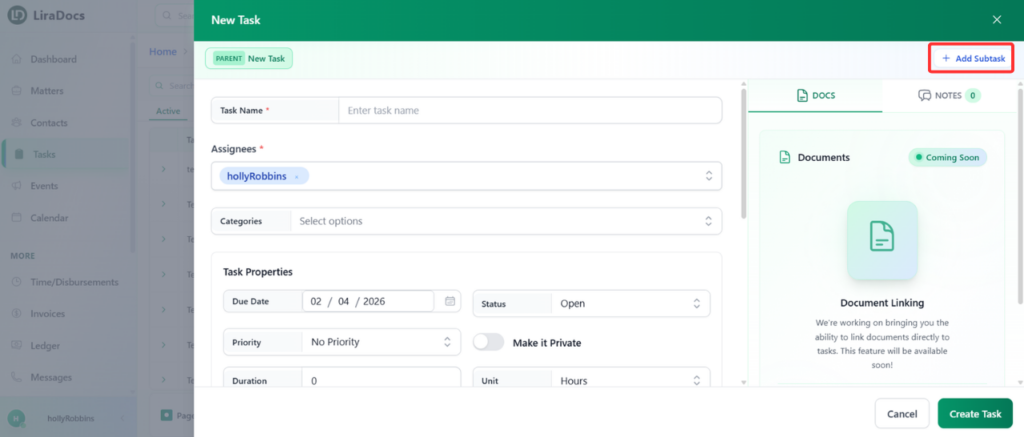
You can delete a matter in Liradocs when it is no longer required or was created by mistake. Deleted matters are not permanently removed immediately, they are moved to the Deleted section, where they can still be viewed using filters.

Follow the steps below to delete a matter.

Step 1: Go to the Matters Section

  1. Open Liradocs.

  2. Click on the Matters tab from the main navigation menu.

Step 2: Open the Matter

  1. From the list of matters, locate the matter you want to delete.

  2. Click on the matter to open its details.

Step 3: Select Delete Matter

  1. Click the Actions button inside the matter page.

  2. From the dropdown menu, select Delete Matter.

Step 4: Confirm the Deletion

  1. A confirmation prompt will appear.

  2. Type delete in the confirmation field.

  3. Click the Delete button to complete the action.

Step 5: View Deleted Matters

  1. Go back to the Matters list.

  2. Apply the Deleted filter.

  3. The deleted matter will now appear in the Deleted section.

Deleting matters helps keep your workspace organized while still allowing you to track removed records through the deleted filter.

Contacts

Understanding Contacts in Liradocs

In Liradocs, Contacts represent the people or organizations that your firm interacts with while managing matters. Contacts help you store and organize important details such as names, phone numbers, email addresses, and other relevant information.

By keeping contact information organized within the system, Liradocs makes it easier to quickly find and communicate with clients, colleagues, and other associated parties.

Types of Contacts

Liradocs allows you to create and manage two main types of contacts:

Individual Contacts
These represent a single person, such as a client, witness, consultant, or staff member.

Organizational Contacts
These represent companies, firms, or institutions that your firm may interact with during a matter.

Both types of contacts allow you to store detailed information so your team always has access to accurate contact records.

Why Contacts Are Important

Managing contacts within Liradocs helps keep your firm’s communication and client information organized. Instead of searching through emails or external records, all contact details are stored in one centralized location.

Using contacts in Liradocs helps your team:

  • Maintain a structured client database

  • Quickly search and access contact details

  • Link contacts to specific matters

  • Track communication with clients and organizations

  • Keep contact records organized and up to date

Learn How to Manage Contacts

In the guides within this section, you will learn how to fully manage contacts in Liradocs, including:

  • Creating new contacts

  • Editing existing contact details

  • Deleting contacts when necessary

  • Using filters and search to find contacts quickly

Select a guide below to learn more about each feature.

How to Create an Individual Contact

In Liradocs, contacts allow you to store and manage information about individuals and organizations associated with your matters. Creating individual contacts helps your firm keep client and stakeholder information organized and easily accessible.

Follow the steps below to create a new individual contact.

Step 1: Navigate to Contacts

  1. Open Liradocs.

  2. Go to the Contacts section.

  3. Click the New Contact button to start creating a new contact.

Step 2: Select Contact Type

  1. Ensure that Individual is selected as the contact type.

  2. This option is used for adding personal contacts such as clients, witnesses, or other individuals.

Step 3: Add Basic Information

  1. Enter the First Name and Last Name of the individual.

    • These fields are mandatory.

  2. Other fields such as additional details can be filled in if required.

  3. Add the individual’s phone number(s) and email address.

Step 4: Add Address Details

  1. Enter the Primary Address of the individual.

  2. Include relevant address information to ensure accurate contact records.

Step 5: Enter Bank Details (Optional)

  1. If required, add the bank details of the contact.

  2. This information can be useful for financial or payment-related records.

Step 6: Complete VOI Details

  1. Go to the VOI (Verification of Identity) section.

  2. Indicate whether the VOI has been completed.

Step 7: Add Execution Party Details

  1. Enter the Execution Party details.

  2. If applicable, specify whether Power of Attorney applies to this individual.

Step 8: Add Identification Information

  1. Enter the individual’s Identification Number.

  2. Fill in additional information such as:

    • Citizenship details

    • Passport details

    • Birth details

Step 9: Link to an Organization (Optional)

  1. If the individual is associated with an organization, select the relevant organization from the available list.

  2. This helps connect the contact with the appropriate organization in the system.

Step 10: Create the Contact

  1. After completing the required information, click the Create Contact button.

  2. The new individual contact will now be successfully created and saved in Liradocs.

Once created, the contact can be used across matters, communications, and other records within the system.

How to Create an Organizational Contact

Organizational contacts in Liradocs allow you to store and manage information about companies, businesses, or institutions associated with your matters. You can record important details such as organization information, contact details, addresses, and linked contacts.

Follow the steps below to create a new organizational contact.

Step 1: Go to the Contacts Section

  1. Open Liradocs.

  2. Navigate to the Contacts tab from the main menu.

Step 2: Start Creating a New Contact

  1. Click the New Contact button.

  2. Select Organization as the contact type.

Step 3: Enter Basic Organization Information

In the Basic Information section, enter the required details:

  • Organization Type – Select the type of organization.

  • Organization Name – Enter the official name of the organization.

  • Business Name – Add the business or trading name if applicable.

These fields are required. Other fields in this section are optional and can be filled in if needed.

Step 4: Add Contact Information

Next, enter the organization’s contact details, such as phone numbers, email addresses, or other available communication information.

Step 5: Add Address Details

You can also record the organization’s addresses, including:

  • Street Address

  • P.O. Box Address

  • DX Address

These help maintain accurate records for communication and documentation.

Step 6: Enter Bank Details

If required, add the organization’s bank details for billing or payment purposes.

Step 7: Add VOI Details

Complete the VOI (Verification of Identity) Details section if identity verification information is required.

Step 8: Link an Existing Contact (Optional)

If needed, you can link an existing individual contact to the organization. This allows you to associate a specific person with the organization in your records.

Step 9: Create the Organization

  1. Review the information you have entered.

  2. Click Create Organization.

Your new organizational contact will now be successfully created and available in the Contacts list.

How to Edit a Contact

Contacts in Liradocs store important information about individuals and organizations related to your matters. If you need to update a contact’s details, you can easily edit the existing record.

Follow the steps below to edit a contact in Liradocs.

Step 1: Go to the Contacts Section

  1. Navigate to the Contacts section from the main menu.

  2. You will see a list of all available contacts.

Step 2: Open the Contact

  1. Locate the contact you want to edit.

  2. Click on the contact to open the contact profile.

Step 3: Edit the Contact Details

  1. Click the Edit icon to enable editing.

  2. Update the required information.
    For example, you may change:

    • Organization name

    • Contact name

    • Email address

    • Phone number

    • Any other available contact details.

Step 4: Save the Changes

  1. After making the necessary updates, click the Update button.

  2. The contact information will be saved and updated successfully.

Updating contacts ensures that your firm always has accurate and up-to-date information for clients, organizations, and other related parties.

How to Delete a Contact

You can delete a contact in Liradocs when it is no longer needed in your system. Follow the steps below to remove a contact from your contact list.

Step 1: Go to the Contacts Section

  1. Open Liradocs.

  2. Navigate to the Contacts section from the main menu.

Step 2: Select the Contact

  1. Locate the contact you want to delete from the list.

  2. Click on the contact to open its details page.

Step 3: Delete the Contact

  1. Click the Delete icon on the contact page.

  2. A confirmation prompt will appear.

  3. In the confirmation field, type delete.

Step 4: Confirm Deletion

  1. Click the Delete button to confirm.

  2. The contact will now be successfully deleted from Liradocs.

Deleting a contact removes it from your active contact list, helping keep your records clean and organized.

How to Use Filters in Contacts

Filters and search options in Liradocs help you quickly find and manage contacts in your system. By applying filters, you can narrow down the contact list based on status or type, making it easier to locate specific records.

Follow the steps below to use filters and search within the Contacts section.

Step 1: Go to the Contacts Tab

  1. Open Liradocs.

  2. Navigate to the Contacts tab.

By default, the Active filter is already selected. This displays all contacts that are currently active in the system.

Step 2: View Deleted Contacts

  1. Click on the Deleted filter.

This will display a list of contacts that have been deleted from the system.

Step 3: Filter Contacts by Type

You can further refine your results by applying contact-type filters.

View Individual Contacts

  1. Click on Individual.

If the Deleted filter is already active, selecting Individual will show deleted individual contacts.

View Active Individual Contacts

  1. Click on Active while Individual is selected.

This will display all active individual contacts.

View Organizational Contacts

  1. Click on Organization.

Liradocs will display all active organizational contacts.

Step 4: Clear All Filters

At any time, you can remove all applied filters:

  1. Click Clear Filters.

This will reset the contact list and show all available contacts.

Step 5: Search for a Specific Contact

  1. Locate the Search Bar in the Contacts section.

  2. Type the name of the contact you want to find.

As you type, Liradocs will instantly display the matching contact results.

Using filters and the search function allows you to quickly locate specific contacts and manage your contact list more efficiently in Liradocs.

Tasks

Understanding Tasks in Liradocs

Tasks in Liradocs help you organize, assign, and track the work that needs to be completed within your firm. They allow teams to break down complex matters into smaller, manageable actions so nothing is overlooked.

By creating tasks, you can clearly define responsibilities, set deadlines, and ensure that important work is completed on time.

How Tasks Help Your Workflow

Tasks make it easier for your team to stay organized and manage daily work efficiently. Each task can be assigned to a specific team member and can also be linked to a particular matter.

Using tasks in Liradocs allows your firm to:

  • Assign responsibilities to team members

  • Set due dates for important work

  • Track progress on ongoing matters

  • Ensure nothing is missed during case management

  • Keep all work organized within the system

Centralized Task Management

Instead of relying on external to-do lists or scattered notes, Liradocs keeps all tasks in one place. This allows your team to quickly see what needs to be done, what is currently in progress, and what has already been completed.

Tasks can also be connected to matters, helping you keep all related work organized under the appropriate case.

Learn How to Manage Tasks

In the guides within this section, you will learn how to effectively manage tasks in Liradocs, including:

  • Creating new tasks

  • Editing or updating tasks

  • Deleting tasks when necessary

  • Tracking task progress

  • Organizing tasks for better workflow management

Select a guide below to learn more about each feature.

How to Create a Task

Tasks in Liradocs help you organize work, assign responsibilities, and track progress within your firm. Follow the steps below to create a new task.

Step 1: Navigate to the Tasks Section

  1. Open the Tasks tab in Liradocs.

  2. Click the New Task button to begin creating a task.

Step 2: Enter Basic Task Details

  1. Task Name: Enter a clear name for the task.

  2. Assignees: Select the team member(s) responsible for completing the task.

  3. Category (Optional): Choose a task category if you want to classify the task.

Step 3: Configure Task Properties

In the Task Properties section, configure the following options:

  • Due Date: Set the deadline for completing the task.

  • Status: Select the current status (for example, In Progress).

  • Priority: Choose the priority level for the task.

  • Private Task: Enable this option if you want the task to remain private.

  • Duration: Set the expected duration for completing the task.

Step 4: Set a Reminder

  1. Choose a Reminder time.

  2. For example, selecting 1 hour will notify you one hour before the task deadline.

Step 5: Link the Task to a Matter (Optional)

If the task is related to a specific matter:

  1. Use the Matter option to attach the task to the relevant matter.

  2. This helps keep all activities related to that matter organized.

Step 6: Add Additional Information

  • Details: Add any additional information related to the task.

  • Notes: Include internal notes if needed.

Step 7: Create Subtasks (Optional)

  1. Click Add Subtask to create a subtask under the main task.

  2. Enter the subtask details just like you would for the main task.

  3. Repeat this process if multiple subtasks are required.

Step 8: Create the Task

  1. After filling in all the necessary information, click Create Task.

Your task will now be successfully created and visible in the Tasks section.

Using tasks in Liradocs makes it easy to assign work, track deadlines, and manage responsibilities efficiently within your firm.

How to Edit a Task

You can easily update a task in Liradocs if you need to change its details, such as the duration, description, or other task information. Follow the steps below to edit an existing task.

Step 1: Open the Tasks Section

  1. Navigate to the Tasks tab from the main menu.

  2. Locate the task you want to update from the task list.

Step 2: Open the Task

  1. Click on the task you want to edit.

  2. This will open the task details page where you can view all the information related to that task.

Step 3: Edit the Task

  1. Click the Edit button.

  2. You can now update any of the task details as needed, such as:

    • Task Duration

    • Task Description

    • Any other editable fields available in the task.

Step 4: Save Your Changes

  1. After making the necessary updates, click Save Changes.

  2. The task will be updated and the new information will be saved.

Editing tasks helps ensure your workflow remains accurate and up to date as responsibilities, timelines, or task details change.

How to Delete a Task

Deleting a task in Liradocs is a quick and simple process. Follow the steps below to remove a task from your task list.

Step 1: Go to the Tasks Section

  1. Open Liradocs.

  2. Click on the Tasks tab from the main navigation menu.

Step 2: Open the Task

  1. From the list of tasks, find the task you want to delete.

  2. Click on the task to open its details.

Step 3: Delete the Task

  1. Once the task is open, click the Delete button.

  2. The task will be immediately removed from the system.

After completing these steps, the task will be successfully deleted from Liradocs. This helps keep your task list organized and ensures only relevant tasks remain visible.

How to Restore a Deleted Task

If you accidentally delete a task in Liradocs, you can easily restore it using the reinstatement feature. Follow the steps below to recover deleted tasks.

Step 1: Navigate to the Tasks Tab

  1. Go to the Tasks tab from the main menu.

  2. Click on the Deleted section to view all tasks that have been removed.

Step 2: Select the Task to Restore

  1. From the list of deleted tasks, locate the task you want to restore.

  2. Click on the task to open its details.

Step 3: Reinstate the Task

  1. Click the Reinstate button.

  2. The task will now be restored to the active tasks list.

Step 4: Verify Restoration

  1. Switch to the Active Tasks section.

  2. You will find the restored task listed among your active tasks.

Restoring a deleted task in Liradocs is quick and ensures no important work is lost.

Events

Understanding Events in Liradocs

Events in Liradocs help you schedule and manage important dates related to your work. These can include meetings, court hearings, appointments, deadlines, or any other activity that needs to take place at a specific time.

By using events, your team can keep track of upcoming activities and ensure that important schedules are properly organized and never missed.

How Events Help Your Workflow

Events allow your firm to plan and manage schedules more efficiently. Each event can include details such as the date, time, description, and the people involved.

Using events in Liradocs helps your team:

  • Schedule meetings and appointments
  • Track important deadlines
  • Organize court dates or hearings
  • Coordinate activities with team members

Keep all scheduled events in one place.

Organized Scheduling

Instead of relying on external calendars or scattered notes, Liradocs allows you to manage all important events within the system. This ensures that everyone involved in a matter can easily see upcoming schedules and stay informed.

Events can also be linked to specific matters, helping you keep all related activities organized under the appropriate case.

Learn How to Manage Events

In the guides within this section, you will learn how to manage events in Liradocs, including:

  • Creating new events
  • Editing event details
  • Deleting events when necessary
  • Managing event schedules

Select a guide below to learn more about each feature and how to use events effectively in Liradocs.

How to Create an Event

Events in Liradocs help you schedule and track meetings, appointments, or deadlines related to matters. You can assign events to staff, link them to matters, and set reminders to stay organized.

Follow these steps to create a new event in Liradocs:

Step 1: Navigate to the Events Tab

  1. Go to the Events tab from the main menu.

  2. Click on the New Event button to start creating a new event.

Step 2: Enter Event Details

  1. Subject: Enter the title or subject of the event.

  2. Location (Optional): Add the location if applicable.

  3. Related Matter: Select the matter that this event is associated with.

Step 3: Set Date and Time

  1. Start Time: Choose the start time for the event.

  2. End Time: Set the end time.

Step 4: Assign Staff Members

  1. Select the staff members who should be assigned to the event.

Step 5: Add Notes (Optional)

  1. Enter any additional notes or details about the event in the notes section.

Step 6: Adjust Event Settings

You can customize additional settings for your event:

  • All-Day Event: Mark the event as lasting the entire day.

  • Billable Event: Indicate if the event is billable.

  • Private Event: Make the event private so only assigned staff can view it.

  • Reminder: Set a reminder to notify staff before the event starts.

Step 7: Set Repeat Options (Optional)

If your event occurs regularly, you can configure repeat options:

  • Repeat Daily, Weekly, Monthly, or Yearly

  • Customize the days and occurrences as required

For one-time events, leave the repeat option disabled.

Step 8: Create the Event

  1. Once all details are entered, click the Create button.

  2. Your new event will now appear in the Events tab.

Creating events in Liradocs is quick and flexible, allowing you to efficiently manage meetings, deadlines, and staff schedules while keeping them linked to relevant matters.

How to Edit an Event

Events in Liradocs allow you to track important dates, appointments, and deadlines. If you need to update an existing event, follow these steps.

Step 1: Go to the Events Tab

  1. Navigate to the Events tab in Liradocs.

  2. This tab displays a list of all your events, including upcoming, past, and recurring events.

Step 2: Select the Event to Edit

  1. From the list, find the event you want to edit.

  2. Click on the event to open its details.

Step 3: Edit the Event

  1. Click the Edit button to make changes to the event.

  2. Update the details as needed, for example:

    • Remove or update additional notes

    • Adjust the start or end time of the event

    • Change other event-related details such as location or reminders

Step 4: Save Changes

  1. Once you have made all required updates, click the Save button.

  2. Your event is now successfully updated in Liradocs.

Editing events ensures that your schedule remains accurate and up-to-date, helping you stay organized and on track with all your important tasks and appointments.

How to Delete an Event

Events in Liradocs can be deleted when they are no longer needed. Follow these steps to remove an event from your calendar.

Step 1: Navigate to Events

  1. Go to the Events tab in Liradocs.

  2. Find the event you want to delete and click to open it.

Step 2: Delete the Event

  1. Click the Delete button within the event details.

  2. A confirmation prompt will appear. Type delete or click Delete to confirm.

Step 3: Event Deleted

Once confirmed, the event will be permanently removed from your calendar.

This ensures that your calendar remains accurate and up-to-date.

How to Restore a Deleted Event

If an event has been accidentally deleted in Liradocs, you can easily restore it to make it active again. Follow these steps:

Step 1: Go to the Events Tab

  1. Navigate to the Events tab from your Liradocs dashboard.

  2. From the menu, select the Deleted Events section to view all events that have been removed.

Step 2: Select the Event to Restore

  1. Find the event you want to restore from the list of deleted events.

  2. Click on the event to open its details.

Step 3: Reinstate the Event

  1. Click the Reinstate button.

  2. The event will now be restored and made active again.

Step 4: Verify the Event

  1. Go back to the Active Events tab.

  2. Confirm that the restored event is now visible in your active events list.

Restoring deleted events in Liradocs ensures that no important scheduling information is permanently lost and keeps your workflow organized.

Calendar

Understanding the Calendar in Liradocs

The Calendar in Liradocs provides a clear and organized view of all scheduled activities within your firm. It allows you to easily track events, meetings, deadlines, and other time-based tasks from a single centralized location.

Instead of managing schedules across different tools, the Liradocs calendar brings everything together, helping your team stay aware of upcoming commitments and plan work more efficiently.

How the Calendar Helps Your Firm

The calendar helps teams visualize their schedule and manage time more effectively. All events created in the system appear in the calendar, allowing users to quickly see what activities are planned for a specific day, week, or month.

Using the calendar in Liradocs helps your firm:

  • View upcoming events and appointments
  • Track important deadlines and schedules
  • Stay organized with a clear overview of activities
  • Manage team schedules more efficiently

Access matter-related events in one place.

Centralized Scheduling

The calendar acts as the central hub for all scheduled activities in Liradocs. Events created by users are automatically organized in the calendar view, making it easier to monitor daily and upcoming tasks.

This helps teams avoid missed deadlines and ensures that important meetings or court dates are always visible.

Learn How to Use the Calendar

In the guides within this section, you will learn how to effectively use the Liradocs calendar, including:

  • Navigating the calendar view
  • Viewing scheduled events
  • Managing event schedules
  • Organizing activities across different dates

Select a guide below to learn more about each feature.

How to Use the Calendar

The Calendar in Liradocs helps you manage and track all your tasks, events, and memos in one central view. You can view your schedule by day, week, or month and stay on top of all important deadlines.

Step 1: Access the Calendar

  1. Navigate to the Calendar tab in Liradocs.

  2. You will see the full calendar view with all scheduled items.

Step 2: Switch Between Views

  1. Choose the view that suits your workflow:

    • Day: Focus on a single day

    • Work Week: See the current workweek

    • Month: Get an overview of the entire month

    • Other available views depending on your preferences

  2. For example, selecting the Month view gives a full overview of all scheduled items for that month.

Step 3: Select What to Track

  1. Use the filters to decide what appears on your calendar:

    • Events: Meetings, appointments, or deadlines

    • Tasks: Assigned work items

    • Memos: Notes or reminders

Step 4: View Details

  1. Hover over any item on the calendar to see its basic details.

    • Example: Hovering over a task due on Tuesday will display its name and due date.

  2. Similarly, hovering over an event scheduled on a specific date, such as November 24, will display the event details.

By using the Liradocs calendar, you can easily track and manage all your memos, tasks, and events, ensuring nothing gets missed.

Time/Disbursements

Understanding Time & Disbursements in Liradocs

The Time & Disbursements feature in Liradocs helps your firm accurately record billable work and track expenses related to matters. It allows staff members to log the time they spend working on different tasks and also record any additional costs incurred during the course of a matter.

By capturing both time entries and disbursements in one place, Liradocs makes it easier to manage billing, maintain transparency, and ensure that all work and expenses are properly documented.

What Are Time Entries?

Time entries are used to record the amount of time spent working on a specific matter. Staff members can log their hours for tasks such as meetings, research, drafting documents, or client communication.

Tracking time helps firms measure productivity and ensures that all billable work is properly recorded for invoicing.

What Are Disbursements?

Disbursements refer to expenses incurred while handling a matter. These can include costs such as filing fees, travel expenses, courier charges, or any other out-of-pocket expenses related to a case.

Recording disbursements helps ensure that these costs are properly tracked and can be included in client billing when necessary.

Why Time & Disbursements Are Important

Managing time and expenses effectively is essential for accurate billing and financial tracking. Liradocs simplifies this process by allowing your team to record both time and expenses directly within the system.

Using this feature helps your firm:

  • Track billable hours accurately

  • Record matter-related expenses

  • Maintain detailed billing records

  • Improve transparency in client invoicing

  • Monitor productivity and work allocation

Learn How to Manage Time & Disbursements

In the guides within this section, you will learn how to manage time and disbursements in Liradocs, including:

  • Creating time entries

  • Recording disbursements

  • Editing or updating entries

  • Tracking billable work and expenses

Select a guide below to learn more about each feature.

How to Create a Time Fee Activity

Time activities in Liradocs are used to track both billable and non-billable hours. These activities ensure accurate time recording and client invoicing.

Time activities can be categorized as fee, time, or disbursement. Once created, they can be linked directly to a client invoice and will automatically appear when the invoice is generated.

This guide focuses specifically on creating a time fee activity.

Step 1: Navigate to Time & Activities

  1. Go to Settings in Liradocs.

  2. From the settings menu, select Time & Activities.

Step 2: Create a New Activity

  1. Click on the Create Activity button.

  2. The activity type will automatically be set to Fee.

Step 3: Fill in Activity Details

Complete the following fields:

  • Activity Code: Enter a unique code for the activity.

  • Subject: Add a descriptive name for the activity.

  • Billable Status: Select whether the activity is billable or non-billable.

  • VAT Option: Choose if the fee is VAT inclusive or VAT exempt.

  • Fee Amount: Enter the amount for this activity.

Step 4: Save the Activity

Once all details are entered, click the Create Activity button.

Your new time fee activity is now successfully created and ready to be linked to invoices.

This process ensures all billable and non-billable work is accurately recorded and accounted for in client invoicing.

How to Create a Time Activity

Time activities in Liradocs are used to record billable and non-billable hours for matters. Properly tracking time ensures accurate client invoicing and helps maintain organized records of work performed.

Time activities can be recorded as Fee, Time, or Disbursement, and once linked to an invoice, they automatically appear when generating client bills.

This guide focuses on creating a Time activity.

Step 1: Navigate to Time & Activities

  1. Go to Settings in Liradocs.

  2. Select Time & Activities from the menu.

Step 2: Create a New Activity

  1. Click the Create Activity button.

  2. In the Activity Type field, select Time.

Step 3: Enter Activity Details

  1. Activity Code: Enter a unique code to identify the activity.

  2. Subject: Provide a brief description or title for the activity.

  3. Duration: Set the duration of the activity (e.g., 2 hours).

  4. Billable Status: Select whether the activity is Billable or Non-Billable.

  5. VAT Status: Choose whether the rate is VAT Inclusive or VAT Exempt.

Step 4: Configure Rate Settings

You can configure how the rate applies for this activity:

  • Do Not Override Rate: Use the default rate for the staff member.

  • Override Rate for All Staff: Apply a custom rate for all staff members.

  • Override Default Rate per Staff: Set different rates for individual staff members.

For this example, select Do Not Override Rate.

Step 5: Save the Activity

Once all details are filled, click Create Activity.

Your new Time Activity is now successfully created and ready to be linked to client invoices in Liradocs.

This structured process ensures all time worked is accurately tracked and easily invoiced, maintaining consistency across your firm’s workflow.

How to Create a Disbursement Activity

Disbursement activities in Liradocs allow you to track, record, and manage third-party costs incurred on behalf of a client. These activities are essential for accurate billing, compliance, and maintaining properly balanced trust accounts. Once created, disbursement activities can be linked to client invoices and will automatically be included when the invoice is generated.

Step 1: Navigate to Time & Activities

  1. Go to Settings in Liradocs.

  2. From the settings menu, select Time & Activities.

Step 2: Create a New Activity

  1. Click the Create Activity button.

  2. In the Activity Type dropdown, select Disbursement.

Step 3: Enter Activity Details

  1. Activity Code: Enter a unique code to identify the disbursement activity.

  2. Subject: Add a subject describing the disbursement.

  3. Default Quantity: Set the default number or amount for this activity.

Step 4: Specify Cost Type

Disbursements can be categorized as either:

  • Hard Cost: Direct and tangible expenses essential to a matter, such as:

    • Court filing fees

    • Expert witness fees

    • Deposition transcript costs

  • Soft Cost: Indirect or internal expenses incurred on behalf of the client, such as:

    • In-house photocopying, printing, or scanning

    • Postage or telephone charges

Step 5: Billing and VAT Settings

  1. Choose whether the disbursement is Billable or Non-Billable.

  2. Select whether the amount is VAT Inclusive or VAT Exempt.

Step 6: Enter the Price

  1. Input the price for the disbursement activity.

Step 7: Save the Activity

  1. After completing all required fields, click Create Activity.

  2. Your new disbursement activity is now successfully created in Liradocs.

This structured process ensures that all disbursement activities are properly recorded and automatically linked to client invoices, streamlining billing and financial management.

How to Edit a Time Fee Activity

Time fee activities in Liradocs allow you to record billable or non-billable hours associated with a matter. If you need to update an existing time fee activity, follow these steps.

Step 1: Navigate to Time & Activities

  1. Go to Settings in Liradocs.

  2. From the settings menu, select Time and Activities.

Step 2: Select the Activity to Edit

  1. Browse the list of existing activities and locate the time fee activity you want to edit.

  2. Click on the activity to open its details.

Step 3: Edit the Activity

  1. Click the Edit button to make changes.

  2. Update the necessary fields, for example:

    • Default Quantity: Change the default time or units associated with this activity.

    • Billable Status: Set the activity as billable or non-billable according to your requirements.

Step 4: Save Changes

  1. Once all updates are made, click Update.

  2. Your time fee activity is now successfully updated in Liradocs.

These steps ensure that your activities remain accurate and reflect the correct billing and time-tracking information for your matters.

Invoices

Understanding Invoices in Liradocs

The Invoices feature in Liradocs helps your firm create, manage, and send invoices to clients in a simple and organized way. It allows you to convert recorded time entries and disbursements into professional invoices, ensuring that all billable work and expenses are accurately billed.

By managing invoices within Liradocs, your firm can maintain clear financial records and streamline the billing process.

How Invoices Work in Liradocs

Invoices are generated based on the work performed and the expenses recorded for a matter. Time entries and disbursements can be added to invoices, allowing you to present a complete breakdown of the services provided.

This helps ensure transparency for clients while keeping your firm’s billing process structured and efficient.

Benefits of Using Invoices in Liradocs

Using the invoicing system within Liradocs allows your firm to manage billing from one central platform instead of relying on separate tools.

Invoices in Liradocs help your firm:

  • Create professional invoices for clients

  • Include billable time entries and disbursements

  • Keep track of billing records

  • Maintain organized financial documentation

  • Simplify the client billing process

Centralized Billing Management

Liradocs stores all invoices within the system, allowing your firm to easily access and manage billing information whenever needed. This centralized approach helps ensure that all invoices remain organized and easy to review.

Learn How to Manage Invoices

In the guides within this section, you will learn how to effectively manage invoices in Liradocs, including:

  • Creating new invoices

  • Adding time entries and disbursements to invoices

  • Editing invoice details

  • Managing and reviewing billing records

Select a guide below to learn more about each feature.

How to Create an Invoice

Liradocs allows you to create invoices for clients based on time entries, fees, and disbursements recorded for a matter. You can create an invoice in two ways:

  • From the Invoices section (outside a matter)

  • From within a specific matter

The process for creating an invoice is the same in both methods.

Method 1: Creating an Invoice from the Invoices Section

Step 1: Go to the Invoices Section

  1. Navigate to the Invoices section in Liradocs.

  2. Click the New Invoice button.

Step 2: Enter Basic Invoice Details

Fill in the required invoice information:

  • Issue Date: Select the date the invoice is issued.

  • Due Date: Select the payment due date.

  • Related Matter: Choose the matter associated with the invoice.

  • Debtors / Clients: Select the client or debtor for the invoice.

Step 3: Add a Time and Fee Entry

Next, add the time or fee entries that will be included in the invoice.

  1. Confirm the Date, Matter, and Staff Member (these may already be selected based on the matter).

  2. Optionally select an Activity.

  3. Enter a Subject for the entry (this field is required).

Financial Details

Provide the financial details for the entry:

  • Duration Type: Select the preferred duration type.

  • Duration: Enter the amount of time spent.

  • Rate: Enter the billing rate.

GST Settings

Choose the appropriate GST option:

  • GST Inclusive

  • GST Exempt

After completing the required fields, click Create to record the time and fee entry.

Then checkmark the entry to include it in the invoice.

Step 4: Add Disbursements (Optional)

If you need to add disbursements:

  1. Click Add Disbursements.

  2. Enter the required information similar to the time and fee entry.

  3. Click Create to record the disbursement.

  4. Checkmark the disbursement to include it in the invoice.

Step 5: Review the Invoice Summary

Scroll down to the Invoice Summary section.

Here you can make adjustments such as:

  • Applying a discount

  • Adding a surcharge (if required)

Review the invoice details to ensure everything is correct.

Step 6: Generate the Invoice

  1. Click Save and View Preview.

  2. The invoice will be generated and displayed in preview mode.

From the preview screen, you can also download the invoice as a PDF.

Method 2: Creating an Invoice from Inside a Matter

You can also create an invoice directly from a specific matter.

Step 1: Open the Matter

  1. Go to the Matters tab.

  2. Select the matter for which you want to create an invoice.

Step 2: Create the Invoice

  1. Open the Invoices tab within the matter.

  2. Click New Invoice.

Step 3: Follow the Same Invoice Creation Process

Complete the invoice by following the same steps described above:

  • Enter invoice details

  • Add time and fee entries

  • Add disbursements if required

  • Apply adjustments

  • Save and preview the invoice

You have now successfully created and managed an invoice in Liradocs.

Messages

Understanding Messages in Liradocs

The Messages feature in Liradocs allows your team to record and manage important internal communications related to matters and contacts. It helps ensure that phone calls, instructions, and important notes are documented and shared with the right team members.

Messages act as a simple way to pass information within the firm, making sure that important updates or requests are not missed.

How Messages Help Your Team

Messages are commonly used to record phone calls, client requests, or internal notes that need attention from another team member. Each message can be assigned to a specific person and linked to a matter or contact for better organization.

Using messages in Liradocs helps your firm:

  • Record important phone messages

  • Assign messages to specific team members

  • Link messages to matters or contacts

  • Track urgent communication requests

  • Keep internal communication organized

Organized Message Management

All messages in Liradocs are stored within the system, allowing users to easily review active messages, track urgent requests, and manage communication records.

Filters and search options also make it easy to quickly find specific messages when needed.

Learn How to Manage Messages

In the guides within this section, you will learn how to manage messages in Liradocs, including:

  • Creating new messages

  • Editing existing messages

  • Deleting messages

  • Restoring deleted messages

  • Using filters to find messages quickly

Select a guide below to learn more about each feature.

How to Create a New Phone Message

The Messages feature in Liradocs allows you to record and share phone messages with team members. Messages can be linked to a matter and a contact, ensuring that all communication is properly documented and easy to track.

Follow the steps below to create a new phone message.

Step 1: Go to the Messages Section

  1. Navigate to the Messages tab in Liradocs.

  2. Click the New Message button to start creating a message.

Step 2: Assign the Message

When creating a new message, you will automatically be selected as the assignee by default. This means the message will initially be assigned to you.

If needed, you can update the assignee according to your workflow.

Step 3: Select the Related Matter

  1. Choose the related matter for the message.

  2. Linking the message to a matter helps keep communication organized within the correct case or project.

Step 4: Select the Contact

  1. Search for and select the relevant contact associated with the message.

  2. This ensures the message is properly connected to the correct person or organization.

Step 5: Write the Message

In the message field, type the details of the phone message you want to record or share.

Step 6: Choose Additional Options (Optional)

You can enable additional options depending on the situation, such as:

  • Email Notification: Notify the recipient via email.

  • Call Back Required: Indicate that a call back is needed.

  • Will Call Again: Mark that you will call again later.

  • Urgent: Mark the message as urgent to highlight its priority.

Step 7: Create the Message

After completing all the required details:

  1. Click Create Message.

Your new phone message will be successfully created and recorded in Liradocs.

How to Edit an Existing Phone Message

If you need to update the details of a phone message, Liradocs allows you to easily edit existing messages. This helps ensure that message information remains accurate and up to date.

Follow the steps below to edit a phone message.

Step 1: Go to the Messages Section

  1. Navigate to the Messages tab in Liradocs.

  2. Locate the message you want to edit.

Step 2: Open the Message

  1. Click on the message to open its details.

Step 3: Edit the Message

  1. Click the Edit button.

  2. Make the required changes to the message. For example, you can:

    • Update the message content.

    • Enable the Call Back Required option if a response is needed.

    • Modify any other relevant details.

Step 4: Save the Changes

  1. After making the necessary updates, click the Update Message button.

  2. The message will be saved with the updated information.

The phone message has now been successfully updated in Liradocs.

How to Delete a Phone Message

If a phone message is no longer needed, you can remove it from the system by deleting it. Follow the steps below to delete a phone message in Liradocs.

Step 1: Go to the Messages Tab

  1. Navigate to the Messages section in Liradocs.

  2. This section displays the list of all messages.

Step 2: Open the Message

  1. Locate the phone message you want to delete.

  2. Click on the message to open its details.

Step 3: Delete the Message

  1. Click the Delete button.

  2. A confirmation prompt will appear.

Step 4: Confirm Deletion

  1. Click Delete again to confirm the action.

  2. The phone message will be removed from the system.

The selected phone message has now been successfully deleted in Liradocs.

How to Reinstate a Deleted Message

If a message has been deleted in Liradocs, it can still be restored from the Deleted Messages section. Reinstate a message to move it back to the list of active messages.

Follow the steps below to reinstate a deleted message.

Step 1: Open the Messages Section

  1. Navigate to the Messages tab in Liradocs.

Step 2: Go to Deleted Messages

  1. Inside the Messages section, open the Deleted Messages list.

  2. This section contains all messages that have been removed but can still be restored.

Step 3: Select the Message

  1. Locate the message you want to restore.

  2. Click on the message to open its details.

Step 4: Reinstate the Message

  1. Click the Reinstate button.

  2. The message will immediately be restored.

Step 5: Verify the Restored Message

  1. Return to the Active Messages section.

  2. The reinstated message will now appear in the list of active messages.

The deleted message has now been successfully restored in Liradocs.

Memos

Understanding Memos in Liradocs

The Memos feature in Liradocs allows users to create and store important internal notes related to matters, clients, or firm activities. Memos help teams record key information, reminders, or instructions that need to be documented for future reference.

Unlike messages, which are typically used for quick communication, memos are often used to store detailed notes and internal records within the system.

How Memos Help Your Firm

Memos help keep important information organized and easily accessible. They allow team members to document insights, case updates, or internal discussions that may be useful later.

Using memos in Liradocs helps your firm:

  • Record detailed internal notes

  • Document important matter-related information

  • Store reminders and observations

  • Maintain internal records for reference

  • Keep information organized within the system

Centralized Note Management

All memos are stored within Liradocs, making it easy for users to review and manage important notes whenever needed. By keeping memos connected to relevant matters or activities, teams can quickly access useful information without searching through multiple systems.

This helps improve organization and ensures that valuable insights are not lost.

Learn How to Manage Memos

In the guides within this section, you will learn how to manage memos in Liradocs, including:

  • Creating new memos

  • Editing existing memos

  • Deleting memos

  • Organizing and accessing important notes

Select a guide below to learn more about each feature.

How to Create a Memo

Memos in Liradocs allow you to record important notes and information related to a matter. These notes help your team keep track of key details and maintain clear internal records.

Follow the steps below to create a new memo.

Step 1: Open the Memos Section

  1. Go to the Memos tab in Liradocs.

  2. Click the Create Memo button to start creating a new memo.

Step 2: Enter Memo Details

  1. In the Title field, enter a title for the memo.

  2. In the Content field, add the detailed information or notes you want to record.

Step 3: Set the Date and Time

Select the date and time for the memo to indicate when the note was created or recorded.

Step 4: Assign the Memo to a Matter

  1. Search for the related matter.

  2. Select the matter you want to associate with this memo.

Step 5: Select a Related Task (Optional)

If there are tasks linked to the selected matter, they will appear in the task section. You can select a task if the memo is related to it. If no tasks are available, you can skip this step.

Step 6: Create the Memo

After filling in all the required details, click Create.

Your memo will now be successfully created and saved in Liradocs.

How to Edit a Memo

In Liradocs, memos can be edited whenever updates are needed. Each time a memo is edited and saved, the system automatically creates a new version of the memo while keeping the previous versions in the version history. This allows you to track changes and review earlier versions whenever necessary.

Follow the steps below to edit a memo and view its version history.

Step 1: Go to the Memos Section

  1. Navigate to the Memos tab in Liradocs.

  2. From the list of memos, locate the memo you want to edit.

  3. Click on the memo to open it.

Step 2: Edit the Memo

  1. Click the Edit button.

  2. Make the necessary changes to the memo content.

  3. Once you have finished editing, click Save.

After saving, the memo will be updated and the changes will be stored as a new version of the memo.

Step 3: View the Memo Version History

  1. Open the memo again.

  2. Locate the Version History section.

  3. Click View All Versions to see all saved versions of the memo.

Step 4: Switch Between Versions

Within the version history, you can:

  • Click on an older version to view the original content of the memo.

  • Click on the current version to view the most recently updated memo.

This version tracking system allows you to review previous edits and maintain a clear history of changes.

By using version history, you can easily edit memos while keeping a record of all previous versions in Liradocs.

How to Delete a Memo

How to Delete a Memo in Liradocs

Memos in Liradocs allow users to store important notes and internal information. If a memo is no longer needed, it can be easily deleted from the system.

Follow the steps below to delete a memo.

Step 1: Go to the Memos Section

  1. Navigate to the Memos tab in Liradocs.

  2. You will see a list of all available memos.

Step 2: Open the Memo

  1. Locate the memo you want to delete.

  2. Click on the memo to open it.

Step 3: Delete the Memo

  1. Click the Delete button.

  2. The memo will be removed from the system.

The memo has now been successfully deleted from Liradocs.

Settings

Understanding Settings in Liradocs

The Settings section in Liradocs allows administrators and authorized users to configure and manage how the system works for their firm. It provides the tools needed to customize different features, manage users, and adjust system preferences according to the firm’s workflow.

Through the settings area, you can control important configurations that affect how Liradocs operates across your organization.

Why Settings Are Important

Every firm has different processes and requirements. The settings section allows you to tailor Liradocs to match your firm’s structure and working style.

Using the settings in Liradocs helps your firm:

  • Manage users and access permissions

  • Configure system preferences

  • Set up rate sets and billing settings

  • Manage folder templates and other configurations

  • Control how different features behave within the system

Centralized System Configuration

All configuration options in Liradocs are organized within the settings section, making it easy for administrators to manage the platform from a single place. This ensures that system-wide changes can be applied quickly and efficiently.

Properly configuring these settings helps improve workflow, maintain consistency, and ensure that the system works smoothly for all users.

Learn How to Configure Settings

In the guides within this section, you will learn how to manage and configure various settings in Liradocs, including:

  • Adding and managing users

  • Creating and managing rate sets

  • Setting up folder templates

  • Configuring email settings

  • Adjusting system preferences

Select a guide below to learn more about each feature.

How to Create a New User

Adding new users allows you to give team members access to Liradocs based on their roles and responsibilities. Follow the steps below to create a new user.

Step 1: Navigate to Staff & Users

  1. Go to Settings in Liradocs.

  2. Click on Staff & Users.

Step 2: Click on “Add User”

On the Staff & Users page, click the Add User button to start creating a new user.

Step 3: Enter User Details

Fill in the required information for the new user:

  • Username: Enter a unique username

  • First Name: Enter the user’s first name

  • Last Name: Enter the user’s last name

  • Email Address: Provide a valid email address

  • Password: Set a password for the user

Step 4: Assign a Role

Select the appropriate role for the user:

  • Admin: Full access to system features and settings

  • Team Member: Limited access based on assigned permissions

Step 5: Select and Configure Permission Template

Permission templates define what actions a user can perform in Liradocs.

  1. Select a Permission Template from the list.

  2. To customize it, click on the template to edit permissions.

You can enable or disable permissions for different features. For example:

  • In the Memos section, you can allow permissions such as:

    • View memo

    • Create memo

    • Edit memo

    • Delete memo

Select the permissions based on the user’s responsibilities.

Step 6: Create the User

  1. Once all details and permissions are set, scroll down.

  2. Click on the Create User button.

The new user is now successfully created and can log in to Liradocs using their credentials.

Matter Categories

Understanding Matter Categories in Liradocs

Matter Categories in Liradocs help organize and classify different types of matters within your firm. By assigning categories to matters, you can group similar cases together and manage them more efficiently.

Matter categories make it easier to structure your matters based on practice areas, case types, or internal classifications used by your firm.

Why Matter Categories Are Useful

As your firm handles multiple matters, organizing them properly becomes essential. Matter categories allow you to quickly identify and filter matters based on their type or area of work.

Using matter categories in Liradocs helps your firm:

  • Organize matters by type or practice area

  • Maintain a clear structure for case management

  • Filter and locate matters more easily

  • Improve reporting and tracking of different matter types

  • Keep your workspace organized as your matter list grows

Better Organization for Your Matters

With properly defined categories, your team can quickly understand the type of matter they are working on and access related cases more efficiently. This helps improve workflow and ensures that matters are structured in a logical and organized way.

Matter categories are especially helpful for firms that manage a large number of cases across different legal areas.

Learn How to Manage Matter Categories

In the guides within this section, you will learn how to manage matter categories in Liradocs, including:

  • Creating new matter categories

  • Editing existing categories

  • Deleting categories when they are no longer needed

  • Using categories to better organize your matters

Select a guide below to learn more about each feature.

How to Create a Matter Category

Matter categories help you organize and group your matters based on their type and location. This makes it easier to manage, filter, and differentiate matters within your firm.

For example, you can create a category like Business and assign it to matters related to business cases in a specific state.

Follow the steps below to create a new matter category in Liradocs.

Step 1: Navigate to Categories

  1. Go to Settings in Liradocs.

  2. From the settings menu, select Categories.

Step 2: Click on “New Category”

On the categories page, click the New Category button to start creating a new category.

Step 3: Enter Category Details

Fill in the required information for the category:

  • Category Name / Label: Enter the name of the category.

  • Country: This is set by default (e.g., Australia).

  • State: Select the relevant state for the category.

  • Parent Category (Optional): Choose a parent category if you want to create a subcategory. Otherwise, leave it as None.

Step 4: Create the Category

Once all details are entered, click the Create Category button.

Your new matter category is now successfully created in Liradocs.

You can now assign this category to matters to keep your workspace organized and easy to manage.

How to Edit a Matter Category

You can easily update an existing matter category in Liradocs to keep your matter organization accurate and up to date.

Follow the steps below to edit a matter category.

Step 1: Go to Categories

  1. Navigate to Settings in Liradocs.

  2. From the settings menu, select Categories.

Step 2: Open the Category

  1. From the list of categories, locate the category you want to edit.

  2. Click on the category to open it.

Step 3: Make Changes

  1. Click the Edit button.

  2. Update the required details, such as:

    • Label: Modify the name of the category

    • State: Change the associated state if needed

Step 4: Update the Category

  1. After making the necessary changes, click the Update button.

Your matter category is now successfully updated in Liradocs.

Matter Number Settings

Matter numbers in Liradocs are unique identifiers automatically assigned to each matter when it is created. These numbers help you easily track, organize, and identify matters within your firm.

What Are Matter Numbers?

A matter number is a system-generated code that uniquely identifies each matter. It is created automatically based on a predefined structure, ensuring that no two matters have the same number.

Structure of a Matter Number

Matter numbers in Liradocs are made up of different components. Each part of the number provides specific information about the matter.

A typical matter number includes:

  • Text Component: Represents your firm or a custom identifier

  • Month: Indicates the month in which the matter was created

  • Auto Number: A sequential number automatically generated by the system

Example Breakdown

For example, a matter number may look like this:

LD-01-001

  • LD → Text component (can represent your firm name)

  • 01 → Month (January)

  • 001 → Auto-generated sequence number

This means it is the first matter created in the first month.

Another example:

LD-02-001

  • 02 → Indicates the second month (February)

  • 001 → First matter created in that month

Customizing the Text Component

The text component of the matter number can be customized based on your firm’s preference.

For example:

  • It may represent your firm name

  • It can be changed to match your internal naming conventions

How Matter Numbers Help

Matter numbers make it easier to:

  • Identify when a matter was created

  • Track the sequence of matters within a specific time period

  • Maintain organized and structured records

  • Quickly search and reference matters

Matter numbers provide a simple yet effective way to manage and organize all matters within Liradocs.

Time and Activities

Understanding Time & Activities in Liradocs

The Time & Activities feature in Liradocs helps your firm track the work performed on different matters. It allows users to record the time spent on tasks, meetings, research, and other billable or non-billable activities.

By keeping a detailed record of work performed, Liradocs makes it easier for firms to monitor productivity, maintain accurate records, and ensure proper billing.

Why Time Tracking Is Important

Tracking time and activities is essential for maintaining transparency and accurate invoicing. Liradocs allows team members to log their work as it happens, ensuring that no billable time is missed.

Using Time & Activities in Liradocs helps your firm:

  • Record time spent on different matters

  • Track daily work and activities

  • Maintain accurate billing records

  • Monitor staff productivity

  • Keep detailed work history for each matter

Organized Work Records

All time entries and activity records are stored within Liradocs and can be linked directly to specific matters. This makes it easier to review work history, manage billing information, and maintain organized records for each case.

By centralizing time tracking within the platform, Liradocs helps firms manage their workload more efficiently.

Learn How to Manage Time & Activities

In the guides within this section, you will learn how to manage time entries and activities in Liradocs, including:

  • Creating time entries

  • Editing existing time records

  • Tracking work performed on matters

  • Managing activity records efficiently

Select a guide below to learn more about each feature.

How to Create a Time Fee Activity

Time activities in Liradocs are used to record both billable and non-billable work, ensuring accurate time tracking and client invoicing. These activities can later be linked directly to invoices and will automatically appear when an invoice is generated.

In this guide, you will learn how to create a Time Fee Activity.

Understanding Time Activities

A Time Activity allows you to track work performed by your team. Activities can be recorded as:

  • Fee

  • Time

  • Disbursement

In this tutorial, we will focus on creating a Fee Activity.

Step 1: Navigate to Time & Activities

  1. Go to Settings in Liradocs.

  2. From the settings menu, select Time & Activities.

Step 2: Click on “Create Activity”

  1. Click the Create Activity button.

  2. By default, the activity type will be set to Fee.

Step 3: Enter Activity Details

Fill in the required information for the activity:

  • Activity Code: Enter a unique code for the activity.

  • Subject: Add a title or description for the activity.

  • Billing Type: Choose whether the activity is Billable or Non-billable.

  • VAT Option: Select whether the fee is VAT Inclusive or VAT Exempt.

  • Fee Amount: Enter the fee amount for the activity.

Step 4: Create the Activity

  1. Once all details are entered, click the Create Activity button.

  2. Your new time fee activity will be successfully created.

The activity is now ready to be used and can be linked to invoices for accurate billing and record-keeping.

How to Create a Time Activity

Time activities in Liradocs are used to record the time spent on work, whether billable or non-billable. These records help ensure accurate time tracking and are automatically included in client invoices when linked.

Follow the steps below to create a new time activity.

Understanding Time Activities

A time activity allows you to:

  • Record billable and non-billable hours

  • Track work performed on matters

  • Link activities directly to invoices

  • Ensure accurate client billing

Time activities can be created as Fee, Time, or Disbursement. In this guide, we will focus on creating a Time activity.

Step 1: Navigate to Time & Activities

  1. Go to Settings in Liradocs.

  2. From the settings menu, select Time & Activities.

Step 2: Create a New Activity

  1. Click on the Create Activity button.

  2. In the activity type, select Time.

Step 3: Enter Activity Details

Fill in the required information:

  • Activity Code: Enter a unique code for the activity.

  • Subject: Add a short description of the activity.

  • Duration: Specify the time spent (e.g., 2 hours).

Step 4: Set Billing Options

  1. Choose whether the activity is:

    • Billable, or

    • Non-billable

  2. Select the VAT option:

    • VAT Inclusive, or

    • VAT Exempt

Step 5: Configure Rate Settings

In the rate settings section, choose how the rate should be applied:

  • Do Not Override Rate: Use the default rate

  • Override Rate for All Staff

  • Override Default Rate Per Staff Member

Select the option that best fits your requirement. For example, you can choose Do Not Override Rate to keep the default settings.

Step 6: Create the Activity

Once all details are filled in:

  1. Click on the Create Activity button.

Your time activity will now be successfully created in Liradocs.

This allows you to efficiently track work time and ensure accurate billing for your clients.

How to Create a Disbursement Activity

A Disbursement Activity in Liradocs is used to track, record, and manage third-party costs incurred on behalf of a client. These expenses are essential for accurate billing, compliance, and proper financial management.

Disbursement activities can be linked to client invoices and are automatically included when generating invoices, ensuring that all costs are properly accounted for.

Step 1: Navigate to Time & Activities

  1. Go to Settings in Liradocs.

  2. From the settings menu, select Time & Activities.

Step 2: Create a New Activity

  1. Click on the Create Activity button.

  2. Select Disbursement as the activity type.

Step 3: Enter Basic Details

Fill in the required information for the disbursement activity:

  • Activity Code: Enter a unique code for the activity.

  • Subject: Add a name or description for the disbursement.

  • Default Quantity: Set a default quantity if applicable.

Step 4: Select Cost Type

Choose the type of disbursement:

  • Hard Cost: Direct, external expenses such as:

    • Court filing fees

    • Expert witness fees

    • Deposition transcript costs

  • Soft Cost: Internal expenses such as:

    • Photocopying

    • Printing or scanning

    • Postage or telephone charges

Step 5: Configure Billing Options

  1. Select whether the activity is:

    • Billable or Non-billable

  2. Choose the VAT option:

    • VAT Inclusive or VAT Exempt

Step 6: Enter Pricing

  1. Enter the price for the disbursement activity.

Step 7: Create the Activity

  1. Once all details are completed, click on the Create Activity button.

Your disbursement activity is now successfully created in Liradocs and ready to be used in invoices.

This setup ensures that all client-related expenses are properly tracked and billed efficiently.

How to Edit a Time Fee Activity

Time fee activities define how time is recorded and billed within Liradocs. If you need to update an existing activity, you can easily edit its details by following the steps below.

Step 1: Navigate to Time & Activities

  1. Go to Settings in Liradocs.

  2. From the settings menu, select Time & Activities.

Step 2: Select the Activity to Edit

  1. From the list of activities, locate the time fee activity you want to edit.

  2. Click on the activity to open its details.

Step 3: Edit the Activity

  1. Click the Edit button.

  2. Make the required changes, such as:

    • Default Quantity: Update the default time value for the activity.

    • Billing Type: Set the activity as billable or non-billable.

Step 4: Save Changes

  1. Once all changes are completed, click the Update button.

  2. Your time fee activity will be successfully updated.

Updating time fee activities ensures accurate time tracking and billing within your firm.

How To Create A Stage Template

Stage templates help you define and manage the workflow of a matter by breaking it down into structured stages. You can create stage templates and assign them to matters to keep your processes organized and consistent.

There are two ways to create a stage template in Liradocs:

  1. Creating it from Settings (outside a matter)

  2. Creating it directly from within a matter

Method 1: Create a Stage Template from Settings

Step 1: Navigate to Stage Templates

  1. Go to Settings.

  2. Scroll down and select Matter Stage Templates.

Step 2: Create a New Template

  1. Click on the New Template button.

  2. Enter a Template Name.

  3. Select the Matter Type.

  4. (Optional) Add a Description.

Step 3: Add Stages to the Template

  1. Enter the Stage Name.

  2. (Optional) Add a Description.

  3. Select a Color and Icon for the stage.

  4. Click Add Stage.

Repeat this process to add as many stages as needed.

Step 4: Save the Template

Once all stages are added, click the Create Template button.

Your stage template is now successfully created and will appear in the list of templates.

Assign a Stage Template to a Matter

Step 1: Open the Matter

  1. Go to the Matters tab.

  2. Open the matter where you want to apply the stage template.

Step 2: Edit the Matter

  1. Click on the Actions button.

  2. Select Edit.

Step 3: Select the Stage Template

  1. Locate the Stage Template dropdown.

  2. Select the template you created.

Step 4: Save Changes

Click Update Matter to apply the template.

The selected stage template is now assigned to the matter.

Method 2: Create a Stage Template from Within a Matter

Step 1: Access Stage Template Section

  1. Open a matter.

  2. Navigate to the Stage Template section.

  3. Click to create a new template.

Step 2: Create the Template

You will be redirected to the stage template creation screen.
Follow the same steps outlined in Method 1 to create the template.

Step 3: Assign the Template

  1. Return to the matter.

  2. Select the newly created template from the dropdown.

  3. Click Update Matter.

Your new stage template is now successfully created and assigned to the matter.

Using stage templates ensures a structured workflow and helps your team track progress efficiently across different matters.

Folder Templates

Understanding Folder Templates in Liradocs

Folder Templates in Liradocs allow your firm to create a predefined folder structure that can automatically be applied to matters. Instead of manually creating folders every time a new matter is added, folder templates help standardize how documents and files are organized.

This ensures that every matter follows the same structure, making it easier for team members to locate and manage important documents.

Why Folder Templates Are Useful

Managing documents across multiple matters can become difficult without a clear structure. Folder templates solve this problem by automatically creating a consistent set of folders for each matter.

Using folder templates in Liradocs helps your firm:

  • Standardize document organization across matters

  • Save time by avoiding manual folder creation

  • Ensure important folders are always included

  • Improve document management and accessibility

  • Maintain consistency across your firm’s workflow

Consistent Document Organization

When a folder template is applied to a matter, Liradocs automatically generates the predefined folders within that matter. This ensures that documents such as contracts, correspondence, court filings, or research materials are always stored in the correct location.

A well-structured folder system helps teams collaborate more efficiently and quickly find the files they need.

Learn How to Manage Folder Templates

In the guides within this section, you will learn how to manage folder templates in Liradocs, including:

  • Creating new folder templates

  • Editing existing folder templates

  • Deleting templates when they are no longer needed

  • Using templates to organize matter documents

Select a guide below to learn more about each feature.

How to Create a Folder Template

Folder templates help you standardize and automate how folders are created for each matter. Instead of manually setting up folders every time, you can use a predefined structure to ensure consistency and save time.

Follow the steps below to create a folder template in Liradocs.

Step 1: Navigate to Folder Templates

  1. Go to Settings in Liradocs.

  2. Select Folder Templates from the settings menu.

Step 2: Create a New Template

  1. Click on the New Template button.

  2. Enter a Template Name.

  3. (Optional) Add a Description for the template.

Step 3: Select Matter Type (Optional)

You can choose a Matter Type if you want the template to apply only to specific types of matters.

  • Leave this blank if you want to create a global template that can be used for all matters.

Step 4: Create Parent Folder

  1. Enter the name of your first folder (e.g., Clients and Administration).

  2. Click Add Folder.

This will create a parent folder in your template.

Step 5: Add Subfolders

  1. Under the parent folder, add subfolders by entering their names.

  2. Click Add Folder after each entry.

For example:

  • Client Information

  • Agreements

These will be created as subfolders under the parent folder.

Step 6: Create the Template

  1. Once all folders are added and organized, click Create Template.

Your folder template is now successfully created and ready to use.

Using folder templates ensures consistent document organization across all matters and helps streamline your workflow.

How to Edit a Folder Template

Folder templates help standardize how documents are organized across matters. If you need to update an existing template, you can easily edit it by following the steps below.

Step 1: Navigate to Folder Templates

  1. Go to Settings in Liradocs.

  2. Click on Folder Templates.

You will see a list of all existing folder templates.

Step 2: Select the Template to Edit

  1. From the list, locate the folder template you want to edit.

  2. Click on the template to open it.

Step 3: Edit Folder Name

  1. Find the folder you want to update within the template.

  2. Click the Edit button next to the folder.

  3. Make the required changes to the folder name.

  4. Click Update Folder to save the changes.

Step 4: Update Template Details (Optional)

If needed, you can also update the template description or make other adjustments to the template.

Step 5: Save the Template

Once all changes are completed, click the Update Template button.

Your folder template is now successfully updated in Liradocs.

How to Delete a Folder Template

Folder templates help standardize your folder structure for matters. If you need to remove a template that is no longer needed, follow these steps.

Step 1: Navigate to Folder Templates

  1. Go to Settings in Liradocs.

  2. Select Folder Templates from the settings menu.

Step 2: Select the Template to Delete

  1. From the list of folder templates, find the template you want to delete.

  2. Click on the template to open its details.

Step 3: Delete the Template

  1. Click the Delete Template button.

  2. A confirmation message will appear.

  3. Click Delete Template again to confirm.

Your folder template has now been successfully deleted from Liradocs.

Rate Sets

Understanding Rate Sets in Liradocs

Rate Sets in Liradocs allow firms to define hourly billing rates for their staff members. These rates are used when recording time entries and generating invoices, ensuring that billing is calculated accurately based on the work performed.

By creating rate sets, firms can assign specific hourly rates to different staff members according to their roles, experience, or billing agreements.

Why Rate Sets Are Important

Accurate billing is essential for any professional firm. Rate sets help ensure that the correct hourly rates are automatically applied when staff log their time against a matter.

Using rate sets in Liradocs helps your firm:

  • Assign hourly billing rates to staff members

  • Maintain consistent billing across matters

  • Ensure accurate time-based invoicing

  • Manage different billing rates for different team members

  • Simplify the billing and time-tracking process

Automated Billing Accuracy

Once rate sets are configured, Liradocs automatically applies the correct hourly rate when a staff member records time. This reduces manual calculations and minimizes billing errors, helping your firm maintain reliable financial records.

Rate sets can also be updated when billing rates change, ensuring that future time entries reflect the correct rates.

Learn How to Manage Rate Sets

In the guides within this section, you will learn how to manage rate sets in Liradocs, including:

  • Creating new rate sets

  • Editing existing rate sets

  • Adding or removing staff members from a rate set

  • Updating hourly billing rates

Select a guide below to learn more about each feature.

How to Create a Rate Set

Rate sets allow you to define hourly billing rates for individual staff members. They help automate billing and ensure accurate invoicing across all matters.

Follow the steps below to create a new rate set in Liradocs.

Step 1: Navigate to Rate Sets

  1. Go to Settings in Liradocs.

  2. Scroll down and select Rate Sets.

  3. Click the Create Rate Set button to start a new rate set.

Step 2: Enter Rate Set Details

  1. Enter a Name for your rate set to identify it.

  2. Select the Staff Member for whom you want to assign an hourly rate.

  3. Enter the Hourly Rate for the selected staff member.

  4. Optionally, you can choose an Effective Date for the rate, though this step can be skipped.

Step 3: Add the Rate

  1. Click the Add Rate button to assign the rate to the selected staff member.

  2. Repeat the process for additional staff members if needed.

Step 4: Create the Rate Set

  1. Once all staff rates are added and details are complete, click the Create Rate Set button.

  2. Your new rate set has now been successfully created and is ready to use in Liradocs.

This ensures accurate billing and simplifies time-based invoicing for all staff members.

How to Edit a Rate Set

Rate sets allow you to define hourly billing rates for your staff members. Editing a rate set is useful when you need to add new staff members, update rates, or remove existing staff from a rate set. Follow these steps to update a rate set in Liradocs.

Step 1: Navigate to Rate Sets

  1. Go to Settings in Liradocs.

  2. From the settings menu, select Rate Sets.

Step 2: Open the Rate Set

  1. From the list of rate sets, find the one you want to edit.

  2. Click on the rate set to open its details.

Step 3: Add a Staff Member

  1. To add a new staff member, select the member from the dropdown list.

  2. Enter the hourly rate for that staff member.

  3. Click Add Rate.

The staff member will now be added to the rate set. You can repeat this process to add rates for multiple staff members.

Step 4: Remove a Staff Member (Optional)

  1. To remove a staff member from the rate set, click the Delete option next to their name.

Step 5: Save Changes

  1. After making all the required updates, click Save Changes.

  2. Your rate set has now been successfully updated in Liradocs.

This ensures that your firm’s billing rates remain accurate and up to date for all staff members.

Calendar

Understanding the Calendar in Liradocs

The Calendar in Liradocs provides a clear and organized view of all scheduled activities within your firm. It allows you to easily track events, meetings, deadlines, and other time-based tasks from a single centralized location.

Instead of managing schedules across different tools, the Liradocs calendar brings everything together, helping your team stay aware of upcoming commitments and plan work more efficiently.

How the Calendar Helps Your Firm

The calendar helps teams visualize their schedule and manage time more effectively. All events created in the system appear in the calendar, allowing users to quickly see what activities are planned for a specific day, week, or month.

Using the calendar in Liradocs helps your firm:

  • View upcoming events and appointments
  • Track important deadlines and schedules
  • Stay organized with a clear overview of activities
  • Manage team schedules more efficiently

Access matter-related events in one place.

Centralized Scheduling

The calendar acts as the central hub for all scheduled activities in Liradocs. Events created by users are automatically organized in the calendar view, making it easier to monitor daily and upcoming tasks.

This helps teams avoid missed deadlines and ensures that important meetings or court dates are always visible.

Learn How to Use the Calendar

In the guides within this section, you will learn how to effectively use the Liradocs calendar, including:

  • Navigating the calendar view
  • Viewing scheduled events
  • Managing event schedules
  • Organizing activities across different dates

Select a guide below to learn more about each feature.

How to Use the Calendar

The Calendar in Liradocs helps you manage and track all your tasks, events, and memos in one central view. You can view your schedule by day, week, or month and stay on top of all important deadlines.

Step 1: Access the Calendar

  1. Navigate to the Calendar tab in Liradocs.

  2. You will see the full calendar view with all scheduled items.

Step 2: Switch Between Views

  1. Choose the view that suits your workflow:

    • Day: Focus on a single day

    • Work Week: See the current workweek

    • Month: Get an overview of the entire month

    • Other available views depending on your preferences

  2. For example, selecting the Month view gives a full overview of all scheduled items for that month.

Step 3: Select What to Track

  1. Use the filters to decide what appears on your calendar:

    • Events: Meetings, appointments, or deadlines

    • Tasks: Assigned work items

    • Memos: Notes or reminders

Step 4: View Details

  1. Hover over any item on the calendar to see its basic details.

    • Example: Hovering over a task due on Tuesday will display its name and due date.

  2. Similarly, hovering over an event scheduled on a specific date, such as November 24, will display the event details.

By using the Liradocs calendar, you can easily track and manage all your memos, tasks, and events, ensuring nothing gets missed.

Folder Templates

Understanding Folder Templates in Liradocs

Folder Templates in Liradocs allow your firm to create a predefined folder structure that can automatically be applied to matters. Instead of manually creating folders every time a new matter is added, folder templates help standardize how documents and files are organized.

This ensures that every matter follows the same structure, making it easier for team members to locate and manage important documents.

Why Folder Templates Are Useful

Managing documents across multiple matters can become difficult without a clear structure. Folder templates solve this problem by automatically creating a consistent set of folders for each matter.

Using folder templates in Liradocs helps your firm:

  • Standardize document organization across matters

  • Save time by avoiding manual folder creation

  • Ensure important folders are always included

  • Improve document management and accessibility

  • Maintain consistency across your firm’s workflow

Consistent Document Organization

When a folder template is applied to a matter, Liradocs automatically generates the predefined folders within that matter. This ensures that documents such as contracts, correspondence, court filings, or research materials are always stored in the correct location.

A well-structured folder system helps teams collaborate more efficiently and quickly find the files they need.

Learn How to Manage Folder Templates

In the guides within this section, you will learn how to manage folder templates in Liradocs, including:

  • Creating new folder templates

  • Editing existing folder templates

  • Deleting templates when they are no longer needed

  • Using templates to organize matter documents

Select a guide below to learn more about each feature.

How to Create a Folder Template

Folder templates help you standardize and automate how folders are created for each matter. Instead of manually setting up folders every time, you can use a predefined structure to ensure consistency and save time.

Follow the steps below to create a folder template in Liradocs.

Step 1: Navigate to Folder Templates

  1. Go to Settings in Liradocs.

  2. Select Folder Templates from the settings menu.

Step 2: Create a New Template

  1. Click on the New Template button.

  2. Enter a Template Name.

  3. (Optional) Add a Description for the template.

Step 3: Select Matter Type (Optional)

You can choose a Matter Type if you want the template to apply only to specific types of matters.

  • Leave this blank if you want to create a global template that can be used for all matters.

Step 4: Create Parent Folder

  1. Enter the name of your first folder (e.g., Clients and Administration).

  2. Click Add Folder.

This will create a parent folder in your template.

Step 5: Add Subfolders

  1. Under the parent folder, add subfolders by entering their names.

  2. Click Add Folder after each entry.

For example:

  • Client Information

  • Agreements

These will be created as subfolders under the parent folder.

Step 6: Create the Template

  1. Once all folders are added and organized, click Create Template.

Your folder template is now successfully created and ready to use.

Using folder templates ensures consistent document organization across all matters and helps streamline your workflow.

How to Edit a Folder Template

Folder templates help standardize how documents are organized across matters. If you need to update an existing template, you can easily edit it by following the steps below.

Step 1: Navigate to Folder Templates

  1. Go to Settings in Liradocs.

  2. Click on Folder Templates.

You will see a list of all existing folder templates.

Step 2: Select the Template to Edit

  1. From the list, locate the folder template you want to edit.

  2. Click on the template to open it.

Step 3: Edit Folder Name

  1. Find the folder you want to update within the template.

  2. Click the Edit button next to the folder.

  3. Make the required changes to the folder name.

  4. Click Update Folder to save the changes.

Step 4: Update Template Details (Optional)

If needed, you can also update the template description or make other adjustments to the template.

Step 5: Save the Template

Once all changes are completed, click the Update Template button.

Your folder template is now successfully updated in Liradocs.

How to Delete a Folder Template

Folder templates help standardize your folder structure for matters. If you need to remove a template that is no longer needed, follow these steps.

Step 1: Navigate to Folder Templates

  1. Go to Settings in Liradocs.

  2. Select Folder Templates from the settings menu.

Step 2: Select the Template to Delete

  1. From the list of folder templates, find the template you want to delete.

  2. Click on the template to open its details.

Step 3: Delete the Template

  1. Click the Delete Template button.

  2. A confirmation message will appear.

  3. Click Delete Template again to confirm.

Your folder template has now been successfully deleted from Liradocs.

How To Apply Filters To View Specific Matters

Filters in Liradocs allow you to quickly refine your search and locate specific matters efficiently. By using search and filter options, you can easily find matters based on status, dates, assignees, and other criteria.

Follow the steps below to use filters in Liradocs.

Step 1: Navigate to the Matters Tab

Go to the Matters tab in Liradocs. At the top of the page, you will see a search bar where you can type keywords to quickly locate matters related to your search term.

Step 2: Use Quick Filters

Liradocs provides quick filter options to help you view matters based on their status:

  • Deleted Matters: Click this to view all deleted matters.

  • Open Matters: Click to see all matters that are currently open.

  • Pending Matters: View matters that are awaiting action.

  • Closed Matters: View all matters that have been completed or closed.

  • Created Today/This Week: Filter matters based on when they were created.

Step 3: Apply Multiple Filters

For more precise searches, you can apply multiple filters at the same time:

  • Status: Filter by matter status (Open, Pending, Closed).

  • Opening Date: Filter matters by their start date.

  • State/Location: Select matters from a specific region.

  • Assignee: View matters assigned to a particular staff member.

  • Tags: Filter by assigned tags for easier organization.

  • Date Ranges: Set specific opening and closing date ranges to narrow results.

Step 4: Customize Result Display

You can customize how your search results appear:

  • Sort and Order: Choose how matters are ordered in the results.

  • Active Filters: Review all filters currently applied to your search.

Step 5: Remove or Clear Filters

  • Remove Individual Filters: Click the “x” next to a specific filter to remove it.

  • Clear All Filters: Click Clear All to reset all filters and start a new search.

How to View and Delete an Email in Liradocs Mobile App

The Liradocs mobile app allows you to easily view and manage your emails. You can open any email to read its content and delete it if it is no longer needed. Follow these steps to view and delete an email:

Steps to View and Delete an Email

  1. Open the Menu
    Go to the menu in the Liradocs mobile app.
  2. Select Email
    Click on “Email” to open the email list.
  3. View an Email
    From the list, select the email you want to view. This will open the full email details.
  4. Open the Options Menu
    Once the email is open, click on the three-dot menu.
  5. Delete the Email
    Select “Delete.”

The selected email is now successfully deleted from the app.

Time/Disbursements

Understanding Time & Disbursements in Liradocs

The Time & Disbursements feature in Liradocs helps your firm accurately record billable work and track expenses related to matters. It allows staff members to log the time they spend working on different tasks and also record any additional costs incurred during the course of a matter.

By capturing both time entries and disbursements in one place, Liradocs makes it easier to manage billing, maintain transparency, and ensure that all work and expenses are properly documented.

What Are Time Entries?

Time entries are used to record the amount of time spent working on a specific matter. Staff members can log their hours for tasks such as meetings, research, drafting documents, or client communication.

Tracking time helps firms measure productivity and ensures that all billable work is properly recorded for invoicing.

What Are Disbursements?

Disbursements refer to expenses incurred while handling a matter. These can include costs such as filing fees, travel expenses, courier charges, or any other out-of-pocket expenses related to a case.

Recording disbursements helps ensure that these costs are properly tracked and can be included in client billing when necessary.

Why Time & Disbursements Are Important

Managing time and expenses effectively is essential for accurate billing and financial tracking. Liradocs simplifies this process by allowing your team to record both time and expenses directly within the system.

Using this feature helps your firm:

  • Track billable hours accurately

  • Record matter-related expenses

  • Maintain detailed billing records

  • Improve transparency in client invoicing

  • Monitor productivity and work allocation

Learn How to Manage Time & Disbursements

In the guides within this section, you will learn how to manage time and disbursements in Liradocs, including:

  • Creating time entries

  • Recording disbursements

  • Editing or updating entries

  • Tracking billable work and expenses

Select a guide below to learn more about each feature.

How to Create a Time Fee Activity

Time activities in Liradocs are used to track both billable and non-billable hours. These activities ensure accurate time recording and client invoicing.

Time activities can be categorized as fee, time, or disbursement. Once created, they can be linked directly to a client invoice and will automatically appear when the invoice is generated.

This guide focuses specifically on creating a time fee activity.

Step 1: Navigate to Time & Activities

  1. Go to Settings in Liradocs.

  2. From the settings menu, select Time & Activities.

Step 2: Create a New Activity

  1. Click on the Create Activity button.

  2. The activity type will automatically be set to Fee.

Step 3: Fill in Activity Details

Complete the following fields:

  • Activity Code: Enter a unique code for the activity.

  • Subject: Add a descriptive name for the activity.

  • Billable Status: Select whether the activity is billable or non-billable.

  • VAT Option: Choose if the fee is VAT inclusive or VAT exempt.

  • Fee Amount: Enter the amount for this activity.

Step 4: Save the Activity

Once all details are entered, click the Create Activity button.

Your new time fee activity is now successfully created and ready to be linked to invoices.

This process ensures all billable and non-billable work is accurately recorded and accounted for in client invoicing.

How to Create a Time Activity

Time activities in Liradocs are used to record billable and non-billable hours for matters. Properly tracking time ensures accurate client invoicing and helps maintain organized records of work performed.

Time activities can be recorded as Fee, Time, or Disbursement, and once linked to an invoice, they automatically appear when generating client bills.

This guide focuses on creating a Time activity.

Step 1: Navigate to Time & Activities

  1. Go to Settings in Liradocs.

  2. Select Time & Activities from the menu.

Step 2: Create a New Activity

  1. Click the Create Activity button.

  2. In the Activity Type field, select Time.

Step 3: Enter Activity Details

  1. Activity Code: Enter a unique code to identify the activity.

  2. Subject: Provide a brief description or title for the activity.

  3. Duration: Set the duration of the activity (e.g., 2 hours).

  4. Billable Status: Select whether the activity is Billable or Non-Billable.

  5. VAT Status: Choose whether the rate is VAT Inclusive or VAT Exempt.

Step 4: Configure Rate Settings

You can configure how the rate applies for this activity:

  • Do Not Override Rate: Use the default rate for the staff member.

  • Override Rate for All Staff: Apply a custom rate for all staff members.

  • Override Default Rate per Staff: Set different rates for individual staff members.

For this example, select Do Not Override Rate.

Step 5: Save the Activity

Once all details are filled, click Create Activity.

Your new Time Activity is now successfully created and ready to be linked to client invoices in Liradocs.

This structured process ensures all time worked is accurately tracked and easily invoiced, maintaining consistency across your firm’s workflow.

How to Create a Disbursement Activity

Disbursement activities in Liradocs allow you to track, record, and manage third-party costs incurred on behalf of a client. These activities are essential for accurate billing, compliance, and maintaining properly balanced trust accounts. Once created, disbursement activities can be linked to client invoices and will automatically be included when the invoice is generated.

Step 1: Navigate to Time & Activities

  1. Go to Settings in Liradocs.

  2. From the settings menu, select Time & Activities.

Step 2: Create a New Activity

  1. Click the Create Activity button.

  2. In the Activity Type dropdown, select Disbursement.

Step 3: Enter Activity Details

  1. Activity Code: Enter a unique code to identify the disbursement activity.

  2. Subject: Add a subject describing the disbursement.

  3. Default Quantity: Set the default number or amount for this activity.

Step 4: Specify Cost Type

Disbursements can be categorized as either:

  • Hard Cost: Direct and tangible expenses essential to a matter, such as:

    • Court filing fees

    • Expert witness fees

    • Deposition transcript costs

  • Soft Cost: Indirect or internal expenses incurred on behalf of the client, such as:

    • In-house photocopying, printing, or scanning

    • Postage or telephone charges

Step 5: Billing and VAT Settings

  1. Choose whether the disbursement is Billable or Non-Billable.

  2. Select whether the amount is VAT Inclusive or VAT Exempt.

Step 6: Enter the Price

  1. Input the price for the disbursement activity.

Step 7: Save the Activity

  1. After completing all required fields, click Create Activity.

  2. Your new disbursement activity is now successfully created in Liradocs.

This structured process ensures that all disbursement activities are properly recorded and automatically linked to client invoices, streamlining billing and financial management.

How to Edit a Time Fee Activity

Time fee activities in Liradocs allow you to record billable or non-billable hours associated with a matter. If you need to update an existing time fee activity, follow these steps.

Step 1: Navigate to Time & Activities

  1. Go to Settings in Liradocs.

  2. From the settings menu, select Time and Activities.

Step 2: Select the Activity to Edit

  1. Browse the list of existing activities and locate the time fee activity you want to edit.

  2. Click on the activity to open its details.

Step 3: Edit the Activity

  1. Click the Edit button to make changes.

  2. Update the necessary fields, for example:

    • Default Quantity: Change the default time or units associated with this activity.

    • Billable Status: Set the activity as billable or non-billable according to your requirements.

Step 4: Save Changes

  1. Once all updates are made, click Update.

  2. Your time fee activity is now successfully updated in Liradocs.

These steps ensure that your activities remain accurate and reflect the correct billing and time-tracking information for your matters.

Rate Sets

Understanding Rate Sets in Liradocs

Rate Sets in Liradocs allow firms to define hourly billing rates for their staff members. These rates are used when recording time entries and generating invoices, ensuring that billing is calculated accurately based on the work performed.

By creating rate sets, firms can assign specific hourly rates to different staff members according to their roles, experience, or billing agreements.

Why Rate Sets Are Important

Accurate billing is essential for any professional firm. Rate sets help ensure that the correct hourly rates are automatically applied when staff log their time against a matter.

Using rate sets in Liradocs helps your firm:

  • Assign hourly billing rates to staff members

  • Maintain consistent billing across matters

  • Ensure accurate time-based invoicing

  • Manage different billing rates for different team members

  • Simplify the billing and time-tracking process

Automated Billing Accuracy

Once rate sets are configured, Liradocs automatically applies the correct hourly rate when a staff member records time. This reduces manual calculations and minimizes billing errors, helping your firm maintain reliable financial records.

Rate sets can also be updated when billing rates change, ensuring that future time entries reflect the correct rates.

Learn How to Manage Rate Sets

In the guides within this section, you will learn how to manage rate sets in Liradocs, including:

  • Creating new rate sets

  • Editing existing rate sets

  • Adding or removing staff members from a rate set

  • Updating hourly billing rates

Select a guide below to learn more about each feature.

How to Create a Rate Set

Rate sets allow you to define hourly billing rates for individual staff members. They help automate billing and ensure accurate invoicing across all matters.

Follow the steps below to create a new rate set in Liradocs.

Step 1: Navigate to Rate Sets

  1. Go to Settings in Liradocs.

  2. Scroll down and select Rate Sets.

  3. Click the Create Rate Set button to start a new rate set.

Step 2: Enter Rate Set Details

  1. Enter a Name for your rate set to identify it.

  2. Select the Staff Member for whom you want to assign an hourly rate.

  3. Enter the Hourly Rate for the selected staff member.

  4. Optionally, you can choose an Effective Date for the rate, though this step can be skipped.

Step 3: Add the Rate

  1. Click the Add Rate button to assign the rate to the selected staff member.

  2. Repeat the process for additional staff members if needed.

Step 4: Create the Rate Set

  1. Once all staff rates are added and details are complete, click the Create Rate Set button.

  2. Your new rate set has now been successfully created and is ready to use in Liradocs.

This ensures accurate billing and simplifies time-based invoicing for all staff members.

How to Edit a Rate Set

Rate sets allow you to define hourly billing rates for your staff members. Editing a rate set is useful when you need to add new staff members, update rates, or remove existing staff from a rate set. Follow these steps to update a rate set in Liradocs.

Step 1: Navigate to Rate Sets

  1. Go to Settings in Liradocs.

  2. From the settings menu, select Rate Sets.

Step 2: Open the Rate Set

  1. From the list of rate sets, find the one you want to edit.

  2. Click on the rate set to open its details.

Step 3: Add a Staff Member

  1. To add a new staff member, select the member from the dropdown list.

  2. Enter the hourly rate for that staff member.

  3. Click Add Rate.

The staff member will now be added to the rate set. You can repeat this process to add rates for multiple staff members.

Step 4: Remove a Staff Member (Optional)

  1. To remove a staff member from the rate set, click the Delete option next to their name.

Step 5: Save Changes

  1. After making all the required updates, click Save Changes.

  2. Your rate set has now been successfully updated in Liradocs.

This ensures that your firm’s billing rates remain accurate and up to date for all staff members.

How to Create Matter Categories

Matter Categories help you organize and group matters based on their type and location. By using categories, you can easily filter, differentiate, and manage your matters more efficiently.

Step 1: Understand Matter Categories

Before creating a category, it’s important to know why they are useful:

  • Categories allow you to group matters by type or location.

  • For example, a category named Business assigned to a specific state in Australia can be applied to all business-related matters in that region.

  • This organization makes it easier to locate, filter, and manage matters later.

Step 2: Navigate to Categories

  1. Go to Settings in Liradocs.

  2. From the settings menu, click on Categories.

Step 3: Create a New Category

  1. Click on the New Category button.

  2. Fill in the basic details:

    • Category Name: Enter the name of the category.

    • Label: Enter a label for the category.

    • Country: This is automatically set to Australia.

    • State: Select the state for this category.

    • Parent Category: (Optional) Select a parent category if you want this category to be a subcategory. Leave as None if not applicable.

Step 4: Save the Category

Once all the details are filled in, click Create Category.

Your new matter category has now been successfully created in Liradocs.

Time/Fee

The Time/Fee section in Liradocs allows you to accurately record and manage all billable and non-billable work. It helps you track the time spent on tasks, create fee entries, and associate them with specific matters, staff members, and activities for better organization and reporting.

From this section, you can create, edit, and delete time or fee entries, ensuring that all work is properly documented. You can also define important details such as activity codes, subjects, VAT settings, and billing status, making it easier to manage invoicing and financial records.

The Time/Fee feature is designed to give you clear visibility and control over your work entries, helping you maintain accurate records and streamline your workflow within the Liradocs mobile app.

How to Create a Time/Fee Entry in Liradocs Mobile App

Creating a time or fee entry in Liradocs helps you track work accurately, manage billing, and associate activities with specific matters. Follow these steps to create a new time/fee entry:

Steps to Create a Time/Fee Entry

  1. Open the Menu
    Go to the menu in the Liradocs mobile app.
  2. Select Time
    Click on “Time” to open the time/fee entries page.
  3. Start a New Entry
    Click on the plus (+) icon to create a new entry.
  4. Select Entry Type
    Choose whether you want to create a Time Entry or a Fee Entry.
  5. Fill in the Details
    • Matter: Select the related matter.
    • Staff: Choose the staff member.
    • Activity Code: Select the appropriate activity.
    • Subject: Enter a subject or description.
  6. Set Billing Options
    Select whether the entry is VAT exempt, VAT inclusive, and whether it is billable.
  7. Create the Entry
    Once all the details are filled in, click on the “Create Time Entry” button.

Your time/fee entry is now successfully created and recorded in the system.

How to Edit a Time/Fee Entry in Liradocs Mobile App

Editing a time or fee entry in Liradocs allows you to update details such as the matter, staff, activity, or billing information. This helps ensure that your records remain accurate and up to date. Follow these steps to edit a time/fee entry:

Steps to Edit a Time/Fee Entry

  1. Open the Menu
    Go to the menu in the Liradocs mobile app.
  2. Select Time
    Click on “Time” to open the list of time and fee entries.
  3. Choose the Entry to Edit
    Select the time or fee entry that you want to edit.
  4. Open the Options Menu
    Once the entry is opened, click on the three-dot menu.
  5. Edit the Entry
    Select “Edit.” You can now update any details such as entry type, matter, staff, activity code, subject, or billing information.
  6. Update the Entry
    After making the necessary changes, click on the “Update” button.

The selected time/fee entry is now successfully updated.

How to Delete a Time/Fee Entry in Liradocs

Deleting a time or fee entry in Liradocs allows you to remove entries that are no longer needed, helping you keep your records clean and organized. Follow these steps to delete a time/fee entry:

Steps to Delete a Time/Fee Entry

  1. Open the Menu
    Go to the menu in the Liradocs mobile app.
  2. Select Time
    Click on “Time” to open the list of time and fee entries.
  3. Choose the Entry to Delete
    Select the time or fee entry that you want to delete.
  4. Open the Options Menu
    Once the entry is opened, click on the three-dot menu.
  5. Delete the Entry
    Select “Delete.” A confirmation pop-up will appear. Click “Delete” again to confirm.

The selected time/fee entry is now successfully deleted from the app.

Invoices

Understanding Invoices in Liradocs

The Invoices feature in Liradocs helps your firm create, manage, and send invoices to clients in a simple and organized way. It allows you to convert recorded time entries and disbursements into professional invoices, ensuring that all billable work and expenses are accurately billed.

By managing invoices within Liradocs, your firm can maintain clear financial records and streamline the billing process.

How Invoices Work in Liradocs

Invoices are generated based on the work performed and the expenses recorded for a matter. Time entries and disbursements can be added to invoices, allowing you to present a complete breakdown of the services provided.

This helps ensure transparency for clients while keeping your firm’s billing process structured and efficient.

Benefits of Using Invoices in Liradocs

Using the invoicing system within Liradocs allows your firm to manage billing from one central platform instead of relying on separate tools.

Invoices in Liradocs help your firm:

  • Create professional invoices for clients

  • Include billable time entries and disbursements

  • Keep track of billing records

  • Maintain organized financial documentation

  • Simplify the client billing process

Centralized Billing Management

Liradocs stores all invoices within the system, allowing your firm to easily access and manage billing information whenever needed. This centralized approach helps ensure that all invoices remain organized and easy to review.

Learn How to Manage Invoices

In the guides within this section, you will learn how to effectively manage invoices in Liradocs, including:

  • Creating new invoices

  • Adding time entries and disbursements to invoices

  • Editing invoice details

  • Managing and reviewing billing records

Select a guide below to learn more about each feature.

How to Create an Invoice

Liradocs allows you to create invoices for clients based on time entries, fees, and disbursements recorded for a matter. You can create an invoice in two ways:

  • From the Invoices section (outside a matter)

  • From within a specific matter

The process for creating an invoice is the same in both methods.

Method 1: Creating an Invoice from the Invoices Section

Step 1: Go to the Invoices Section

  1. Navigate to the Invoices section in Liradocs.

  2. Click the New Invoice button.

Step 2: Enter Basic Invoice Details

Fill in the required invoice information:

  • Issue Date: Select the date the invoice is issued.

  • Due Date: Select the payment due date.

  • Related Matter: Choose the matter associated with the invoice.

  • Debtors / Clients: Select the client or debtor for the invoice.

Step 3: Add a Time and Fee Entry

Next, add the time or fee entries that will be included in the invoice.

  1. Confirm the Date, Matter, and Staff Member (these may already be selected based on the matter).

  2. Optionally select an Activity.

  3. Enter a Subject for the entry (this field is required).

Financial Details

Provide the financial details for the entry:

  • Duration Type: Select the preferred duration type.

  • Duration: Enter the amount of time spent.

  • Rate: Enter the billing rate.

GST Settings

Choose the appropriate GST option:

  • GST Inclusive

  • GST Exempt

After completing the required fields, click Create to record the time and fee entry.

Then checkmark the entry to include it in the invoice.

Step 4: Add Disbursements (Optional)

If you need to add disbursements:

  1. Click Add Disbursements.

  2. Enter the required information similar to the time and fee entry.

  3. Click Create to record the disbursement.

  4. Checkmark the disbursement to include it in the invoice.

Step 5: Review the Invoice Summary

Scroll down to the Invoice Summary section.

Here you can make adjustments such as:

  • Applying a discount

  • Adding a surcharge (if required)

Review the invoice details to ensure everything is correct.

Step 6: Generate the Invoice

  1. Click Save and View Preview.

  2. The invoice will be generated and displayed in preview mode.

From the preview screen, you can also download the invoice as a PDF.

Method 2: Creating an Invoice from Inside a Matter

You can also create an invoice directly from a specific matter.

Step 1: Open the Matter

  1. Go to the Matters tab.

  2. Select the matter for which you want to create an invoice.

Step 2: Create the Invoice

  1. Open the Invoices tab within the matter.

  2. Click New Invoice.

Step 3: Follow the Same Invoice Creation Process

Complete the invoice by following the same steps described above:

  • Enter invoice details

  • Add time and fee entries

  • Add disbursements if required

  • Apply adjustments

  • Save and preview the invoice

You have now successfully created and managed an invoice in Liradocs.

How to Edit a Matter Category

Matter categories help you organize and classify your matters. If you need to update the information of an existing category, follow these steps.

Step 1: Navigate to Categories

  1. Go to Settings in Liradocs.

  2. From the settings menu, select Categories.

Step 2: Select the Category to Edit

  1. From the list of categories, find the category you want to edit.

  2. Click on the category to open its details.

Step 3: Edit the Category

  1. Click the Edit button to make changes.

  2. Update the information as needed, such as:

    • Category Label – Change the name or label of the category.

    • State – Update the state associated with the category.

Step 4: Save Changes

  1. Once all changes are made, click Update.

  2. Your matter category is now successfully updated in Liradocs.

This process ensures that your categories remain accurate and organized for better matter management.

Disbursements

The Disbursements section in Liradocs allows you to record, manage, and track all disbursement entries related to your matters. This feature helps you keep a clear record of expenses, associate them with specific matters or clients, and ensure accurate financial tracking within the app.

From this page, you can create, edit, delete, and restore disbursement entries with ease. Each entry can include important details such as the related matter, staff member, expense type, amount, and any additional notes.

The Disbursements feature is designed to streamline your workflow, maintain accurate records, and provide full visibility over your matter-related expenses, helping you manage your legal or business operations efficiently.

How to Create a Disbursement Entry in Liradocs Mobile App

Creating a disbursement entry in Liradocs allows you to accurately record expenses related to a matter or client. Follow these steps to create a new disbursement entry:

Steps to Create a Disbursement Entry

  1. Open the Menu
    Go to the menu in the Liradocs mobile app.
  2. Select Disbursements
    Click on “Disbursements” to open the disbursements page.
  3. Start a New Entry
    Click on the plus (+) icon to create a new disbursement entry.
  4. Fill in the Details
    • Matter: Select the related matter.
    • Staff: Choose the staff member responsible for the entry.
    • Expense Type / Category: Select the appropriate type of disbursement.
    • Amount: Enter the expense amount.
    • Notes / Description: Add any additional details if necessary.
  5. Create the Entry
    Once all details are filled in, click on the “Create Disbursement” button.

Your new disbursement entry is now successfully created and recorded in the app.

How to Edit a Disbursement Entry in Liradocs Mobile App

Editing a disbursement entry in Liradocs allows you to update expense details, correct errors, or change related information for accurate record-keeping. Follow these steps to edit a disbursement entry:

Steps to Edit a Disbursement Entry

  1. Open the Menu
    Go to the menu in the Liradocs mobile app.
  2. Select Disbursements
    Click on “Disbursements” to open the disbursements page.
  3. Choose the Entry to Edit
    Select the disbursement entry that you want to edit from the list.
  4. Open the Edit Menu
    Click on the three-dot menu on the entry.
  5. Edit the Entry
    Select “Edit.” Now you can update details such as matter, staff, expense type, amount, or notes.
  6. Update the Entry
    Once all changes are made, click on the “Update” button.

Your disbursement entry is now successfully updated in the app.

How to Delete a Disbursement Entry in Liradocs Mobile App

Deleting a disbursement entry in Liradocs allows you to remove outdated or incorrect expense records and keep your financial data accurate. Follow these steps to delete a disbursement entry:

Steps to Delete a Disbursement Entry

  1. Open the Menu
    Go to the menu in the Liradocs mobile app.
  2. Select Disbursements
    Click on “Disbursements” to open the disbursements page.
  3. Choose the Entry to Delete
    Select the disbursement entry that you want to delete from the list.
  4. Open the Options Menu
    Click on the three-dot menu on the entry.
  5. Delete the Entry
    Select “Delete.” A confirmation pop-up will appear. Click “Delete” again to confirm.

The selected disbursement entry is now successfully deleted from the app.

Messages

Understanding Messages in Liradocs

The Messages feature in Liradocs allows your team to record and manage important internal communications related to matters and contacts. It helps ensure that phone calls, instructions, and important notes are documented and shared with the right team members.

Messages act as a simple way to pass information within the firm, making sure that important updates or requests are not missed.

How Messages Help Your Team

Messages are commonly used to record phone calls, client requests, or internal notes that need attention from another team member. Each message can be assigned to a specific person and linked to a matter or contact for better organization.

Using messages in Liradocs helps your firm:

  • Record important phone messages

  • Assign messages to specific team members

  • Link messages to matters or contacts

  • Track urgent communication requests

  • Keep internal communication organized

Organized Message Management

All messages in Liradocs are stored within the system, allowing users to easily review active messages, track urgent requests, and manage communication records.

Filters and search options also make it easy to quickly find specific messages when needed.

Learn How to Manage Messages

In the guides within this section, you will learn how to manage messages in Liradocs, including:

  • Creating new messages

  • Editing existing messages

  • Deleting messages

  • Restoring deleted messages

  • Using filters to find messages quickly

Select a guide below to learn more about each feature.

How to Create a New Phone Message

The Messages feature in Liradocs allows you to record and share phone messages with team members. Messages can be linked to a matter and a contact, ensuring that all communication is properly documented and easy to track.

Follow the steps below to create a new phone message.

Step 1: Go to the Messages Section

  1. Navigate to the Messages tab in Liradocs.

  2. Click the New Message button to start creating a message.

Step 2: Assign the Message

When creating a new message, you will automatically be selected as the assignee by default. This means the message will initially be assigned to you.

If needed, you can update the assignee according to your workflow.

Step 3: Select the Related Matter

  1. Choose the related matter for the message.

  2. Linking the message to a matter helps keep communication organized within the correct case or project.

Step 4: Select the Contact

  1. Search for and select the relevant contact associated with the message.

  2. This ensures the message is properly connected to the correct person or organization.

Step 5: Write the Message

In the message field, type the details of the phone message you want to record or share.

Step 6: Choose Additional Options (Optional)

You can enable additional options depending on the situation, such as:

  • Email Notification: Notify the recipient via email.

  • Call Back Required: Indicate that a call back is needed.

  • Will Call Again: Mark that you will call again later.

  • Urgent: Mark the message as urgent to highlight its priority.

Step 7: Create the Message

After completing all the required details:

  1. Click Create Message.

Your new phone message will be successfully created and recorded in Liradocs.

How to Edit an Existing Phone Message

If you need to update the details of a phone message, Liradocs allows you to easily edit existing messages. This helps ensure that message information remains accurate and up to date.

Follow the steps below to edit a phone message.

Step 1: Go to the Messages Section

  1. Navigate to the Messages tab in Liradocs.

  2. Locate the message you want to edit.

Step 2: Open the Message

  1. Click on the message to open its details.

Step 3: Edit the Message

  1. Click the Edit button.

  2. Make the required changes to the message. For example, you can:

    • Update the message content.

    • Enable the Call Back Required option if a response is needed.

    • Modify any other relevant details.

Step 4: Save the Changes

  1. After making the necessary updates, click the Update Message button.

  2. The message will be saved with the updated information.

The phone message has now been successfully updated in Liradocs.

How to Delete a Phone Message

If a phone message is no longer needed, you can remove it from the system by deleting it. Follow the steps below to delete a phone message in Liradocs.

Step 1: Go to the Messages Tab

  1. Navigate to the Messages section in Liradocs.

  2. This section displays the list of all messages.

Step 2: Open the Message

  1. Locate the phone message you want to delete.

  2. Click on the message to open its details.

Step 3: Delete the Message

  1. Click the Delete button.

  2. A confirmation prompt will appear.

Step 4: Confirm Deletion

  1. Click Delete again to confirm the action.

  2. The phone message will be removed from the system.

The selected phone message has now been successfully deleted in Liradocs.

How to Reinstate a Deleted Message

If a message has been deleted in Liradocs, it can still be restored from the Deleted Messages section. Reinstate a message to move it back to the list of active messages.

Follow the steps below to reinstate a deleted message.

Step 1: Open the Messages Section

  1. Navigate to the Messages tab in Liradocs.

Step 2: Go to Deleted Messages

  1. Inside the Messages section, open the Deleted Messages list.

  2. This section contains all messages that have been removed but can still be restored.

Step 3: Select the Message

  1. Locate the message you want to restore.

  2. Click on the message to open its details.

Step 4: Reinstate the Message

  1. Click the Reinstate button.

  2. The message will immediately be restored.

Step 5: Verify the Restored Message

  1. Return to the Active Messages section.

  2. The reinstated message will now appear in the list of active messages.

The deleted message has now been successfully restored in Liradocs.

Memos

Understanding Memos in Liradocs

The Memos feature in Liradocs allows users to create and store important internal notes related to matters, clients, or firm activities. Memos help teams record key information, reminders, or instructions that need to be documented for future reference.

Unlike messages, which are typically used for quick communication, memos are often used to store detailed notes and internal records within the system.

How Memos Help Your Firm

Memos help keep important information organized and easily accessible. They allow team members to document insights, case updates, or internal discussions that may be useful later.

Using memos in Liradocs helps your firm:

  • Record detailed internal notes

  • Document important matter-related information

  • Store reminders and observations

  • Maintain internal records for reference

  • Keep information organized within the system

Centralized Note Management

All memos are stored within Liradocs, making it easy for users to review and manage important notes whenever needed. By keeping memos connected to relevant matters or activities, teams can quickly access useful information without searching through multiple systems.

This helps improve organization and ensures that valuable insights are not lost.

Learn How to Manage Memos

In the guides within this section, you will learn how to manage memos in Liradocs, including:

  • Creating new memos

  • Editing existing memos

  • Deleting memos

  • Organizing and accessing important notes

Select a guide below to learn more about each feature.

How to Create a Memo

Memos in Liradocs allow you to record important notes and information related to a matter. These notes help your team keep track of key details and maintain clear internal records.

Follow the steps below to create a new memo.

Step 1: Open the Memos Section

  1. Go to the Memos tab in Liradocs.

  2. Click the Create Memo button to start creating a new memo.

Step 2: Enter Memo Details

  1. In the Title field, enter a title for the memo.

  2. In the Content field, add the detailed information or notes you want to record.

Step 3: Set the Date and Time

Select the date and time for the memo to indicate when the note was created or recorded.

Step 4: Assign the Memo to a Matter

  1. Search for the related matter.

  2. Select the matter you want to associate with this memo.

Step 5: Select a Related Task (Optional)

If there are tasks linked to the selected matter, they will appear in the task section. You can select a task if the memo is related to it. If no tasks are available, you can skip this step.

Step 6: Create the Memo

After filling in all the required details, click Create.

Your memo will now be successfully created and saved in Liradocs.

How to Edit a Memo

In Liradocs, memos can be edited whenever updates are needed. Each time a memo is edited and saved, the system automatically creates a new version of the memo while keeping the previous versions in the version history. This allows you to track changes and review earlier versions whenever necessary.

Follow the steps below to edit a memo and view its version history.

Step 1: Go to the Memos Section

  1. Navigate to the Memos tab in Liradocs.

  2. From the list of memos, locate the memo you want to edit.

  3. Click on the memo to open it.

Step 2: Edit the Memo

  1. Click the Edit button.

  2. Make the necessary changes to the memo content.

  3. Once you have finished editing, click Save.

After saving, the memo will be updated and the changes will be stored as a new version of the memo.

Step 3: View the Memo Version History

  1. Open the memo again.

  2. Locate the Version History section.

  3. Click View All Versions to see all saved versions of the memo.

Step 4: Switch Between Versions

Within the version history, you can:

  • Click on an older version to view the original content of the memo.

  • Click on the current version to view the most recently updated memo.

This version tracking system allows you to review previous edits and maintain a clear history of changes.

By using version history, you can easily edit memos while keeping a record of all previous versions in Liradocs.

How to Delete a Memo

How to Delete a Memo in Liradocs

Memos in Liradocs allow users to store important notes and internal information. If a memo is no longer needed, it can be easily deleted from the system.

Follow the steps below to delete a memo.

Step 1: Go to the Memos Section

  1. Navigate to the Memos tab in Liradocs.

  2. You will see a list of all available memos.

Step 2: Open the Memo

  1. Locate the memo you want to delete.

  2. Click on the memo to open it.

Step 3: Delete the Memo

  1. Click the Delete button.

  2. The memo will be removed from the system.

The memo has now been successfully deleted from Liradocs.

Matter Number Settings

Matter numbers in Liradocs are unique identifiers automatically assigned to every matter when it is created. These numbers help your firm easily track, organize, and reference matters within the system.

Each matter number follows a structured format made up of several components. This structure allows you to quickly understand when a matter was created and its sequence within a specific period.

Matter Number Components

A matter number is typically composed of the following elements:

  1. Text Component
    This is a customizable prefix that usually represents your firm or organization.

    • Example: LD (representing Liradocs)

    • You can modify this text to match your firm’s name or preferred abbreviation.

  2. Month Component
    The next part of the matter number represents the month when the matter was created.

  3. Auto Number Component
    The final part of the matter number is an automatically generated sequential number.
    This number increases with each new matter created within that month.

Example Matter Number Structure

Example format:

LD-01-001

Where:

  • LD → Text component (firm identifier)

  • 01 → Month of creation

  • 001 → Automatically generated sequential number

How Matter Numbers Help

This structured numbering system makes it easier to:

  • Identify when a matter was created

  • Track the order of matters created within a specific month

  • Maintain organized records across your firm

For example:

  • A matter number ending in 001 indicates the first matter created during that month.

  • A matter number created in the next month will reflect the new month while continuing its sequence.

Using structured matter numbers ensures that all matters in Liradocs remain organized, searchable, and easy to reference across your firm’s workflow.

Memos

The Memos feature in Liradocs allows you to create, manage, and track internal notes and reminders related to your matters, tasks, or clients. Memos help you keep important information organized, ensuring nothing is overlooked and all details are easily accessible.

From this page, you can create, edit, delete, and restore memos directly within the Liradocs mobile app. Each memo can include a title, date and time, related matter, optional task association, and detailed content to provide context and clarity.

The Memos feature is designed to improve productivity, streamline communication, and provide a clear record of all important notes, making it easier to stay organized and manage your workflow efficiently.

How to Create a Memo in Liradocs Mobile App

Creating a memo in Liradocs allows you to record important notes, reminders, or updates related to matters, tasks, or clients. Follow these steps to create a new memo:

Steps to Create a Memo

  1. Open the Menu
    Go to the menu in the Liradocs mobile app.
  2. Select Memos
    Click on “Memos” to open the memos page.
  3. Start a New Memo
    Click on the plus (+) icon to create a new memo.
  4. Fill in Memo Details
    • Title: Enter the memo title.
    • Date and Time: Select the date and time for the memo.
    • Matter: Choose the related matter.
    • Task (Optional): You can link a task if needed.
    • Content: Enter the details or notes for the memo.
  5. Create the Memo
    Once all details are filled in, click on the “Create” button.

Your new memo is now successfully created and recorded in the Liradocs mobile app.

How to Edit a Memo in Liradocs Mobile App

Editing a memo in Liradocs allows you to update the content, change the related matter or task, or correct any details in your existing memo. Follow these steps to edit a memo:

Steps to Edit a Memo

  1. Open the Menu
    Go to the menu in the Liradocs mobile app.
  2. Select Memos
    Click on “Memos” to open the memos page.
  3. Choose the Memo to Edit
    Select the memo that you want to edit from the list.
  4. Open the Edit Menu
    Click on the three-dot menu on the memo.
  5. Edit the Memo
    Select “Edit.” Update any details such as title, date, time, matter, task, or content.
  6. Update the Memo
    Once all changes are made, click on the “Update” button.

Your memo is now successfully updated in the Liradocs mobile app.

How to Delete a Memo in Liradocs Mobile App

Deleting a memo in Liradocs allows you to remove outdated or unnecessary notes, keeping your memos organized and up to date. Follow these steps to delete a memo:

Steps to Delete a Memo

  1. Open the Menu
    Go to the menu in the Liradocs mobile app.
  2. Select Memos
    Click on “Memos” to open the memos page.
  3. Choose the Memo to Delete
    Select the memo that you want to delete from the list.
  4. Open the Options Menu
    Click on the three-dot menu on the memo.
  5. Delete the Memo
    Select “Delete.”

The memo is now successfully deleted from the Liradocs mobile app.

How to Reinstate a Deleted Memo in Liradocs Mobile App

If you accidentally delete a memo or need to restore an old memo, Liradocs allows you to reinstate deleted memos easily. Follow these steps:

Steps to Reinstate a Deleted Memo

  1. Open the Menu
    Go to the menu in the Liradocs mobile app.
  2. Select Memos
    Click on “Memos” to open the memos page.
  3. Open the Deleted Memos Filter
    Click on the three-line icon at the corner of the search bar, then select “Deleted” from the filters.
  4. Choose the Memo to Restore
    Find the memo you want to reinstate and click on the three-dot menu next to it.
  5. Restore the Memo
    Select “Restore.”

The memo is now successfully reinstated and will appear in your active memos list.

Settings

Understanding Settings in Liradocs

The Settings section in Liradocs allows administrators and authorized users to configure and manage how the system works for their firm. It provides the tools needed to customize different features, manage users, and adjust system preferences according to the firm’s workflow.

Through the settings area, you can control important configurations that affect how Liradocs operates across your organization.

Why Settings Are Important

Every firm has different processes and requirements. The settings section allows you to tailor Liradocs to match your firm’s structure and working style.

Using the settings in Liradocs helps your firm:

  • Manage users and access permissions

  • Configure system preferences

  • Set up rate sets and billing settings

  • Manage folder templates and other configurations

  • Control how different features behave within the system

Centralized System Configuration

All configuration options in Liradocs are organized within the settings section, making it easy for administrators to manage the platform from a single place. This ensures that system-wide changes can be applied quickly and efficiently.

Properly configuring these settings helps improve workflow, maintain consistency, and ensure that the system works smoothly for all users.

Learn How to Configure Settings

In the guides within this section, you will learn how to manage and configure various settings in Liradocs, including:

  • Adding and managing users

  • Creating and managing rate sets

  • Setting up folder templates

  • Configuring email settings

  • Adjusting system preferences

Select a guide below to learn more about each feature.

How to Create a New User

Adding new users allows you to give team members access to Liradocs based on their roles and responsibilities. Follow the steps below to create a new user.

Step 1: Navigate to Staff & Users

  1. Go to Settings in Liradocs.

  2. Click on Staff & Users.

Step 2: Click on “Add User”

On the Staff & Users page, click the Add User button to start creating a new user.

Step 3: Enter User Details

Fill in the required information for the new user:

  • Username: Enter a unique username

  • First Name: Enter the user’s first name

  • Last Name: Enter the user’s last name

  • Email Address: Provide a valid email address

  • Password: Set a password for the user

Step 4: Assign a Role

Select the appropriate role for the user:

  • Admin: Full access to system features and settings

  • Team Member: Limited access based on assigned permissions

Step 5: Select and Configure Permission Template

Permission templates define what actions a user can perform in Liradocs.

  1. Select a Permission Template from the list.

  2. To customize it, click on the template to edit permissions.

You can enable or disable permissions for different features. For example:

  • In the Memos section, you can allow permissions such as:

    • View memo

    • Create memo

    • Edit memo

    • Delete memo

Select the permissions based on the user’s responsibilities.

Step 6: Create the User

  1. Once all details and permissions are set, scroll down.

  2. Click on the Create User button.

The new user is now successfully created and can log in to Liradocs using their credentials.

Matter Categories

Understanding Matter Categories in Liradocs

Matter Categories in Liradocs help organize and classify different types of matters within your firm. By assigning categories to matters, you can group similar cases together and manage them more efficiently.

Matter categories make it easier to structure your matters based on practice areas, case types, or internal classifications used by your firm.

Why Matter Categories Are Useful

As your firm handles multiple matters, organizing them properly becomes essential. Matter categories allow you to quickly identify and filter matters based on their type or area of work.

Using matter categories in Liradocs helps your firm:

  • Organize matters by type or practice area

  • Maintain a clear structure for case management

  • Filter and locate matters more easily

  • Improve reporting and tracking of different matter types

  • Keep your workspace organized as your matter list grows

Better Organization for Your Matters

With properly defined categories, your team can quickly understand the type of matter they are working on and access related cases more efficiently. This helps improve workflow and ensures that matters are structured in a logical and organized way.

Matter categories are especially helpful for firms that manage a large number of cases across different legal areas.

Learn How to Manage Matter Categories

In the guides within this section, you will learn how to manage matter categories in Liradocs, including:

  • Creating new matter categories

  • Editing existing categories

  • Deleting categories when they are no longer needed

  • Using categories to better organize your matters

Select a guide below to learn more about each feature.

How to Create a Matter Category

Matter categories help you organize and group your matters based on their type and location. This makes it easier to manage, filter, and differentiate matters within your firm.

For example, you can create a category like Business and assign it to matters related to business cases in a specific state.

Follow the steps below to create a new matter category in Liradocs.

Step 1: Navigate to Categories

  1. Go to Settings in Liradocs.

  2. From the settings menu, select Categories.

Step 2: Click on “New Category”

On the categories page, click the New Category button to start creating a new category.

Step 3: Enter Category Details

Fill in the required information for the category:

  • Category Name / Label: Enter the name of the category.

  • Country: This is set by default (e.g., Australia).

  • State: Select the relevant state for the category.

  • Parent Category (Optional): Choose a parent category if you want to create a subcategory. Otherwise, leave it as None.

Step 4: Create the Category

Once all details are entered, click the Create Category button.

Your new matter category is now successfully created in Liradocs.

You can now assign this category to matters to keep your workspace organized and easy to manage.

How to Edit a Matter Category

You can easily update an existing matter category in Liradocs to keep your matter organization accurate and up to date.

Follow the steps below to edit a matter category.

Step 1: Go to Categories

  1. Navigate to Settings in Liradocs.

  2. From the settings menu, select Categories.

Step 2: Open the Category

  1. From the list of categories, locate the category you want to edit.

  2. Click on the category to open it.

Step 3: Make Changes

  1. Click the Edit button.

  2. Update the required details, such as:

    • Label: Modify the name of the category

    • State: Change the associated state if needed

Step 4: Update the Category

  1. After making the necessary changes, click the Update button.

Your matter category is now successfully updated in Liradocs.

Matter Number Settings

Matter numbers in Liradocs are unique identifiers automatically assigned to each matter when it is created. These numbers help you easily track, organize, and identify matters within your firm.

What Are Matter Numbers?

A matter number is a system-generated code that uniquely identifies each matter. It is created automatically based on a predefined structure, ensuring that no two matters have the same number.

Structure of a Matter Number

Matter numbers in Liradocs are made up of different components. Each part of the number provides specific information about the matter.

A typical matter number includes:

  • Text Component: Represents your firm or a custom identifier

  • Month: Indicates the month in which the matter was created

  • Auto Number: A sequential number automatically generated by the system

Example Breakdown

For example, a matter number may look like this:

LD-01-001

  • LD → Text component (can represent your firm name)

  • 01 → Month (January)

  • 001 → Auto-generated sequence number

This means it is the first matter created in the first month.

Another example:

LD-02-001

  • 02 → Indicates the second month (February)

  • 001 → First matter created in that month

Customizing the Text Component

The text component of the matter number can be customized based on your firm’s preference.

For example:

  • It may represent your firm name

  • It can be changed to match your internal naming conventions

How Matter Numbers Help

Matter numbers make it easier to:

  • Identify when a matter was created

  • Track the sequence of matters within a specific time period

  • Maintain organized and structured records

  • Quickly search and reference matters

Matter numbers provide a simple yet effective way to manage and organize all matters within Liradocs.

Time and Activities

Understanding Time & Activities in Liradocs

The Time & Activities feature in Liradocs helps your firm track the work performed on different matters. It allows users to record the time spent on tasks, meetings, research, and other billable or non-billable activities.

By keeping a detailed record of work performed, Liradocs makes it easier for firms to monitor productivity, maintain accurate records, and ensure proper billing.

Why Time Tracking Is Important

Tracking time and activities is essential for maintaining transparency and accurate invoicing. Liradocs allows team members to log their work as it happens, ensuring that no billable time is missed.

Using Time & Activities in Liradocs helps your firm:

  • Record time spent on different matters

  • Track daily work and activities

  • Maintain accurate billing records

  • Monitor staff productivity

  • Keep detailed work history for each matter

Organized Work Records

All time entries and activity records are stored within Liradocs and can be linked directly to specific matters. This makes it easier to review work history, manage billing information, and maintain organized records for each case.

By centralizing time tracking within the platform, Liradocs helps firms manage their workload more efficiently.

Learn How to Manage Time & Activities

In the guides within this section, you will learn how to manage time entries and activities in Liradocs, including:

  • Creating time entries

  • Editing existing time records

  • Tracking work performed on matters

  • Managing activity records efficiently

Select a guide below to learn more about each feature.

How to Create a Time Fee Activity

Time activities in Liradocs are used to record both billable and non-billable work, ensuring accurate time tracking and client invoicing. These activities can later be linked directly to invoices and will automatically appear when an invoice is generated.

In this guide, you will learn how to create a Time Fee Activity.

Understanding Time Activities

A Time Activity allows you to track work performed by your team. Activities can be recorded as:

  • Fee

  • Time

  • Disbursement

In this tutorial, we will focus on creating a Fee Activity.

Step 1: Navigate to Time & Activities

  1. Go to Settings in Liradocs.

  2. From the settings menu, select Time & Activities.

Step 2: Click on “Create Activity”

  1. Click the Create Activity button.

  2. By default, the activity type will be set to Fee.

Step 3: Enter Activity Details

Fill in the required information for the activity:

  • Activity Code: Enter a unique code for the activity.

  • Subject: Add a title or description for the activity.

  • Billing Type: Choose whether the activity is Billable or Non-billable.

  • VAT Option: Select whether the fee is VAT Inclusive or VAT Exempt.

  • Fee Amount: Enter the fee amount for the activity.

Step 4: Create the Activity

  1. Once all details are entered, click the Create Activity button.

  2. Your new time fee activity will be successfully created.

The activity is now ready to be used and can be linked to invoices for accurate billing and record-keeping.

How to Create a Time Activity

Time activities in Liradocs are used to record the time spent on work, whether billable or non-billable. These records help ensure accurate time tracking and are automatically included in client invoices when linked.

Follow the steps below to create a new time activity.

Understanding Time Activities

A time activity allows you to:

  • Record billable and non-billable hours

  • Track work performed on matters

  • Link activities directly to invoices

  • Ensure accurate client billing

Time activities can be created as Fee, Time, or Disbursement. In this guide, we will focus on creating a Time activity.

Step 1: Navigate to Time & Activities

  1. Go to Settings in Liradocs.

  2. From the settings menu, select Time & Activities.

Step 2: Create a New Activity

  1. Click on the Create Activity button.

  2. In the activity type, select Time.

Step 3: Enter Activity Details

Fill in the required information:

  • Activity Code: Enter a unique code for the activity.

  • Subject: Add a short description of the activity.

  • Duration: Specify the time spent (e.g., 2 hours).

Step 4: Set Billing Options

  1. Choose whether the activity is:

    • Billable, or

    • Non-billable

  2. Select the VAT option:

    • VAT Inclusive, or

    • VAT Exempt

Step 5: Configure Rate Settings

In the rate settings section, choose how the rate should be applied:

  • Do Not Override Rate: Use the default rate

  • Override Rate for All Staff

  • Override Default Rate Per Staff Member

Select the option that best fits your requirement. For example, you can choose Do Not Override Rate to keep the default settings.

Step 6: Create the Activity

Once all details are filled in:

  1. Click on the Create Activity button.

Your time activity will now be successfully created in Liradocs.

This allows you to efficiently track work time and ensure accurate billing for your clients.

How to Create a Disbursement Activity

A Disbursement Activity in Liradocs is used to track, record, and manage third-party costs incurred on behalf of a client. These expenses are essential for accurate billing, compliance, and proper financial management.

Disbursement activities can be linked to client invoices and are automatically included when generating invoices, ensuring that all costs are properly accounted for.

Step 1: Navigate to Time & Activities

  1. Go to Settings in Liradocs.

  2. From the settings menu, select Time & Activities.

Step 2: Create a New Activity

  1. Click on the Create Activity button.

  2. Select Disbursement as the activity type.

Step 3: Enter Basic Details

Fill in the required information for the disbursement activity:

  • Activity Code: Enter a unique code for the activity.

  • Subject: Add a name or description for the disbursement.

  • Default Quantity: Set a default quantity if applicable.

Step 4: Select Cost Type

Choose the type of disbursement:

  • Hard Cost: Direct, external expenses such as:

    • Court filing fees

    • Expert witness fees

    • Deposition transcript costs

  • Soft Cost: Internal expenses such as:

    • Photocopying

    • Printing or scanning

    • Postage or telephone charges

Step 5: Configure Billing Options

  1. Select whether the activity is:

    • Billable or Non-billable

  2. Choose the VAT option:

    • VAT Inclusive or VAT Exempt

Step 6: Enter Pricing

  1. Enter the price for the disbursement activity.

Step 7: Create the Activity

  1. Once all details are completed, click on the Create Activity button.

Your disbursement activity is now successfully created in Liradocs and ready to be used in invoices.

This setup ensures that all client-related expenses are properly tracked and billed efficiently.

How to Edit a Time Fee Activity

Time fee activities define how time is recorded and billed within Liradocs. If you need to update an existing activity, you can easily edit its details by following the steps below.

Step 1: Navigate to Time & Activities

  1. Go to Settings in Liradocs.

  2. From the settings menu, select Time & Activities.

Step 2: Select the Activity to Edit

  1. From the list of activities, locate the time fee activity you want to edit.

  2. Click on the activity to open its details.

Step 3: Edit the Activity

  1. Click the Edit button.

  2. Make the required changes, such as:

    • Default Quantity: Update the default time value for the activity.

    • Billing Type: Set the activity as billable or non-billable.

Step 4: Save Changes

  1. Once all changes are completed, click the Update button.

  2. Your time fee activity will be successfully updated.

Updating time fee activities ensures accurate time tracking and billing within your firm.

How To Create A Stage Template

Stage templates help you define and manage the workflow of a matter by breaking it down into structured stages. You can create stage templates and assign them to matters to keep your processes organized and consistent.

There are two ways to create a stage template in Liradocs:

  1. Creating it from Settings (outside a matter)

  2. Creating it directly from within a matter

Method 1: Create a Stage Template from Settings

Step 1: Navigate to Stage Templates

  1. Go to Settings.

  2. Scroll down and select Matter Stage Templates.

Step 2: Create a New Template

  1. Click on the New Template button.

  2. Enter a Template Name.

  3. Select the Matter Type.

  4. (Optional) Add a Description.

Step 3: Add Stages to the Template

  1. Enter the Stage Name.

  2. (Optional) Add a Description.

  3. Select a Color and Icon for the stage.

  4. Click Add Stage.

Repeat this process to add as many stages as needed.

Step 4: Save the Template

Once all stages are added, click the Create Template button.

Your stage template is now successfully created and will appear in the list of templates.

Assign a Stage Template to a Matter

Step 1: Open the Matter

  1. Go to the Matters tab.

  2. Open the matter where you want to apply the stage template.

Step 2: Edit the Matter

  1. Click on the Actions button.

  2. Select Edit.

Step 3: Select the Stage Template

  1. Locate the Stage Template dropdown.

  2. Select the template you created.

Step 4: Save Changes

Click Update Matter to apply the template.

The selected stage template is now assigned to the matter.

Method 2: Create a Stage Template from Within a Matter

Step 1: Access Stage Template Section

  1. Open a matter.

  2. Navigate to the Stage Template section.

  3. Click to create a new template.

Step 2: Create the Template

You will be redirected to the stage template creation screen.
Follow the same steps outlined in Method 1 to create the template.

Step 3: Assign the Template

  1. Return to the matter.

  2. Select the newly created template from the dropdown.

  3. Click Update Matter.

Your new stage template is now successfully created and assigned to the matter.

Using stage templates ensures a structured workflow and helps your team track progress efficiently across different matters.

Folder Templates

Understanding Folder Templates in Liradocs

Folder Templates in Liradocs allow your firm to create a predefined folder structure that can automatically be applied to matters. Instead of manually creating folders every time a new matter is added, folder templates help standardize how documents and files are organized.

This ensures that every matter follows the same structure, making it easier for team members to locate and manage important documents.

Why Folder Templates Are Useful

Managing documents across multiple matters can become difficult without a clear structure. Folder templates solve this problem by automatically creating a consistent set of folders for each matter.

Using folder templates in Liradocs helps your firm:

  • Standardize document organization across matters

  • Save time by avoiding manual folder creation

  • Ensure important folders are always included

  • Improve document management and accessibility

  • Maintain consistency across your firm’s workflow

Consistent Document Organization

When a folder template is applied to a matter, Liradocs automatically generates the predefined folders within that matter. This ensures that documents such as contracts, correspondence, court filings, or research materials are always stored in the correct location.

A well-structured folder system helps teams collaborate more efficiently and quickly find the files they need.

Learn How to Manage Folder Templates

In the guides within this section, you will learn how to manage folder templates in Liradocs, including:

  • Creating new folder templates

  • Editing existing folder templates

  • Deleting templates when they are no longer needed

  • Using templates to organize matter documents

Select a guide below to learn more about each feature.

How to Create a Folder Template

Folder templates help you standardize and automate how folders are created for each matter. Instead of manually setting up folders every time, you can use a predefined structure to ensure consistency and save time.

Follow the steps below to create a folder template in Liradocs.

Step 1: Navigate to Folder Templates

  1. Go to Settings in Liradocs.

  2. Select Folder Templates from the settings menu.

Step 2: Create a New Template

  1. Click on the New Template button.

  2. Enter a Template Name.

  3. (Optional) Add a Description for the template.

Step 3: Select Matter Type (Optional)

You can choose a Matter Type if you want the template to apply only to specific types of matters.

  • Leave this blank if you want to create a global template that can be used for all matters.

Step 4: Create Parent Folder

  1. Enter the name of your first folder (e.g., Clients and Administration).

  2. Click Add Folder.

This will create a parent folder in your template.

Step 5: Add Subfolders

  1. Under the parent folder, add subfolders by entering their names.

  2. Click Add Folder after each entry.

For example:

  • Client Information

  • Agreements

These will be created as subfolders under the parent folder.

Step 6: Create the Template

  1. Once all folders are added and organized, click Create Template.

Your folder template is now successfully created and ready to use.

Using folder templates ensures consistent document organization across all matters and helps streamline your workflow.

How to Edit a Folder Template

Folder templates help standardize how documents are organized across matters. If you need to update an existing template, you can easily edit it by following the steps below.

Step 1: Navigate to Folder Templates

  1. Go to Settings in Liradocs.

  2. Click on Folder Templates.

You will see a list of all existing folder templates.

Step 2: Select the Template to Edit

  1. From the list, locate the folder template you want to edit.

  2. Click on the template to open it.

Step 3: Edit Folder Name

  1. Find the folder you want to update within the template.

  2. Click the Edit button next to the folder.

  3. Make the required changes to the folder name.

  4. Click Update Folder to save the changes.

Step 4: Update Template Details (Optional)

If needed, you can also update the template description or make other adjustments to the template.

Step 5: Save the Template

Once all changes are completed, click the Update Template button.

Your folder template is now successfully updated in Liradocs.

How to Delete a Folder Template

Folder templates help standardize your folder structure for matters. If you need to remove a template that is no longer needed, follow these steps.

Step 1: Navigate to Folder Templates

  1. Go to Settings in Liradocs.

  2. Select Folder Templates from the settings menu.

Step 2: Select the Template to Delete

  1. From the list of folder templates, find the template you want to delete.

  2. Click on the template to open its details.

Step 3: Delete the Template

  1. Click the Delete Template button.

  2. A confirmation message will appear.

  3. Click Delete Template again to confirm.

Your folder template has now been successfully deleted from Liradocs.

Rate Sets

Understanding Rate Sets in Liradocs

Rate Sets in Liradocs allow firms to define hourly billing rates for their staff members. These rates are used when recording time entries and generating invoices, ensuring that billing is calculated accurately based on the work performed.

By creating rate sets, firms can assign specific hourly rates to different staff members according to their roles, experience, or billing agreements.

Why Rate Sets Are Important

Accurate billing is essential for any professional firm. Rate sets help ensure that the correct hourly rates are automatically applied when staff log their time against a matter.

Using rate sets in Liradocs helps your firm:

  • Assign hourly billing rates to staff members

  • Maintain consistent billing across matters

  • Ensure accurate time-based invoicing

  • Manage different billing rates for different team members

  • Simplify the billing and time-tracking process

Automated Billing Accuracy

Once rate sets are configured, Liradocs automatically applies the correct hourly rate when a staff member records time. This reduces manual calculations and minimizes billing errors, helping your firm maintain reliable financial records.

Rate sets can also be updated when billing rates change, ensuring that future time entries reflect the correct rates.

Learn How to Manage Rate Sets

In the guides within this section, you will learn how to manage rate sets in Liradocs, including:

  • Creating new rate sets

  • Editing existing rate sets

  • Adding or removing staff members from a rate set

  • Updating hourly billing rates

Select a guide below to learn more about each feature.

How to Create a Rate Set

Rate sets allow you to define hourly billing rates for individual staff members. They help automate billing and ensure accurate invoicing across all matters.

Follow the steps below to create a new rate set in Liradocs.

Step 1: Navigate to Rate Sets

  1. Go to Settings in Liradocs.

  2. Scroll down and select Rate Sets.

  3. Click the Create Rate Set button to start a new rate set.

Step 2: Enter Rate Set Details

  1. Enter a Name for your rate set to identify it.

  2. Select the Staff Member for whom you want to assign an hourly rate.

  3. Enter the Hourly Rate for the selected staff member.

  4. Optionally, you can choose an Effective Date for the rate, though this step can be skipped.

Step 3: Add the Rate

  1. Click the Add Rate button to assign the rate to the selected staff member.

  2. Repeat the process for additional staff members if needed.

Step 4: Create the Rate Set

  1. Once all staff rates are added and details are complete, click the Create Rate Set button.

  2. Your new rate set has now been successfully created and is ready to use in Liradocs.

This ensures accurate billing and simplifies time-based invoicing for all staff members.

How to Edit a Rate Set

Rate sets allow you to define hourly billing rates for your staff members. Editing a rate set is useful when you need to add new staff members, update rates, or remove existing staff from a rate set. Follow these steps to update a rate set in Liradocs.

Step 1: Navigate to Rate Sets

  1. Go to Settings in Liradocs.

  2. From the settings menu, select Rate Sets.

Step 2: Open the Rate Set

  1. From the list of rate sets, find the one you want to edit.

  2. Click on the rate set to open its details.

Step 3: Add a Staff Member

  1. To add a new staff member, select the member from the dropdown list.

  2. Enter the hourly rate for that staff member.

  3. Click Add Rate.

The staff member will now be added to the rate set. You can repeat this process to add rates for multiple staff members.

Step 4: Remove a Staff Member (Optional)

  1. To remove a staff member from the rate set, click the Delete option next to their name.

Step 5: Save Changes

  1. After making all the required updates, click Save Changes.

  2. Your rate set has now been successfully updated in Liradocs.

This ensures that your firm’s billing rates remain accurate and up to date for all staff members.

How To Delete A Matter
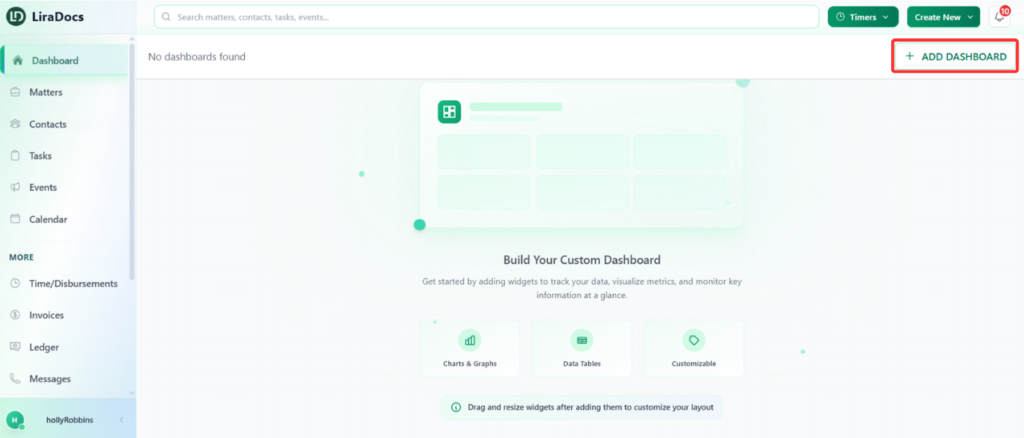
You can delete a matter in Liradocs when it is no longer required or was created by mistake. Deleted matters are not permanently removed immediately, they are moved to the Deleted section, where they can still be viewed using filters.

Follow the steps below to delete a matter.

Step 1: Go to the Matters Section

  1. Open Liradocs.

  2. Click on the Matters tab from the main navigation menu.

Step 2: Open the Matter
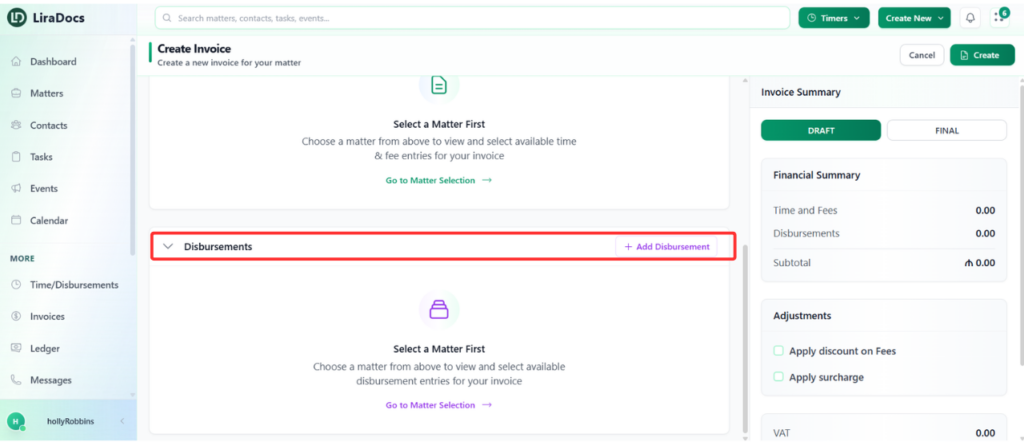
  1. From the list of matters, locate the matter you want to delete.

  2. Click on the matter to open its details.

Step 3: Select Delete Matter
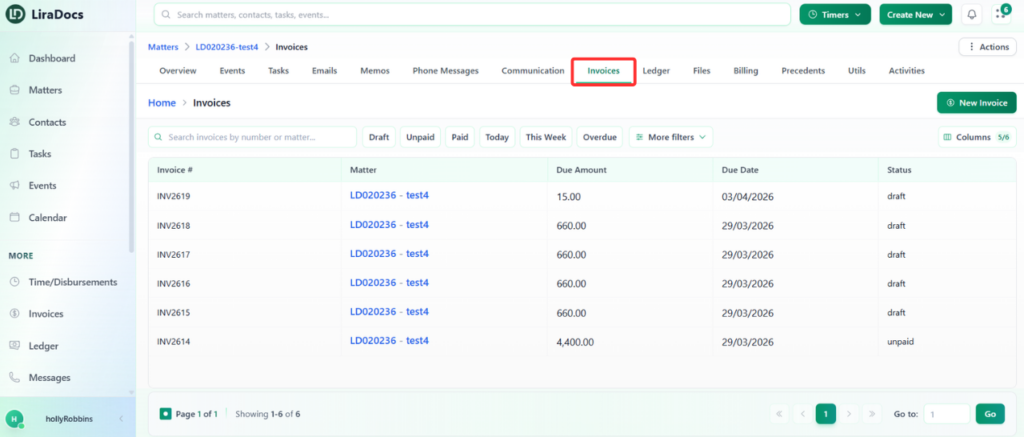
  1. Click the Actions button inside the matter page.
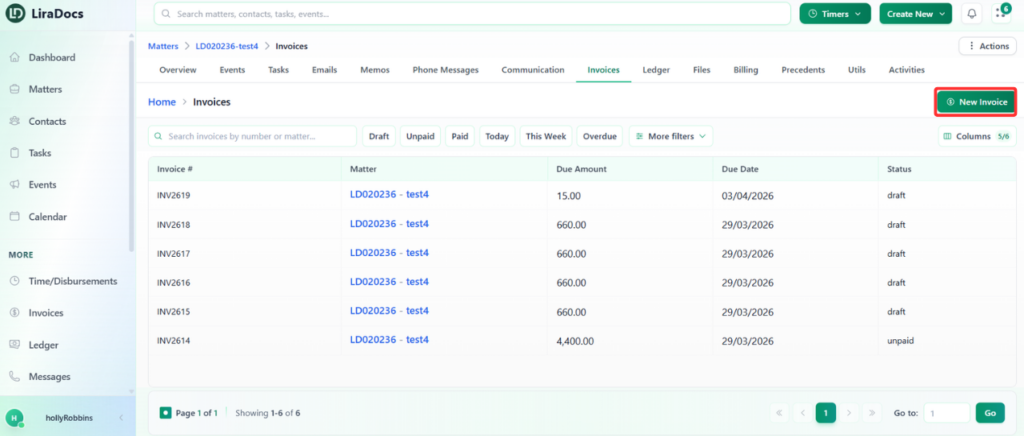
  2. From the dropdown menu, select Delete Matter.

Step 4: Confirm the Deletion

  1. A confirmation prompt will appear.

  2. Type delete in the confirmation field.

  3. Click the Delete button to complete the action.

Step 5: View Deleted Matters

  1. Go back to the Matters list.

  2. Apply the Deleted filter.

  3. The deleted matter will now appear in the Deleted section.
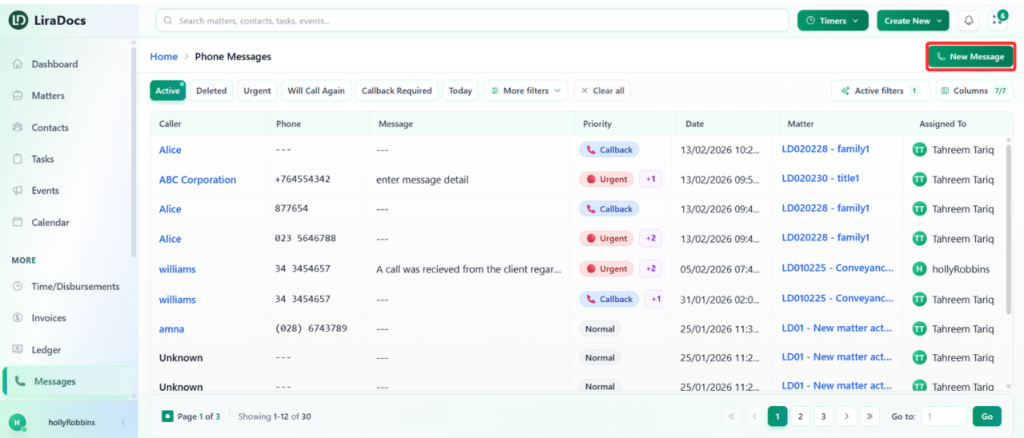
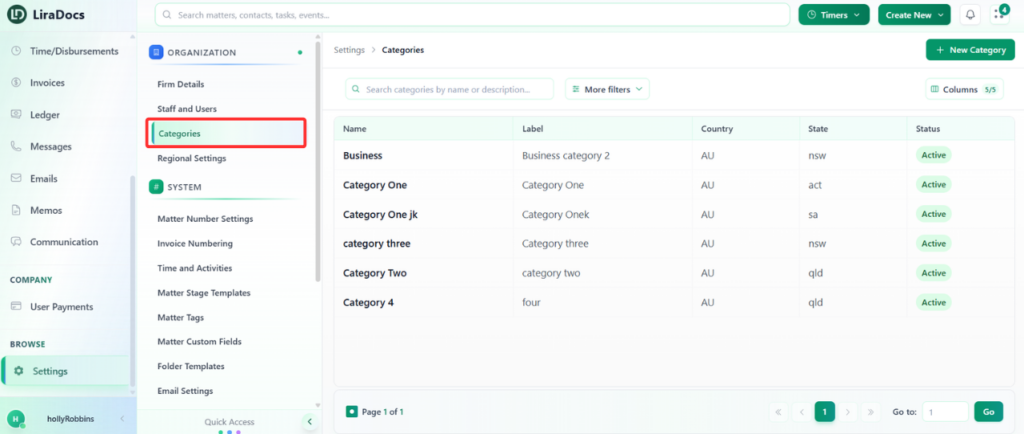
Deleting matters helps keep your workspace organized while still allowing you to track removed records through the deleted filter.